Overview
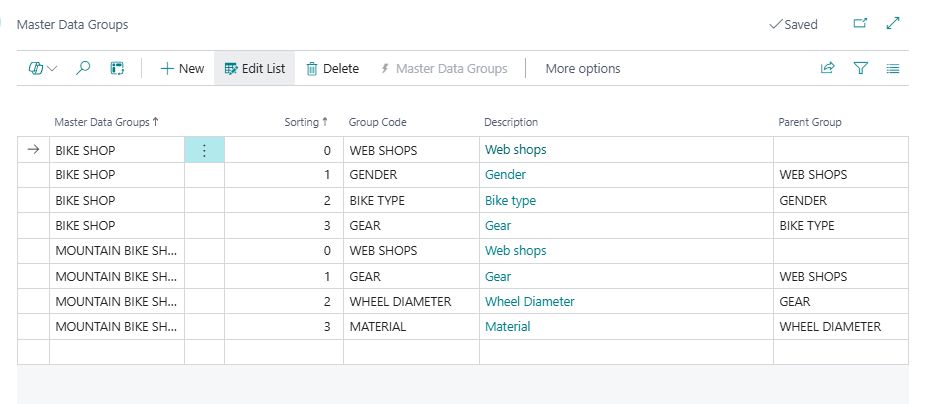
Master Data Groups defines the schema of the MDI hierarchy — which Information Codes form the hierarchy levels and in what sequence. Each row in this list declares one level within one hierarchy tree. The combination of Master Data Groups (top-level value) and Sorting uniquely identifies each level, and together the rows for one top-level value form a complete ordered sequence from root to leaf.
This is a prerequisite configuration page. Nothing in the hierarchy system — not the Master Data Relations, not the Suggest Master Data Relations function, not the automatic item placement — can work correctly unless this schema is defined first.
When Is This Page Used
This page is opened when setting up the hierarchy for the first time, defining which MDI attribute types (Information Codes) should form the levels of the classification tree and in what order. It is also returned to when the hierarchy needs to be extended with a new level or restructured — for example, adding a fourth level below an existing three-level hierarchy.
Who Are Typical Users
Implementation consultants configuring the MDI hierarchy during initial setup. System administrators extending or restructuring the hierarchy schema.
Accessing the Page
This page has no UsageCategory and is not searchable from the BC search bar. It is accessed via:
- Master Data Hierarchy page → Master Data Groups action.
- Master Data Relations page → Master Data Groups action.
Page Components
List Fields
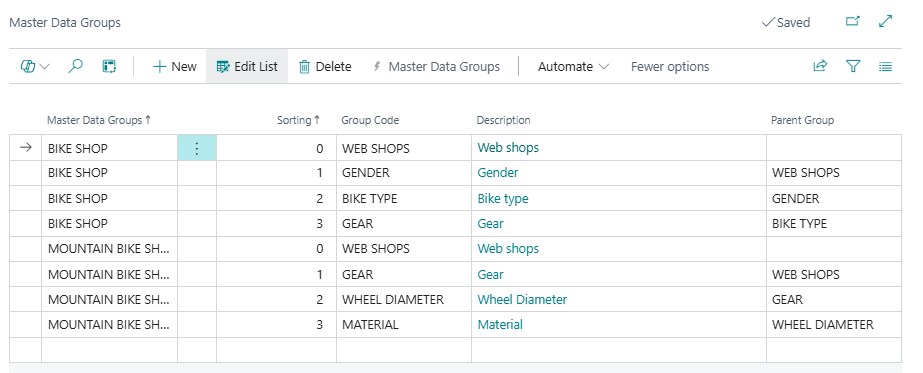
The table is keyed by Web Shop + Sorting, meaning the rows for each hierarchy tree are grouped together and ordered by their sorting number.
| Field | Purpose | Example | Key Information |
|---|---|---|---|
| Master Data Groups | The top-level value that identifies which hierarchy tree this row belongs to. Despite the column label in the page layout, the underlying field is named Web Shop in the table. Its value must be a valid Information Value under the Information Code defined as Master Data Group Top Level in Master Data Information Setup. | BIKE SHOP |
Lookup-enabled: the lookup filters to Information Values under the Master Data Group Top Level Information Code. Together with Sorting, this is the primary key. All rows sharing the same value here belong to the same hierarchy tree. |
| Sorting | The position of this level within its hierarchy tree. Sorting 0 is always the root level; 1 is the next level down; 2 the level below that; and so on. |
1 |
Integer. Levels must be defined in a contiguous sequence starting from 0 — there must be a Sorting 0 row before a Sorting 1 row can be inserted (the system validates this on insert and modify). The Parent Group is automatically calculated from the row at Sorting − 1 for the same top-level value. |
| Group Code | The Information Code (MDI attribute type) that provides the values at this hierarchy level. For the root level (Sorting = 0), this is automatically set to the Master Data Group Top Level Information Code defined in Master Data Information Setup and cannot be changed manually. For all other levels, this is set by the user. | GENDER |
Linked to the Information Code table. Validates that the entered code exists. This is the code whose Information Values become the nodes at this level in Master Data Relations. |
| Description | The description of the Group Code's Information Code record. | Gender |
Read-only FlowField — looked up directly from the Information Code table. Always current; no manual refresh needed. |
| Parent Group | The Group Code of the level immediately above this one in the hierarchy. Calculated and stored automatically on insert and modify. | WEB SHOPS |
Read-only (Editable = false). For Sorting = 0, this is blank (no parent). For all other levels, it is the Group Code of the row at Sorting − 1 for the same top-level value. |
Actions
| Action | What It Does | When to Use | Prerequisites |
|---|---|---|---|
| Master Data Groups | Navigates to this same page (self-referential action). Present in the promoted action bar. | Not typically used directly — this action is a promoted shortcut that opens the page itself. | None. |
Key Behaviours
Sorting 0 is the root and its Group Code is fixed. When a row with Sorting = 0 is inserted or modified, the system automatically sets Group Code to the Master Data Group Top Level value from Master Data Information Setup. This cannot be overridden — the root level always corresponds to the top-level Information Code, and its values in Master Data Relations define the separate hierarchy trees (one per top-level Information Value). If Master Data Group Top Level is not defined in setup, inserting a Sorting = 0 row raises an error: "Master Data Group Top Level is not defined in the Master Data Information Setup."
Levels must be defined in contiguous order. When inserting a row with Sorting = 1, the system looks for an existing row with Sorting = 0 for the same top-level value and uses its Group Code as the Parent Group. If no such row exists, the insert fails with: "Master Data Group with Top Level [value] and Sorting [n] could not be found." This means levels cannot be skipped — you must define level 0, then level 1, then level 2 in sequence.
Parent Group is always auto-derived. The Parent Group field is calculated automatically on every insert and modify — it is always the Group Code of the row at Sorting − 1 for the same top-level value. It cannot be set manually and reflects the current state of the rows above it in the sequence.
Deletion is blocked when Master Data Relations exist. A row cannot be deleted if Master Data Relations records exist that reference the same combination of top-level value and Group Code. The error message is: "You can not delete Master Data Group when Master Data Relations for Top Level Value [value], Group Code [code] exist." The relations must be removed first (via Remove Empty Master Data Relations on the hierarchy pages, or manually) before the group level can be deleted.
One hierarchy tree per top-level value. Each distinct Master Data Groups (Web Shop) value defines one independent hierarchy tree. A company managing products for multiple channels or brands can maintain separate hierarchies (e.g. BIKE SHOP, ACCESSORIES SHOP) by creating separate sets of rows under each top-level value, each with their own sequence of levels and Group Codes.
The field caption "Master Data Groups" is the column header for the Web Shop field. The underlying field is named Web Shop in the table (a legacy name from an earlier implementation), but the page displays it with the caption Master Data Groups. This discrepancy is visible if the field is referenced in filters or personalisation — the technical field name is Web Shop.
Default Setup
The demo data setup creates the following Master Data Groups for the BIKE SHOP hierarchy, which illustrates a four-level structure:
| Master Data Groups | Sorting | Group Code | Parent Group |
|---|---|---|---|
BIKE SHOP |
0 |
WEB SHOPS |
(blank) |
BIKE SHOP |
1 |
GENDER |
WEB SHOPS |
BIKE SHOP |
2 |
BIKE TYPE |
GENDER |
BIKE SHOP |
3 |
GEAR |
BIKE TYPE |
This defines a hierarchy where items are classified first by Gender, then by Bike Type within each gender, then by Gear specification within each bike type. The top-level value BIKE SHOP is an Information Value under the WEB SHOPS Information Code, which is set as the Master Data Group Top Level in demo setup.
Related Pages
| Page | Relationship |
|---|---|
| Master Data Information Setup | Must have Master Data Group Top Level defined before any Master Data Groups rows can be inserted at Sorting = 0. This setting identifies the root Information Code for all hierarchy trees. |
| Master Data Relations | Stores the actual parent-child relationships between Information Values that form the hierarchy content. Each Master Data Relations record must use a Group Code that exists in Master Data Groups. The Suggest Master Data Relations action on that page uses the Master Data Groups schema to auto-generate a complete set of relation records. Accessible via the Master Data Groups action on the relations page. |
| Master Data Hierarchy | The user-facing hierarchy view. The Master Data Groups action on that page opens this list. When the hierarchy is calculated, it reads the level schema from here to determine depth and level labels. |