Overview
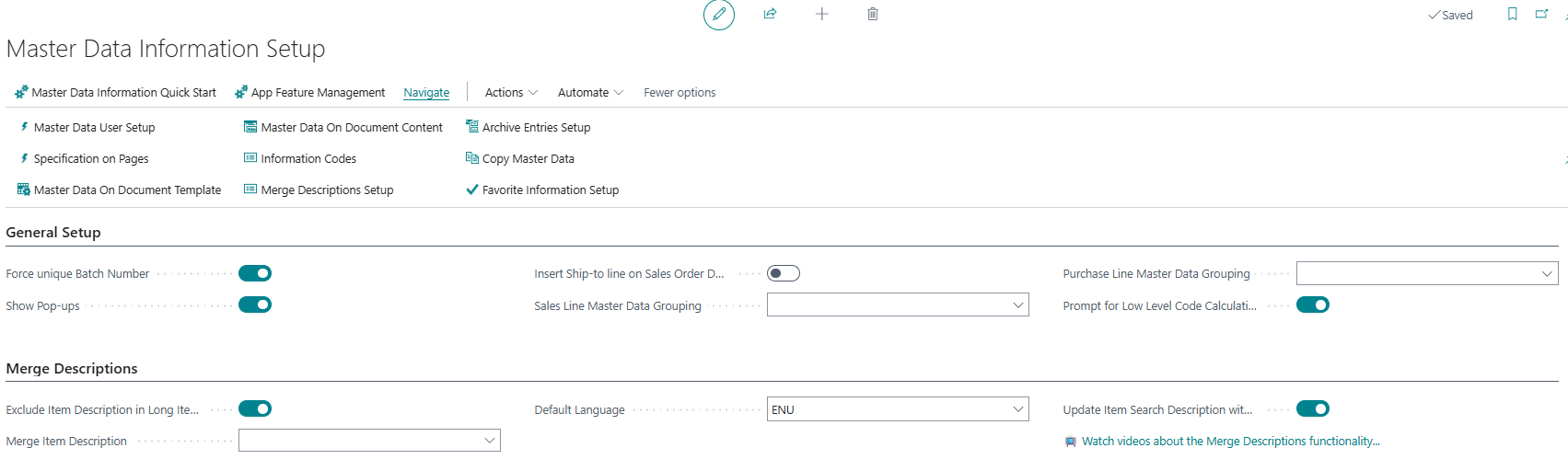
The Master Data Information Setup card is the central configuration page for the Master Data Information extension. It controls global behaviour that applies across the entire extension — including description merging, document integration, file storage connections, image display, hierarchy management, and variant handling. The page holds a single configuration record (a singleton) that is automatically initialised on first open if it does not yet exist. Because insert and delete are disabled, administrators can only modify the existing record; there is never more than one setup record in the system.
When Is This Page Used
This card is opened when administrators need to review or change any system-wide setting for the Master Data Information extension. It is also the primary navigation hub for reaching the extension's other configuration pages, such as Information Codes, Specification on Pages, Archive Entries Setup, Copy Master Data, and more. First-time setup typically starts here by launching the Master Data Information Quick Start guide.
Who Are Typical Users
- Master Data Administrator — configures global defaults for description merging, document behaviour, and file storage.
- System Administrator / IT — sets up Azure Blob Storage and SharePoint connections, manages file open behaviour, and runs maintenance actions.
- Implementation Consultant — uses this page as the starting point for configuring the extension during a project deployment.
Accessing the Page
The Master Data Information Setup page has UsageCategory = Administration and ApplicationArea = All, making it directly searchable from the Business Central search menu. It can also be accessed from:
| Source Page | Action Name |
|---|---|
| Business Central Search (Tell Me) | Search for Master Data Information Setup |
| Information Code List → Master Data Information Setup | Navigation action |
| Information Code Card → Master Data Information Setup | Navigation action |
| Information Setup (list) → Master Data Information Setup | Navigation action |
| Information Setup Card → Master Data Information Setup | Navigation action |
| Information Value List → Master Data Information Setup | Navigation action |
Page Components
General Setup FastTab
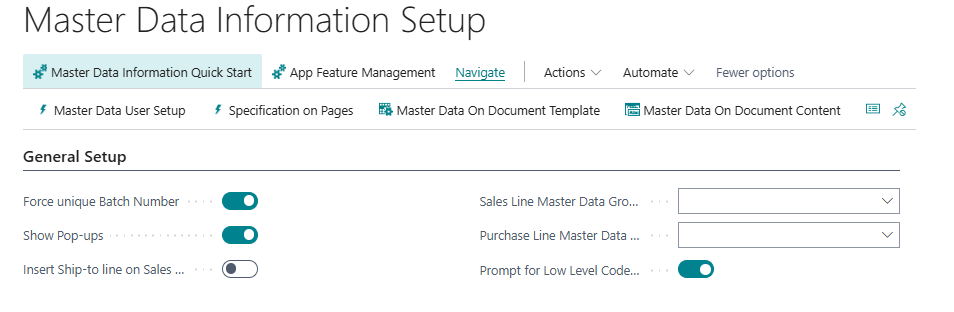
This FastTab controls core system-wide behaviours that apply across all master data processing and document workflows.
| Field | Purpose | Example | Key Information |
|---|---|---|---|
| Force unique Batch Number | When enabled, the system enforces that batch numbers are unique across all items, preventing the same batch number from being used on multiple items. | Yes / No |
Affects batch/lot number validation during item tracking entry. |
| Show Pop-ups | When enabled, informational pop-up messages are displayed to users during master data operations, such as when Information Values are automatically created or when cascade updates occur. | Yes / No |
Disable this in environments where experienced users find pop-ups disruptive. |
| Insert Ship-to line on Sales Order Documents | When enabled, a line containing the ship-to address information is automatically inserted into the Master Data on Documents output for sales order documents. | Yes / No |
Affects the content of the Master Data on Documents records generated for sales orders. |
| Sales Line Master Data Grouping | Specifies an Information Code used to group master data entries on sales document lines. | PRODUCT-GROUP |
Lookup from the SCB New Information Code table. Used to control how master data line items are grouped or categorised on sales documents. |
| Purchase Line Master Data Grouping | Specifies an Information Code used to group master data entries on purchase document lines. | PRODUCT-GROUP |
Lookup from the SCB New Information Code table. Functions identically to Sales Line Master Data Grouping but applies to purchase documents. |
| Prompt for Low Level Code Calculation | When enabled, the system asks the user to calculate the Low Level Code before running the Add Mark to Items in Hierarchy function. | Yes / No |
Defaults to Yes. Can be disabled here once administrators are comfortable running the hierarchy function without the prompt. Relates to the Master Data Hierarchy feature. |
Merge Descriptions FastTab
This FastTab controls how Information Code descriptions are merged into item descriptions. Settings here affect the Long Item Description and the item's standard Description and Description 2 fields.

| Field | Purpose | Example | Key Information |
|---|---|---|---|
| Exclude Item Description in Long Item Description | When enabled, the item's own native description is excluded when building the merged long description from Information Code values. | Yes / No |
Use this when the item description is redundant in the long description context, for example when the long description is constructed entirely from Information Code values. |
| Merge Item Description | Controls whether and how the item's Description or Description 2 field is automatically updated from the assembled master data description. | (blank), Merge Item Description, Merge Item Description 2 |
Three options: blank (no merging), Merge Item Description from Master Data Informations (updates the standard Description field), or Merge Item Description 2 from Master Data Informations (updates the Description 2 field). Selecting a non-blank value makes Update Item Translation visible. |
| Default Language | The language code used as the default when assembling merged descriptions if no user-specific language is set. | ENU, DAN |
Lookup from the BC Language table. Affects both description merging and the Update Description on Information Entries maintenance action. |
| Update Item Search Description with Long Item Description | When enabled, the item's Search Description field is automatically updated with the assembled long description whenever it changes. | Yes / No |
Improves search relevance when the long description contains information not present in the standard description. |
| Update Item Translation | When enabled, the Description or Description 2 in the Item Translation table is automatically merged and updated when Specifications in a given language are added to the item. | Yes / No |
Only visible when Merge Item Description is set to a non-blank value. Ensures translated descriptions stay in sync with master data specification changes. |
| 📺 Watch videos about the Merge Descriptions functionality... | A hyperlink that opens the Merge Descriptions video library at https://usedynamics.com/master-data/merged-descriptions/. |
— | Click to open the external link in a browser. No caption is shown for this field — only the link text. |
Master Data on Documents FastTab
This FastTab controls the behaviour of the Master Data on Documents feature, which automatically populates document lines with information from master data records.

| Field | Purpose | Example | Key Information |
|---|---|---|---|
| Auto delete Report Master Data | When enabled, existing Master Data on Documents lines are automatically deleted and regenerated each time the document is opened or refreshed, ensuring the content always reflects the current master data. | Yes / No |
Use with caution in environments where document lines have been manually edited, as enabling this will discard manual changes on each refresh. |
| Auto copy Item Tracking Lines to Document Lines | Controls whether item tracking lines (lot/serial/package numbers) are automatically copied to document lines when they are recorded. | No, Yes, Prompt for Copying |
Three options: No (no automatic copy), Yes (copy silently), Prompt for Copying (ask user each time). |
| 📺 Watch videos about the Master Data on Documents functionality... | A hyperlink that opens the Master Data on Documents video library at https://usedynamics.com/master-data/data-tables/. |
— | Click to open the external link in a browser. |
Variants FastTab
This FastTab contains settings specific to the Item Variant Handling feature. It is only visible when the Item Variant Handling feature has been enabled via the App Feature Management page.

| Field | Purpose | Example | Key Information |
|---|---|---|---|
| Variant Matrix Column Code | Specifies the Information Code used to define the columns in the variant matrix (e.g., sizes). | SIZE |
Lookup from the SCB New Information Code table. Determines which dimension is displayed as columns in the item variant matrix view. |
| Auto update price from Style Master | When enabled, prices on variant items are automatically updated from the style master item when the style master price changes. | Yes / No |
Defaults to Yes. Disable if variant prices should be managed independently from the style master. |
| Block for edit QTY on Style master order lines | When enabled, users cannot manually change quantities on style master order lines, enforcing that quantities are derived from the variant matrix only. | Yes / No |
Prevents accidental quantity overrides on style master lines when using the variant matrix ordering workflow. |
Master Data Hierarchy FastTab
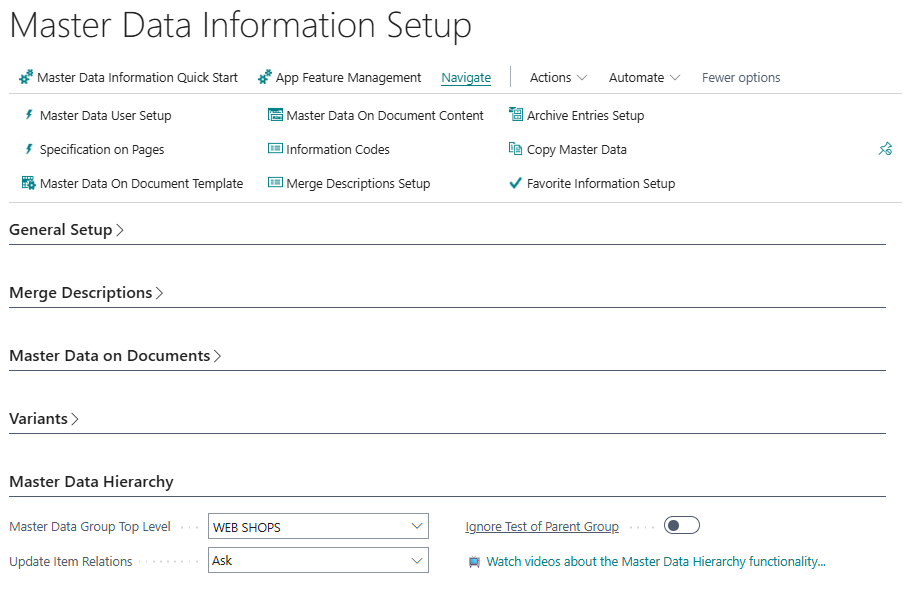
This FastTab controls settings for the Master Data Hierarchy feature, which defines parent-child relationships between items and master data groups.
| Field | Purpose | Example | Key Information |
|---|---|---|---|
| Master Data Group Top Level | Specifies the Information Code that represents the top level of the Master Data Hierarchy. | BRAND, PRODUCT-TYPE |
Lookup from the SCB New Information Code table. This code defines the root of the hierarchy tree used in the Master Data Hierarchy pages. |
| Update Item Relations | Controls whether item relations (links between items based on hierarchy) are automatically updated when opening the Master Data Hierarchy page. | (blank), Never, Ask, Always |
Four options: blank (no specific behaviour), Never (never update automatically), Ask (prompt the user each time), Always (update silently without prompting). Defaults to Ask. |
| Ignore Test of Parent Group | When enabled, the system skips the validation that checks whether the parent group is exactly one level above the current group in the hierarchy. | Yes / No |
Useful in implementations where the hierarchy structure does not enforce strict single-level parent-child relationships. |
| 📺 Watch videos about the Master Data Hierarchy functionality... | A hyperlink that opens the Master Data Hierarchy video library at https://usedynamics.com/master-data/item-hierarchies-intro/. |
— | Click to open the external link in a browser. |
Image Handling FastTab
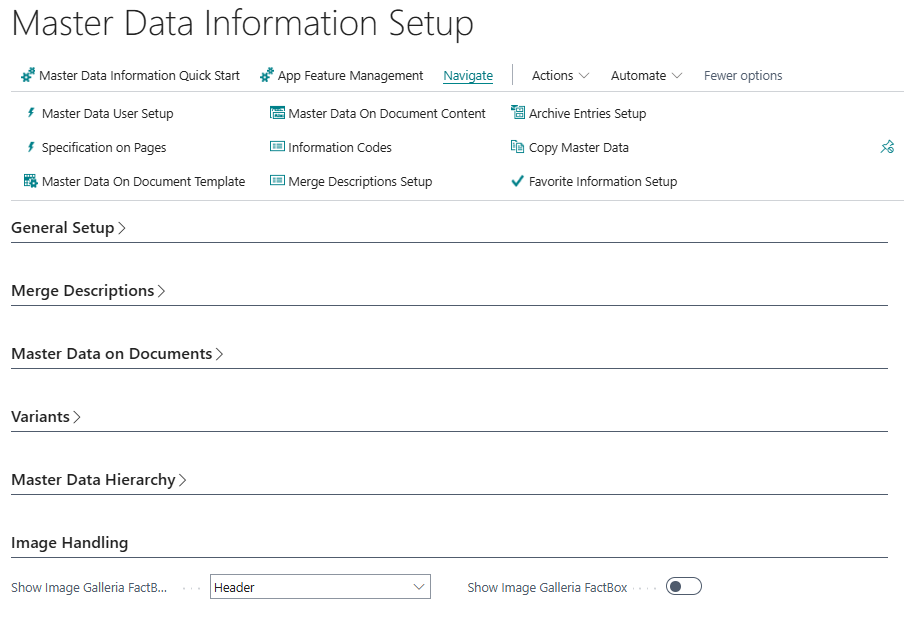
This FastTab controls how the Image Galleria FactBox is displayed on item and document pages.
| Field | Purpose | Example | Key Information |
|---|---|---|---|
| Show Image Galleria FactBox Depending On | Specifies whether the image gallery on document pages draws images from the document header record, the document line records, or both. | Header, Line, Both |
Three options. On sales orders, Header shows images from the customer's master data, Line shows images from line items, Both shows all. Defaults to Line. |
| Show Image Galleria FactBox | When enabled, the Image Galleria FactBox is displayed on the Item List, Item Card, and Sales Order pages, showing files attached to Specifications. | Yes / No |
Requires images or files to be attached to Information Values in the Specifications of the relevant records for the FactBox to display content. |
File Storage FastTab
This FastTab configures where attached files and images are stored and how they are opened. It contains mutually exclusive connection groups for Azure Blob Storage and SharePoint, as well as a general file behaviour setting.
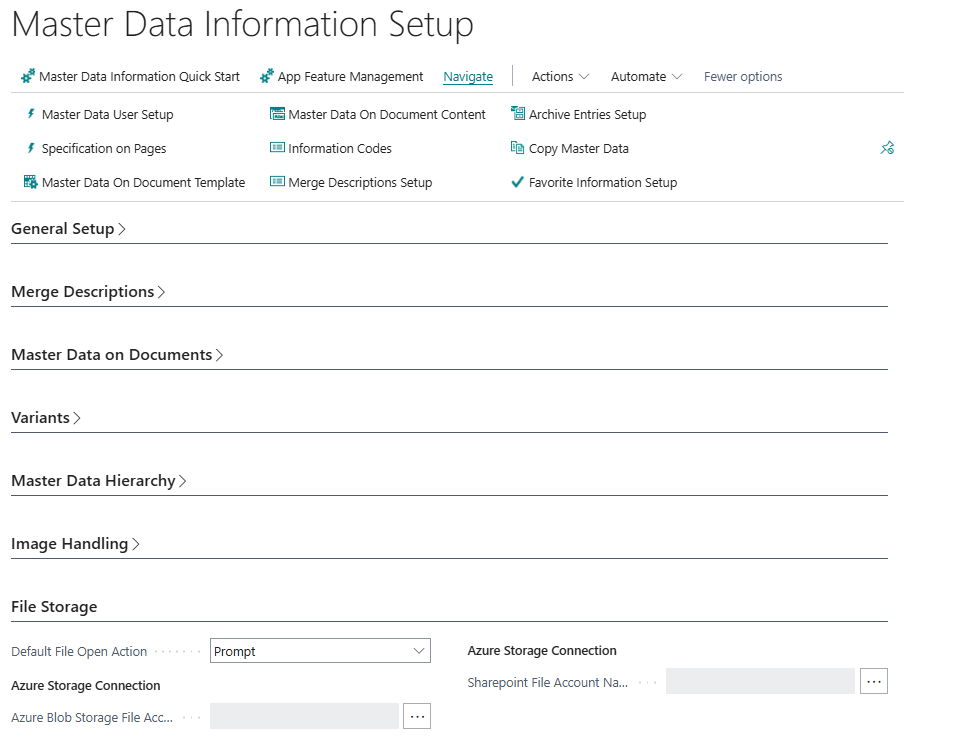
General
| Field | Purpose | Example | Key Information |
|---|---|---|---|
| Default File Open Action | Controls the default action when a user clicks on an attachment or file placement link in the extension. | Database, Prompt, Upload to Azure Blob Storage, Select from Azure Blob Storage, Upload to Sharepoint, Select from Sharepoint, Public Url, Private Url to Azure Storage |
Eight options. Database (default) stores files directly in Business Central. Prompt asks the user each time. The Azure and SharePoint options integrate with external storage. Public Url and Private Url to Azure Storage display URL-linked files. |
Azure Storage Connection
The Azure Blob Storage connection section adapts based on whether the BC External File Account feature is enabled for Azure Blob Storage. When enabled, the connection is managed via a named file account (modern approach). When not enabled, direct connection string fields are shown (legacy approach).
Modern (External File Account enabled):
| Field | Purpose | Key Information |
|---|---|---|
| Azure Blob Storage File Account Name | Displays the name of the configured Azure Blob Storage External File Account. Read-only. | Click the assist-edit button to select a file account from the BC File Accounts page. Only accounts using the Blob Storage connector (value 4560) are accepted. |
Legacy (External File Account not enabled):
| Field | Purpose | Key Information |
|---|---|---|
| Azure Blob Storage Access Type | Specifies which authentication method is used to connect to Azure Blob Storage. | Options: Access Key Connection String or Shared Access Signature. Determines which credential fields are displayed below. |
| Azure Blob Storage Access Key | The Access Key connection string from the Azure Portal Storage Account. | Only visible when Access Type = Access Key Connection String. Masked field — value is stored encrypted. Retrieve from your Azure Portal → Storage Account → Access Keys. |
| Azure Blob Storage Shared Access Signature | The Shared Access Signature connection string from the Azure Portal. | Only visible when Access Type = Shared Access Signature. Masked field — stored encrypted. |
| Default Azure Blob Storage Container Name | The name of the Azure Blob Storage container where files will be uploaded to or selected from. | Containers are created in the Azure Portal. A container organises blobs similarly to a directory in a file system. |
| SAS Token For Private Urls | A Shared Access Signature URI that grants restricted access to a specific Azure Storage container, enabling private URL-based file access. | Masked field. Configured in the Azure Portal. Used when Default File Open Action = Private Url to Azure Storage. |
SharePoint Connection
Similarly to Azure Blob Storage, the SharePoint section adapts based on whether the BC External File Account feature is enabled for SharePoint.
Modern (External File Account enabled):
| Field | Purpose | Key Information |
|---|---|---|
| Sharepoint File Account Name | Displays the name of the configured SharePoint External File Account. Read-only. | Click the assist-edit button to select a file account from the BC File Accounts page. Only accounts using the SharePoint connector (value 4580) are accepted. |
Legacy (External File Account not enabled):
| Field | Purpose | Key Information |
|---|---|---|
| Sharepoint Url | The full URL of the SharePoint site used for file storage. | Note: SharePoint integration does not work if multi-factor authentication is required for the SharePoint site. |
| Sharepoint Access Type | Specifies the authentication method for SharePoint. | Options: Username/Password or OAuth. Determines which credential fields are shown below. |
| Sharepoint User Name | The account used by Business Central to log on to SharePoint. | Only visible when Access Type = Username/Password. |
| Sharepoint Password | The password for the SharePoint account. | Only visible when Access Type = Username/Password. Masked field — stored encrypted. |
| Client ID | The OAuth client ID for the SharePoint app registration. | Only visible when Access Type = OAuth. Obtained from the Azure AD app registration for the SharePoint integration. |
| Client Secret | The OAuth client secret for the SharePoint app registration. | Only visible when Access Type = OAuth. Masked field. |
| Default Sharepoint Folder | The default folder path within SharePoint where files will be stored. | Specifies the document library path relative to the SharePoint site URL. |
Actions
Processing
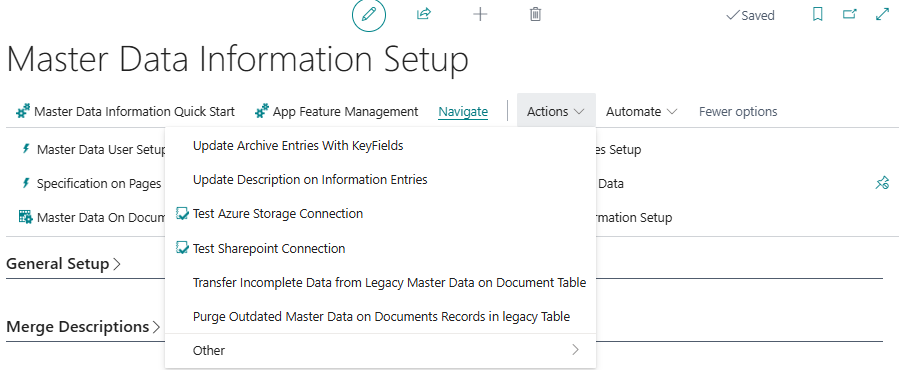
| Action | What It Does | When to Use | Prerequisites |
|---|---|---|---|
| Master Data Information Quick Start | Opens the Master Data Information Quick Start guide page, which walks through the initial configuration steps for the extension. | Use during first-time setup or to review the getting-started flow. | None. |
| App Feature Management | Opens the App Feature Management page (from the Abakion App Manager dependency), which allows enabling or disabling optional feature modules such as Item Variant Handling. | Use to activate or deactivate optional features without uninstalling the extension. | Abakion App Manager core dependency must be installed. |
| Update Archive Entries With KeyFields | Updates the KeyFields field values in all existing Archive Entries to ensure they reflect the current key field structure. | Run this maintenance action after upgrading the extension or if archive entries are missing key field data. | Existing archive entry records must be present. |
| Update Description on Information Entries | Rebuilds the Description field on all Information Entries based on the current Default Language setting. | Run after changing the Default Language, or after modifying description templates, to ensure all entry descriptions are consistent. | Default Language should be set correctly before running. |
| Test Azure Storage Connection | Validates the Azure Blob Storage connection using the credentials configured in the File Storage FastTab and reports success or failure. | Run after entering or changing Azure Blob Storage credentials to confirm the connection works before using file storage. | Azure Blob Storage connection fields must be filled in. |
| Test Sharepoint Connection | Validates the SharePoint connection using the credentials configured in the File Storage FastTab and reports success or failure. | Run after entering or changing SharePoint credentials to confirm the connection works. | SharePoint connection fields must be filled in. |
| Transfer Incomplete Data from Legacy Master Data on Document Table | Copies records that exist in the legacy SCB Master Data on Documents table but are missing from the current SCB MDI On Documents table, ensuring data consistency after a table migration. | Run during or after upgrading from an older version of the extension where the Master Data on Documents table was redesigned. Only visible on Business Central versions earlier than 27.4. | Legacy data must exist in the old table. |
| Purge Outdated Master Data on Documents Records in Legacy Table | Deletes all records from the legacy SCB Master Data on Documents table to free up database space after migration is complete. | Run after verifying that the Transfer Incomplete Data action has successfully migrated all needed records and the legacy table is no longer required. Requires that table synchronisation is switched off. Only visible on Business Central versions earlier than 27.4. | The legacy-to-new table sync must be disabled. User must confirm the deletion. |
| Master Data Demo Setup | Loads a predefined set of demo data based on a fictional Dynus Bikes dataset, creating sample Information Codes, values, and entries across several tables. | Use in sandbox or demonstration environments to populate the extension with example data for presentations or training. Only visible if the Dynus Bikes demo app is installed. | Dynus Bikes demo app must be installed. User must confirm twice before data is created. |
Navigate
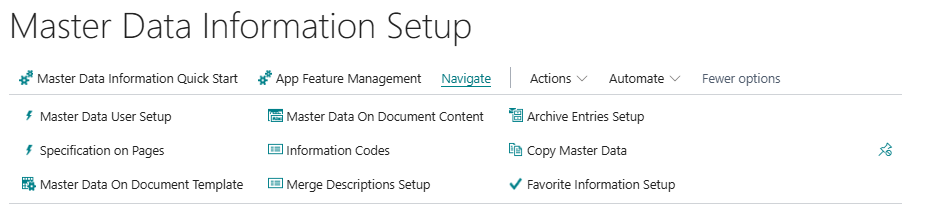
| Action | What It Does |
|---|---|
| Master Data User Setup | Opens the Master Data User Setup page for configuring per-user settings within the extension. |
| Specification on Pages | Opens the Specification on Pages list, where custom specification fields on card and document pages are mapped to Information Codes. |
| Master Data On Document Template | Opens the Master Data on Doc. Template list for managing document section templates. |
| Master Data On Document Content | Opens the Master Data on Doc. Content list for managing the Information Codes included in each document section template. |
| Information Codes | Opens the Information Code List page. |
| Merge Descriptions Setup | Opens the Description Setup page for managing description assembly templates. |
| Archive Entries Setup | Opens the Master Data Archive Setup page for configuring which Information Codes are logged when master data changes. |
| Copy Master Data | Opens the Copy Master Data Action page for configuring default data copying rules. |
| Favorite Information Setup | Opens the Favorite Information page for managing favourite Information Code configurations. |
Default Setup & Templates
The setup record is initialised automatically by the Initialize() procedure the first time the page is opened. The following default values are applied if the record does not yet exist:
| Field | Default Value |
|---|---|
| Default File Open Action | Database |
| Show Image Galleria FactBox Depending On | Line |
All other fields default to blank or No (Boolean false). No Information Codes, templates, or content records are created by this initialisation — only the single setup row is inserted with the two non-blank defaults.