Overview
The Master Data on Doc. Template page defines the individual template records that control how a specific section of a document — header, line, footer, or item tracking — is populated with master data information. Each record specifies which master data Table (Customer, Vendor, Item, etc.) is the source of the information, which document Type the template covers, and a set of transfer and print behaviour flags that govern what happens to the information during document posting, transfer, and printing. These individual templates are then combined into a Master Data Doc. Template (which groups a header, line, footer, and optional item tracking template into a single named document package) and assigned to specific document types via the Master Data on Document Setup page.
Understanding this page is essential for configuring the Master Data on Documents feature from the ground up, as it sits at the centre of the template hierarchy.

When Is This Page Used
This list page is used during the initial setup of the Master Data on Documents feature and whenever a new section template needs to be created or modified. Administrators open it to define how individual sections of a document should handle master data information — for example, to specify that the sales line section should pull item data, include the report description, and transfer the information to production orders when exploded. It is also opened directly from the Master Data Doc. Template page via the Open Master Data Header/Line/Footer/Item Tracking Template actions, which pre-filter the list to show only templates of the relevant type.
Who Are Typical Users
- Master Data Administrator — creates and maintains section templates and configures transfer and print behaviour to match the organisation's document workflow.
- Implementation Consultant — sets up the full template hierarchy during project deployment, starting with these individual section templates before grouping them in the Master Data Doc. Template page.
- System Administrator — reviews or adjusts template settings when master data information is not appearing on documents or not being transferred correctly during posting.
Accessing the Page
The Master Data on Doc. Template page has UsageCategory = Administration and ApplicationArea = All, making it directly searchable from the Business Central search menu. It can also be reached from the following locations:

| Source Page | Action Name | Filter Applied |
|---|---|---|
| Business Central Search (Tell Me) | Search for Master Data on Doc. Template |
None — all records shown |
| Information Code List → Master Data On Document Template | Navigation action | None |
| Information Code Card → Master Data On Document Template | Navigation action | None |
| Master Data Doc. Template → Open Master Data Header Template | Navigation action | Type = Header |
| Master Data Doc. Template → Open Master Data Line Template | Navigation action | Type = Line |
| Master Data Doc. Template → Open Master Data Footer Template | Navigation action | Type = Footer |
| Master Data Doc. Template → Open Master Data Serial Number Tracking Template | Navigation action | Type = Item Tracking, Master Data Table = Serial No. Information |
| Master Data Doc. Template → Open Master Data Lot Number Tracking Template | Navigation action | Type = Item Tracking, Master Data Table = Lot No. Information |
| Master Data Doc. Template → Open Master Data Package Number Tracking Template | Navigation action | Type = Item Tracking, Master Data Table = Package No. Information |
When opened from the Master Data Doc. Template page, the list is pre-filtered to the relevant type, and any new records inserted while the page is open are automatically assigned that type via the OnInsertRecord trigger.
Template Hierarchy
This page sits at level three of a four-level configuration hierarchy for the Master Data on Documents feature:
- Master Data on Document Setup — assigns which document template applies to a given sales/purchase/production document type (and optionally a specific customer or vendor).
- Master Data Doc. Template — groups individual section templates (header, line, footer, item tracking) under one named document template code.
- Master Data on Doc. Template (this page) — defines the behaviour and source table for each individual section template.
- Master Data on Doc. Content — specifies which Information Codes are included within each section template and how they are formatted.
Page Components
Fields
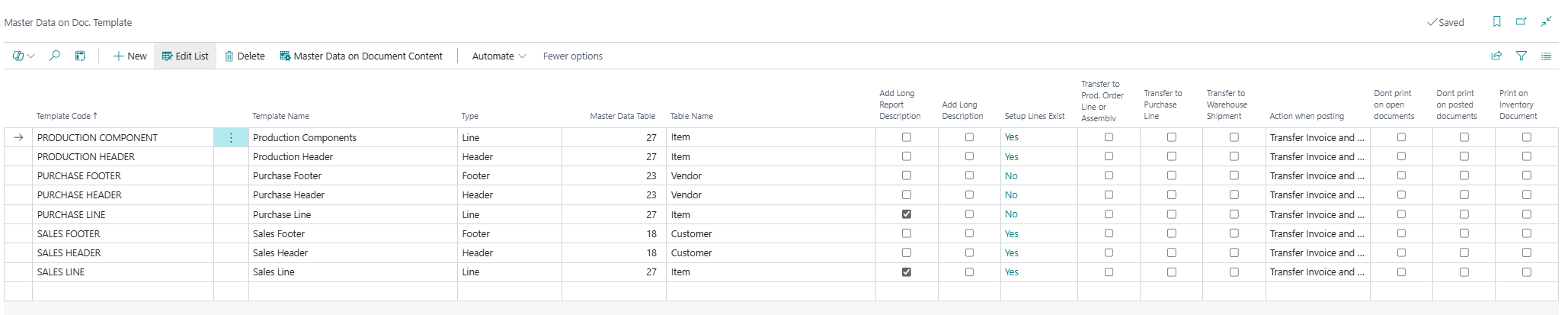
| Field | Purpose | Example | Key Information |
|---|---|---|---|
| Template Code | The unique identifier for this section template. | SALES HEADER, SALES LINE, PURCHASE FOOTER |
Up to 20 characters. Used as a reference key in the Master Data Doc. Template (fields: Master Data Header, Master Data Line, Master Data Footer, Master Data Item Tracking). |
| Template Name | A descriptive label for the template. | Sales Header, Production Components |
Up to 50 characters. For display purposes only. |
| Type | Defines which section of a document this template covers. | Header, Line, Footer, Item Tracking |
Four options are available. The Type determines where on the document the information block appears. When the page is opened from a Master Data Doc. Template action, new records are automatically assigned the corresponding type. |
| Master Data Table | The integer ID of the Business Central table that is the source of master data information for this template section. | 18 (Customer), 23 (Vendor), 27 (Item) |
Entered as a table number. The resolved table name is shown in the adjacent Table Name field. Setting this to a table other than 27 (Item) will automatically clear Add Long Description and prevents it from being re-enabled, as long descriptions are only supported for items. |
| Table Name | The display name of the table specified in Master Data Table. | Customer, Item, Vendor |
Read-only, calculated at runtime by resolving the table number to its name via RecordRef. Not stored in the table. |
| Add Long Report Description | When enabled, the item's long report description is included in the master data information output for this template section. | Yes / No |
Only applicable when Master Data Table = 27 (Item). The system raises an error if this is enabled for any other table. |
| Add Long Description | When enabled, the item's long description is included in the master data information output for this template section. | Yes / No |
Only applicable when Master Data Table = 27 (Item). Setting Master Data Table to a non-item table automatically clears this field. The system raises an error if an attempt is made to enable it for a non-item table. |
| Setup Lines Exist | Indicates whether at least one content line has been configured in the Master Data on Doc. Content table for this template. | Yes / No |
Read-only FlowField. A template with no content lines will produce no output on the document. Use the Master Data on Document Content action to add content lines. |
| Transfer to Prod. Order Line or Assembly Order | When enabled, master data information on a sales line using this template is automatically copied to the corresponding Production Order line or Assembly Order when one is created from the sales document. | Yes / No |
Applies to Line-type templates only. |
| Transfer to Purchase Line | When enabled, master data information on a sales line using this template is automatically transferred to the corresponding Purchase Line when a Special Order or Drop Shipment is created from the sales document. | Yes / No |
Applies to Line-type templates only. |
| Transfer to Warehouse Shipment | When enabled, master data information is transferred from the order to the corresponding Warehouse Document (e.g., Warehouse Shipment or Pick) when it is created. | Yes / No |
The field is internally named Transfer to Warehouse Document in the table but labelled Transfer to Warehouse Shipment in the UI, allowing the label to be updated if the behaviour is extended. |
| Action when posting | Controls which posted document types receive the master data information when the source document is posted. | No Transfer, Transfer Invoice only, Transfer Shipment or Receipt only, Transfer Invoice and Shipment or Receipt, Transfer Credit Memo, Transfer Invoice and Credit Memo and Shipment or Receipt |
Applies to all template types. Use No Transfer if the information should remain only on the open document and not be carried to any posted document. The remaining options determine whether the information is copied to the invoice, shipment/receipt, credit memo, or combinations of these. |
| Dont print on open documents | When enabled, master data information from this template is suppressed when printing the open (unposted) document. | Yes / No |
Use this when the information should only appear on posted documents (e.g., invoices and delivery notes) and not on order confirmations or quotes. |
| Dont print on posted documents | When enabled, master data information from this template is suppressed when printing the posted document (Invoice, Credit Memo, Shipment, or Receipt). | Yes / No |
Use this when the information should only appear on open documents and not be reproduced on the posted output. |
| Print on Inventory Document | When enabled, master data information from this template is included when printing a Pick Instruction (inventory document). | Yes / No |
Use this when warehouse staff need to see item-specific master data attributes on picking documents. |
Actions
| Action | What It Does | When to Use | Prerequisites |
|---|---|---|---|
| Master Data on Document Content | Opens the Master Data on Doc. Content page, filtered to show only the content lines belonging to the currently selected template. | Use to add, review, or modify the Information Codes included in this template section. This is where the actual content of the template is defined — the template record itself only controls behaviour flags. | A template record must be selected. |
Default Setup & Templates
The DefaultSetup procedure in the source table creates the following eight standard section templates, along with matching Master Data Doc. Template groupings and Master Data on Document Setup records. This routine is available as a manual trigger — it does not run automatically on installation. If records already exist when it is run, the user is prompted to choose between cancelling, replacing all existing data, or merging with existing records.
Default Section Templates (Master Data on Doc. Template)
| Template Code | Template Name | Type | Master Data Table | Add Long Report Description | Notes |
|---|---|---|---|---|---|
| SALES HEADER | Sales Header | Header | 18 — Customer | No | Source: customer data |
| SALES FOOTER | Sales Footer | Footer | 18 — Customer | No | Source: customer data |
| SALES LINE | Sales Line | Line | 27 — Item | Yes | Source: item data; long report description included |
| PURCHASE HEADER | Purchase Header | Header | 23 — Vendor | No | Source: vendor data |
| PURCHASE FOOTER | Purchase Footer | Footer | 23 — Vendor | No | Source: vendor data |
| PURCHASE LINE | Purchase Line | Line | 27 — Item | Yes | Source: item data; long report description included |
| PRODUCTION HEADER | Production Header | Header | 27 — Item | No | Source: item data |
| PRODUCTION COMPONENT | Production Components | Line | 27 — Item | No | Source: item data |
Default Master Data Doc. Templates (also created by DefaultSetup)
| Doc Template Code | Description | Header Template | Line Template | Footer Template |
|---|---|---|---|---|
| SALES ORDER | Sales Order | SALES HEADER | SALES LINE | SALES FOOTER |
| PURCHASE ORDER | Purchase Order | PURCHASE HEADER | PURCHASE LINE | PURCHASE FOOTER |
| PRODUCTION | Production | PRODUCTION HEADER | PRODUCTION COMPONENT | — |
Default Master Data on Document Setup Records (also created by DefaultSetup)
| Type | Document Type | Number | Doc Template |
|---|---|---|---|
| Sales | Quote | (blank — all customers) | SALES ORDER |
| Sales | Order | (blank — all customers) | SALES ORDER |
| Sales | Invoice | (blank — all customers) | SALES ORDER |
| Purchase | Quote | (blank — all vendors) | PURCHASE ORDER |
| Purchase | Order | (blank — all vendors) | PURCHASE ORDER |
| Purchase | Invoice | (blank — all vendors) | PURCHASE ORDER |
| Production | Production Order | (blank — all) | PRODUCTION |
Purpose of Default Templates
The default setup provides a complete, ready-to-use starting point that covers the three most common document workflows — sales, purchasing, and production. The section templates establish the correct source tables for each document section (customer data for header/footer, item data for lines), with long report descriptions enabled on item lines to ensure descriptive text is available for printing. The Doc. Template records group these sections into named packages, and the Document Setup records assign them as the universal default (blank Number) for all quotes, orders, and invoices across sales, purchase, and production workflows.
No Master Data on Doc. Content lines are created by the default setup — those must be configured separately to specify which Information Codes appear in each template section.