Overview
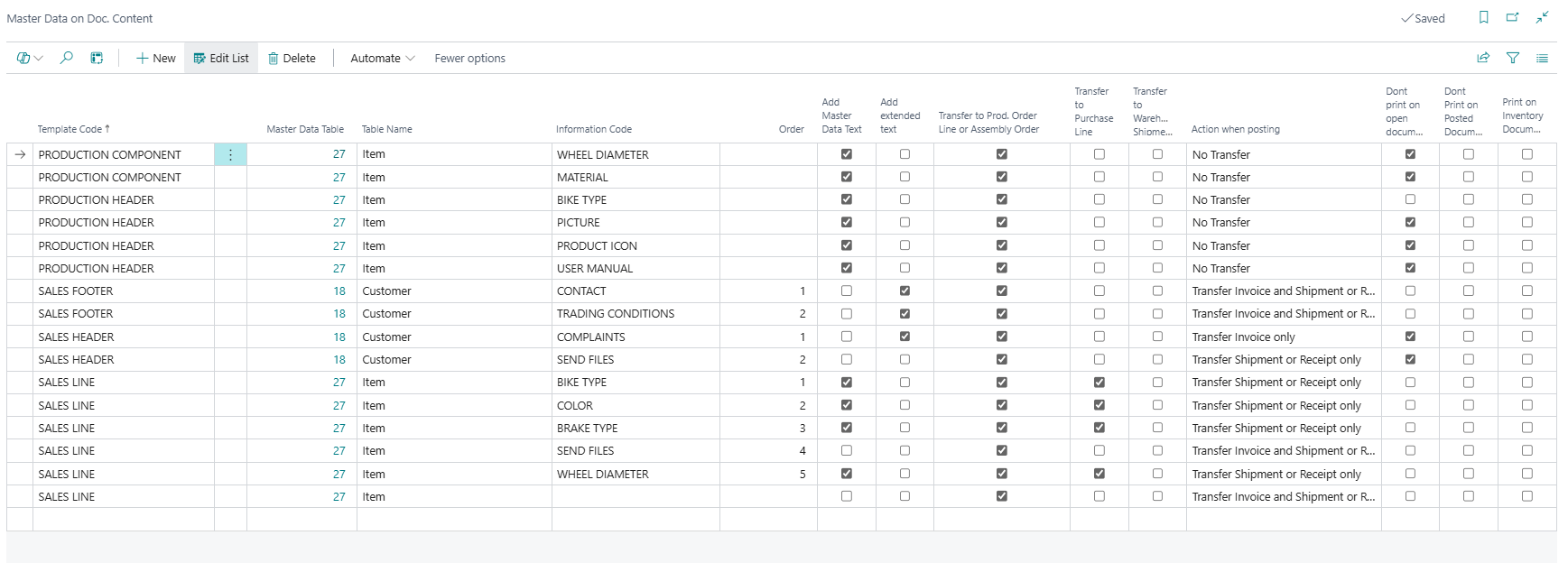
The Master Data on Doc. Content page defines the individual content lines within a section template, specifying exactly which Information Codes are included when master data is projected onto a document and how each information line behaves during posting, transfer, and printing. Each record maps one Information Code to a Template Code (from the Master Data on Doc. Template page), with a set of independent flags that control the transfer and print behaviour for that specific information line. When a document is created or refreshed, the system reads these content lines sorted by Order and, for each line, locates the matching Information Entry on the master record to generate the corresponding output line in the Master Data on Documents table.
This page is the lowest level of the Master Data on Documents configuration hierarchy and is where administrators specify precisely what master data appears on each document section.
When Is This Page Used
This list page is used when configuring which Information Codes are included in a specific document section template and how each one should behave. Administrators open it to add content lines to an existing template, set the output sequence via the Order field, and configure per-Information-Code transfer and print options that can differ from the template-level defaults. It is most commonly accessed from the Master Data on Doc. Template page via the Master Data on Document Content action, which opens the list pre-filtered to the selected template.
Who Are Typical Users
- Master Data Administrator — adds and maintains content lines for each section template, defining which Information Codes appear on documents.
- Implementation Consultant — configures the complete content structure for all section templates during the initial deployment of the Master Data on Documents feature.
- System Administrator — reviews content lines when troubleshooting why specific master data attributes are or are not appearing on documents or posted records.
Accessing the Page
The Master Data on Doc. Content page has UsageCategory = Administration and ApplicationArea = All, making it directly searchable from the Business Central search menu. It is also accessible from the following locations:

| Source Page | Action Name | Filter Applied |
|---|---|---|
| Business Central Search (Tell Me) | Search for Master Data on Doc. Content |
None — all records shown |
| Master Data on Doc. Template → Master Data on Document Content | Navigation action | Template Code = selected template |
| Information Code List → Master Data On Document Content | Navigation action | None — all records shown |
| Information Code Card → Master Data On Document Content | Navigation action | None — all records shown |
The most practical access route is always through the Master Data on Doc. Template page, as this pre-filters the list to the relevant template and avoids displaying content lines from all templates simultaneously.
Template Hierarchy
This page sits at level four — the lowest configuration level — of the Master Data on Documents hierarchy:
- Master Data on Document Setup — assigns which document template applies to a given document type and optional customer or vendor.
- Master Data Doc. Template — groups individual section templates (header, line, footer, item tracking) under a named document template code.
- Master Data on Doc. Template — defines behaviour and source table for each individual section template.
- Master Data on Doc. Content (this page) — specifies which Information Codes are included within a section template and controls per-line transfer and print behaviour.
Page Components
How Content Lines Drive Document Output at Runtime
When the system generates master data for a document section, it reads this page's records sorted by Order using the InsertMasterDataInformation mechanism. For each content line it:
- Identifies the master record using the document's key fields and the Master Data Table inherited from the parent template.
- Filters Information Entries on that master record by Information Code.
- For each matching entry, generates one or more Master Data on Documents output lines, inheriting the transfer and print flags directly from this content line (not from the template).
Two output modes are available per content line: Add Master Data Text writes the information entry's code, value, and description as a structured data line; Add Extended Text writes the free-text extended text rows associated with that information entry, applying a language-aware lookup. Both flags can be enabled simultaneously on the same line if both types of output are needed.
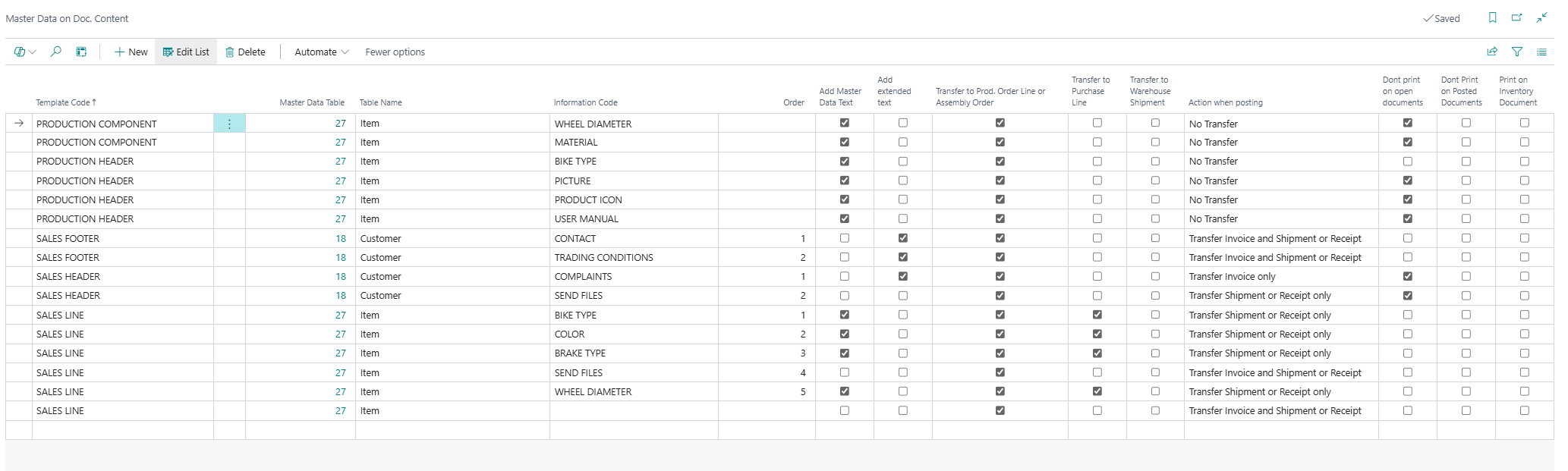
Fields
| Field | Purpose | Example | Key Information |
|---|---|---|---|
| Template Code | The code of the parent section template this content line belongs to. | SALES LINE, PURCHASE HEADER |
Must exist in the SCB New Master Data Doc Temp table. Validated on entry. |
| Master Data Table | The integer ID of the source table inherited from the parent template. | 27 (Item), 18 (Customer) |
Read-only FlowField — looked up automatically from the parent template record when the page loads. Cannot be changed here; change it on the Master Data on Doc. Template page instead. |
| Table Name | The resolved display name of the Master Data Table value. | Item, Customer, Vendor |
Calculated at runtime via the GetTableName function. Not stored in the database; for display only. |
| Information Code | The Information Code whose entries should be included in the document output for this content line. | COLOR, MATERIAL, CERTIF |
Looked up from the SCB New Information Code table. If left blank, the filter on Information Entries will match only entries with a blank Information Code, which is typically not the intended behaviour — always specify a code unless this is intentional. |
| Order | Controls the sequence in which this content line is processed when building the document output. | 10, 20, 30 |
Integer value; lower numbers are processed first. The system uses this to sort content lines before iterating through them. Use gaps between values (e.g., 10, 20, 30) to allow lines to be inserted later without renumbering. |
| Add Master Data Text | When enabled, the structured master data information (Information Code, Information Value, Value, and Description) from the matching Information Entry is included as an output line on the document. | Yes / No |
This is the primary output mode for most content lines. The generated output line inherits all transfer and print flags from this content record. |
| Add Extended Text | When enabled, the extended text rows associated with the matching Information Entry are included as output lines on the document. | Yes / No |
The system applies a language-aware lookup to find the most appropriate extended text, following this priority: (1) language-specific text for the specific entry, (2) language-neutral setup text for the entry, (3) language-specific global text, (4) language-neutral Information Value text, (5) language-specific Information Code text, (6) language-neutral Information Code text. Both Add Master Data Text and Add Extended Text can be enabled simultaneously on the same line. |
| Transfer to Prod. Order Line or Assembly Order | When enabled, this specific information line is transferred to the Production Order line or Assembly Order when one is created from a sales line using this template. | Yes / No |
Applies independently of the template-level setting of the same name. Set this flag here to control transfer at the individual Information Code level. |
| Transfer to Purchase Line | When enabled, this information line is transferred to the Purchase Line when a Special Order or Drop Shipment is created from a sales line. | Yes / No |
Applies independently of the template-level setting. |
| Transfer to Warehouse Shipment | When enabled, this information line is transferred to the Warehouse Document (e.g., Warehouse Shipment or Pick) when it is created from the order. | Yes / No |
The field is internally named Transfer to Warehouse Document in the database but displayed as Transfer to Warehouse Shipment in the UI. |
| Action when posting | Controls which posted document types receive this information line when the source document is posted. | No Transfer, Transfer Invoice only, Transfer Shipment or Receipt only, Transfer Invoice and Shipment or Receipt, Transfer Credit Memo, Transfer Invoice and Credit Memo and Shipment or Receipt |
This per-line setting allows different Information Codes within the same template to be posted to different document types. For example, a certification code might transfer only to invoices while a weight attribute transfers to shipments only. |
| Dont print on open documents | When enabled, this information line is suppressed when printing the open (unposted) document. | Yes / No |
Set this at the content line level to suppress specific Information Codes on order confirmations while still including them on posted invoices or shipments. |
| Dont print on posted documents | When enabled, this information line is suppressed when printing posted documents (Invoice, Credit Memo, Shipment, Receipt). | Yes / No |
Use when an information attribute should appear on open orders but not on posted output. |
| Print on Inventory Document | When enabled, this information line is included when printing a Pick Instruction. | Yes / No |
Use to make item-specific attributes visible on warehouse picking documents for this Information Code specifically. |
Hidden Table Fields
The following fields exist in the underlying SCB New Master Data DocContent table (6083286) but are not shown on the page:
| Field | Purpose | Key Information |
|---|---|---|
| Line No. | Internal sequence number within the template, used as part of the primary key. | Assigned automatically by the OnInsert trigger: the system finds the last existing line for the same Template Code and adds 10,000. First line receives 10,000. Not visible or editable on the page. |
| Display Master Data | A code linking to the Description Setup table, intended to control how the master data description is assembled for display. | Has a lookup to the Description Setup page but is not referenced in any active runtime processing code. Likely a reserved field for future functionality. |
| Value | A fixed value code (up to 80 characters) associated with the content line. | Defined in the table but not exposed on the page and not used in the current document generation logic. |
Content Line Flags vs. Template-Level Flags
The transfer and print flags on this page (per content line) are independent of the equivalent flags on the Master Data on Doc. Template page (per template). At runtime:
- For output lines generated from Information Entries (when Add Master Data Text or Add Extended Text is enabled), the system copies the flags from this content line directly onto the generated Master Data on Documents record.
- For output lines generated from the template's Add Long Report Description or Add Long Description settings, the system copies the flags from the parent template record instead.
This means configuring the flags only on the template is not sufficient for IC-based content — those flags must be set here on the individual content lines.
Default Setup & Templates
No default Master Data on Doc. Content records are created by the extension's installation or default setup procedures. After running the DefaultSetup procedure (available from the Master Data on Doc. Template table), the eight standard section templates exist, but all of them have zero content lines. All content lines must be created manually to specify which Information Codes are included in each section template.
This is intentional: the Information Codes available in a given implementation are organisation-specific, and there is no universal default set of codes that applies across all deployments.