Overview
The Master Data Hierarchy page is a user-specific, calculated view of the complete MDI hierarchy tree for the current user. It flattens the hierarchy structure — built from Master Data Groups (the level schema) and Master Data Relations (the parent-child relationships between values) — into a browseable list where each row represents either a category node (Specification) or an item placed at that position in the hierarchy (Item). The page is the primary working surface for navigating, building, and maintaining the MDI hierarchy and its item assignments.
The hierarchy is personal: each user sees their own copy of the calculated view. Refreshing rebuilds this copy from the shared underlying relation data.

When Is This Page Used
This page is opened when users need to browse the hierarchy tree to understand how items are organised across MDI category levels, when administrators are building or adjusting the hierarchy structure by adding or removing specification nodes, and when managing which items belong at which hierarchy positions — either manually or by triggering an automatic recalculation. It is also the launch point for navigating to the underlying configuration pages (Master Data Relations, Master Data Groups, Master Data Item Relations, Fixed Master Data Item Relations).
Who Are Typical Users
Product managers and data administrators who own the item classification structure. Implementation consultants building or restructuring the MDI hierarchy. System administrators managing the hierarchy maintenance workflow.
Accessing the Page
The page has UsageCategory = Lists and ApplicationArea = All, making it directly searchable from the BC search bar — search for Master Data Hierarchy.
It is also accessible from:
- Information Setup (attribute detail list) → Master Data Hierarchy action.
- Information Code Card → Master Data Hierarchy action.
- The MDI Getting Started / Quick Start guide.
Prerequisite: The MDI app (SCB 682) must be licensed and enabled. Opening the page verifies the license and app state; an error or notification is shown if the app is not properly activated.
Page Components
List Fields
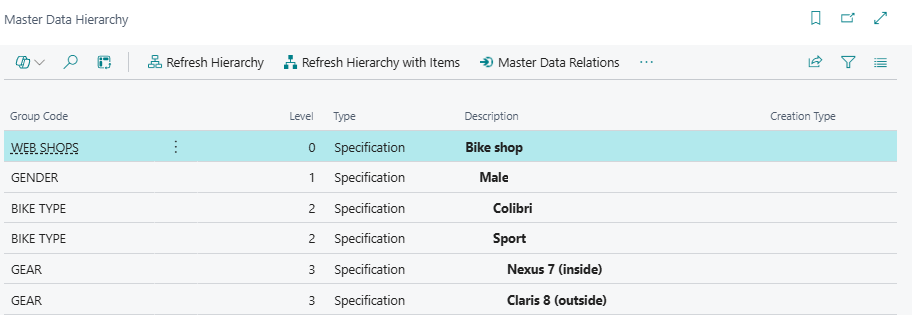
The page is read-only (Editable = false). Each row represents one node in the hierarchy — either a category level value (Specification) or an item (Item).
Specification rows are displayed in bold. Item rows are displayed in the default font.
| Field | Purpose | Example | Key Information |
|---|---|---|---|
| Group Code | The Information Code that defines this hierarchy level (e.g. SEASON, CATEGORY, SUBCATEGORY). For Item rows, this is the Information Code whose value placed the item at this node. |
CATEGORY |
Links to the Information Code table. The sequence of Group Codes across levels is defined in Master Data Groups. |
| Level | The depth of this row in the hierarchy tree, starting from 0 at the top level. | 2 |
Level 0 = top-level category nodes (e.g. Season values). Level 1 = their children. Item rows appear at the level of their parent Specification node. Used to understand nesting depth at a glance; there is no visual indentation in the list. |
| Type | Whether this row is a category node or an item. | Specification |
Two values: Specification (a hierarchy node defined by an MDI Information Value — shown in bold) and Item (a BC item assigned to this position in the hierarchy). |
| Description | The display name of this node. For Specification rows: the description of the Information Value. For Item rows: the item description. | Outerwear |
Shown in bold for Specification rows. Sourced from the Information Value description or the item description respectively. |
| Sorting | The sort order of this node within its parent level. | 10 |
Hidden by default (Visible = false). Can be exposed via page personalisation. Editing this field writes directly back to the corresponding Master Data Relations record, making it the preferred way to adjust display order without opening that page separately. |
| Creation Type | How an Item row was placed at this hierarchy position. | Auto |
Hidden by default. Three values: blank (not set), Auto (placed automatically by the Update Item Relations report based on the item's MDI attribute values), Fixed (manually pinned here via Add Item to Hierarchy or Fixed Master Data Item Relations). Only relevant for Item rows. |
| Fixed Item Relations exists | Indicates whether any Fixed Item Relations records exist for this row's underlying Master Data Relation. | Yes |
Hidden by default (Visible = false). FlowField from the Fixed Master Data Item Relations table. Shows whether items have been manually pinned to this node. |
Actions
Navigation Actions (top-level bar)
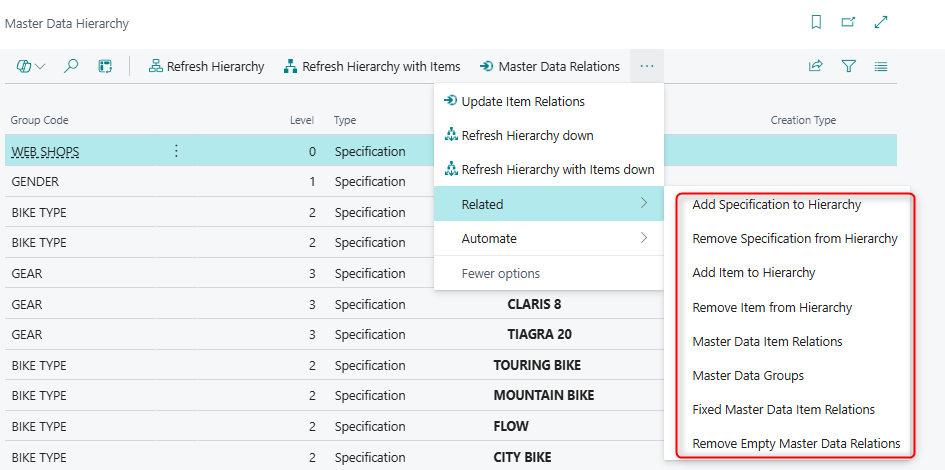
| Action | What It Does | When to Use | Prerequisites |
|---|---|---|---|
| Add Specification to Hierarchy | Opens a lookup of Information Values for the next level below the selected Specification row. Selecting a value creates a new Master Data Relation record linking it as a child of the current node, then refreshes the hierarchy. | To extend the hierarchy by adding a new sub-category under an existing node. | Selected row must be of Type = Specification. A Master Data Group entry must exist for the next level below the current node's Group Code. If the current node is already at the lowest defined level, an error is shown: "You can not insert a child element below [Group Code], which is the lowest level in the Master Data Group." |
| Remove Specification from Hierarchy | After a confirmation prompt ("Are you sure you want to remove specification?"), removes the selected Specification node from Master Data Relations and refreshes the hierarchy. | To detach a category node from the hierarchy without deleting the underlying Information Value. | Selected row must be of Type = Specification. Confirmation is required. |
| Add Item to Hierarchy | Opens a filtered item list showing items eligible for the selected Specification node (based on their MDI attribute values). Selecting an item creates a Fixed Master Data Item Relations record pinning that item to this node, then refreshes the hierarchy with items. | To manually assign a specific item to a hierarchy position regardless of its automatic classification. | Selected row must be of Type = Specification. |
| Remove Item from Hierarchy | After a confirmation prompt ("Are you sure you want to remove item?"), removes the selected Item row from the hierarchy by deleting its Fixed Item Relation record, then refreshes with items. | To unpin a manually placed item from its current hierarchy position. | Selected row must be of Type = Item. Confirmation is required. |
| Master Data Item Relations | Opens the Master Data Item Relations list showing all item-to-relation mappings. | To review or manage the full set of automatic and fixed item assignments across the hierarchy. | None. |
| Master Data Groups | Opens the Master Data Groups list defining the level structure (which Information Codes form the hierarchy levels and in what sequence). | To review or change the hierarchy schema. | None. |
| Fixed Master Data Item Relations | Opens the Fixed Master Data Item Relations list filtered to the current row's Relation Entry No. | To review which items are manually pinned to the selected hierarchy node. | A Specification row must be selected. |
| Remove Empty Master Data Relations | Removes all Master Data Relations records that have no items assigned to them. If a single row is selected, prompts whether to run across all relations or just the selection; if multiple rows are selected, confirms for that count. After removal, reruns the hierarchy group functions. | To clean up relation records that were created but never populated with items, keeping the hierarchy tidy. | None. |
Hierarchy - Relations Group

| Action | What It Does | When to Use | Prerequisites |
|---|---|---|---|
| Refresh Hierarchy | Deletes the current user's hierarchy view and rebuilds it from the existing Master Data Relations data, without re-mapping items. Fast operation. | After changing Master Data Relations structure (adding/removing specifications) when item placement is not expected to have changed. | None. |
| Refresh Hierarchy with Items | Deletes and rebuilds the hierarchy view, and also re-maps items into their hierarchy positions based on their current MDI attribute values. Slower than Refresh Hierarchy. | After item data has changed (e.g. MDI attribute values updated) and the hierarchy display needs to reflect the current item assignments. | None. |
| Refresh Hierarchy down | Same as Refresh Hierarchy but limited to the subtree below the selected Specification node. | To refresh a specific branch of the hierarchy after localised changes, without a full rebuild. | Selected row must be of Type = Specification. |
| Refresh Hierarchy with Items down | Same as Refresh Hierarchy with Items but limited to the subtree below the selected Specification node. | To refresh item assignments in a specific branch of the hierarchy. | Selected row must be of Type = Specification. |
| Master Data Relations | Opens the Master Data Relations list showing all parent-child relation records that define the hierarchy structure. | To directly view or edit the underlying relation data. | None. |
| Update Item Relations | Runs the Update Master Data Item Relations report, which loops through all non-blocked items and re-evaluates their MDI attribute values to rebuild the Master Data Item Relations table. Shows a progress indicator. | When a full, authoritative re-mapping of all items into the hierarchy is needed — for example after a major data migration or bulk attribute change. | None. Running without an item filter processes the entire item catalogue and deletes all existing item relations before rebuilding. |
Key Behaviours
The hierarchy is per-user and session-built. The underlying table stores hierarchy rows keyed by User ID. Every time the hierarchy is refreshed, the current user's rows are deleted and rebuilt from scratch. Different users have independent copies of the view; a refresh by one user does not affect other users' views. The view reflects the shared Master Data Relations and Master Data Item Relations data, but the display itself is personal.
Automatic update prompt on page open. When the page opens, it calls AutoUpdateItemRelations(), which checks whether the Update Item Relations report should run. The behaviour is controlled first by the per-user setting in Master Data User Setup (field Update Item Relations: Never / Ask / Always), and then falls back to the company-wide setting in Master Data Information Setup (same field, default: Ask). If set to Ask, the user sees: "Would you like to update Item Relations? [...] This might take a while if you have a large number of items." If set to Always, the report runs silently on every page open. If set to Never, no prompt appears.
Auto-calculation on first open. If the page opens and finds no existing hierarchy rows for the current user, and if Master Data Groups has at least one top-level entry (Sorting = 0 with a Web Shop value), the hierarchy is automatically calculated (logical only, without items) as a convenience. This means a freshly configured system shows a hierarchy immediately rather than a blank page.
Auto vs. Fixed item placement. Items reach the hierarchy through two mechanisms. The Update Item Relations report automatically maps items by examining their MDI attribute values and matching them to Master Data Relations nodes — these appear with Creation Type = Auto. Administrators can also manually pin specific items to specific nodes via Add Item to Hierarchy, which creates a Fixed Master Data Item Relations record — these appear with Creation Type = Fixed. Fixed placements override automatic ones and survive subsequent Update Item Relations runs because they are preserved in the separate fixed relations table.
Refresh vs. Update Item Relations. The Refresh actions rebuild the per-user hierarchy display from the current state of Master Data Relations (the schema) and Master Data Item Relations (the item mappings). They are fast. Update Item Relations goes further: it actually re-evaluates each item's MDI attributes and rebuilds the Master Data Item Relations table itself. This is the deeper operation and should be run when item attribute data has changed, not just when the display needs rebuilding.
Sorting field writes back to Master Data Relations. The Sorting column (hidden by default) is editable. Changing it on a hierarchy row immediately updates the Sorting field on the corresponding Master Data Relations record. This provides a convenient shortcut for re-ordering hierarchy nodes without navigating to the Master Data Relations page directly.
Related Pages
| Page | Relationship |
|---|---|
| Master Data Groups | Defines the hierarchy schema — which Information Codes form the hierarchy levels and in what sequence (Sorting 0 = top level, 1 = next, etc.). Must be configured before a hierarchy can be built. Accessible via the Master Data Groups action. |
| Master Data Relations | Stores the actual parent-child relationships between Information Values that form the hierarchy tree. The hierarchy view is built from this table. Accessible via the Master Data Relations action. |
| Master Data Item Relations | Records which items are assigned to which hierarchy nodes (auto-generated by the Update Item Relations report). Accessible via the Master Data Item Relations action. |
| Fixed Master Data Item Relations | Records manually pinned item-to-node assignments that are preserved through automatic recalculations. Accessible via the Fixed Master Data Item Relations action, filtered to the selected node. |
| Update Master Data Item Relations (report) | The authoritative item-to-hierarchy mapping report. Triggered via the Update Item Relations action and optionally on page open. |
| Master Data Information Setup | Contains the company-wide Update Item Relations setting controlling whether the update report runs automatically, prompts, or never runs on page open. |
| Master Data User Setup | Per-user override of the Update Item Relations setting, taking priority over the company-wide setting. |
| Information Setup / Information Code Card | Both provide a Master Data Hierarchy action for navigating to this page from an attribute context. |