Overview
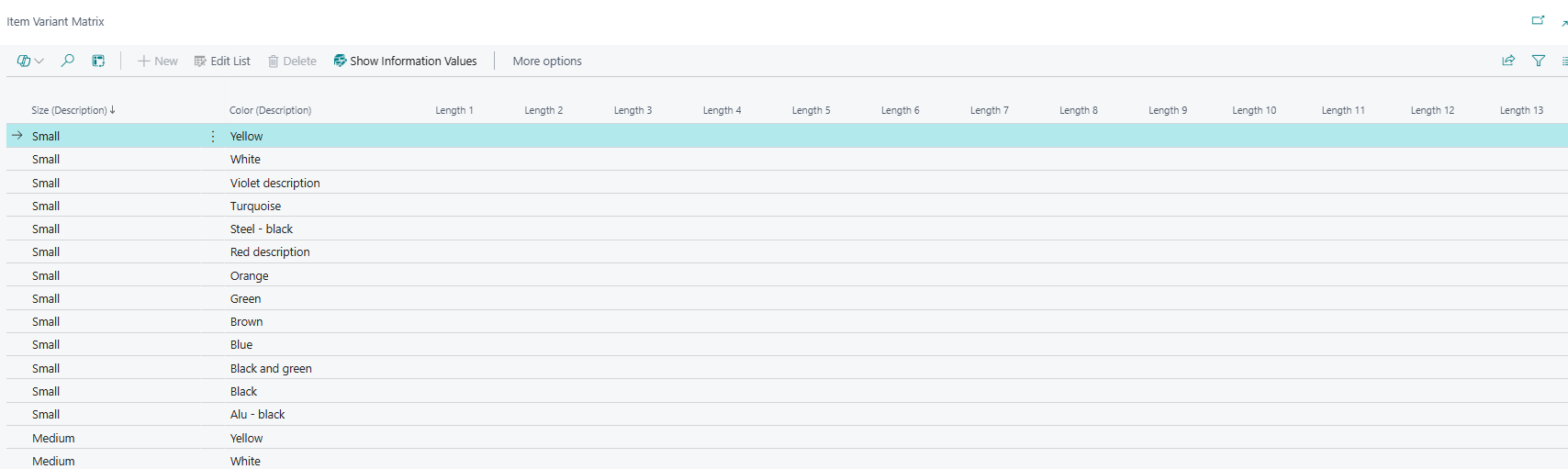
The Item Variant Matrix is a cross-tabular list that presents all items or item variants belonging to a Style group in a grid layout. Each row represents a unique combination of specification attribute values (such as colour and material), and each Order column across the top represents one value of the primary variant dimension (typically size). The matrix is rebuilt fresh every time it opens, populated from Master Data Information specification entries defined on the style's items or variants.
The page operates in two distinct modes depending on where it is opened from: a read-only inventory mode when accessed from the Item Card or Item List, showing current stock levels per variant cell; and an editable order entry mode when accessed from a sales or purchase document subform, where users type in order quantities directly into the cells and confirm to create or update document lines.
When Is This Page Used
Users open this list when they need to view or enter quantities across multiple item variants simultaneously, in a matrix format organised by the variants' specification attributes. In the inventory context it provides a quick overview of how much stock exists for each combination of attribute values. In the order context it eliminates the need to add individual document lines for each variant by hand: the user enters quantities across the grid and confirms once, and the system creates or updates all relevant sales or purchase lines automatically.
Who Are Typical Users
Sales order processors and purchase order handlers entering quantities for style items with multiple variants (e.g., a garment in multiple colours and sizes). Inventory coordinators and product managers reviewing stock levels across variant combinations from the Item Card or Item List.
Accessing the Page
The Item Variant Matrix has no UsageCategory and is not searchable from the BC search bar. It is always opened programmatically after the system builds the matrix data. The Item Variant Handling feature must be enabled in Abakion Feature Management for any of the access paths below to appear.
Prerequisites for any access path: The selected item must be flagged as a Style Master (SCB Style Master = true) and must have a Style Template (SCB Style Template) pointing to a valid Import Template. The Import Template must be configured for either the Item table (27) or the Item Variant table (5401) and must include at least one Information Code with values that can serve as column headers.
From the Item Card — read-only inventory view:
Navigate to the Item Card for a Style Master item. In the action bar, choose Item Variant Inventory Level. The page opens in read-only, non-lookup mode showing the inventory quantity per variant cell.
From the Item List — read-only inventory view:
Select a Style Master item on the Item List and choose Item Variant Inventory Level. The page opens in read-only mode.
From a Sales document subform — editable order entry:
On the subform of a Sales Order, Sales Quote, Sales Credit Memo, Blanket Sales Order, or Sales Return Order, select the Style Master line and press Shift+Ctrl+M or choose the Item Variant Matrix Order action. The page opens in editable lookup mode. Clicking OK creates or updates the quantity on all affected sales lines.
From a Purchase Order subform — editable order entry:
On the Purchase Order subform, select the Style Master line and press Shift+Ctrl+M or choose Item Variant Matrix Order. Clicking OK creates or updates the affected purchase lines.
Note: In order entry mode, a Style Master line must already exist on the document for the item's Style group. If the Style Master line cannot be found, the system raises an error and the matrix will not open. If more than one document line exists for the same item and variant combination on the document, the system also raises an error before the matrix can be used.
Page Components
Matrix Grid
The matrix has no traditional FastTabs or sections. The entire page is a single repeater grid composed of two groups of columns that render side by side at runtime.
Specification Columns (Column 2–50)
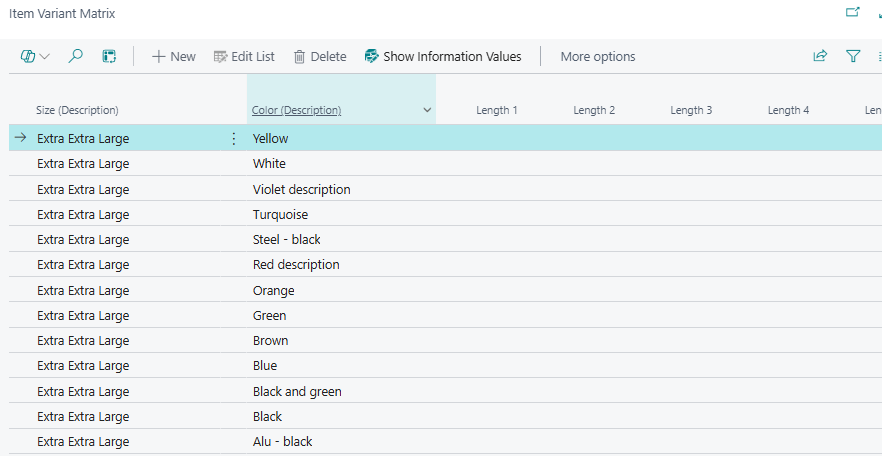
These columns are the descriptive, read-only part of each row. They display the specification attribute values that identify what each row represents — for example, colour, material, or any other MDI attribute defined in the Style Template. Up to 49 specification columns can be shown (Column 2 through Column 50; Column 1 is always hidden as it holds an internal sorting reference).
Each specification column exists in two display variants that are toggled by the Show Description / Show Information Values action:
| Display Mode | What Is Shown | Example |
|---|---|---|
| Show Information Values (default) | The Information Value code for this attribute. | RED, M, COTTON |
| Show Description | The long-text description of the Information Value. | Red, Medium, Cotton blend |
Only one variant is visible at a time per column — switching modes updates all specification columns simultaneously.
Column captions are resolved dynamically at runtime from the Style Template configuration. Each visible column shows the caption of the Information Code it represents (e.g., "Colour", "Material"). Visibility of each column is controlled by the Import Template: only columns whose Table Field is populated in the template setup are shown. All specification columns are read-only in both inventory and order entry mode.
Special behaviour for Item (Table 27) templates: The value of the first configured Information Code in the template is moved to the first visible column position and acts as the primary row identifier. For Item Variant (Table 5401) templates, the rearrangement starts one position later (Column 4).
Order Quantity Columns (Order 1–50)
These columns are the editable cells in order entry mode (read-only in inventory mode). Each Order column represents one value of the primary variant dimension — typically one size value. The column header caption is taken from the current user's Master Data User Setup (VariantColumn1–50 fields), which are populated automatically each time the matrix is built. A column is visible only if its corresponding VariantColumn field is non-blank, meaning the style actually has a variant with that value.
| Column | Purpose | Key Information |
|---|---|---|
| Order 1–50 | Editable quantity cell for the specific item or item variant at the intersection of this row's attribute combination and this column's variant value. | Blanks display instead of zero (BlankZero). Decimal places 0–5. Only intersections that correspond to a real item or item variant are enterable; attempting to type a quantity where no item or variant exists raises the error: "There is no Item Number for this combination of Variant Parameters." In inventory mode these columns show current inventory and are not editable. |
Maximum 50 Order columns. If the primary variant dimension has more than 50 distinct values, the system raises an error when trying to open the matrix: "You have selected a Style with more than 50 values for the first Variant parameter. This can not be shown in the Matrix Order View."
Row Sorting
Rows are sorted by three internal sorting levels (Sorting Level, Sorting Level 2, Sorting Level 3) derived from the Sorting Level property of the corresponding Information Values in the MDI setup. The display order follows the sequence defined on the Information Values, not alphabetical order.
Actions
| Action | What It Does | When to Use |
|---|---|---|
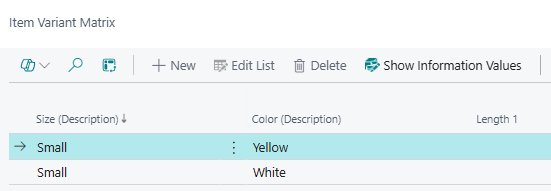
| Show Description | Switches all specification columns from showing Information Value codes to showing their long-text descriptions. The setting is saved per user in Master Data User Setup and persists across sessions. | When codes alone are not recognisable enough and users need to see the full descriptive text (e.g. "Midnight Blue" instead of "MIDNBLUE"). Only visible when currently showing Information Values. |
| Show Information Values | Switches all specification columns back from descriptions to Information Value codes. | When short codes are preferred for a more compact view. Only visible when currently showing descriptions. |
Key Behaviours
On open: The matrix data is always rebuilt from scratch before the page opens. The system clears all previous matrix rows and columns for the current user, then re-reads the MDI specification entries for all items or item variants in the Style group and rebuilds the grid. Any quantities already on the document lines are pre-filled into the corresponding Order cells.
On OK (order entry mode only): The system compares each Order cell's current quantity against the quantity it had when the matrix opened. Only cells where the quantity has changed are written back to document lines. For each changed cell: if a line already exists on the document for that item/variant, the existing line's quantity is updated; if no line exists, a new document line is inserted. The Style Master line's SCB Total Variant Quantity field is updated with the sum of all quantities across the matrix. A confirmation message shows how many lines were created or updated.
Quantity of zero: Entering zero (or leaving a cell blank) for a variant that had a non-zero quantity when the matrix opened updates that document line's quantity to zero, effectively removing the ordered amount without deleting the line.
Description mode persistence: The Show Description / Show Information Values toggle is stored per user in Master Data User Setup and applies every time the matrix opens for that user, regardless of which style or document triggered it.
Related Pages
| Page | Relationship |
|---|---|
| Item Variant Overview | A companion read-only list (caption Item Variant Overview) showing the same Style items with specification columns and additional fields such as Quantity, Unit Price, Direct Unit Cost, Inventory, and order quantities. Opened via the Item Variant Overview action from the Item Card or Item List. Presents data as one row per item/variant rather than as a cross-tab matrix. |
| Item Card | Access point for the read-only Item Variant Inventory Level view of the matrix. Also where the Style Master flag and Style Template are configured, which are prerequisites for the matrix to open. |
| Information Matrix Template List | The Import Template referenced by Style Template on the Item Card defines which MDI attributes appear as specification columns in the matrix and which Information Code drives the Order column headers. |
| Master Data Information Setup | The Variant Matrix Column Code field determines which Information Code in the template is used as the primary dimension for the Order column headers. |
| Sales Order / Purchase Order subforms | The primary entry point for order entry mode. The Item Variant Matrix Order action (Shift+Ctrl+M) on these subforms opens the matrix in editable mode. |