Overview
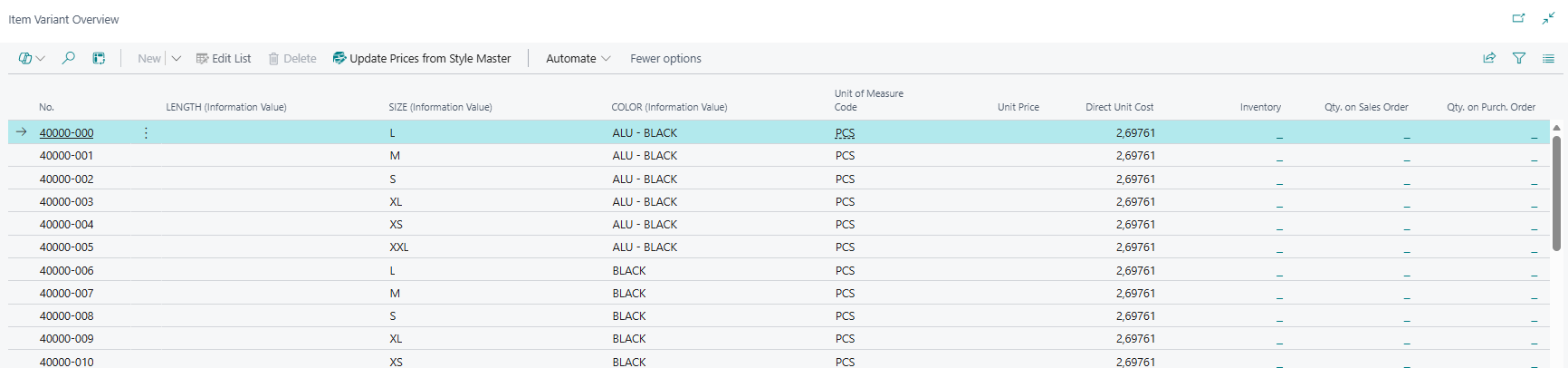
The Item Variant Overview is a flat list that shows all items or item variants belonging to a Style group as individual rows, with their Master Data Information specification attributes as dynamically labelled columns alongside quantity, pricing, and inventory figures. Each row represents one item or item variant in the style. The page serves as the row-per-record alternative to the Item Variant Matrix: where the matrix presents the same data in a cross-tabular layout, the Overview presents it as a traditional list, making it easier to see pricing and stock information all in one place per variant.
The page operates in two distinct modes depending on how it is opened: a read-only inventory mode from the Item Card or Item List, and an editable order entry mode from sales and purchase document subforms, where users can modify quantities, unit prices, direct unit costs, line discounts, unit of measure, and location per row before confirming to create or update document lines.
When Is This Page Used
Users open this list to review all variants of a style in a single view, or to enter and adjust per-variant quantities and prices on a sales or purchase document. In the inventory context it provides a quick overview of current stock, open orders, and pricing for every variant in a style. In the order context it gives more granular control than the matrix because each variant row is fully editable individually — users can set different quantities, unit of measure codes, prices, and locations per row rather than working through a cross-tab grid.
Who Are Typical Users
Sales order processors and purchase order handlers who need to add or adjust quantities on documents for style items with multiple variants, especially when per-variant pricing or location differences need to be managed. Inventory coordinators and product managers who want a complete overview of current stock and demand figures for all variants in a style.
Accessing the Page
The Item Variant Overview has no UsageCategory and is not searchable from the BC search bar. It is always opened programmatically after the system builds the list data. The Item Variant Handling feature must be enabled in Abakion Feature Management for any of the access paths below to appear.
Prerequisites for any access path: The selected item must be flagged as a Style Master (SCB Style Master = true) and must have a Style Template (SCB Style Template) pointing to a valid Import Template. The Import Template must be configured for either the Item table (27) or the Item Variant table (5401).
From the Item Card — read-only inventory view:
Navigate to the Item Card for a Style Master item. In the action bar, choose Item Variant Overview. The page opens in read-only, non-lookup mode showing inventory levels and stock figures per variant.
From the Item List — read-only inventory view:
Select a Style Master item on the Item List and choose Item Variant Overview. The page opens in read-only mode.
From a Sales document subform — editable order entry:
On the subform of a Sales Order, Sales Quote, Sales Credit Memo, Blanket Sales Order, or Sales Return Order, select the Style Master line and press Shift+Ctrl+O or choose the Item Variant Order action. The page opens in editable lookup mode. Clicking OK creates or updates the quantity and pricing on all affected sales lines.
From a Purchase Order subform — editable order entry:
On the Purchase Order subform, select the Style Master line and press Shift+Ctrl+O or choose Item Variant Order. Clicking OK creates or updates the affected purchase lines.
From the SCB Total Variant Quantity field (Sales/Purchase subforms):
The SCB Total Variant Quantity field on the document subform has an assist-edit button (the small arrow icon). Clicking it opens the same editable Item Variant Overview for that style line, providing a quick-access shortcut directly from the document grid.
Note: In order entry mode, a Style Master line must already exist on the document for the item's Style group. If the Style Master line cannot be found when trying to save back, an error is raised. Unlike the matrix, the Overview supports multiple document lines per item (there is no restriction on line count per item/variant), but each row is handled individually.
Page Components
List Columns
The page is a single flat repeater with no FastTabs. Columns appear in the following order left to right.
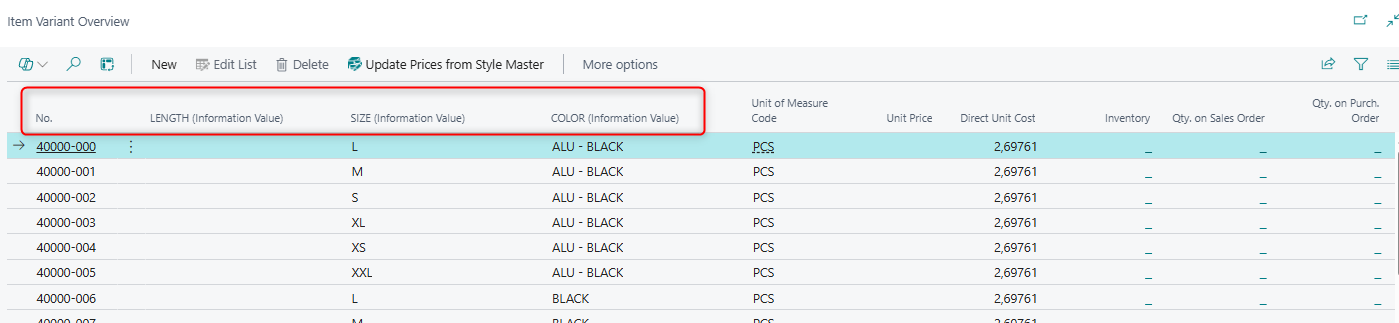
Identification Columns
| Field | Purpose | Key Information |
|---|---|---|
| No. | Item number of the item or Style Master item for this row. | For Item (Table 27) templates each row is a distinct item number. For Item Variant (Table 5401) templates, multiple rows may share the same item number and be distinguished by their variant attribute columns. Read-only. |
| Item Variant | The BC Item Variant code for this row. | Always hidden in the UI (Visible = false). The variant identity is shown through the specification attribute columns instead. Stored internally for filtering and document line matching. |
Specification Attribute Columns (Column 1–50)
These columns display the MDI specification attribute values that identify each variant row — for example, colour, material, size, or any other attributes defined in the Style Template. Up to 50 columns are supported (Column 1 through Column 50). Column 1 is always hidden because its value is represented by the No. field. Columns 2–50 are shown or hidden based on the Style Template configuration: only columns whose Table Field is populated in the template are visible.
Column captions are resolved dynamically at runtime from the Style Template, showing the Information Code caption for each column position (e.g., "Colour", "Size"). All specification columns are read-only in both modes.
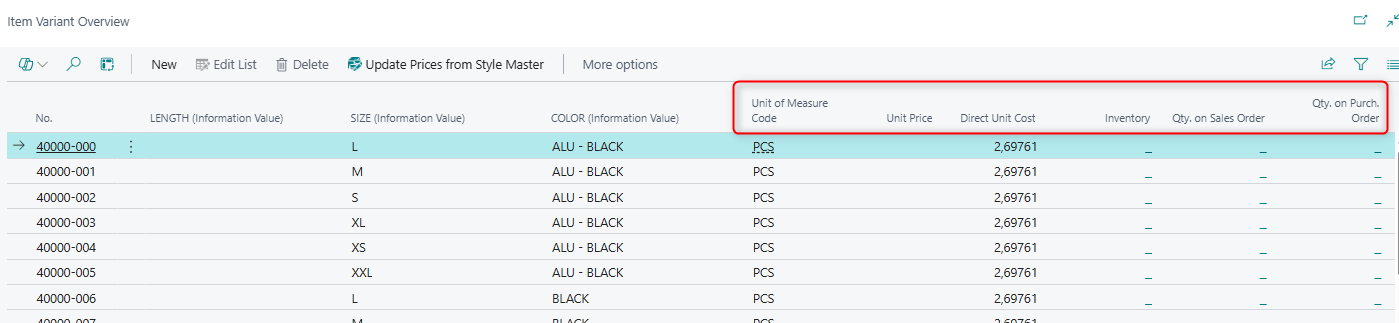
Order and Pricing Columns
These columns are only visible in order entry mode (when opened from a sales or purchase document subform). Visibility varies by document type:
| Field | Purpose | Visible When | Key Information |
|---|---|---|---|
| Quantity | The quantity to order for this variant. Editable. | Sales or Purchase document mode | Decimal places 0–5. Blanks instead of zero. Changing this value triggers price recalculation if Auto Update Price from Master is enabled in MDI Setup. When confirmed with OK, lines with a changed quantity are created or updated on the document. |
| Unit of Measure Code | The unit of measure for ordering this variant. | Always visible | Validated on change — triggers price recalculation via ValidateQuantityToOrder. Must be a valid Unit of Measure for the item. |
| Unit Price | Sales unit price for this variant row. Editable. | Sales document mode or Item (inventory) mode | Auto-formatted as currency. Blanks instead of zero. Changing this value marks the row for writeback even if quantity is unchanged. |
| Direct Unit Cost | Purchase direct unit cost for this variant row. Editable. | Purchase document mode or Item (inventory) mode | Auto-formatted as currency. Blanks instead of zero. Changing this value marks the row for writeback even if quantity is unchanged. |
| Line Discount % | Line discount percentage for this variant row. Editable. | Sales or Purchase document mode | Blanks instead of zero. Changing this value marks the row for writeback even if quantity is unchanged. |
| Currency Code | Currency code applicable to this line. | Sales or Purchase document mode | Read-only. Populated from the document header when the overview is built. |
| Location Code | Storage location for this variant. | Sales or Purchase document mode | Read-only. Populated from the document header or existing line when the overview is built. |
Stock and Demand Columns
These columns are always visible regardless of mode and provide a real-time inventory picture per variant. All are FlowFields calculated directly against standard BC ledger and order tables, filtered to the specific item number and variant code of each row.
| Field | Purpose | Key Information |
|---|---|---|
| Inventory | Current on-hand stock quantity for this item/variant. | Calculated from Item Ledger Entries. Decimal places 0–5. Blanks instead of zero. |
| Qty. on Sales Order | Outstanding quantity on open Sales Orders for this item/variant. | FlowField from Sales Lines (Document Type = Order). Decimal places 0–5. Blanks instead of zero. |
| Qty. on Purch. Order | Outstanding quantity on open Purchase Orders for this item/variant. | FlowField from Purchase Lines (Document Type = Order). Decimal places 0–5. Blanks instead of zero. |
Hidden Stock Columns
The following stock and demand columns exist on the page but are always hidden (Visible = false). They can be personalised visible by users who need them and contain live FlowField data filtered to the specific item/variant of each row.
| Field | Purpose |
|---|---|
| SCB Assigned Quantity (Base) | Quantity assigned (base UOM). |
| SCB Quantity Available (Base) | Quantity available (base UOM). |
| Qty. on Assembly Order | Remaining quantity on open Assembly Orders. |
| Qty. on Asm. Component | Remaining quantity on open Assembly Component lines. |
| Qty. in Transit | Quantity currently in transit on Transfer Orders (inbound to location filter). |
| Trans. Ord. Receipt (Qty.) | Outstanding receipt quantity on Transfer Orders. |
| Trans. Ord. Shipment (Qty.) | Outstanding shipment quantity on Transfer Orders. |
| Qty. on Purch. Return | Outstanding quantity on Purchase Return Orders. |
| Qty. on Sales Return | Outstanding quantity on Sales Return Orders. |
| Qty. on Prod. Order | Remaining quantity on open Production Orders (Planned–Released). |
| Qty. on Component Lines | Remaining quantity on open Production Order Component lines. |
Actions
Navigate
| Action | What It Does | When to Use | Prerequisites |
|---|---|---|---|
| Item Card | Opens the standard BC Item Card for the item on the currently selected row. | When you need to view or edit the full item setup — pricing, attributes, replenishment — for a specific variant row. | A row must be selected. |
Processing

| Action | What It Does | When to Use | Prerequisites |
|---|---|---|---|
| Update Prices from Style Master | Recalculates and refreshes Unit Price, Direct Unit Cost, and Line Discount % for rows in the list based on the Style Master item's pricing. If the Auto Update Price from Master setting is enabled in Master Data Information Setup, the total quantity across all variant rows is summed and used for quantity-tier pricing lookups before updating each row. If the setting is disabled, only the current row's own quantity is used. | When prices on the document are outdated compared to the Style Master's current pricing, or after adjusting quantities when tier-based pricing applies. | Only meaningful in order entry mode (opened from a document subform). The Style Master item must have valid pricing set up. |
Key Behaviours
On open: The list data is always rebuilt from scratch before the page opens. The system clears all previous rows for the current user, then creates one row per item (Table 27 templates) or one row per item variant (Table 5401 templates) in the Style group. For each row, any existing document line quantities, unit prices, costs, discounts, unit of measure codes, and location codes are pre-filled from the document. Rows are sorted by up to four sorting levels derived from the Sorting Level property of the corresponding Information Values in the MDI setup.
On OK (order entry mode only): The system iterates through all rows for the current user. For each row where either the quantity changed since the page opened or any pricing field was edited (Unit Price, Direct Unit Cost, Line Discount, Unit of Measure Code — flagged via the internal Modify Line field), the corresponding document line is created or updated via InsertOrModifyItemVariantLine2. The Style Master line's SCB Total Variant Quantity field is updated with the sum of all row quantities. A confirmation message shows how many lines were created or updated.
Quantity of zero: Setting a quantity to zero on a row that had a non-zero quantity when the overview opened updates that document line's quantity to zero without deleting the line.
Price auto-update on quantity change: When Auto Update Price from Master is enabled in Master Data Information Setup and the user changes a Quantity value, UpdatePricesFromStyleMaster is called automatically after validation. This recalculates prices for all rows based on the new total quantity, enabling quantity-tier pricing to apply across the entire style order. The page refreshes after the update.
Mode-controlled column visibility: The page knows whether it was opened from a sales document, a purchase document, or an item context. It uses this to show only the relevant pricing columns: Unit Price and Line Discount % appear for sales; Direct Unit Cost and Line Discount % for purchase; Unit Price and Direct Unit Cost for the item inventory context. Currency Code and Location Code are also hidden in the inventory (Item) mode.
Related Pages
| Page | Relationship |
|---|---|
| Item Variant Matrix | The cross-tabular alternative to this page. The matrix groups variants by their attribute combinations into a grid with one quantity cell per intersection, while the Overview shows one full row per variant. The matrix is opened via Item Variant Matrix Order (Shift+Ctrl+M); the Overview via Item Variant Order (Shift+Ctrl+O). Both write back to the same document lines when confirmed. |
| Item Card | Access point for the read-only inventory view of this page. Also where the Style Master flag and Style Template are configured, which are prerequisites for the page to open. The Item Card action on this page navigates to the item card for the selected row. |
| Master Data Information Setup | The Auto Update Price from Master setting controls whether the Update Prices from Style Master action (and automatic price refresh on quantity change) uses total-quantity tier pricing across all variant rows, or individual row quantities. |
| Information Matrix Template List | The Import Template referenced by Style Template on the Item Card determines which MDI attributes appear as specification columns in this page. |
| Sales Order / Purchase Order subforms | Primary entry points for order entry mode. The Item Variant Order action (Shift+Ctrl+O) and the assist-edit on SCB Total Variant Quantity both open this page. |