Overview
The Item Variant Creation Worksheet is a planning and execution tool for creating new items or item variants in bulk using Import Templates. Users define what combination of Master Data Information attribute values each new record should have, and the worksheet generates one proposed creation line per combination. After reviewing, adjusting, and accepting the lines, a single Carry Out Actions run creates all the new BC records in one step — including copying data, pricing, units of measure, and MDI information from an existing item template.
The worksheet is specifically designed for Item (table 27) and Item Variant (table 5401) templates, making it the primary tool for setting up new style variants or adding variant items to an existing assortment.
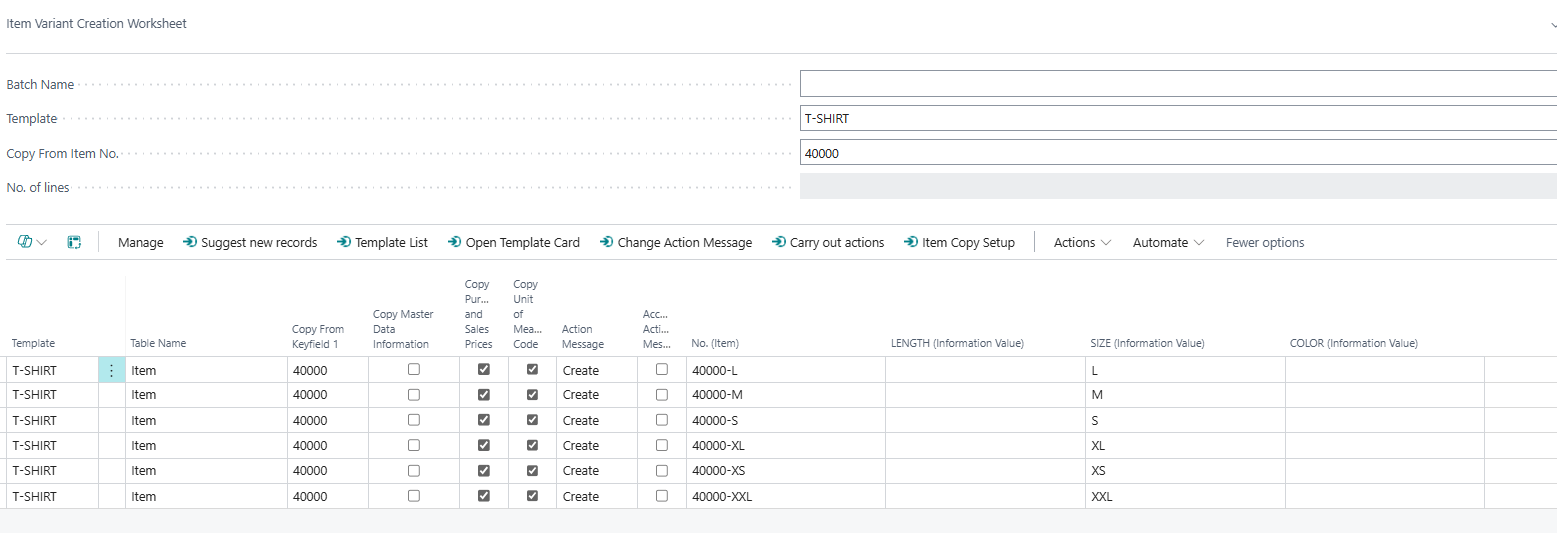
When Is This Page Used
Users open this worksheet at the start of a new product creation cycle — for example, when a new season requires a new set of items or when additional variants (sizes, colours) need to be added to existing styles. The workflow is: configure filters in the Suggest New Records dialog to define which combination of attribute values should generate lines, review the proposed lines, mark them as accepted, and execute Carry Out Actions to create the records. The worksheet can also be used to create individual new items manually by editing lines directly.
Who Are Typical Users
Product managers and item data administrators who set up new items or item variants in BC based on assortment or style plans. Implementation consultants configuring initial master data loads for new product categories.
Accessing the Page
The Item Variant Creation Worksheet has UsageCategory = Tasks, making it searchable from the BC search bar. Search for Item Variant Creation Worksheet to open it directly.
Page Components
Header Area
The header area sits above the worksheet grid and controls the current working context. Settings here are stored per user in SCB Creation Wksh. User Setup and restored the next time the page opens.
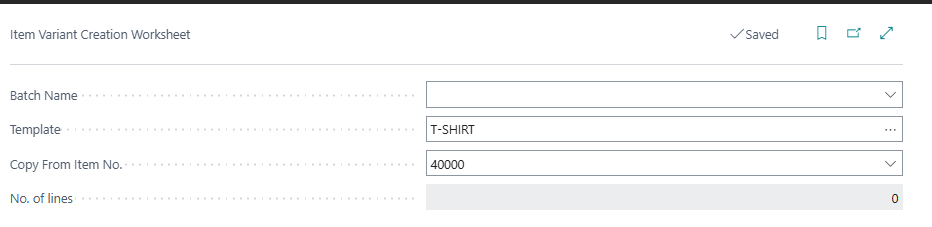
| Field | Purpose | Example | Key Information |
|---|---|---|---|
| Batch Name | Filters the worksheet lines to a specific batch. A batch groups related creation lines so different product ranges can be managed separately. | SPRING25 |
Links to SCB Batch Import Template. When set, only lines belonging to this batch are shown. Clear the field to see all lines. |
| Template | The Import Template to use for new lines. Determines which attribute columns are shown in the grid and which BC table the new records will be created in. | ITEM-COLOUR |
Filtered to templates for table 27 (Item) or 5401 (Item Variant). Can be selected via lookup, which opens the template list. |
| Copy From Item No. | An existing item whose data will be used as the source when creating new records. | 1000 |
Must be a valid item. The item's Master Data Information values, pricing, and units of measure can be copied to new lines depending on the copy options set in the Suggest New Records dialog. |
| No. of lines | The number of lines currently shown in the grid (after any batch filter). | 24 |
Read-only. Updates automatically when lines are added or filtered. |
Worksheet Lines
Each line in the repeater represents one proposed new item or item variant to be created. Lines are generated automatically by the Suggest New Records action or can be adjusted after generation.
Control Columns

| Field | Purpose | Example | Key Information |
|---|---|---|---|
| Template | The Import Template for this specific line. Determines which BC table and which MDI attribute columns apply. | ITEM-COLOUR |
Settable per line if a batch contains lines from different templates. |
| Table Name | The name of the BC table the record will be created in, derived from the template. | Item |
Read-only. Set automatically when Template is chosen. |
| Copy From Keyfield 1 | The item number of the existing item to copy data from for this specific line. | 1000 |
Inherited from the header Copy From Item No. when lines are suggested, but can be overridden per line. |
| Copy Master Data Information | Whether to copy the MDI specification entries (Information Values) from the source item to the new record. | Enabled | Per-line setting. |
| Copy Purchase & Sales Prices | Whether to copy the sales and purchase price setup from the source item. | Enabled | Per-line setting. |
| Copy Unit of Measure Code | Whether to copy the item's unit of measure definitions from the source item. | Enabled | Per-line setting. |
| Action Message | The current status of the line. Shows the outcome after Carry Out Actions runs, or Create for new unprocessed lines. |
Create |
Options: blank, Create, Import Error, Error while inserting record, Import Succes, Master Data already Exist. Lines with errors remain in the worksheet and can be corrected and reprocessed. |
| Accept Action Message | Marks this line for processing by Carry Out Actions. Only lines with this checkbox ticked are processed. | Enabled | Must be set to true before running Carry Out Actions. Use the Change Action Message action to bulk-set this for multiple lines. |
Attribute Columns (Column 1–15)
Up to 15 dynamically labelled columns follow the control fields. Each column corresponds to one field position in the Import Template and receives the caption of the associated MDI Information Code (e.g., "Colour", "Size", "Material"). Only columns whose Table Field is populated in the template are shown.
Each column cell accepts the MDI Information Value that will be assigned to the new record for that attribute. Cells have a lookup that opens the Information Value List filtered to valid values for that column's Information Code. Entering a value in a key field column (defined as a primary key field in the template) is locked after the line has been carried out once — key fields cannot be changed once the record has been created.
No. Series support: If the Create Wksht Data w No Series feature is enabled in Abakion Feature Management, blank key column values can be auto-populated from the template's configured No. Series using the Try Get Primary Key from Template action.
Actions
Processing
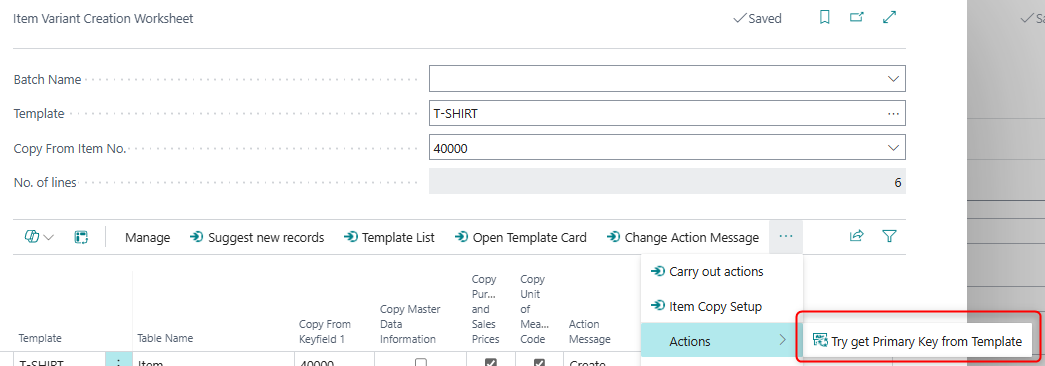
| Action | What It Does | When to Use | Prerequisites |
|---|---|---|---|
| Try Get Primary Key from Template | For each selected line, looks up the No. Series configured on the Import Template and fills in any blank key column cells with the next number from that series. Asks for confirmation before making changes. | When key fields (typically item numbers) should be assigned from a controlled number sequence rather than typed manually. | Visible only when the Create Wksht Data w No Series feature is enabled in Abakion Feature Management. The Import Template must have a No. Series Column and Increment from No. Series configured. Select one or more lines before running. |
Navigate
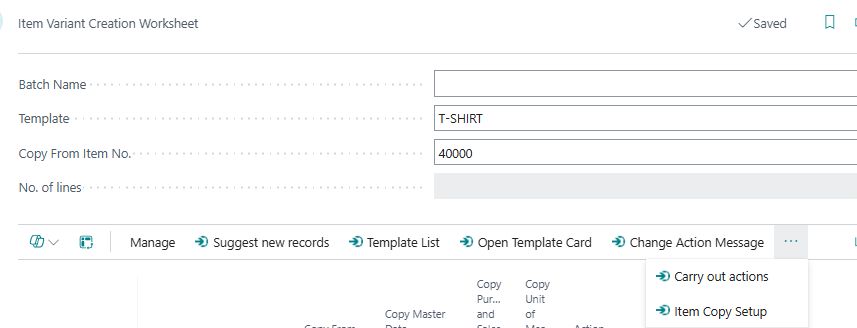
| Action | What It Does | When to Use | Prerequisites |
|---|---|---|---|
| Suggest new records (Shift+Ctrl+L) | Opens the Create Record Filters dialog where users define MDI attribute value filters and copy options. After confirming, the system generates one worksheet line per valid combination of the selected attribute values. | At the start of a creation cycle when multiple new records sharing the same template should be created in bulk. Lines already exist in the worksheet are preserved; new lines are appended. | A Template and Batch Name must be selected in the header. |
| Open Template Card | Opens the Import Template card for the template on the selected line (or the header template if no line is selected). | To review or adjust template configuration — column mappings, copy settings, No. Series — without leaving the worksheet. | A template must be set on the line or in the header. |
| Change Action Message | Shows a menu to either set Accept Action Message to true (Accept) or false (Ignore) for all lines matching the current filter. | To quickly accept or reject a large number of lines at once rather than ticking each checkbox individually. | Lines must be visible in the current filtered view. |
| Template List | Opens the Import Template list filtered to templates for Item (table 27) and Item Variant (table 5401). | To review all available templates or open a different template card. | None. |
| Carry out actions | Runs the Carry Out Action from Master Data Import Worksheet report on the current worksheet (filtered to the current Batch Name). Processes all lines where Accept Action Message is enabled, creating or updating the target BC records. Shows a progress indicator. | After reviewing and accepting lines, to execute the actual record creation. | At least one line must have Accept Action Message enabled. The report presents two options before running: Update existing Master Data (whether to update records that already exist) and Stop and show first error (whether to halt processing on the first error or continue and mark lines with errors). |
| Item Copy Setup | Opens the Master Data Copy Item dialog pre-filled with the item number from the selected line's Copy From Keyfield 1 field. Provides detailed control over what is copied to new items. | When fine-grained control is needed over which data elements are copied from the source item to the new item — beyond the line-level copy checkboxes. | A line with a value in Copy From Keyfield 1 must be selected. |
Create Record Filters Dialog (Suggest New Records)
When Suggest new records is triggered, the Create Record Filters dialog opens. This dialog determines how many lines are generated and what copy settings they receive.
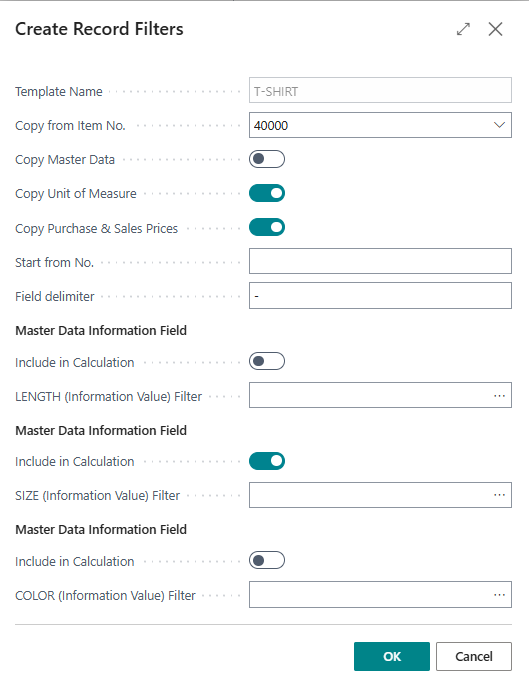
| Field | Purpose | Key Information |
|---|---|---|
| Template Name | Displays the active template. | Read-only. Set from the worksheet header. |
| Copy from Item No. | The source item to copy data from for all generated lines. | Defaults to the value set in the worksheet header. Can be changed here for this generation run. |
| Copy Master Data | Whether generated lines should copy MDI specification entries from the source item. | Per-generation setting, saved to user setup. |
| Copy Unit of Measure | Whether generated lines should copy unit of measure definitions. | Per-generation setting. |
| Copy Purchase & Sales Prices | Whether generated lines should copy purchase and sales prices. | Per-generation setting. |
| Start from No. | An optional starting number for the first new record's key field (e.g., item number). Subsequent numbers are incremented automatically. | Used when records should follow a sequential numbering scheme starting from a specific value. |
| Field delimiter | A delimiter character used when combining multiple attribute values into a composite key field. | Optional. Used in conjunction with style variant creation templates. |
| MDI Attribute Filter fields (1–15) | One group per visible template column. Each group has an Include in Calculation checkbox and a filter value field labelled with the column's Information Code caption (e.g., "Colour Filter"). | Enter one or more Information Values per column to filter on (pipe-separated for multiple values, selected via lookup). Only Information Value combinations matching the filter across all included columns generate lines. If no filter is entered for a column, all values for that attribute are used. The Include in Calculation checkbox controls whether that column participates in line generation. |
The number of lines generated equals the Cartesian product of the selected Information Values across all included columns. For example, selecting 3 colours and 4 sizes generates 12 lines.
Item Copy Setup Dialog
When Item Copy Setup is triggered, the Master Data Copy Item dialog opens with detailed copy options:
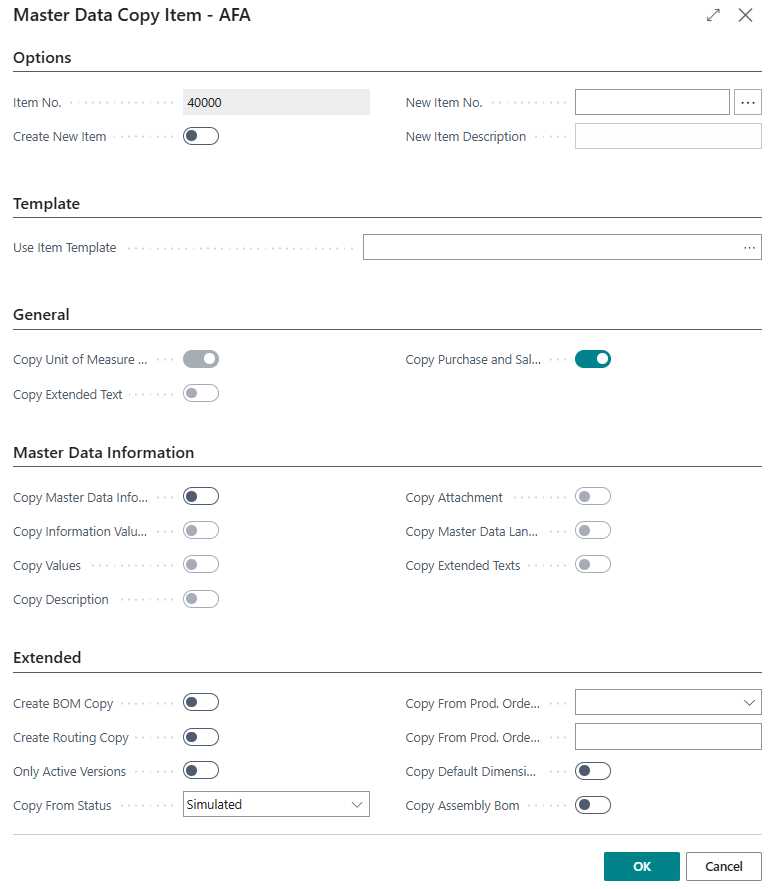
Options section:
| Field | Purpose |
|---|---|
| Item No. | The source item number (read-only, from the line's Copy From field). |
| Create New Item | Whether to create a new item as part of this copy operation. |
| New Item No. | The number for the new item. Can be entered manually or generated via the No. Series assist-edit. |
| New Item Description | Description for the new item. |
| Use Item Template | An MDI Master Data Template to apply to the new item, controlling default field values on creation. |
General section:
| Field | Purpose |
|---|---|
| Copy Unit of Measure | Copy unit of measure definitions from the source item. |
| Copy Extended Text | Copy standard BC Extended Texts from the source item. |
| Copy Purchase & Sales Prices | Copy pricing setup. |
Master Data Information section:
| Field | Purpose |
|---|---|
| Copy Master Data Information | Master toggle for all MDI copy options below. |
| Copy Information Values | Copy the MDI attribute values (Information Entries). |
| Copy Values | Copy MDI value content. |
| Copy Description | Copy MDI description fields. |
| Copy File Placement | Copy file/media placements. |
| Copy Master Data Language | Copy language-specific MDI data. |
| Copy Extended Texts | Copy MDI Extended Texts. |
Extended section:
| Field | Purpose |
|---|---|
| Create BOM Copy | Copy the item's production BOM. |
| Create Routing Copy | Copy the item's production routing. |
| Only Active Versions | Restrict BOM/routing copy to active versions only. |
| Copy From Status | Filter source production orders by status when copying. |
| Copy From Prod. Order No. / Line No. | Specific production order to copy from. |
| Copy Global Dimensions | Copy global dimension assignments. |
| Copy Assembly BOM | Copy the item's assembly BOM. |
Key Behaviours
Lines are never inserted manually. The InsertAllowed property is false — worksheet lines can only be added via Suggest new records or programmatically. This ensures all lines have a valid template and batch assignment.
Key fields are locked after carry out. When a line has been carried out (i.e., a record was created and the No. field is populated), editing the key column cells (columns 1 through the number of primary key fields on the template's target table) raises an error: "Key fields can not be changed after carry out." This protects the identity of already-created records.
Action Message tracks the outcome. After Carry Out Actions runs, each processed line receives an updated Action Message: Import Succes if the record was created or updated successfully, Error while inserting record or Import Error if something failed, or Master Data already Exist if the record already existed and the Update existing Master Data option was not selected. Lines with error statuses stay in the worksheet and can be corrected (adjust column values, copy settings, etc.) and reprocessed.
Accept Action Message controls selective processing. Only lines with Accept Action Message ticked are processed by Carry Out Actions. This allows a batch to be partially processed — for example, accepting error-corrected lines for reprocessing while leaving unreviewed lines untouched.
Style variant auto-numbering. If the template has Create as Style Variant enabled and an Increment Variant from Text pattern configured, the Try Get Primary Key from Template action (or the HandleStyleVariant logic during line generation) automatically constructs item numbers by combining a prefix from the first line's key column with an incrementing suffix for subsequent lines.
User setup persists between sessions. The selected Batch Name, Template, Copy From Item No., Start From No., and all copy flags are saved per user in SCB Creation Wksh. User Setup and restored when the page is reopened.
Related Pages
| Page | Relationship |
|---|---|
| Information Matrix Template List | The Import Templates referenced by the Template header and line fields. Templates for Item (table 27) or Item Variant (table 5401) configure which MDI attribute columns appear in the worksheet, which fields are key fields, and how the new records are created. |
| Batch Import Template List | The Batch Name field links to Batch Import Templates, which group related creation lines together. |
| Master Data Copy Item (dialog) | Opened via Item Copy Setup. Provides detailed control over what is copied from the source item when creating new items through the worksheet. |
| Create Record Filters (dialog) | Opened via Suggest new records. Defines the MDI attribute value combinations that generate worksheet lines. |
| Carry Out Action from Master Data Import Worksheet (report) | Triggered by Carry out actions. Processes all accepted lines and creates or updates BC records. |
| Master Data Import Worksheet | The import-focused sibling worksheet (page 6082779) used for importing existing data rather than creating new records. Shares the same source table and carry-out mechanism. |