Overview
The Master Data Import Worksheet is a staging area for creating or updating Business Central records in bulk. Data is brought into the worksheet from Excel files or entered manually, with each row representing one record to create or update. Column headings are defined by an Import Template, which maps each column to a specific field on the target BC table and controls which columns carry master data specifications. Once rows are prepared and reviewed, the Carry out actions report applies them to the live database.
The worksheet supports any BC table that has an Import Template defined — items, customers, vendors, and more — and can carry master data specifications (Information Entries) as part of the same import.
When Is This Page Used
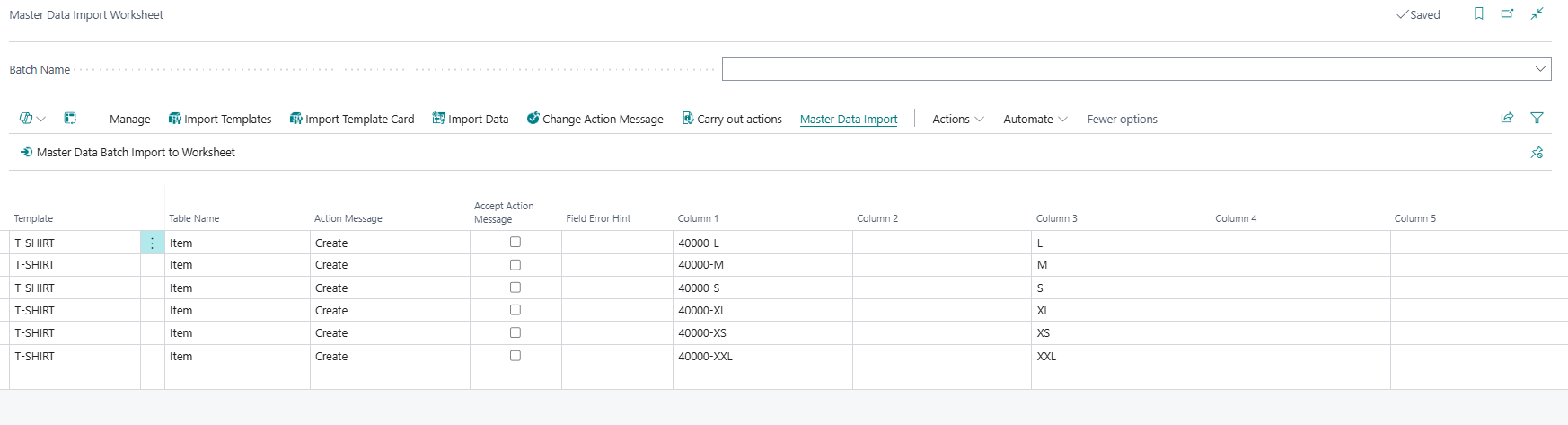
Users open the Master Data Import Worksheet when they need to create or update multiple BC records at once, typically as part of a data migration, periodic bulk update, or structured data-entry process. The typical workflow is: select a Batch Name to filter the worksheet to the relevant import batch → import data from Excel using Import Data or load it via Master Data Batch Import to Worksheet → review and correct rows as needed → accept the rows that are ready using Accept Action Message or Change Action Message → run Carry out actions to apply the data.
Who Are Typical Users
- Master Data Manager / Data Steward — runs bulk imports of items, customers, or vendors, including their master data specifications.
- Implementation Consultant — uses the worksheet during go-live data migration to load large volumes of records with associated MDI attributes.
- System Administrator — manages import templates and batch configurations, monitors import results and resolves error rows.
Accessing the Page
The Master Data Import Worksheet has UsageCategory = Tasks and is directly searchable from the Business Central search bar. It has no additional navigation shortcuts or role centre links in the current version.
Page Components
Batch Name Selector (Header Area)
Above the line grid, a single selector field controls which import batch is displayed.
| Field | Purpose | Example | Key Information |
|---|---|---|---|
| Batch Name | Filters the worksheet lines to a specific import batch. | ITEMS-2025, CUST-Q1 |
Validated against the SCB Batch Import Template table. When a batch is selected, the line filter is set to show only lines belonging to that batch, and the selection is saved per user so the same batch reloads the next time the worksheet is opened. When cleared, all lines across all batches are shown. |
Line Grid (Repeater)
Each row in the grid represents one record to be created or updated. The visible columns are determined by the Import Template assigned to each line — the template defines what each numbered column means for a given target table. The grid always shows up to 50 columns regardless of template; columns not used by the template are simply left blank.
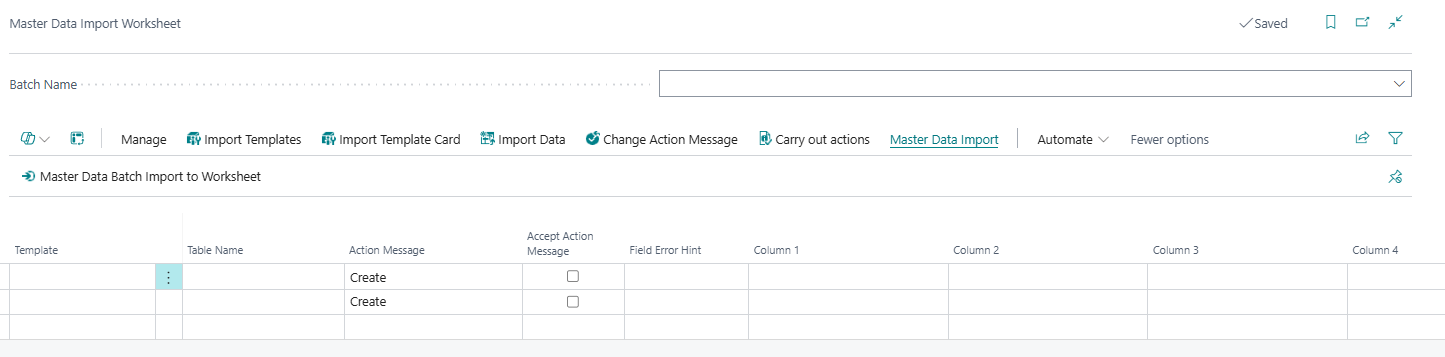
Line Control Fields
| Field | Purpose | Example | Key Information |
|---|---|---|---|
| Template | The Import Template code that defines how this row's columns map to BC table fields. | ITEM-STD, CUST-BASIC |
Validated against the SCB New Master Data Imp. Temp table. When changed, the line's Table and Table Name are updated automatically, and template-level copy settings (Copy From Record, Copy Master Data Information, etc.) are inherited from the template. Key fields on already-carried-out rows cannot be changed. |
| Table Name | Shows the name of the BC table this row targets (set automatically from the template). | Item, Customer |
Read-only — derived from the Template field. |
| Action Message | The current processing status of the row. | Create, Import Succes, Import Error |
Set by the system during import or carry-out. Options: blank, Create (initial state — row is ready to be processed), Import Error (error during Excel import), Error while inserting record (carry-out failed to create/update the BC record), Import Succes (carry-out completed successfully), Master Data already Exist (the target record already exists). |
| Accept Action Message | When enabled, this row will be included when Carry out actions is run. | Yes / No |
The carry-out report only processes rows where Accept Action Message is Yes. Rows with errors or rows the user wants to skip should have this unchecked. Use the Change Action Message action to bulk-set or clear this flag across filtered rows. |
| Field Error Hint | Shows the last error message recorded for this row during import or carry-out. | Error on assigning No.=X001... |
Read-only — populated automatically when an error occurs. Provides specific field-level error information to help diagnose and correct the row. |
Data Columns (Column 1 – Column 50)
The 50 data columns are generic containers. Their meaning is entirely determined by the Import Template assigned to the row. The template maps each column number to a specific BC table field or to a master data specification (Information Code). Columns that are designated as key fields by the template (typically columns 1–N, where N is the number of primary key fields on the target table) cannot be edited once the row has been carried out successfully.
Each column has a lookup trigger (OnLookup) that opens a lookup window appropriate for that column's data type as defined in the Import Template — for example, an Information Value lookup for specification columns, or a table field lookup for standard BC fields.
| Field | Purpose | Key Information |
|---|---|---|
| Column 1 – Column 50 | Generic data columns. All 50 columns are Text[250] fields. Their meaning is entirely determined by the Import Template assigned to the row. |
The parenthetical size suffix in each column name (e.g., Column1 (50)) is a developer naming convention indicating the intended data length for that slot — it does not restrict storage. Columns mapped to key fields by the template cannot be edited once the row has been successfully carried out. |
Hidden field: Copy from Record (text) (Visible = false) — stores a text description of the record this row should copy from (carried over from the template). Not displayed to the user but used internally during processing.
Actions
Processing Area
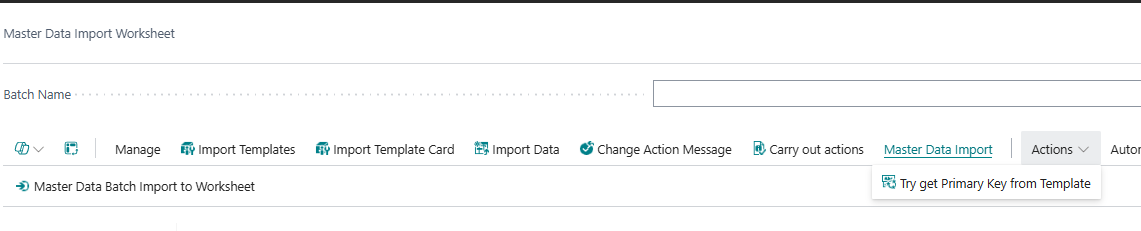
| Action | What It Does | When to Use | Prerequisites |
|---|---|---|---|
| Try get Primary Key from Template | For selected lines, fills in the primary key column(s) using the number series or style variant rules configured on the Import Template. Prompts for confirmation before updating. | Use when rows have been added manually or from a batch file and the primary key (e.g., item number) needs to be auto-assigned from the template's number series. | Only visible when the feature flag Create Wksht Data w No Series is enabled. Template must have a No. Series Column and Increment from No. Series configured. Key column must currently be blank for the action to fill it in. |
Master Data Import Navigation Group

| Action | What It Does | When to Use | Prerequisites |
|---|---|---|---|
| Import Templates | Opens the Import Template List page in import mode, showing all available Import Templates. | Use to review, create, or manage the Import Templates that define how worksheet columns map to BC fields. | — |
| Import Template Card | Opens the Import Template Card for the template assigned to the currently selected worksheet line. | Use to inspect or modify the column mapping for the template of a specific line. | The selected line must have a Template assigned with a matching Table. |
| Import Data | Runs the SCB Imp. Master Data From Excel report, which reads data from an Excel workbook into the worksheet. The report prompts for a Template Code, Batch Name, file path, and worksheet tab name. | Use to load prepared data from an Excel file into the worksheet as import lines. | An Import Template must exist for the target table. The Excel file must match the expected column structure defined by the template. |
| Change Action Message | Shows a menu to bulk-set Accept Action Message to Yes (Accept Action Message) or No (Ignore Action Message) across all currently filtered lines. |
Use after importing or reviewing lines to mark which rows should be processed, or to exclude error rows from carry-out. | Lines must be present in the current filter. |
| Carry out actions | Runs the Carry Out Action from Master Data Import Worksheet report against all lines with Accept Action Message = Yes. Displays a progress dialog during processing. The report request page offers two options: Update existing Master Data (whether to update records that already exist) and Stop and show first error (whether to halt on the first error or continue processing remaining lines). |
Use when rows have been reviewed and accepted and are ready to be created or updated in the live database. | At least one line must have Accept Action Message = Yes. |
| Master Data Batch Import to Worksheet | Opens the Batch Import Lines page, which allows importing multiple Excel files into the worksheet in a single batch operation by configuring file names and templates per batch entry. | Use when loading data from multiple Excel files or managing a batch of files that all belong to the same import run. | Batch Import Templates and file paths must be configured. |
| Import Master Data Information from csv file | Caption is visible in the action menu but the underlying XMLport is commented out. | Not functional in the current version. | — |
How the Import and Carry-Out Process Works
The full workflow involves two separate steps:
Step 1 — Loading data into the worksheet. Data is brought in via Import Data (Excel import) or Master Data Batch Import to Worksheet (multi-file batch), or entered manually line by line. Each imported row gets Action Message = Create by default and Accept Action Message = No. After import, rows with errors show Action Message = Import Error and a description in Field Error Hint.
Step 2 — Carrying out actions. The user reviews rows, corrects errors, and uses Change Action Message to set Accept Action Message = Yes on rows that are ready. Running Carry out actions processes each accepted row by attempting to create or update the target BC record and its associated master data specifications. After carry-out, each row's Action Message is updated to reflect the result: Import Succes, Error while inserting record, or Master Data already Exist. Rows that succeeded remain in the worksheet for reference; failed rows show a detailed error in Field Error Hint and can be corrected and re-accepted for another carry-out run.
Default Setup & Templates
The worksheet saves the selected Batch Name per user in the SCB Creation Wksh. User Setup table (keyed by User ID + Worksheet Type = Import Worksheet). The last-used batch is restored automatically the next time the worksheet is opened. No default batch names or import lines are created by the extension's installation.
Related Pages
Import Template List / Import Template Card
The Import Template List and Import Template Card (opened via Import Templates and Import Template Card actions) define the column-to-field mapping for each target table. Each template specifies which column holds which BC field or Information Code, which column is the primary key, and optional settings such as a copy-from record, number series for auto-numbering, and style variant configuration for items.
Batch Import Lines
The Batch Import Lines page (opened via Master Data Batch Import to Worksheet) manages a queue of Excel files to be loaded into the worksheet in one operation. Each entry in the batch specifies a Batch Import Template, a Batch Name, and a file name. Running Import Excel Workbook from Template from that page imports all queued files.
SCB Imp. Master Data From Excel (Report)
The Import Data action runs this report, which reads an Excel workbook and creates worksheet lines from its rows. The report request page asks for the Template Code, Batch Name, full file path to the workbook, and the name of the Excel worksheet tab to read from.
SCB Carry Out Action MDI Wrksh (Report)
The Carry out actions action runs this report. Its request page offers Update existing Master Data (whether existing BC records are updated rather than skipped) and Stop and show first error (whether the report halts immediately on the first error or continues processing remaining accepted lines). The report processes only rows where Accept Action Message is Yes.