Overview
Import Templates define how data columns in the Master Data Import Worksheet map to fields in a Business Central table. Each template targets a specific BC table, configures up to 50 data columns (assigning each to either a table field or a Master Data Information specification), and optionally controls advanced behaviors such as number series generation, copying from existing records, and Excel column mapping. Together, the Master Data Template List and the Master Data Template card provide the interface for creating and maintaining these templates.
When Is This Page Used
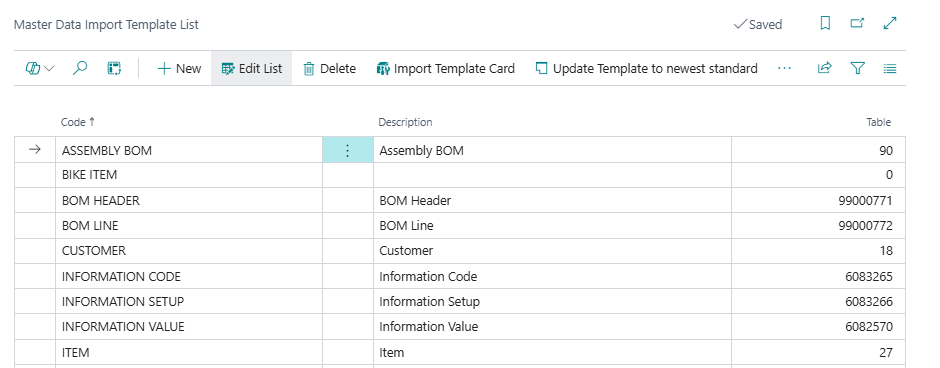
Master Data Template List is used when users need to browse all available Import Templates, create new ones, copy existing ones, update templates to the current standard, or open a specific template for editing. It is the central starting point for all template management.
Master Data Template (card) is opened when a user needs to configure or review the detailed column mapping for a single template — setting the target table, assigning fields to each column, and configuring advanced options such as number series or record copying behavior.
Who Are Typical Users
Implementation consultants and system administrators responsible for setting up or maintaining the Master Data Import Worksheet feature. Data managers who create or adjust import templates to match specific data migration or ongoing data entry requirements.
Accessing the Pages
Master Data Template List has UsageCategory = Lists and ApplicationArea = All, making it searchable via the Business Central search (Tell Me). It can also be opened from the Master Data Import Worksheet via the Import Templates action.
Master Data Template (card) is not directly searchable. It opens when a user selects a template in the list and clicks Import Template Card, or when the Import Template Card action is used from the Master Data Import Worksheet. The card's caption changes dynamically depending on context: it displays Master Data Import Template when opened in import context, and Master Data Creation Template when opened in creation context.
The list page caption similarly changes to Master Data Import Template List or Master Data Creation Template List depending on how it is opened.
Page Components
Actions — Master Data Template List
| Action | What It Does | When to Use | Prerequisites |
|---|---|---|---|
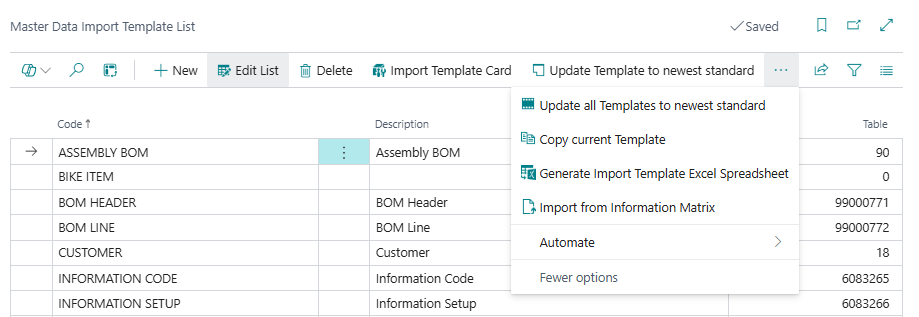
| Import Template Card | Opens the Master Data Template card for the selected template. | To review or edit the column configuration of a specific template. | A template must be selected. |
| Update Template to newest standard | Resets the selected template to the current standard column configuration defined by the app. | When a template has drifted from the standard setup and needs to be brought in line with the latest field mappings. | The template must match one of the standard template codes (e.g. CUSTOMER, ITEM). Existing field mappings will be overwritten after confirmation. |
| Update all Templates to newest standard | Updates all standard templates at once to the current app standard. | After an app upgrade, to refresh all default templates to the latest field mappings. | Requires confirmation. All standard template field mappings will be overwritten. |
| Copy current Template | Creates a copy of the selected template with a new code and description. | When a custom variant of an existing template is needed without modifying the original. | A template must be selected. Opens the Copy Template dialog. |
| Generate Import Template Excel Spreadsheet | Generates an Excel file pre-configured with column headers matching the selected template(s). | To give data providers or end users a ready-to-fill Excel file for the selected import template. | Only visible when the page is opened in import context. One or more templates must be selected. |
| Import from Information Matrix | Converts an Information Matrix template into a new Import Template by mapping its columns. | When an existing Information Matrix template covers the same data structure and you want to reuse it as an Import Template. | An Information Matrix template must exist. Opens a source selection dialog followed by a naming dialog. |
Fields — Master Data Template List
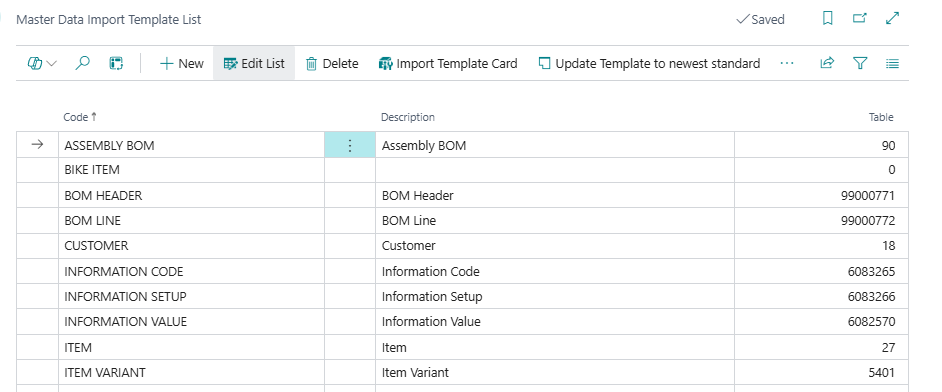
The list gives a quick overview of all templates. Use it to filter, search, and select before opening a card.
| Field | Purpose | Key Information |
|---|---|---|
| Code | Unique identifier for the template. | Up to 30 characters. Used to reference the template from the Import Worksheet and creation tools. |
| Description | Human-readable name for the template. | Free text, up to 80 characters. |
| Type (internally: Table) | The Business Central table number this template targets. | Drives which fields are available for column mapping. Changing this resets primary key columns automatically. |
Fields — Master Data Template Card
General FastTab
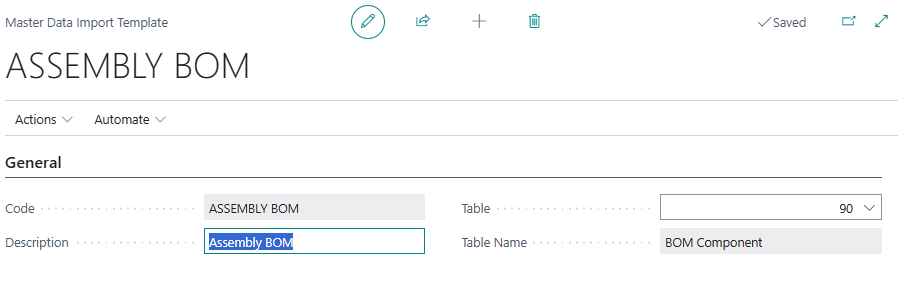
This section identifies the template and links it to the target Business Central table. Setting the Table field is the most important step — it controls all downstream behavior.
| Field | Purpose | Key Information |
|---|---|---|
| Code | Unique template identifier. | Read-only on the card. Set when the template is created. |
| Description | Descriptive name for the template. | Editable. |
| Table | The Business Central table number to import into or create records in. | When set, the system automatically reads the table's primary key fields and pre-fills Column 1 through Column N with those key field names, marking them as type Table. The number of primary keys determines how many column data type fields are locked for editing. |
| Table Name | Display name of the selected table. | Read-only. Populated automatically when Table is set. |
No. Series FastTab
This FastTab is only visible when the feature flag Create Wksht Data w No Series is enabled in the MDI setup.
These fields allow the worksheet to automatically assign numbers from a number series when creating new records, rather than requiring the user to type a key value manually.
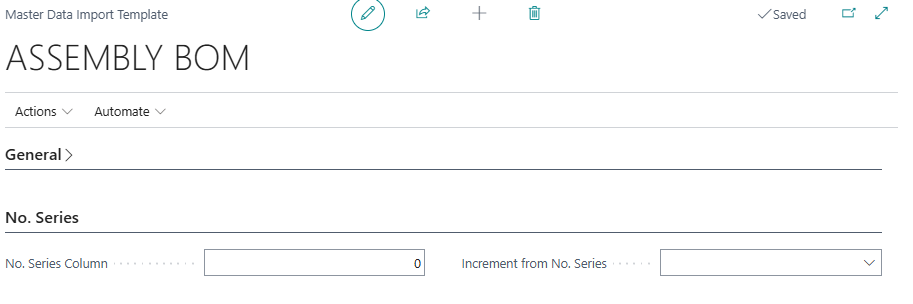
| Field | Purpose | Key Information |
|---|---|---|
| No. Series Column | Specifies which column number (1–50) contains the primary key field that should receive a value from the number series. | Automatically set when the table is selected, if the table's single primary key field is detected as suitable for number series use. Cleared automatically if the selected column is no longer suitable. |
| Increment from No. Series | The number series code to use when generating new key values. | Links to the standard BC No. Series table. Only effective if No. Series Column is filled in. |
Copy from Existing Record FastTab
This FastTab is only visible when the feature flag Create Wksht Data w No Series is enabled, and only when the Table is set to Item (table 27). Support for other tables is planned but not yet implemented.
These fields allow the worksheet to copy field values and master data from an existing item record as a starting point for new records.
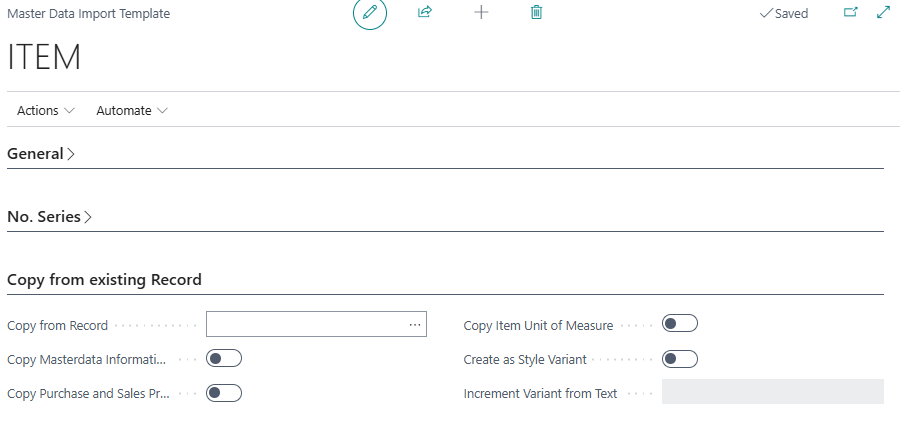
| Field | Purpose | Example | Key Information |
|---|---|---|---|
| Copy from Record | Specifies the item number to copy from. | ITEM-001 |
A lookup opens the Item list. The selected item's No. is stored internally as a Record ID. Cleared if the table is changed away from Item. |
| Copy Masterdata Information | Whether to copy Master Data Information entries (specifications) from the source item to the new item. | Yes |
Only applies during creation via the worksheet. |
| Copy Purchase and Sales Prices | Whether to copy purchase and sales price lines from the source item. | Yes |
Only visible if the target table supports purchase/sales prices. |
| Copy Item Unit of Measure | Whether to copy item unit of measure entries from the source item. | Yes |
Only visible for Item (table 27). |
| Create as Style Variant | Whether to create the new item as a style variant of the source item rather than as a fully independent item. | Yes |
Only visible for Item (table 27) when the Item Variant Handling feature is enabled. |
| Increment Variant from Text | A text string ending with a number that the system will increment (using INCSTR) to generate variant codes for each new row. |
VAR-01 |
Only editable when Create as Style Variant is enabled. The value must end with a numeric portion; an error is raised on validation otherwise. Cleared if Create as Style Variant is disabled. |
Column Setup FastTab
This is the core of the template. It defines what each of the 50 import columns represents. Columns are configured one by one. For each column, the system shows different sub-fields depending on the selected Data Type.
How key field columns work: When a Table is set, the system automatically fills the first N columns (where N is the number of primary keys in the table) with the table's primary key field names and locks their Data Type to Table. These columns cannot be changed to Master Data Information type. Additionally, columns 2 through 10 become read-only for their Data Type field if they fall within the primary key range — their mapping is fixed by the primary key structure of the table.
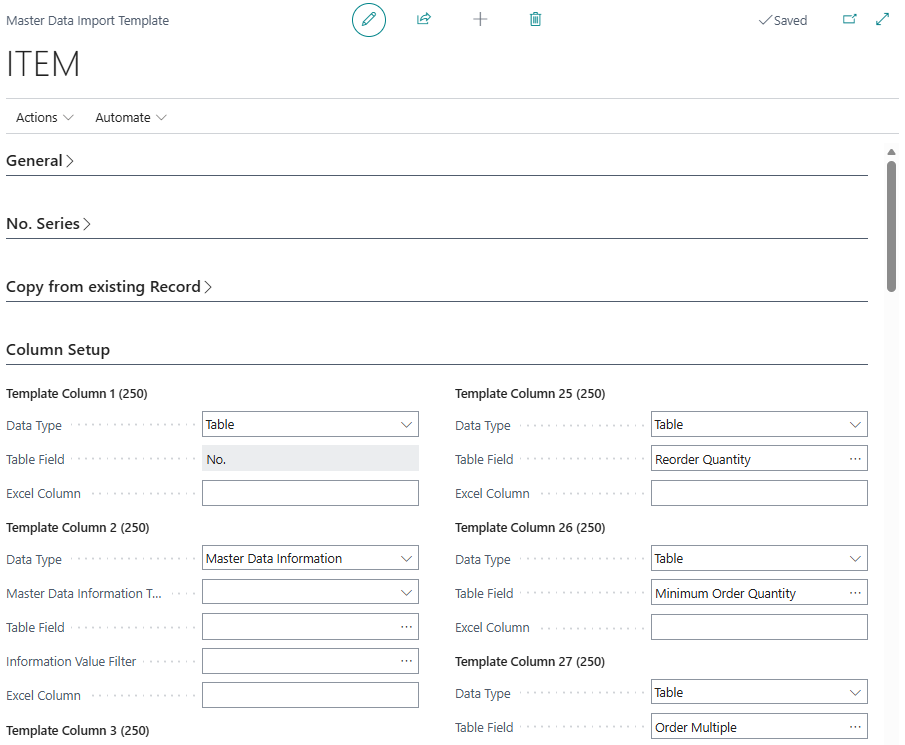
Column Data Type options:
| Data Type | Meaning |
|---|---|
| Table | The column maps directly to a field in the target BC table. |
| Master Data Information | The column maps to a Master Data Information specification (Information Code / Information Value / Value / Description). |
Sub-fields shown when Data Type = Table:
| Field | Purpose | Key Information |
|---|---|---|
| Table Field | The name of the field in the target BC table that this column will populate. | Validated against actual fields in the selected table. An error is raised if the field name does not exist. For primary key columns, this is pre-filled and read-only. |
| Excel Column | The column number in the source Excel file that maps to this template column during import. | Only visible in import context. Leave blank if this column is not sourced from Excel (e.g., for manually entered columns). |
Sub-fields shown when Data Type = Master Data Information:
| Field | Purpose | Key Information |
|---|---|---|
| Master Data Information Type | Specifies what kind of Master Data Information this column contains. Options: (blank), Description, Information Value, Value. | Determines which lookup is offered in the worksheet column and how the value is stored. |
| Table Field | For Master Data Information type: the Information Code this column is associated with. | Validated against existing Information Codes. Cleared if Master Data Information Type is changed. |
| Information Value Filter | A filter restricting which Information Values are valid for this column. | Supports lookup to existing Information Values. Validated on entry. Useful for columns that should only accept specific values. |
| Excel Column | The column number in the source Excel file that maps to this template column during import. | Only visible in import context. |
Actions — Master Data Template Card
| Action | What It Does | When to Use | Prerequisites |
|---|---|---|---|
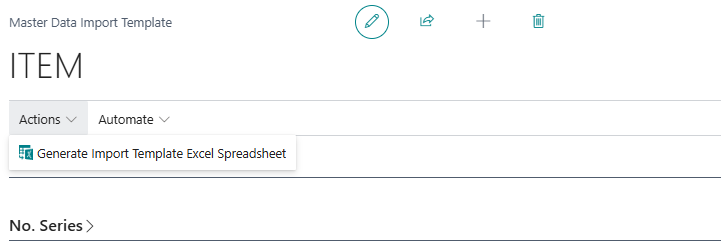
| Generate Import Template Excel Spreadsheet | Generates an Excel file with column headers matching this template's configuration. | To produce a blank import file for data providers to fill in. | Only visible in import context. Template must have at least one column configured. |
Default Setup & Templates
The app installs 19 standard Import Templates automatically during initial setup (via the SCB Default MDI Setup Data codeunit). These can be restored or updated at any time using the Update Template to newest standard or Update all Templates to newest standard actions on the list.
Default Templates
| Code | Description | Target Table | Key Columns Pre-configured |
|---|---|---|---|
| CUSTOMER | Customer | Customer (18) | No., Name, Name 2, Search Name, Address, Address 2, City, Post Code, Country/Region Code, E-mail, Phone No., Fax No., Contact, VAT Registration No., GLN, Bill-to Customer No., Currency Code, Language Code, Fin. Charge Terms Code, Cash Flow Payment Terms Code, Payment Method Code, Payment Terms Code, Reminder Terms Code, Credit Limit (LCY), Location Code, Shipment Method Code, Shipping Agent Code, Salesperson Code, VAT Bus. Posting Group, Gen. Bus. Posting Group, Customer Posting Group, Customer Price Group, Customer Disc. Group, Blocked, Shipping Time, Base Calendar Code, Application Method, Invoice Disc. Code, Last Date Modified, Priority |
| VENDOR | Vendor | Vendor (23) | No., Name, Name 2, Search Name, Address, Address 2, City, Post Code, Country/Region Code, E-mail, Phone No., Fax No., Contact, VAT Registration No., Lead Time Calculation, Currency Code, Language Code, Payment Method Code, Payment Terms Code, Location Code, Shipment Method Code, Purchaser Code, VAT Bus. Posting Group, Gen. Bus. Posting Group, Vendor Posting Group, Blocked, Base Calendar Code, Application Method, Priority |
| ITEM | Item | Item (27) | No., Description, Description 2, Search Description, Base Unit of Measure, Item Category Code, Costing Method, Standard Cost, Last Direct Cost, Unit Price, Gen. Prod. Posting Group, Inventory Posting Group, Replenishment System, Vendor No., Vendor Item No., Lead Time Calculation, Routing No., Production BOM No., Lot Size, Reordering Policy, Lot Accumulation Period, Safety Stock Quantity, Reorder Point, Reorder Quantity, Minimum Order Quantity, Order Multiple, Gross Weight, Net Weight, Tariff No., Overhead Rate, Order Tracking Policy, Indirect Cost %, Safety Lead Time, VAT Prod. Posting Group, Profit %, Units per Parcel, Item Disc. Group, Shelf No., Unit Cost, Blocked, Durability, Item Tracking Code, Lot Nos., GTIN |
| ASSEMBLY BOM | Assembly BOM | BOM Component (90) | Parent Item No., Line No., Type, No., Unit of Measure Code, Quantity per, Variant Code, Installed in Line No., Installed in Item No |
| SHIP-TO ADDRESS | Ship-to Address | Ship-to Address (222) | Customer No., Code, Name, Name 2, Address, Address 2, City, Post Code, Country/Region Code, E-Mail, Phone No., Fax No., Contact, Shipment Method Code, Shipping Agent Code, Shipping Agent Service Code, Place of Export, Location Code, County |
| ORDER ADDRESS | Order Address | Order Address (224) | Vendor No., Code, Name, Name 2, Address, Address 2, City, Post Code, Country/Region Code, E-Mail, Phone No., Fax No., Contact, County |
| ITEM VARIANT | Item Variant | Item Variant (5401) | Item No., Code, Description |
| SKU | Stockkeeping Unit | Stockkeeping Unit (5700) | Location Code, Item No., Variant Code, Standard Cost, Last Direct Cost, Replenishment System, Vendor No., Vendor Item No., Lead Time Calculation, Lot Size, Reordering Policy, Time Bucket, Safety Stock Quantity, Reorder Point, Reorder Quantity, Minimum Order Quantity, Order Multiple, Shelf No., Unit Cost, Maximum Inventory, Transfer-Level Code, Maximum Order Quantity, Safety Lead Time, Components at Location, Flushing Method, Include Inventory, Manufacturing Policy, Transfer-from Code |
| SERIAL NUMBER | Serial Number | Item Tracking (6504) | Item No., Variant Code, Serial No. |
| LOT NUMBER | Lot Number | Item Tracking (6505) | Item No., Variant Code, Lot No. |
| SALES PRICE | Sales Price | Sales Price (7002) | Item No., Sales Type, Sales Code, Starting Date, Currency Code, Variant Code, Unit of Measure Code, Minimum Quantity, Ship-to Code, Unit Price, Price Includes VAT, Allow Invoice Disc., VAT Bus. Posting Gr. (Price), Ending Date, Allow Line Disc. |
| PURCHASE PRICE | Purchase Price | Purchase Price (7012) | Item No., Vendor No., Starting Date, Currency Code, Variant Code, Unit of Measure Code, Minimum Quantity, Direct Unit Cost, Ending Date |
| INFORMATION SETUP | Information Setup | Information Entry (6083266) | Table, No., Information Code, Information Value, From Table, From No., SubType, Value, Description, File Placement |
| INFORMATION CODE | Information Code | Information Code (6083265) | Code, Subtype, Long Description Order, Sorting Level, Include in Long Description |
| INFORMATION VALUE | Information Value | Information Value (6082570) | Information Code, Information Value, Value, Sorting Level |
| ROUTING HEADER | Routing Header | Routing Header (99000763) | No., Description, Status, Type |
| ROUTING LINE | Routing Line | Routing Line (99000764) | Routing No., Version Code, Operation No., Type, No., Description, Routing Link Code, Setup Time, Setup Time Unit of Meas. Code, Run Time, Run Time Unit of Meas. Code, Wait Time, Wait Time Unit of Meas. Code, Move Time, Move Time Unit of Meas. Code, Fixed Scrap Quantity, Scrap Factor %, Concurrent Capacities, Send-Ahead Quantity, Unit Cost per, Lot Size |
| BOM HEADER | BOM Header | Production BOM Header (99000771) | No., Description, Unit of Measure Code, Status |
| BOM LINE | BOM Line | Production BOM Line (99000772) | Production BOM No., Version Code, Line No., Type, No., Unit of Measure Code, Quantity per, Routing Link Code, Scrap %, Variant Code, Description, Position |
Purpose of Default Templates
The default templates cover the most commonly imported master data entities in a standard Business Central implementation. They allow users to get started with the Master Data Import Worksheet immediately without needing to configure column mappings manually. Each template pre-maps the most relevant fields for its entity:
CUSTOMER and VENDOR cover the core contact, financial, and logistical fields needed when migrating or bulk-updating trading partners.
ITEM covers the main item card fields across costing, planning, purchasing, manufacturing, and logistics.
ASSEMBLY BOM, BOM HEADER, and BOM LINE support importing manufacturing structures.
ROUTING HEADER and ROUTING LINE support importing production routings.
SHIP-TO ADDRESS and ORDER ADDRESS support importing address variants for customers and vendors respectively.
ITEM VARIANT, SKU, SERIAL NUMBER, and LOT NUMBER cover inventory tracking structures.
SALES PRICE and PURCHASE PRICE support bulk import of pricing agreements.
INFORMATION SETUP, INFORMATION CODE, and INFORMATION VALUE are MDI-specific templates for importing the specification framework itself — useful for initial MDI configuration or migrating information structures between environments.
Related Pages
| Page | Relationship |
|---|---|
| Master Data Import Worksheet | The main consumer of Import Templates. Each worksheet line references a template, which determines the meaning of its 50 data columns. Accessed from the worksheet via the Import Templates action. |
| Master Data Batch Import Lines | Allows queuing multiple Excel files for batch import into the worksheet. Templates are assigned per batch line. |
| SCB Info Matrix Setup List | Source for the Import from Information Matrix action — allows converting an Information Matrix template into an Import Template. |