Overview
The Information Matrix Template List and Information Matrix Template Setup pages together form the configuration centre for the Information Matrix. A Matrix Template defines which columns appear in the Information Matrix when it is opened for a specific BC table — each template maps up to 50 columns, where each column can display either a standard BC table field or a Master Data Information specification value. Templates are table-specific, meaning a template configured for Items cannot be used when working with Customers or Vendors.
These pages are used by administrators and power users to design and maintain the column layouts that all users see when they open the Information Matrix. Once a template is created and saved, it becomes available for selection directly inside the Information Matrix.
When Are These Pages Used
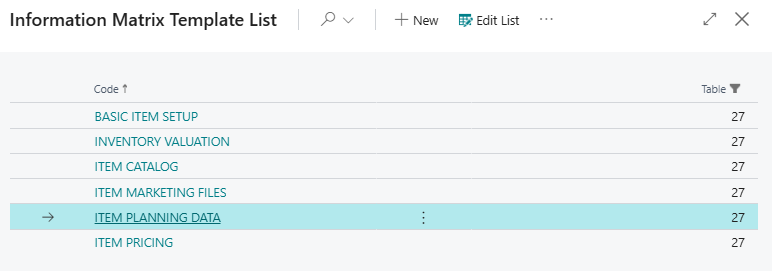
Information Matrix Template List — Opened when administrators need to review the full set of configured templates for a table, create new templates, duplicate existing ones, import templates from an Import Worksheet, or update templates back to the app's shipped standard configuration.
Information Matrix Template Setup — Opened when a specific template needs to be configured or edited in detail. The card shows one column group per column slot (1–50) and allows full control of each column's data source, field mapping, and optional filter.
Who Are Typical Users
Implementation consultants and system administrators responsible for configuring MDI. Power users who maintain the Information Matrix column layouts for their teams, including decisions about which specifications or BC fields should be visible when editing records in the matrix.
Accessing the Pages
Neither page has a UsageCategory and neither is searchable in Business Central's role center search. They are accessed through:
- From the Information Matrix: The Matrix Template Card action opens the Information Matrix Template Setup for the currently active template. The Select Matrix Template action opens the Information Matrix Template List as a lookup to switch templates.
- From the Information Matrix Template List: The Matrix Template Card action opens the Information Matrix Template Setup for the selected row.
- From the Master Data Template List (Import Worksheet): The Import from Information Matrix action uses the Information Matrix Template List as a lookup source.
Page Components
Information Matrix Template List
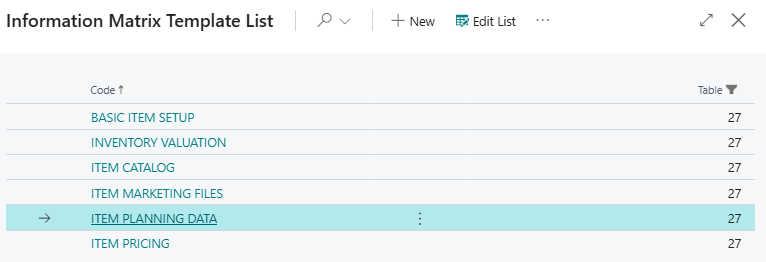
The list displays all configured Matrix Templates. Each row represents one template.
Fields
| Field | Purpose | Key Information |
|---|---|---|
| Code | The unique identifier for the template. | Code[30]. Used to reference the template in user preferences and when selecting templates inside the Information Matrix. |
| Table | The BC table number this template applies to (e.g., 18 = Customer, 23 = Vendor, 27 = Item). | The template is only usable when the Information Matrix is opened in the context of this table. Templates for different tables are completely independent of each other. |
Actions
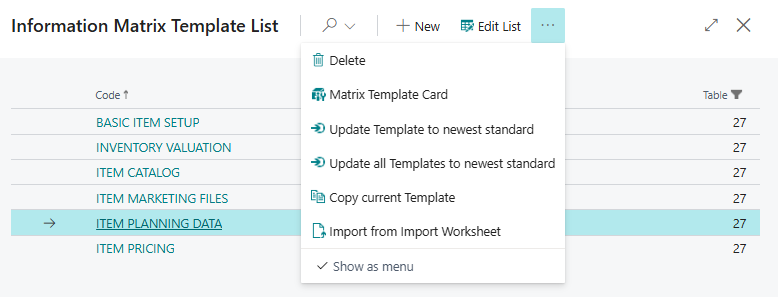
| Action | What It Does | When to Use | Prerequisites |
|---|---|---|---|
| Matrix Template Card | Opens the Information Matrix Template Setup card for the selected template. | To view or edit the full column configuration of a template. | A template row must be selected. |
| Update Template to newest standard | Resets the selected template's column configuration back to the app's shipped standard. Requires confirmation. | After an app upgrade when the standard column layout for a template has changed and the existing template should be refreshed. A confirmation dialog is shown before overwriting. | The selected template must be one of the standard shipped templates (see Default Setup section). |
| Update all Templates to newest standard | Resets all standard templates for the current table to the app's shipped column configuration at once. | After an upgrade when all standard templates should be refreshed in one step. | — |
| Copy current Template | Opens a dialog to create a copy of the selected template with a new code and description. | When a new template should start from an existing configuration rather than from scratch. | A template row must be selected. |
| Import from Import Worksheet | Opens the Master Data Template List (Import Worksheet templates), filtered to the current table, then shows a naming dialog and converts the selected Import Worksheet template to a new Matrix Template. | When column definitions from an Import Worksheet template should be reused as a Matrix Template to avoid reconfiguring the same fields. | At least one Import Worksheet template for the same table must exist. |
Information Matrix Template Setup
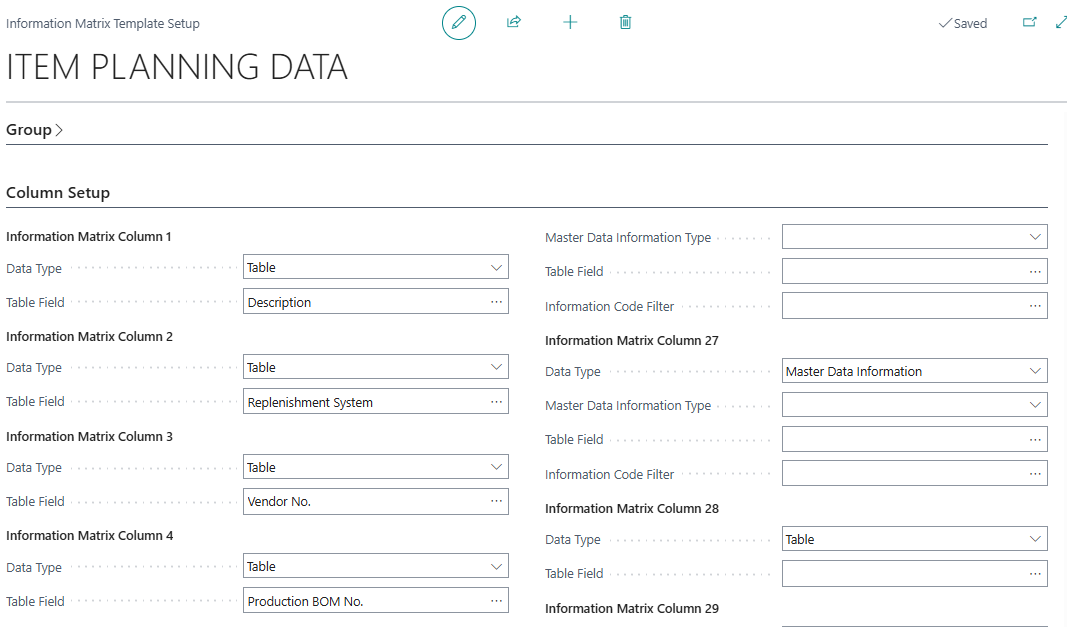
The card page shows the header fields plus the full column configuration for a single template. It contains one expandable section per column position.
Header Section
These fields identify the template. They are editable only when the record is brand new — once the template has been saved for the first time, Code and Table become read-only.

| Field | Purpose | Key Information |
|---|---|---|
| Code | The unique template code. | Editable only on initial creation. Code[30], cannot be changed after saving. |
| Table | The BC table number this template applies to. | Editable only on initial creation. Must match the table the Information Matrix will be opened for. |
Column Setup Section
The Column Setup section contains 50 column groups, one per column slot (Information Matrix Column 1 through Information Matrix Column 50). Each column group has a fixed Data Type field, and then shows additional fields conditionally based on that selection.
How column visibility works in the Information Matrix: When the Information Matrix is opened using this template, only columns whose Table Field is filled in are shown. A column slot left empty (no Table Field set) is hidden in the matrix automatically.
Column configuration — Data Type = Table
When a column's Data Type is set to Table, the column displays the value of a standard BC table field from the source record.
| Field | Purpose | Key Information |
|---|---|---|
| Data Type | Determines whether the column shows a BC table field or a Master Data Information value. | Options: Table or Master Data Information. Changing this clears all other column fields. |
| Table Field | The name of the BC field from the source table whose value will be shown in this column. | Validated against the fields of the table specified in the template header. Has a lookup that lists available fields. Must match a real field name — invalid entries are rejected. |
Column configuration — Data Type = Master Data Information
When a column's Data Type is set to Master Data Information, the column displays a value from the MDI specification layer (Information Codes) rather than from the BC table directly.
| Field | Purpose | Key Information |
|---|---|---|
| Data Type | Determines whether the column shows a BC table field or a Master Data Information value. | Options: Table or Master Data Information. Changing this clears all other column fields. |
| Master Data Information Type | Narrows which part of the Information Code is displayed in the column. | Options: (blank), Description, Information Value, Value. Only available when Data Type = Master Data Information. Changing this clears Table Field and Information Code Filter. Cannot be set if Data Type is Table. |
| Table Field | The Information Code whose data is shown in this column. | When Data Type = Master Data Information, this field holds the Information Code (not a BC field name). Has a lookup filtered by the table and master data type. Changing this clears Information Code Filter. |
| Information Code Filter | An optional filter value that restricts which Information Value is shown. | Only relevant when Master Data Information Type = Information Value. Has a lookup that shows valid values for the selected Information Code. Validated against existing Information Values. |
Default Setup & Templates
The app ships with 10 default Matrix Templates, installed automatically and restorable at any time via the Update Template to newest standard or Update all Templates to newest standard actions. All default templates use Data Type = Table for all their columns.
Customer (Table 18)
| Code | Columns (in order) |
|---|---|
| CUSTOMER INVOICING | Name, Currency Code, Customer Price Group, Invoice Disc. Code, Customer Disc. Group, Allow Line Disc., VAT Registration No., Prices Including VAT, Bill-to Customer No., Customer Posting Group, Gen. Bus. Posting Group, VAT Bus. Posting Group, Tax Area Code, Tax Liable, GLN |
| CUSTOMER PAYMENTS | Name, Payment Terms Code, Payment Method Code, Application Method, Reminder Terms Code, Cash Flow Payment Terms Code, Payment Terms Id, Preferred Bank Account Code, Fin. Charge Terms Code, Last Statement No., Block Payment Tolerance, Prepayment %, Global Dimension 1 Code, Global Dimension 2 Code |
| CUSTOMER ADDRESS | Name, Address, Address 2, Post Code, City, County, Country/Region Code, Ship-to Code, Location Code, Contact, Language Code, Phone No., E-Mail |
Vendor (Table 23)
| Code | Columns (in order) |
|---|---|
| VENDOR INVOICING | Name, Currency Code, Vendor Posting Group, Gen. Bus. Posting Group, VAT Bus. Posting Group, Invoice Disc. Code, VAT Registration No., Prices Including VAT, Tax Area Code, Tax Liable, Validate EU Vat Reg. No., GLN |
| VENDOR PAYMENTS | Name, Payment Terms Code, Payment Method Code, Application Method, Cash Flow Payment Terms Code, Payment Method Id, Payment Terms Id, Preferred Bank Account Code, Fin. Charge Terms Code, Prepayment %, Block Payment Tolerance, Global Dimension 1 Code, Global Dimension 2 Code |
| VENDOR ADDRESS | Name, Address, Address 2, Post Code, City, County, Country/Region Code, (Column 8 empty), Location Code, Contact, Language Code, Phone No., E-Mail |
Item (Table 27)
| Code | Columns (in order) |
|---|---|
| ITEM PLANNING DATA | Description, Replenishment System, Vendor No., Production BOM No., Routing No., Safety Stock Quantity, Reorder Quantity, Reorder Point, Order Multiple, Rounding Precision, Reordering Policy, Lot Accumulation Period |
| ITEM PRICING | Description, Unit Cost, Profit %, Unit Price, Last Direct Cost, Unit List Price, Rolled-up Material Cost, Rolled-up Capacity Cost, Base Unit of Measure, Price Unit Conversion, Item Disc. Group, Allow Invoice Disc., Commission Group, Price/Profit Calculation, Standard Cost |
| ITEM CATALOG | Description, Unit Price, Base Unit of Measure, Picture |
| INVENTORY VALUATION | Description, Base Unit of Measure, Costing Method, Unit Cost, Last Direct Cost, Standard Cost, Cost is Adjusted, Cost is Posted to G/L, Inventory Posting Group, Gen. Prod. Posting Group, VAT Prod. Posting Group, Last Counting Period Update, Last Phys. Invt. Date, Rolled-up Material Cost, Rolled-up Capacity Cost |
Purpose of Default Templates
The 10 default templates cover the most common use cases for mass-editing Customer, Vendor, and Item data directly in the Information Matrix without requiring any upfront configuration. Each template is designed around a specific data maintenance scenario:
The three Customer templates separate invoicing/pricing fields, payment terms and methods, and address data into distinct views so users can focus on one area at a time. The three Vendor templates follow the same pattern. The four Item templates cover planning and replenishment parameters (ITEM PLANNING DATA), pricing and cost fields (ITEM PRICING), a simple presentation-friendly view for catalog management (ITEM CATALOG), and a full inventory costing and valuation overview (INVENTORY VALUATION).
All default templates use only standard BC table fields (Data Type = Table), making them immediately functional without requiring any Master Data Information setup.
Related Pages
| Page | Relationship |
|---|---|
| Information Matrix | The working page that uses these templates to determine which columns are visible and what their captions are. Users select and switch templates directly inside the matrix. |
| Master Data Template List (Import Worksheet) | Import Worksheet templates can be converted into Matrix Templates using the Import from Import Worksheet action on the list page. |