Overview
The Information Matrix is a spreadsheet-style view that allows users to view and edit Master Data Information (specifications, texts, and files) across multiple records side by side in a single list. Each row represents one BC record (an item, customer, vendor, or other entity), and each column displays one specification or table field as defined by the active Matrix Template. This makes it possible to compare and mass-edit information values across many records at once without opening each record individually.

The matrix is a personal working space: each user's rows are stored separately and must be populated by importing records from the live database. Changes made to column values in the matrix are immediately written back to the actual Master Data Information entries on the source records.
When Is This Page Used
Users open the Information Matrix when they need to view, compare, or bulk-edit specification data across a set of records — for example, checking whether all items in a product range have a specific specification filled in, or updating a specification value across a selection of customers. It is also used as a staging area for enrichment workflows where records are collected into the matrix, reviewed, updated, and the changes are reflected live.
Who Are Typical Users
Product managers and data stewards working with item specifications or master data enrichment. Implementation consultants performing bulk data cleanup or initial population of specification data. Any user responsible for maintaining consistent specification values across a group of records.
Accessing the Page
The Information Matrix has no UsageCategory and is not directly searchable in Business Central. It is opened via Information Matrix actions added to master data pages by MDI — for example from the Item List, Item Card, Customer List, Customer Card, Vendor List, Vendor Card, and various document pages such as sales orders and purchase orders. The page always opens in the context of a specific table type (Item, Customer, Vendor, etc.), determined by the action that launched it.
Page Components
Filter Header
The filter header appears above the row grid and controls the view for the current session. These fields are not stored as row data — they control what the matrix shows and how it is sorted.

| Field | Purpose | Key Information |
|---|---|---|
| Template | Displays the active Matrix Template code for this user and table. | Read-only display. The template determines which columns are visible and what their captions are. To change the active template, use the Select Matrix Template action. The last-used template per user and table is remembered automatically via the SCB New Information User Setup table. |
| Special Sorting Field | An optional Information Code used to sort the rows by that specification's value rather than by record ID. | Only Specification-type Information Codes with numeric, boolean, date, or datetime validation data types are selectable. When set, rows are sorted by Special Sorting No. (a pre-calculated sort key) instead of the default sort order. Changing this field reopens the matrix with the new sort applied. The preference is saved per user and table. |
| No. of lines | Displays the current count of rows in the user's matrix for this table. | Read-only, updated automatically. |
Row Grid
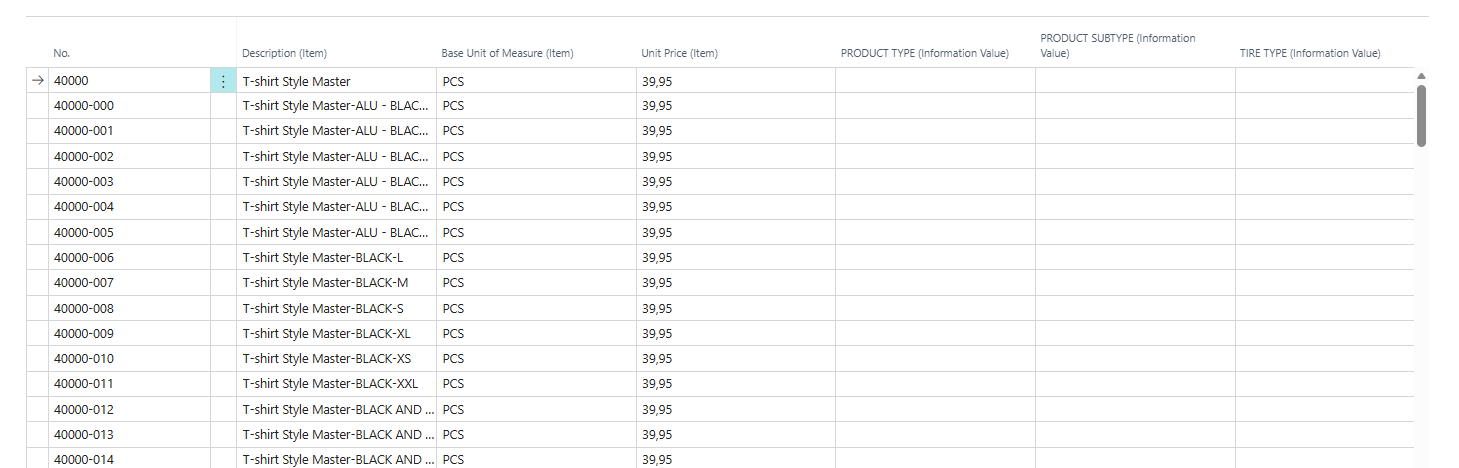
Each row in the matrix represents one BC record that has been imported into the user's working set. The grid contains two distinct sets of columns.
Key Field Columns (KeyField1 – KeyField10)
These columns display the primary key field values of the source record. Their captions are resolved at runtime from the actual field names of the target table — for example, No. for an item, or No. + Variant Code for an item variant. Up to 10 key field columns are shown, with only the columns relevant to the table's primary key count made visible.
| Field | Purpose | Key Information |
|---|---|---|
| Key Field 1 – Key Field 10 | Display the primary key values of the source record (e.g. Item No., Customer No.). | Read-only. Captions are driven by the target table's primary key field names. The number of visible key field columns matches the table's primary key count. These columns are always visible and cannot be edited. |
Data Columns (Column 1 – Column 50)
These 50 columns contain the actual Master Data Information values. Each column's caption and behavior is defined by the active Matrix Template — a column might show a specification value (e.g. Colour, Weight), a text entry, or a file reference depending on the template configuration. Only columns that have a mapping defined in the template are visible; unused template columns are hidden automatically.
All 50 columns are stored as Text[250] fields.

| Field | Purpose | Key Information |
|---|---|---|
| Column 1 – Column 50 | Display and edit Master Data Information values for the mapped specification or table field. | Captions are set dynamically at runtime by the active Matrix Template. Each column has a lookup (OnLookup) that opens an appropriate value picker: for Information Value type columns, it opens the Information Value List for the relevant Information Code; for Table type columns, it opens the related BC table's lookup page. When a value is entered or changed, the system writes the change directly to the source record's Information Entry — the user may be prompted whether to overwrite an existing value. |
How column editing works: When a user edits a column value, the system calls
ModifyInfoMatrixFieldValueinternally, which updates the actual Information Entry record on the source BC entity. If the record already has a value in that column's Information Code, the user is asked whether to overwrite it, unless the session was initiated programmatically (e.g. via Mobile Flow), in which case the preset update action is applied silently.
Hidden Fields
The following fields exist on the underlying table but are hidden in the page layout:
| Field | Purpose | Key Information |
|---|---|---|
| Table | The BC table number this matrix row belongs to. | Hidden. Validated on insert — rows with a table type other than the current session's type are rejected with an error. |
| No. | The Record ID of the source BC record. | Hidden. Displayed as formatted text internally but not shown as a column. |
| Entry No. | Internal sequence number for the matrix row. | Hidden. |
| Special Sorting No. | Pre-calculated numeric sort key based on the Special Sorting Field's value. | Hidden. Used for sorting when a Special Sorting Field is active. |
Actions

| Action | What It Does | When to Use | Prerequisites |
|---|---|---|---|
Import Lines (Shift+Ctrl+I) |
Opens the Add Matrix Lines dialog, allowing the user to select and filter records to add to the matrix. | When the matrix is empty or additional records need to be loaded. Records are imported into the user's personal working set. | — |
Import from Specifications (Shift+Ctrl+F) |
Runs the SCB Import from Information report with a request page to filter which records to import based on existing specification values. | When records should be populated based on criteria related to their current specification data. | At least one Information Entry (specification) of type Specification must exist for the current table. |
Import from Specification Search (Ctrl+S) |
Opens the SCB Specification Search page to define search criteria, then imports the matching records into the matrix. | When records need to be selected based on a combination of specification criteria using the Specification Search feature. | — |
| Action | What It Does | When to Use | Prerequisites |
|---|---|---|---|
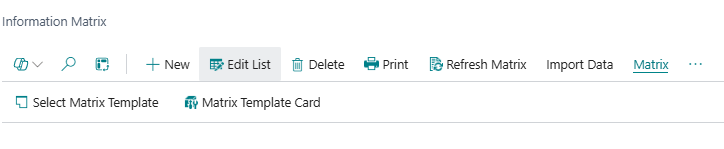
Refresh Matrix (F9) |
Reloads the matrix view, re-applies the active template column configuration, and re-filters rows to the current user. | After external changes to specification data or template configuration, or if the display appears stale. | — |
| Select Matrix Template | Opens the Information Matrix Setup List (template list) and switches to the selected template. Reopens the matrix. | To change which columns are displayed in the matrix. | At least one Matrix Template must be configured for the current table. |
| Matrix Template Card | Opens the Information Matrix Setup card for the currently active template. | To review or edit the column configuration of the active template without leaving the matrix. | An active template must be loaded. |
| Action | What It Does | When to Use | Prerequisites |
|---|---|---|---|
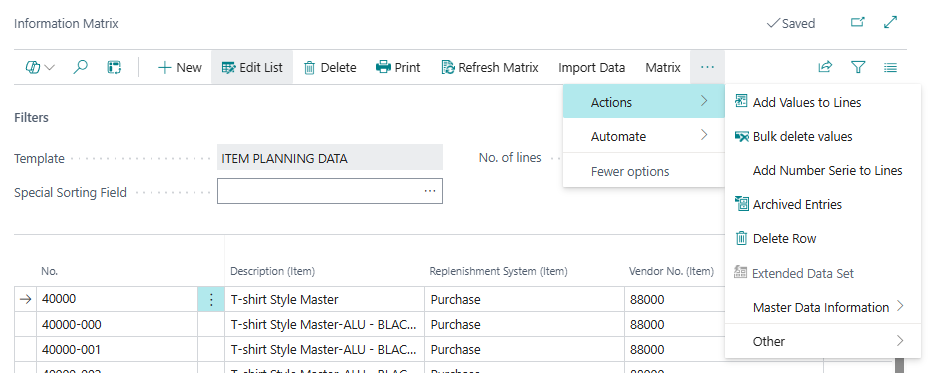
Add Values to Lines (Shift+Ctrl+L) |
Opens the Add Master Data to Matrix dialog to specify values for one or more columns, then applies those values to all currently filtered rows. | For bulk-setting the same specification value across many records at once. A confirmation is required. Existing values are overwritten without further prompting. | At least one row must be present. |
| Bulk delete values | Opens the Add Master Data to Matrix dialog in deletion mode — columns marked as true are cleared across all currently filtered rows. | To remove specification values from a specific column across all matrix rows. A confirmation is required. | At least one row must be present. |
| Add Number Serie to Lines | Opens the Add Numbers to Matrix dialog to configure a number pattern or sequence, then assigns incrementing values to a selected column across all rows. | When unique sequential values need to be assigned to a specification column (e.g. serial-style codes). | At least one row must be present. |
| Mark | Opens a menu to remove all marks, add marks from a list, or remove marks from a list for the selected rows. | To flag rows for further processing. | Only visible in certain contexts (item variant handling). |
Archived Entries (Shift+Ctrl+A) |
Opens the archived Information Entries for the selected row's source record. | To review the history of specification changes for a specific record. | The selected row must have a valid source record. |
Delete Row (Alt+X) |
Deletes the selected row(s) from the matrix. This removes the rows from the user's working set only — it does not delete the source BC record or its specification data. | When records are no longer needed in the matrix working set. | — |
| Extended Data Set | Activates a Mobile Flow extended data set for the current template and selection. | For Mobile Flow integration workflows. | Only visible when the SCB Mobile Flow extension (codeunit 6082823) is installed. Only enabled when the current template has an extended data set configured. |
Specifications (Shift+Ctrl+S) |
Opens the Master Data Information (Specifications tab) for the selected row's source record. | To open the full specification card for a single record directly from the matrix. | A row must be selected. |
Texts (Shift+Ctrl+T) |
Opens the Master Data Information (Texts tab) for the selected row's source record. | To open text entries for a single record. | A row must be selected. |
Files (Shift+Ctrl+P) |
Opens the Master Data Information (Files tab) for the selected row's source record. | To open file/attachment entries for a single record. | A row must be selected. |
| Runs the SCB Masterdata Info. Matrix report (Document Customizer format) for the current table. | To print the matrix contents using the Document Customizer print layout. | Only visible when the Document Customizer app is enabled. |
Related Pages
| Page | Relationship |
|---|---|
| Information Matrix Setup List | Lists all Matrix Templates for the current table. Opened via Select Matrix Template. Templates define which columns are visible in the matrix and their captions. |
| Information Matrix Setup (card) | The detail card for the active Matrix Template. Opened via Matrix Template Card. |
| Add Matrix Lines | Dialog for selecting and filtering records to import into the matrix working set. Opened via Import Lines. |
| SCB Import from Information (report) | Report that populates matrix rows based on existing specification filter criteria. Opened via Import from Specifications. |
| SCB Specification Search | Multi-criteria specification search page. Matching records are imported into the matrix via Import from Specification Search. |
| Add Master Data to Matrix | Dialog for bulk-setting or bulk-clearing column values across all matrix rows. Used by Add Values to Lines and Bulk delete values. |
| Add Numbers to Matrix | Dialog for configuring sequential number assignment across a column. Used by Add Number Serie to Lines. |
| Master Data Information (Specifications/Texts/Files) | The standard MDI information page for a single record. Opened via the Specifications, Texts, and Files actions from a selected matrix row. |