Image Galleria FactBox
Overview
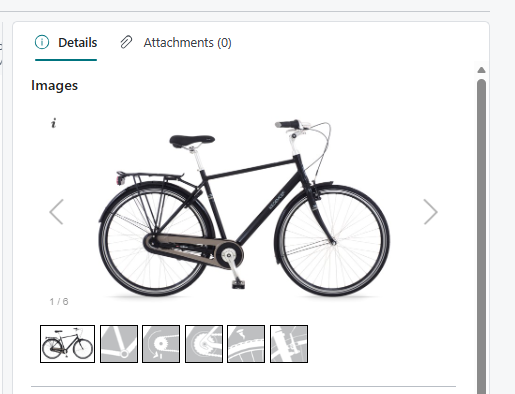
The Image Galleria FactBox is an interactive image panel that displays one or more images associated with the record currently open on the page. It automatically loads and refreshes its content based on the active record, presenting images in a scrollable, browsable gallery carousel. It exists to give users immediate visual context for the data they are working with — without leaving Business Central or switching to an external system.
When is this Page Used
The Image Galleria FactBox is a panel component, not a standalone page. It appears embedded in the factbox area of supported Business Central pages and activates automatically whenever a user navigates to a record that has associated images. Users interact with it whenever they need to visually identify a product, verify an image on a document line, or review reference images while entering or processing data. The gallery updates in real time as the user moves between records or lines.
Who Are Typical Users
| Role | Why they use this factbox |
|---|---|
| Warehouse Operative | Visually confirms the correct item during picking or receiving by seeing the product image next to the order line. |
| Sales Representative | Views product images while creating or reviewing sales orders, helping to advise customers and avoid selecting wrong variants. |
| Production Planner / Shop Floor Supervisor | Sees images of components and finished goods on production orders to ensure the right parts are being used or assembled. |
| Purchasing Manager | Cross-references images on purchase orders and receipts to verify that incoming goods match what was ordered. |
| Master Data Administrator | Reviews which images are attached to item records and specification entries when maintaining product master data. |
Accessing the Page
The Image Galleria FactBox is not a standalone page and cannot be opened directly or searched for in Business Central. It is embedded as a factbox panel in a set of supported pages. Its visibility on each host page is controlled globally by the Show Image Galleria FactBox setting in the Master Data Information Setup.
When Show Image Galleria FactBox is enabled, the factbox appears automatically on the following standard Business Central pages:
| Host page | Area | Panel caption |
|---|---|---|
| Item Card | Inventory | Images |
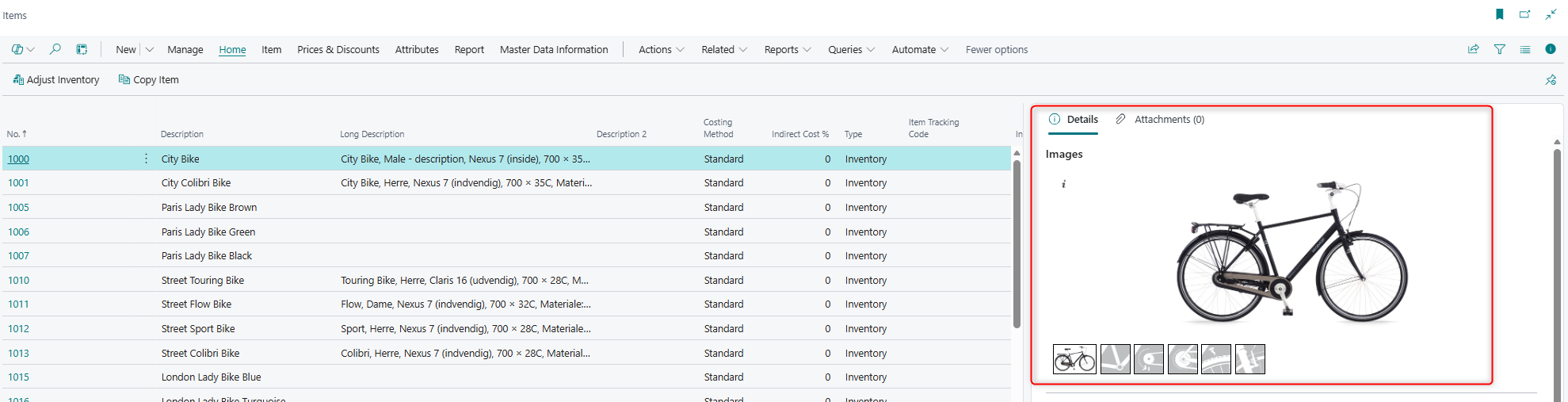
| Item List | Inventory | Images |
| Sales Order | Sales | Images (header) |
| Sales Order List | Sales | Images |
| Released Production Order | Manufacturing | Images (header) / Line Images (lines) |
| Released Production Orders | Manufacturing | Images |
| Planned Production Order | Manufacturing | Images (header) / Line Images (lines) |
| Planned Production Orders | Manufacturing | Images |
| Firm Planned Prod. Order | Manufacturing | Images (header) / Line Images (lines) |
| Firm Planned Prod. Orders | Manufacturing | Images |
| Finished Production Order | Manufacturing | Images (header) / Line Images (lines) |
| Finished Production Orders | Manufacturing | Images |
It also appears on the following Master Data Information pages, where it is always visible regardless of the global setting:
| Host page | Panel caption |
|---|---|
| Information Setup | Images |
| Information Setup Card | Images |
| Master Data on Documents | Images |
| Image List | Images |
Page Components
Actions
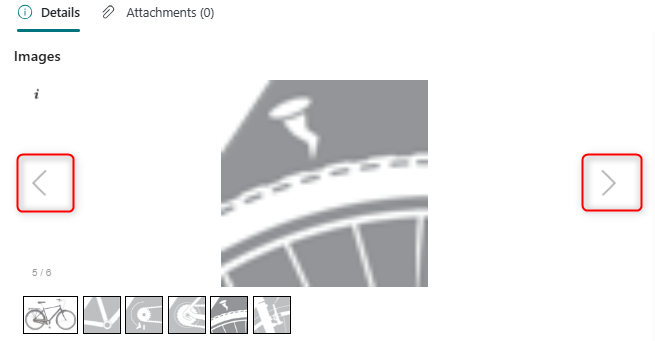
The Image Galleria FactBox has no action buttons. User interaction is limited to browsing through the image carousel using the navigation controls built into the gallery viewer (previous/next image).
Fields
The Image Galleria FactBox does not contain traditional data fields. Its entire content area is occupied by an interactive image carousel control. The following describes the functional elements of the gallery:
| Element | Purpose | Key Information |
|---|---|---|
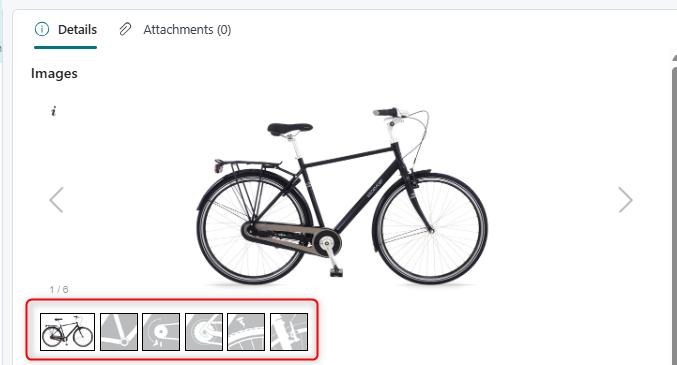
| Image carousel | Displays all images associated with the current record in a scrollable gallery format. | Images are loaded automatically when the user navigates to a record. The gallery refreshes whenever the source record changes. |
| Active image display | Shows the currently selected image in full within the gallery panel. | The gallery can be set to open on a specific image by the host page (e.g., the image matching the current line's record). |
| Navigation controls | Allows the user to move between multiple images in the gallery. | Visible only when more than one image is associated with the record. |
The gallery panel resizes responsively within the factbox area. Its minimum display size is 300 × 300 pixels, and it can expand up to 1920 × 1080 pixels depending on available screen space.
Source Record Logic
The images shown in the Image Galleria FactBox depend entirely on the record context of the page it is embedded in. The gallery supports the following source types:
| Source context | What images are shown |
|---|---|
| Item Card / Item List | Images linked to the Information Code specifications assigned to the item. |
| Sales Order (header) | Images linked to the Master Data on Documents entries for the sales order header. |
| Sales Order (line) | Images linked to the Master Data on Documents entry for the selected order line. |
| Purchase Order (header) | Images linked to the Master Data on Documents entries for the purchase order header. |
| Production Order (header) | Images linked to the Master Data on Documents entries for the production order header. |
| Production Order (line) | Images linked to the Master Data on Documents entry for the selected component or output line. |
| Information Setup / Information Setup Card | Images linked to the specification entry currently being viewed or edited. |
| Master Data on Documents | Images linked to the Master Data on Documents record currently selected in the list. |
| Image List | Preview of the image file currently selected in the file browser. |
Default Setup & Templates
No default setup records or templates are created specifically for the Image Galleria FactBox during installation. The factbox becomes active once the Show Image Galleria FactBox setting is enabled in the Master Data Information Setup, and images are available from the configured storage source (Azure Blob Storage or SharePoint).
The following default value is applied automatically when the Master Data Information app is first set up:
| Setting | Default value | Effect |
|---|---|---|
| Show Image Galleria FactBox Depending On | Line | On pages that support both a header gallery and a line gallery (such as production orders), only the line-level gallery is shown by default. |
Related Pages Documentation
Master Data Information Setup
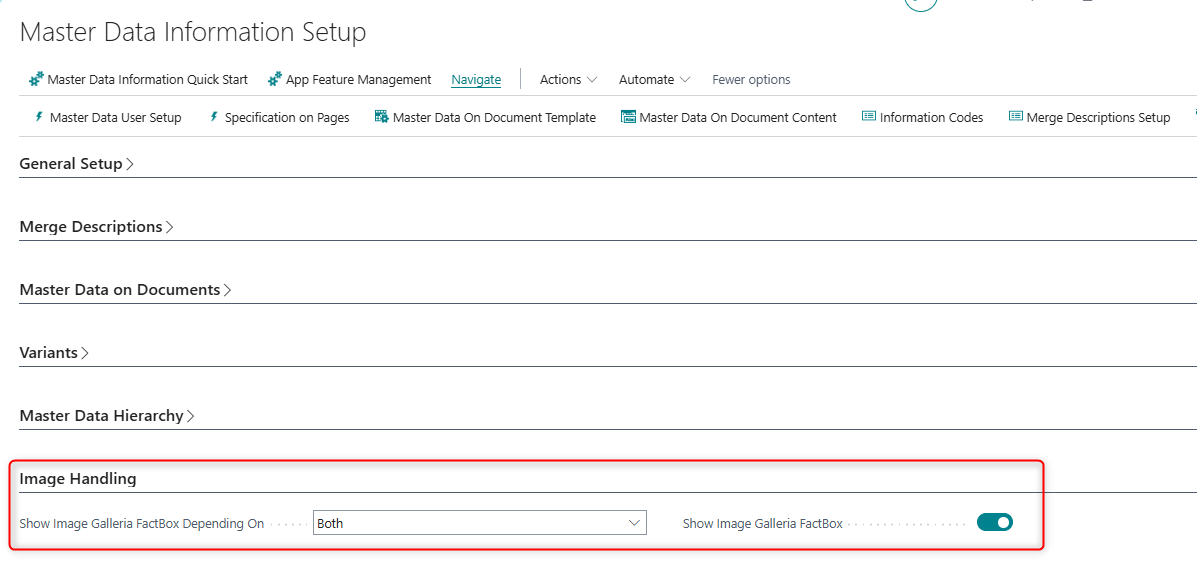
The Master Data Information Setup page contains all global settings that control the behaviour and visibility of the Image Galleria FactBox across the application. The relevant fields are:
| Field | Purpose | Example | Key Information |
|---|---|---|---|
| Show Image Galleria FactBox | Enables or disables the Image Galleria FactBox on all supported pages globally. | Enabled | When disabled, the factbox is hidden on all host pages regardless of other settings. |
| Show Image Galleria FactBox Depending On | Controls whether the gallery follows the document header, the selected line, or both, on pages that support both levels. | Line | Options: Header, Line, Both. Only relevant on pages such as Sales Order and Released Production Order that have both a header and a line gallery. |
| Default File Open Action | Determines the default action when a user opens an image file picker — whether to upload or select from the configured storage. | Upload to Azure Blob Storage | Affects the image upload workflow from the Information Setup Card and similar pages. |
| Azure Blob Storage File Account Name | The name of the Azure Blob Storage file account used to retrieve and store images. | my-storage-account | Required when images are stored in Azure Blob Storage. Configured once per company. |
| Default Azure Blob Storage Container Name | The default container within Azure Blob Storage where images are stored. | product-images | Used as the starting folder when browsing or uploading images. |
| Sharepoint File Account Name | The name of the SharePoint file account used to retrieve and store images. | sharepoint-images | Required when images are stored in SharePoint. |
| Default Sharepoint Folder | The default folder path within SharePoint where images are stored. | /sites/products/images | Used as the starting location when browsing or uploading images from SharePoint. |
Information Setup Card
The Information Setup Card page is where images are directly associated with individual specification entries. It includes an Images section containing the Image Galleria FactBox, allowing administrators to see, add, or change the image attached to a specific Information Code entry. From this page, users can use the image file picker to upload a new image to Azure Blob Storage or SharePoint, or select an existing image from the configured storage location. The gallery on this page is always visible and does not depend on the global Show Image Galleria FactBox setting.
Master Data on Documents
The Master Data on Documents page lists all Master Data Information entries linked to document lines across sales, purchase, and production documents. It includes the Image Galleria FactBox in its factbox panel, which displays the image associated with the currently selected document entry. This allows users to visually review the image for a specific document line without opening the originating order. The gallery on this page updates automatically as the user moves through the list.
Image List
The Image List page is a file browser used when selecting or uploading images from Azure Blob Storage or SharePoint. It includes the Image Galleria FactBox on its right-hand side as a preview panel, displaying the image of the currently highlighted file. This provides a visual confirmation before the user selects or saves an image to a specification entry, ensuring the correct file is chosen.