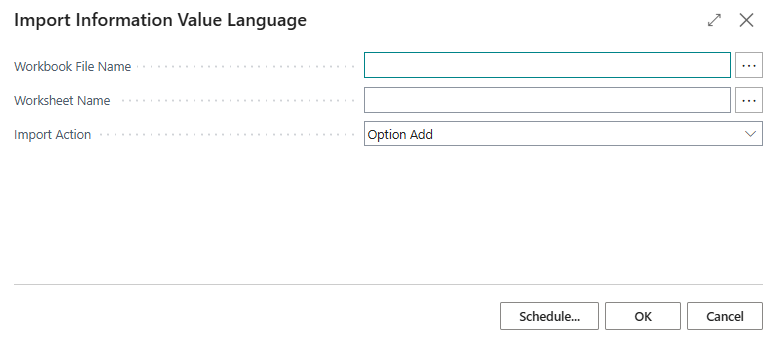
This article provides a high-level overview of the components and features included in the Document Customizer app. Each component is described briefly here; detailed documentation for each feature is available in its own dedicated article.
Setup and Configuration
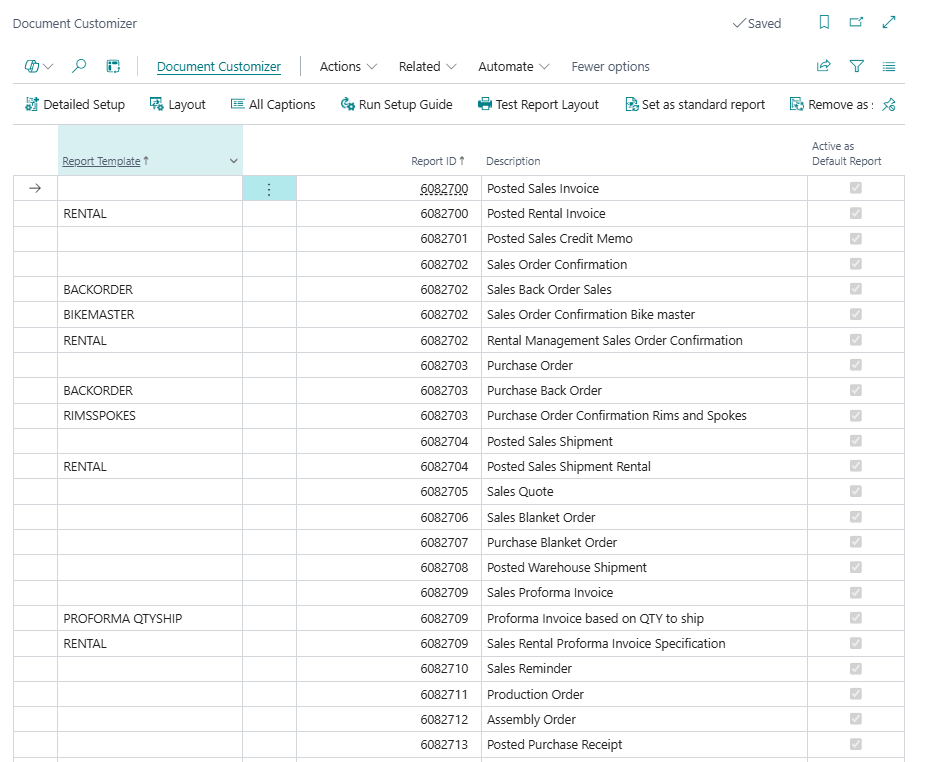
Document Customizer (main list)
The central starting point for the app. From here you open and manage all document layout setups, navigating to the full configuration for each document type.
Layout and Appearance
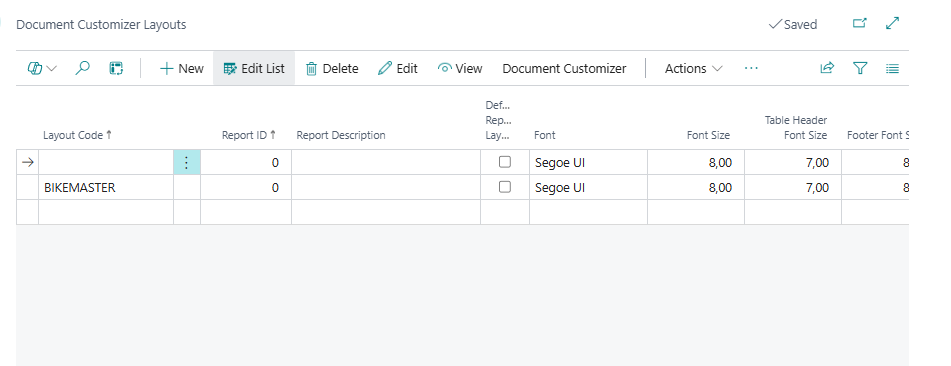
Document Customizer Layouts
Lists all available layout codes defined in the app, giving an overview of every configured document variant.
Report Options Card
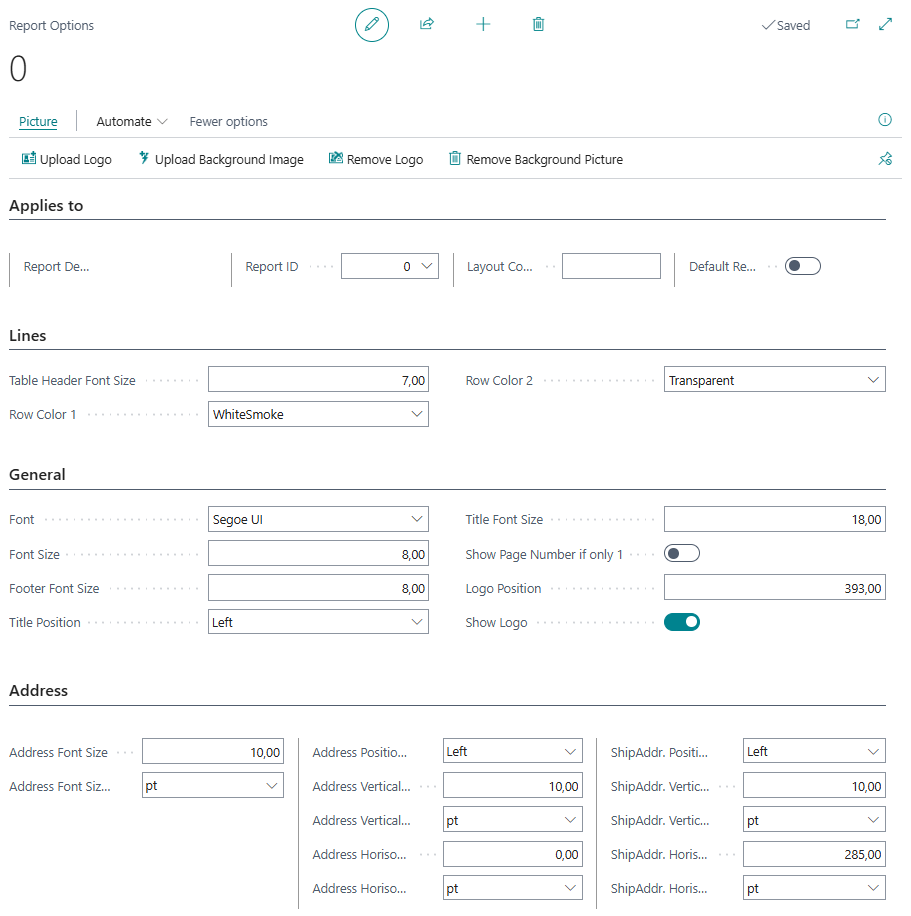
The main configuration card for a single document layout. Controls the overall appearance of a printed document — font, font size, colours, logo, address positioning, title position, page number display, barcode settings, and the background picture.
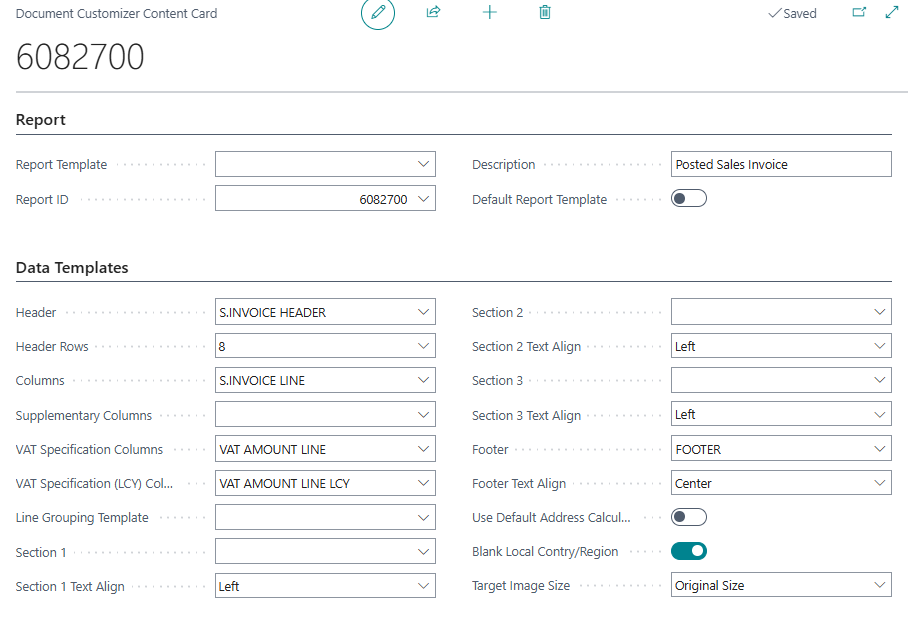
Document Customizer Content Card
The detailed setup card for a specific document/layout combination. Defines which header fields, columns, sections, footer texts, and special features (barcodes, VAT specification, supplementary columns, customs tariff) are active for a given layout.
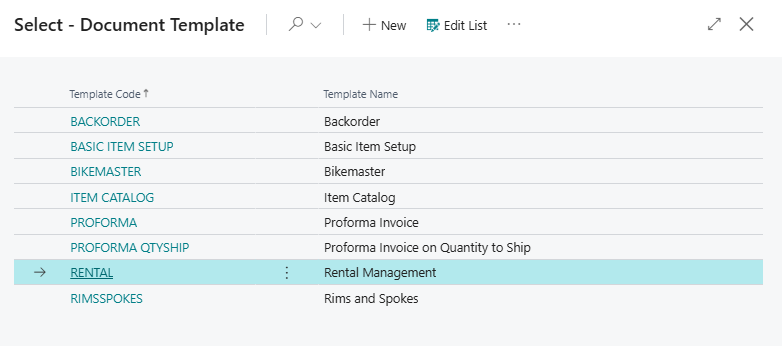
Document Template
Manages named document templates that can be assigned to customers, vendors, or documents to automatically apply a specific layout and language combination.
Report Color
Defines named colour sets for document line row colours (alternating row colours for tables).
Document Font
Manages the available font definitions that can be selected in the Report Options card.
Address Fields
Configures which address fields appear in the bill-to and ship-to address areas on printed documents.
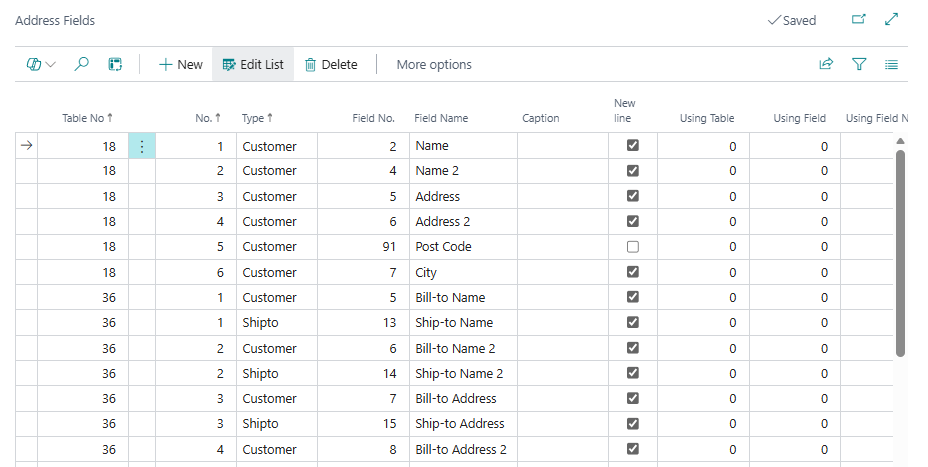
Header Fields
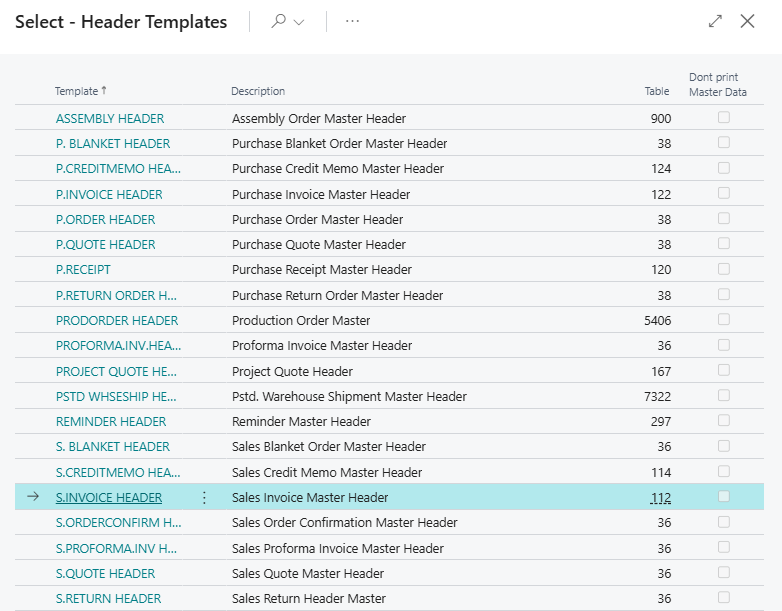
Header Templates
Defines reusable header field configurations that control which fields from the document header appear in the header area of a printed document.
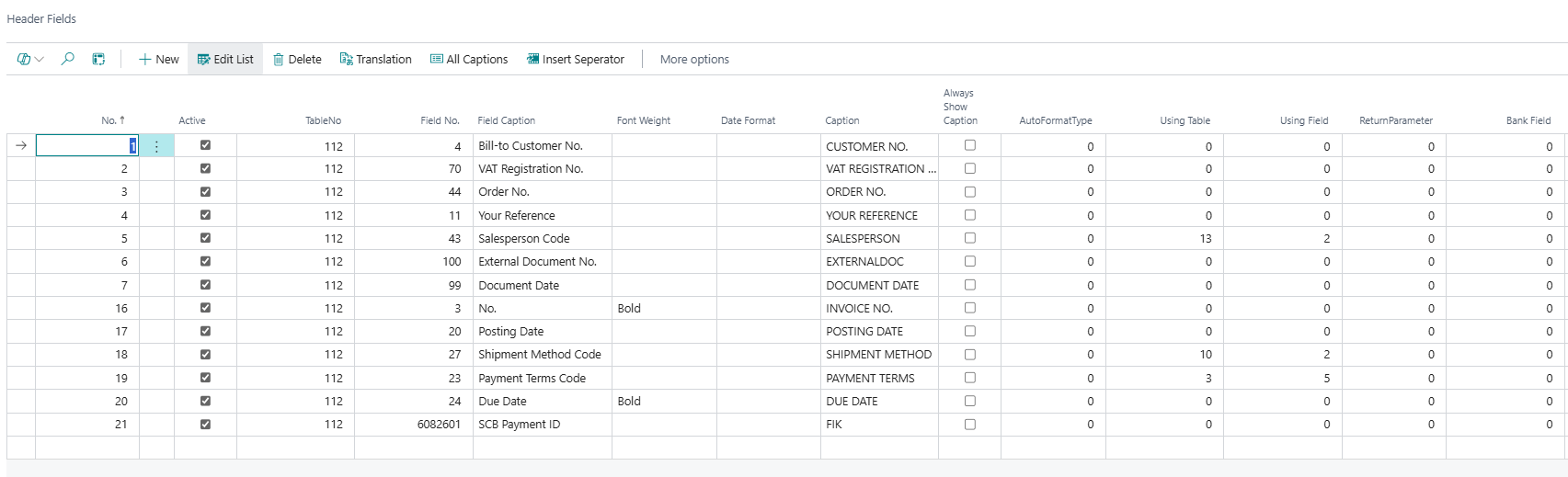
Header Fields
The individual field definitions within a header template — specifying which field to show, its caption, font weight, and position.
Line Columns
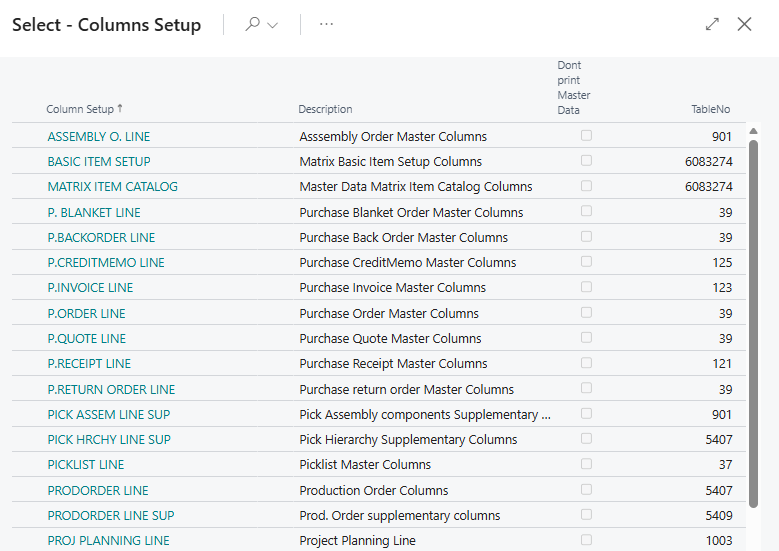
Columns Setup
Defines named column sets used on document lines. Each column set specifies which fields to include as columns, their captions, widths, alignments, and whether a column should be rendered as a barcode.
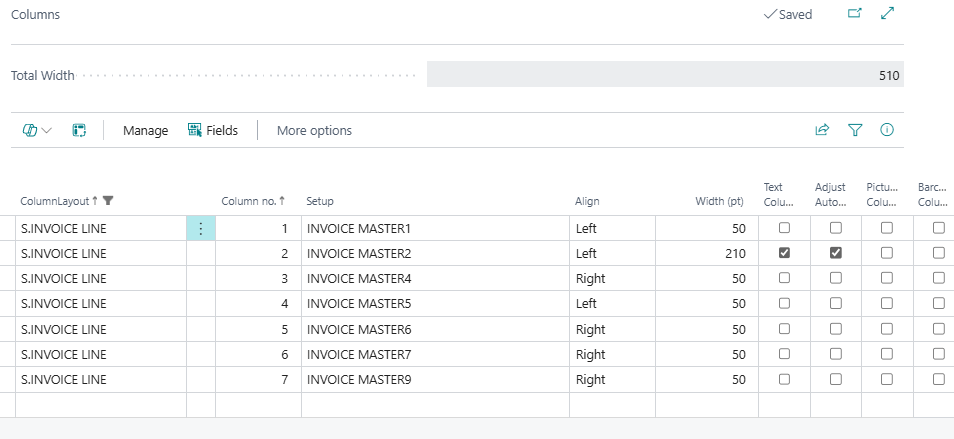
Columns
A worksheet view for editing the individual column definitions within a column set.
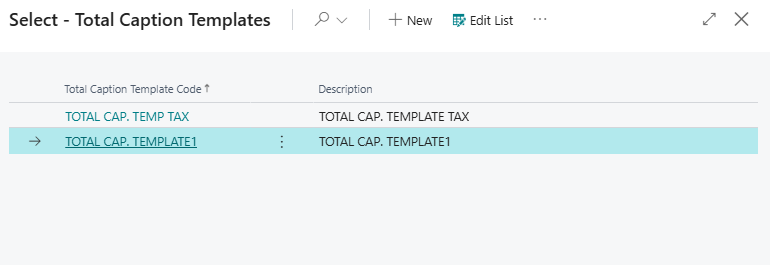
Total Caption Templates
Defines reusable templates for the labels used in the total section at the bottom of documents (e.g. subtotal, discount, VAT, grand total labels).
Line Grouping Setup
Configures how document lines are visually grouped on printed documents — for example, grouping lines by item category with subtotals per group.

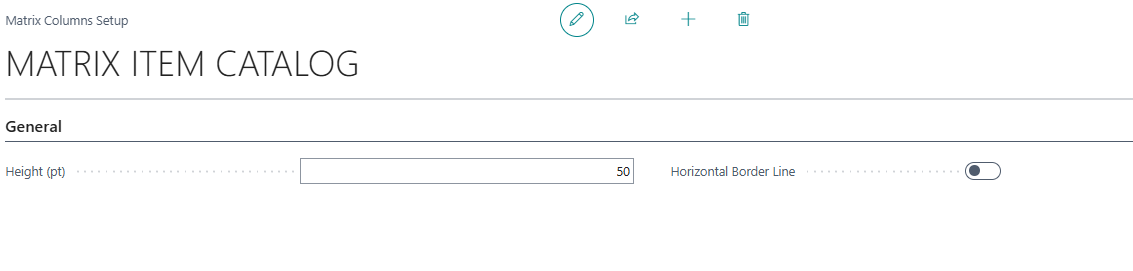
Matrix Columns Setup
Configures column sets specifically for the Master Data Info Matrix report, defining which columns appear in that report's output.
Report Hierarchy Template Setup
Defines hierarchy templates for the hierarchical pick instruction report, controlling how order lines are grouped and nested.
Command Lines
A formula-based expression language available within column and header field definitions. Instead of displaying a single database field directly, a command line lets you compose a value dynamically using built-in functions — for example, looking up a field value from a related table (LOOKUPRECORD), retrieving a field by number (GETFIELDVALUE), or rounding a numeric value (ROUND). Command lines make it possible to print derived or cross-table values without requiring code changes.
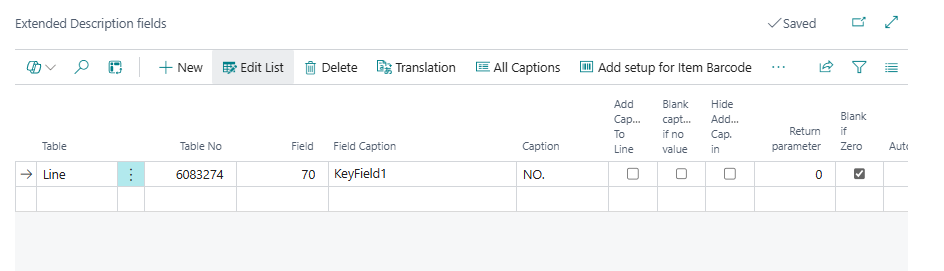
Extended Description Fields
Allows additional fields from related tables to be included in document line columns, going beyond the fields directly available on the document line itself. This is configured as part of the column setup and is used to enrich printed line data with information from, for example, the item record.
Barcode Columns
Any individual column in a column set can be designated as a barcode column. When enabled, the column's value is encoded and printed as a scannable barcode using the barcode font and symbology configured in the Report Options — supporting both 1D formats (e.g. Code-39, Code-128, EAN-13) and 2D formats (e.g. QR Code, PDF417, Data Matrix). A column can be set as a text column, a barcode column, or a picture column — but only one of these at a time.
Picture Columns
Any individual column in a column set can be designated as a picture column. When enabled, the column displays an image retrieved from a Blob or MediaSet field on the source record — for example, an item picture from the Item table. The target image size can be set to the original dimensions or scaled to a custom pixel size defined in the layout. Like barcode and text column modes, picture column is mutually exclusive with the other column rendering modes.
Supplementary Columns
A second, independent column set that can be assigned to a document layout in addition to the main line columns. Supplementary columns are printed as an extra set of columns on document lines — for example, to show bin codes or handling instructions alongside the main line data without affecting the primary column setup. The supplementary column set is configured using the same Columns Setup as main columns and can be switched in and out per line type within a report. Available on Pick Instruction, Hierarchy Pick Instruction, Warehouse Picklist, Production Order, Statement Extended, Project Quote, Reminder, and Service Order.
VAT Specification Columns
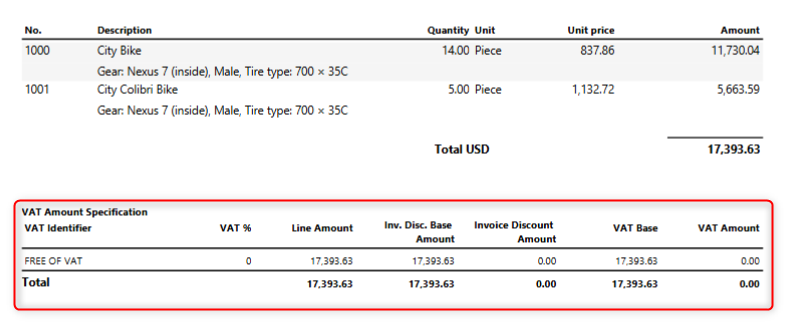
Prints a configurable VAT specification section below the totals on applicable documents. The columns and layout of the VAT specification section — such as VAT identifier, VAT percentage, VAT base, and VAT amount — are defined using the same column setup mechanism as document lines, giving full control over which fields appear and how they are labelled. Available on Sales Invoice, Sales Order Confirmation, Sales Quote, Sales Credit Memo, Sales Return Order, Purchase Order, Purchase Return Order, Posted Purchase Invoice, Posted Purchase Credit Memo, Pro Forma Sales Invoice, Blanket Sales Order, and Service Order.
VAT Specification Columns (LCY)
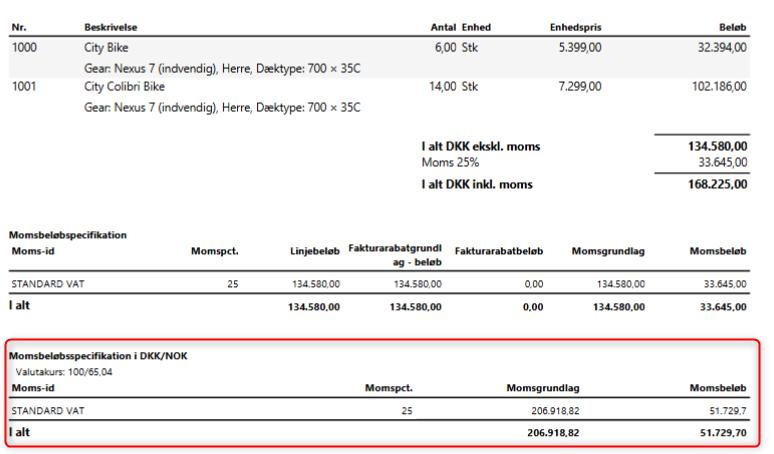
A separate, additional VAT specification section that prints VAT amounts in local currency (LCY) alongside or instead of the document currency amounts. Configured independently from the standard VAT Specification Columns, allowing different column layouts for the currency and LCY views. Available on the same document types as VAT Specification Columns.
Sections and Footer Text
Footer and Section
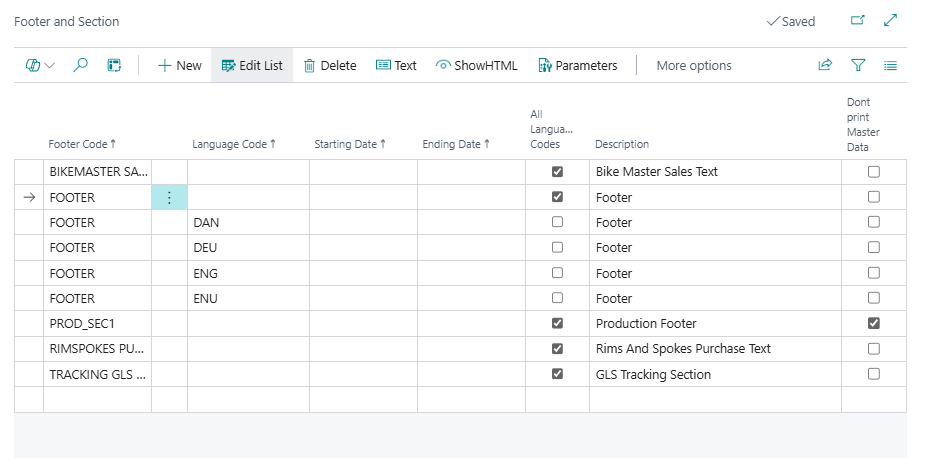
Manages the reusable HTML text blocks used as Section 1, Section 2, Section 3, and Footer text (Section 4) on printed documents. Supports multiple languages.
Extended Footer Lines
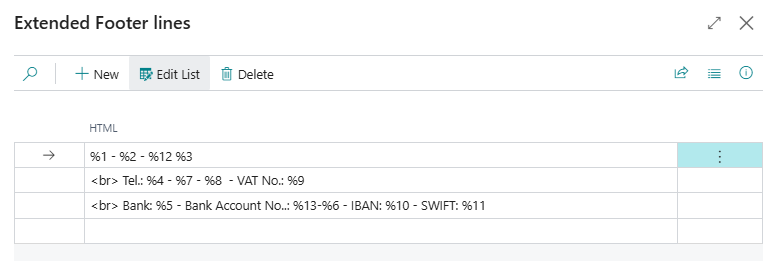
The individual HTML content lines within a footer/section block.
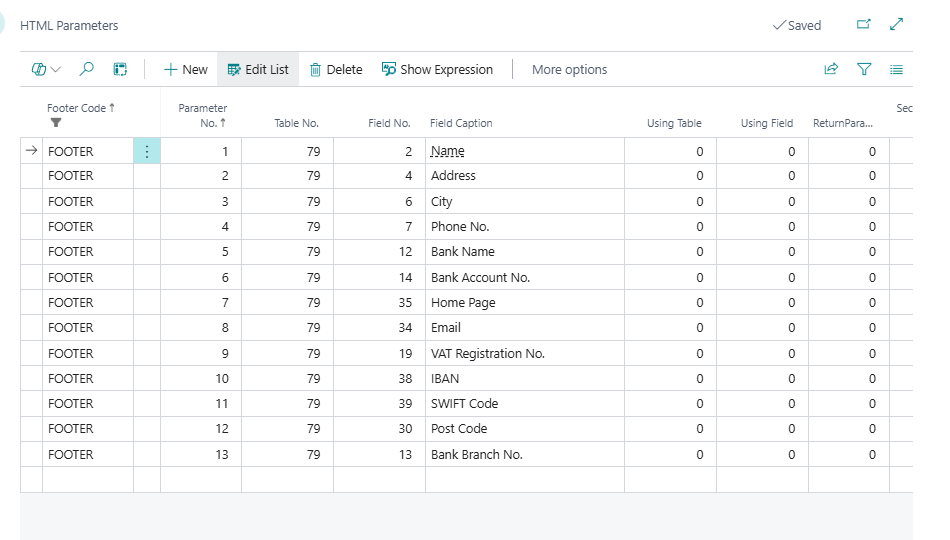
HTML Parameters
Configures dynamic parameters that can be embedded in HTML footer/section text blocks, allowing field values from the document to be inserted into free-text sections.
Captions and Translations
Captions
The base caption definitions used as the source for translations.
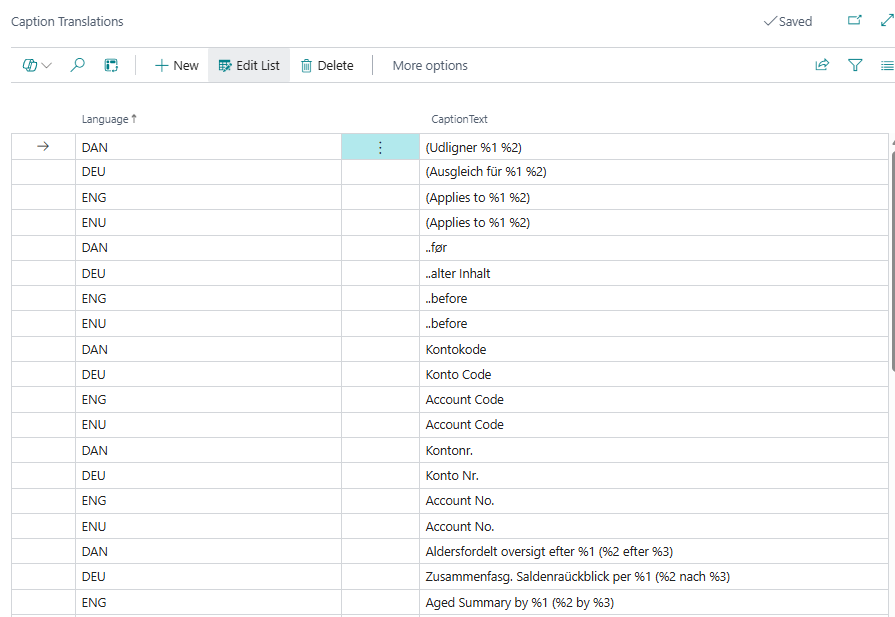
Caption Translations
Stores translated captions for document field labels, allowing printed documents to display captions in the customer or vendor's language.
Defaults and Global Settings
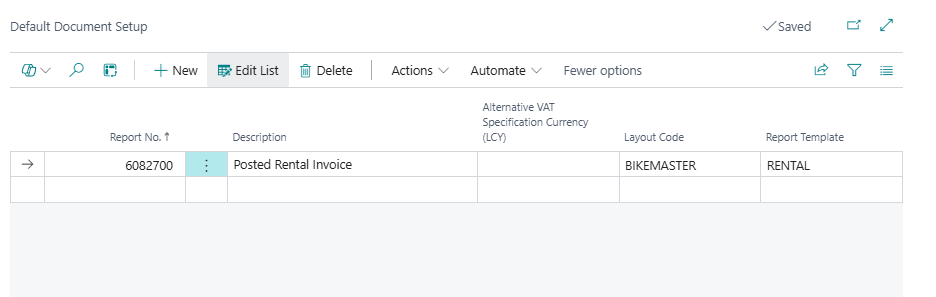
Default Document Setup
Defines default layout and template assignments per document type, customer, or vendor, so the correct layout is selected automatically when printing.
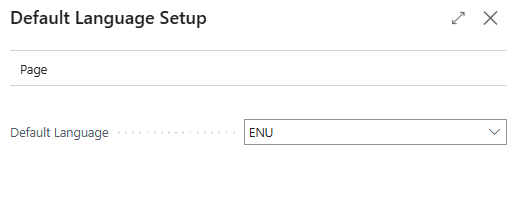
Default Language Setup
Sets the default language used for printed documents across the installation.
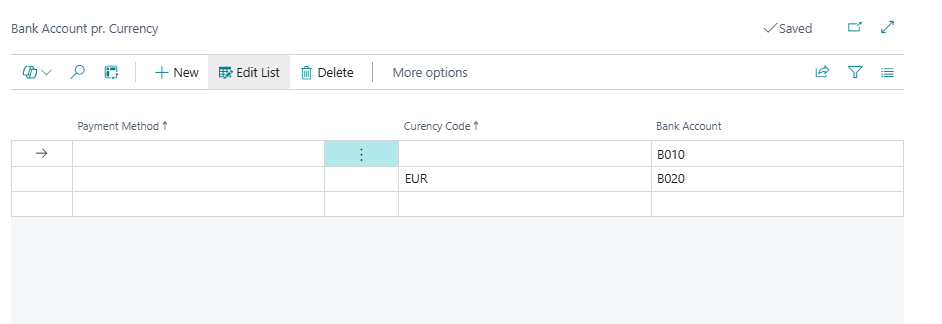
Bank Account per Currency
Allows different company bank accounts to be printed on documents depending on the document currency — useful for multi-currency setups.
Payment ID / Payment Reference
Document Customizer can automatically generate and print a structured payment reference on sales invoices, supporting formats including FIK 71, FIK 75, and KID, as well as fully custom reference masks. The payment reference is configured on the Payment Method and controls which elements — document number, customer number, document type, bank creditor number, and modulus check digit (Mod 10 or Mod 11) — are combined into the reference printed on the document. The Bank Account Card is extended with a Bank Creditor No. field required for FIK codes, and posted invoices include an action to recalculate the Payment ID if bank details change after posting.
Document Content Options
Combined Barcodes
A document-level barcode feature that encodes a structured string at the document header or per line, using a configurable separator character between fields. Primarily intended for scanner integration in warehouse and production workflows. The barcode type (1D or 2D), symbology, and font size are configured in the Report Options card independently of line barcode column settings. On Pick Instruction and Production Order, the combined barcode encodes document type, order number, and line references; on the Warehouse Picklist, it encodes the source document number and activity number.
Item Tracking Appendix
Selected documents can print a lot number, serial number, and package number appendix below the document lines, showing tracking details per line with optional expiration dates. This is configured per layout and is available on the Sales Invoice, Sales Shipment, Sales Return Order, Purchase Receipt, Transfer Order, Warehouse Shipment, Posted Warehouse Shipment, and Pick Instruction reports. A separate option controls whether the quantity is hidden in the appendix.
Customs Tariff Columns
An optional feature (requires activation via the feature management setup) that adds a customs tariff section to applicable sales and shipment documents. The tariff section uses the same configurable column mechanism as document lines, allowing the columns to be tailored to the specific customs information required — such as tariff number, description, net weight, and country of origin.
Integrations
Master Data Information Integration
Document Customizer integrates with the Master Data Information app (a separate Abakion app) to print additional master data fields at header, line, and footer level on documents. When Master Data Information is installed, its data is automatically available in the Document Customizer layout and can be shown or hidden per document type. The Master Data Info Matrix report also uses this integration to generate a matrix-style printout of master data fields across records.
Batch Processing and Administration
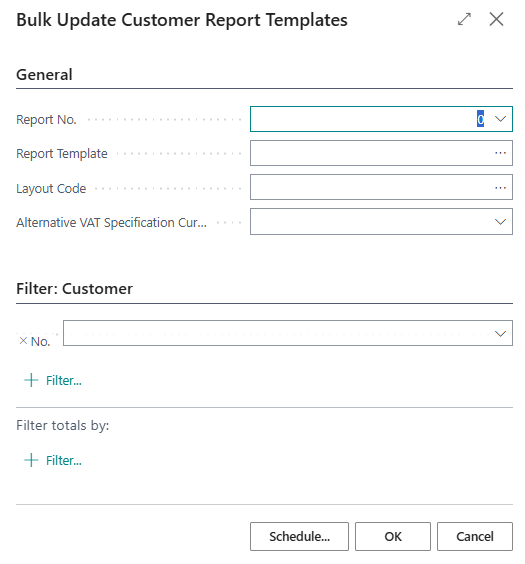
Update Customer Document Templates (report)
A batch report that updates document template assignments across multiple customer records at once.
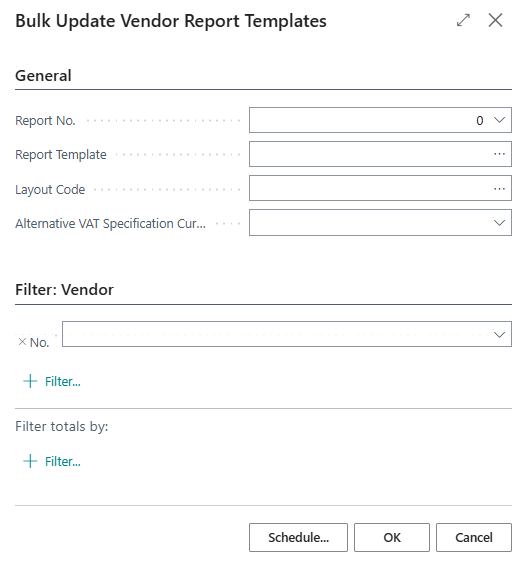
Update Vendor Document Templates (report)
A batch report that updates document template assignments across multiple vendor records at once.
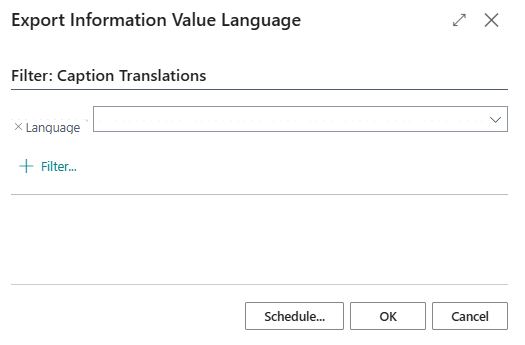
Export Captions (report)
Exports caption translations to a file for editing or translation outside Business Central.
Import Captions (report)
Imports caption translations back into Business Central after external editing.