
Release Date: 16. March 2026
 Release Summary
Improved Danish and English translations across Reverse Planning for clearer, more consistent terminology.
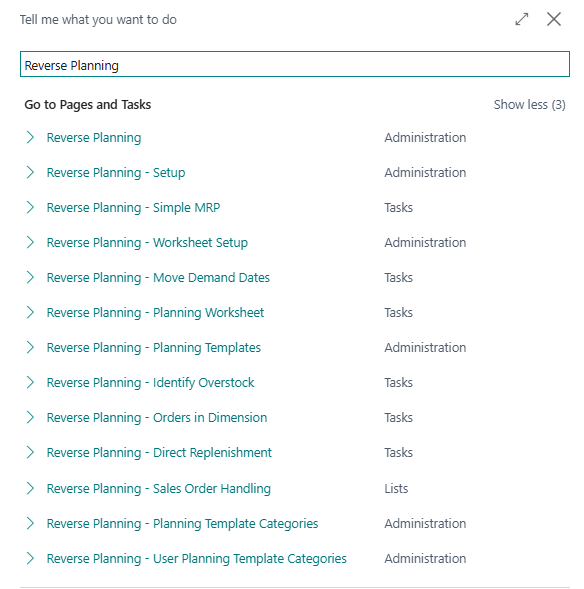
All searchable pages now start with “Reverse Planning” to make navigation easier.
Template overview updated to show the Suggest Date Template connected to the selected Suggest Quantity Template.
Hotfix implemented for a technical error in Move Demand Dates, preventing string‑length issues.
Default planning templates can now be created without a Demand Forecast, improving onboarding for new users.
System refined to prevent templates from being reused across different Planning Features, ensuring correct scoping and reducing errors.
 Improvements
General
Improved Danish and English translations for Reverse Planning
This release updates the translations used in the Reverse Planning app. Both Danish and English labels and captions have been reviewed and aligned to ensure consistent terminology and correct wording.
All searchable pages in Reverse Planning now have the prefix “Reverse Planning” in both Danish and English, making it easier for users to find and recognize Reverse Planning pages via Tell Me/search.
The changes are purely textual and do not affect functionality, but they improve clarity and reduce confusion for end users working with Reverse Planning in both Danish and English.
Planning Templates
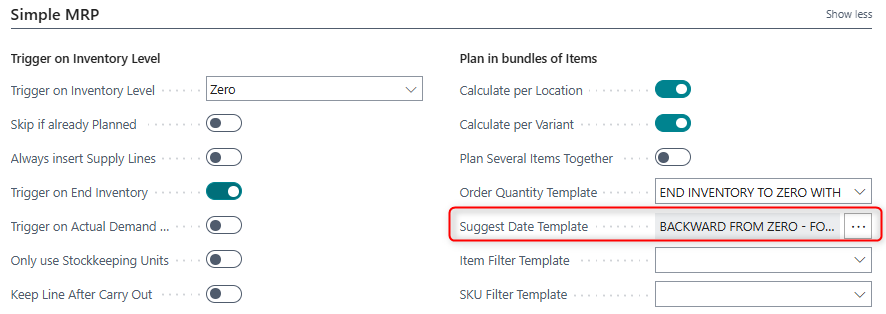
Show Suggest Date Template and triggers from the Planning Template
We have improved the Reverse Planning template overview so planners can see which Suggest Date setup is used without leaving the Planning Template.
On SCB RPL Planning Template (6223972, Card) a new, non-editable field now displays the Suggest Date Template that is tied to the currently selected Suggest Quantity Template. When you change the Suggest Quantity Template, the displayed Suggest Date Template is updated automatically.
From this field, you can drill down to the date triggers behind the template: clicking the field opens SCB RPL Suggest Date Triggers (6223988, List), filtered to the relevant Date Template Code.
This makes it easier to verify that your Planning Template uses the correct date template and trigger configuration, and reduces the risk of hidden or unintended trigger setups.
 Bug Fixes
Move Demand Dates
Move Demand Dates fails with technical string-length error when using Planning Template with Use Blanket Order = TRUE and Show Errors = TRUE.
When running Move Demand Dates with a Planning Template where Use Blanket Order = TRUE and Show Errors = TRUE, the process could stop with a technical error similar to:
“The length of the string is 22, but it must be less than or equal to 20 characters. Value: Blanket Order 18000002”
This prevented users from completing the Move Demand Dates job for affected planning templates and made it difficult to identify and correct the underlying master data.
This hotfix updates the handling of blanket order information in the Move Demand Dates process so that:
The job no longer fails with a low‑level string‑length error when the related text/value exceeds 20 characters, and
Users can complete the Move Demand Dates run even when working with blanket orders that previously triggered this issue.
As a result, planners can safely use Use Blanket Order = TRUE together with Show Errors = TRUE in their Planning Templates without experiencing this technical error.
Planning Templates
Default Reverse Planning templates can now be created even when “Current Demand Forecast” is not defined in Inventory Setup.
Previously, new customers could not get started with Reverse Planning if no Demand Forecast was defined in Inventory Setup. When inserting the default planning templates, the templates that inherit the default forecast from Inventory Setup failed with the error:
“The Demand Forecast Name does not exist. Identification fields and values: Name=''”
This has been fixed. If no forecast is defined in Inventory Setup (“Current Demand Forecast” is blank), the default planning templates are still created, and the Demand Forecast field on those templates is simply left blank.
As part of this change, fetching the Production Forecast from Inventory Setup (“Current Demand Forecast”) has been made more robust, and the creation of the “NEXT YEAR” Production Forecast has been made independent of the creation of lower-level templates.
Prevent template reuse across different Planning Features when same template code is used
Previously, when working with multiple Planning Features (such as Simple MRP, Move Demand Date, and Direct Replenishment) that shared the same template code, the system could incorrectly reuse a template across features. If a user ran one planning journal with a given template and then ran another planning journal that used the same template code, the template was automatically pre-filled for the second journal as well.
This behavior has been corrected so that templates are now properly scoped to the specific Planning Feature:
A hidden request page field SavedPlanningFeatureVar has been added to track which Planning Feature was used in the previous run (persisted via SaveValues).
When the report is initialized (SetRecord), if the current Planning Feature differs from the saved one, the UseTemplate setting is cleared.
This ensures that:
Re-running the same Planning Feature keeps the selected template as expected.
Running a different Planning Feature no longer pre-fills or reuses the template, even if the same template code exists for both features.
In practice, this means each Planning Feature now only proposes and uses templates that are explicitly associated with that specific feature, avoiding unintended cross-feature template reuse.
Planning Templates: Selected Item/SKU Filter Template is now correctly inherited when clicking OK
When working with Planning Templates, selecting a line in the Item Filter Template or SKU Filter Template dialog and clicking OK did not inherit the selected line back to the field, leaving it empty and forcing users to reselect from the dropdown.
This has been corrected so that:
The exact line you mark in the Item Filter Template or SKU Filter Template dialog is now reliably inherited when you click OK.
The behavior is consistent for both Item and SKU filter template selection dialogs.