
Labels Mobile, Word Layout
Labels Mobile documents using word layout will be set up with a value in the column Label Report Layout Code:

Looking up on the field provides you with a list of Label Layout Reports related to Labels Mobile:
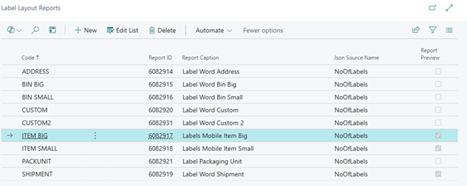
To change the layout, search out “Report Layouts” and find the reports related to Labels Mobile
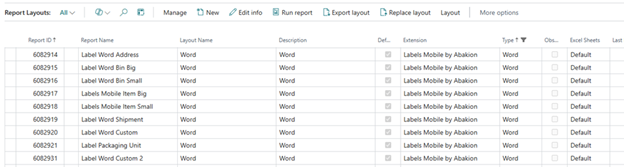
Export the layout you want to change. Open the layout file with Word.
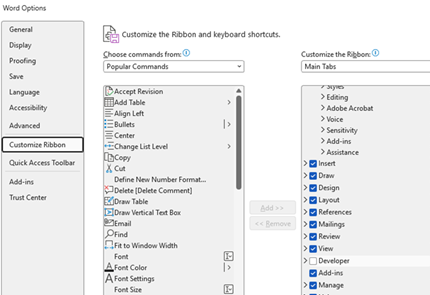
In Word, make sure you have a Developer tab. If not, open File, Options, Customize Ribbon and activate the Developer tab in the right-hand list:
Open Developer tab and open XML Mapping and find the report content (marked with the report number):
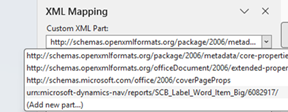
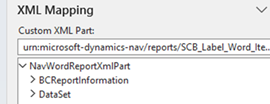
Open DataSet. This is the common list of named variables that is implemented in all the standard Labels Mobile word layouts.
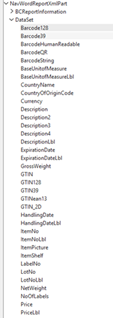
Note: Not all variables will contain data, but the abundancy of named variables allows us to expand the existing data collectors with new fields; as long as we use field names from the predefined list of variables, we do not need to do any changes to the layout reports and thus the changes can be done without programming.
Now you can change layout elements and select data from the Data Set; right-click on a variable and select “Plain Text” to add it to the layout:
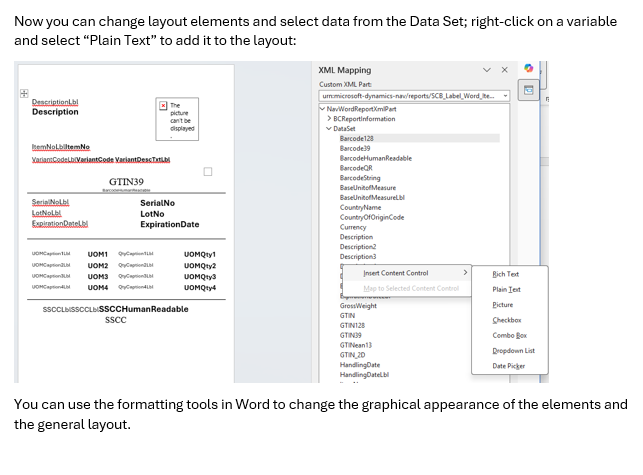
You can use the formatting tools in Word to change the graphical appearance of the elements and the general layout.