Overview
The Suggest Date Templates and Suggest Date Triggers pages work together to configure date calculation logic for the Reverse Planning system.
The Suggest Date Templates page manages the parent templates that define overall date calculation strategies. Each template serves as a container for one or more trigger rules.
The Suggest Date Trigger contains the detailed trigger lines that specify exactly when and how planning dates should be calculated. Each trigger line defines:
- An inventory condition that activates the trigger (e.g., inventory falls below zero)
- A planning direction (forward from the trigger date, or backward to meet the trigger date)
Together, these pages enable sophisticated date planning logic where different inventory situations can trigger different planning behaviors within a single template.
When are these Pages used?
Users access these pages when they need to:
Suggest Date Templates
- View all available date calculation templates used in quantity suggestion processes
- Create new date templates with specific trigger rules for different planning scenarios
- Review and modify existing date template configurations
- Navigate to the detailed trigger rules associated with each template
Suggest Date Trigger
- Define multiple trigger conditions within a single date template
- Specify different planning directions (forward/backward) based on different inventory events
- Set up prioritized trigger sequences that the system evaluates in order
- Configure specific inventory thresholds that initiate planning calculations
- Fine-tune the date calculation logic for specific planning scenarios
Both pages are primarily used during initial system setup and when fine-tuning planning logic for different replenishment scenarios.
Who are typical users?
- Supply Chain Managers who configure planning templates and define replenishment strategies
- Planning Engineers who set up automated planning rules and date calculation logic
- System Administrators who maintain Reverse Planning configuration and templates
- MRP Coordinators who need to understand how planning dates are calculated for different scenarios
Accessing the Pages
Suggest Date Templates
The Suggest Date Templates page can be accessed from the Suggest Quantity Templates List
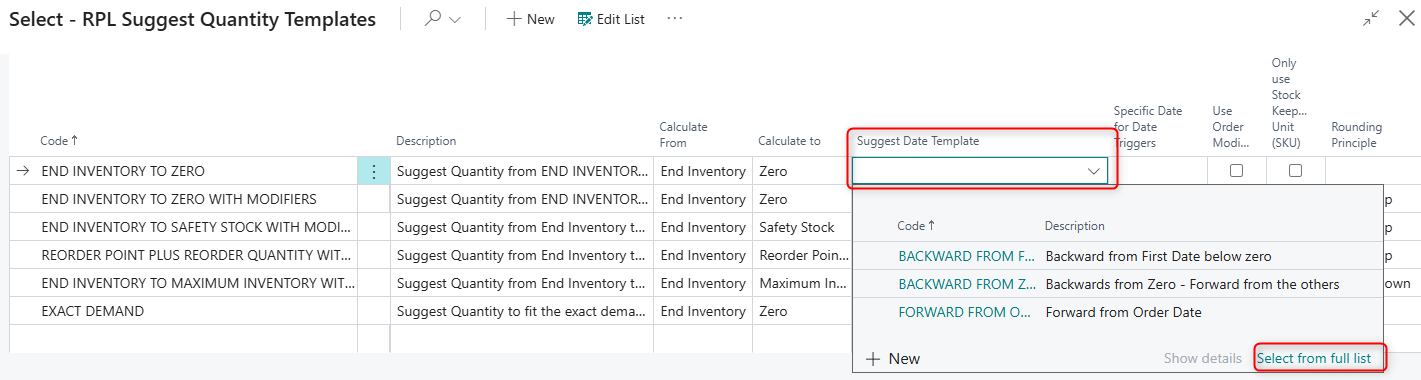
Suggest Date Trigger
The Suggest Date Trigger page can be accessed by clicking the Suggest Date Triggers action while a template is selected. The page opens filtered to show only the triggers for that specific template.
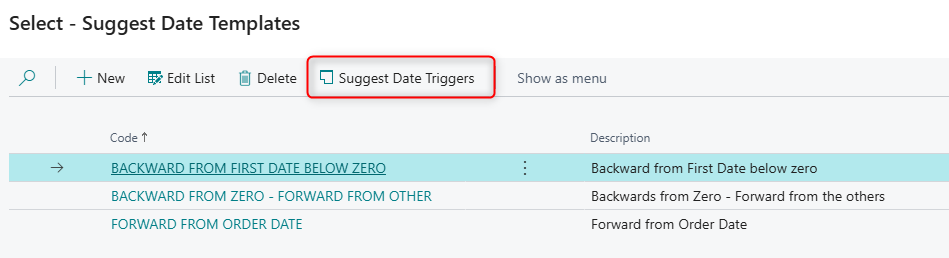
Page Components - Suggest Date Templates
Actions
Navigation Actions
| Action | What it does | When to use | Prerequisites |
|---|---|---|---|
| Suggest Date Triggers | Opens the Suggest Date Trigger list page filtered to show all trigger rules associated with the selected template | When you need to view, add, or modify the specific trigger conditions and planning directions for the selected date template | A template record must be selected in the list |
Fields
The General section displays the core identification fields for each template:
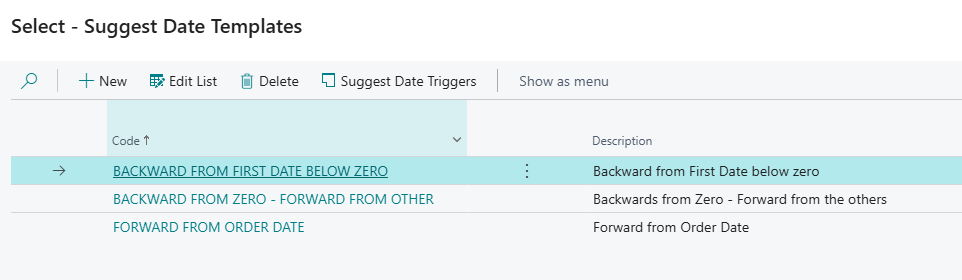
| Field | Purpose | Example | Key Information |
|---|---|---|---|
| Code | Unique identifier for the date template | BACKWARD FROM ZERO - FORWARD FROM OTHER | Required field, maximum 50 characters; used to reference this template in Suggest Quantity Templates |
| Description | User-friendly explanation of what the template does | Backwards from Zero - Forward from the others | Maximum 250 characters; helps users understand the template's purpose and trigger logic |
Page Components - Suggest Date Triggers
Fields
The General section displays the trigger configuration for each line. The system automatically assigns line numbers when you create new triggers.
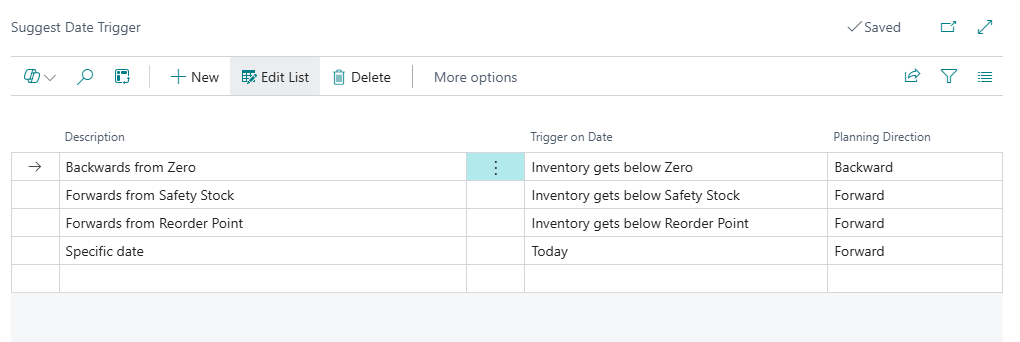
| Field | Purpose | Example | Key Information |
|---|---|---|---|
| Description | User-friendly explanation of this specific trigger rule | Backwards from Zero, Forwards from Safety Stock | Visible field, maximum 250 characters; describes what this trigger does and when it applies. |
| Trigger Date | The inventory condition that activates this trigger rule | Inventory gets below Zero | Visible field; Option values: Today, Inventory gets below Zero, Inventory gets below Safety Stock, Inventory gets below Reorder Point, Specific entered date; determines when this planning rule becomes active. |
| Direction | Whether planning should be forward or backward from the trigger date | Backward, Forward | Visible field; Option values: Forward (schedule from trigger date forward), Backward (schedule backward to meet trigger date); controls the planning direction when this trigger activates. |