Overview
The Planning Templates for Simple MRP is the central configuration hub for defining how the Reverse Planning app calculates material requirements and generates supply order suggestions. This template acts as a reusable blueprint that determines which demands and supplies to include, how to calculate planning periods, when to trigger supply suggestions based on inventory thresholds, and how to automate the planning workflow. By configuring multiple templates with different settings, planners can handle various planning scenarios—from simple reorder point planning to complex multi-level material requirements planning (MRP) with automatic order generation through bill of materials explosions.
For further details about Planning Templates, see more here.
When is this page used?
This page is used when:
- Setting up new MRP planning scenarios for different item groups, planning strategies, or business requirements
- Configuring calculation parameters such as date ranges, lead time buffers, and inventory reorder triggers
- Defining which order types (sales, purchase, production, transfers, assembly) to include in MRP calculations
- Automating planning workflows with sequential template execution, automatic quantity suggestions, and automatic order generation
- Creating planning hierarchies that run calculations in iterations by Low Level Code for multi-level BOM planning
Who are typical users?
- Supply Chain Planners who configure and maintain MRP templates for different product categories or planning strategies
- Materials Managers who set up automated planning workflows to streamline order generation
- Production Planners who configure MRP calculations for manufactured items with multi-level BOMs
- System Administrators who establish company-wide planning standards and templates
The table uses a composite primary key of Code and Planning Feature, allowing the same template code to be used for different planning features.
Accessing the Page
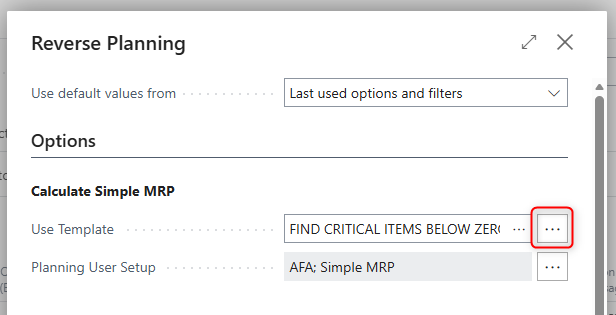
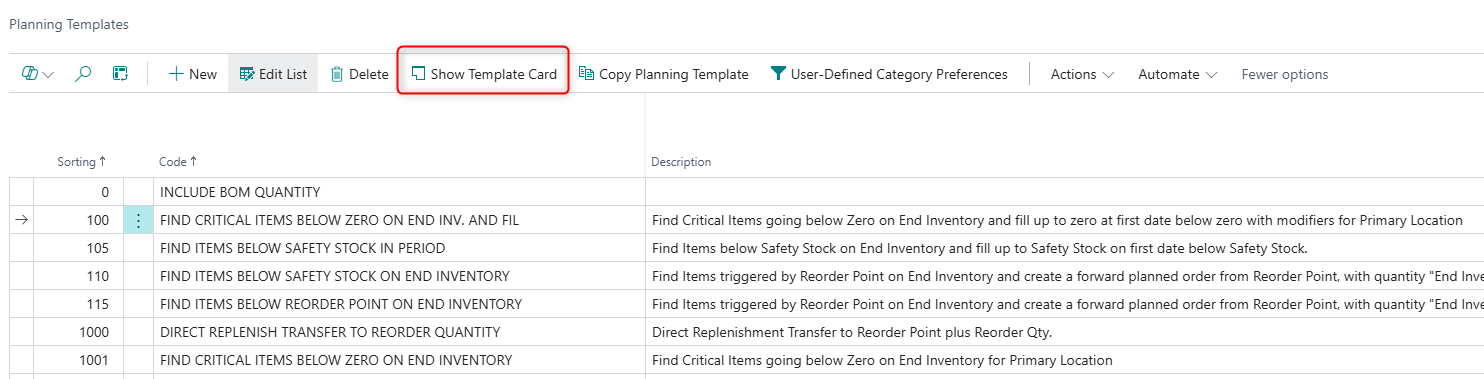
The Planning Templates page can be accessed through
- From the Simple MRP Request Page
- From the Planning Template List
Page Components
Actions
Processing Actions
.png)
| Action | What it does | When to use | Prerequisites |
|---|---|---|---|
| Copy Planning Template | Creates a duplicate of the current template with all settings and filters copied. Opens a dialog to specify the new template code and allows customization. | When creating a new template similar to an existing one, or when testing template variations without affecting the original | Template must be saved. A prompt will ask for the new template code and confirmation. |
Fields
General
This section contains the basic identification and classification of the planning template.
.png)
| Field | Purpose | Example | Key Information |
|---|---|---|---|
| Code | Unique identifier for the template that users will select when running planning calculations | WEEKLY-REORDER, PROD-MRP, CRITICAL-DAILY | Cannot be blank. Maximum 50 characters. Must be unique for each Planning Feature type. |
| Description | Human-readable explanation of what this template is used for and which items or scenarios it covers | "Weekly reorder point planning for purchased items", "MRP calculation for production items" | Maximum 250 characters. Helps users quickly identify the template's purpose. |
| Planning Feature | Displays "Simple MRP" for this template type. This field determines which planning functionality the template is designed for. | Simple MRP | Read-only. Set to "Simple MRP" when the template is created. Cannot be changed after creation. |
Calculation Interval
This section defines the time period for the planning calculation and how lead times are calculated. The calculation interval determines which demands are included and how far into the future the system looks for supply requirements.
.png)
| Field | Purpose | Example | Key Information |
|---|---|---|---|
| Default Start Date | The actual start date to use for the calculation when no formula is specified. Typically set to today's date or a specific fixed date. | 2025-12-01 | Only editable when Default Start Date Formula is empty. Automatically calculated if a formula is provided. |
| Default Start Date Formula | Date formula that dynamically calculates the start date based on the work date. Allows templates to automatically adjust to the current date. | -1W (one week ago), CM (current month start), CW (current week start) | Standard Business Central date formula format. When filled, automatically updates Default Start Date. Overrides manual date entry. |
| Calculation Period | Determines which items trigger planning and how far forward to look: End Date (plan until a specific date), Lead Time, or Rolled up Lead Time. | Lead Time, End Date | Default is Lead Time. Affects when items trigger supply suggestions. Rolled up Lead Time considers full manufacturing chain for produced items. |
| Default End Date | The actual end date for the calculation period. Only used when Calculation Period is set to "End Date". | 2025-12-31 | Only editable when Calculation Period = End Date and no formula is specified. Determines the planning horizon cutoff. |
| Default End Date Formula | Date formula that dynamically calculates the end date. Commonly used to plan a fixed period ahead (e.g., next 90 days). | 3M (three months), 12W (twelve weeks), CY (current year end) | Only editable when Calculation Period = End Date. When filled, automatically updates Default End Date. |
Calculation Period Explanation:
- End Date: Includes all demands up to the specified end date. Best for long-range planning or seasonal planning where you need visibility into a specific time period.
Lead Time: Includes only demands within the item's lead time from the start date. More focused planning that responds to immediate supply needs.
Rolled up Lead Time: For manufactured items, calculates the total lead time through the entire production chain (all BOM levels). Ensures components are planned with enough advance notice.
Demands and Supplies
This large section controls which order types are included in the MRP calculation. It's divided into subsections for better organization.
.png)
| Field | Purpose | Example | Key Information |
|---|---|---|---|
| Include only Items with Demand Orders | Når aktiveret, udelukkes varer uden faktiske behovsordrer. Forhindrer planlægning af varer med kun sikkerhedslagerkrav. | Enabled for fast-moving inventory | Standard er aktiveret. Kun tilgængelig når mindst én behovstype er inkluderet. Deaktiveres automatisk hvis Always Trigger Line Insert er aktiveret. |
| Include Sales Orders | Styrer hvilke salgsordrer der skaber behov: All (alle), Only Released (kun frigivne), eller None (ingen). | All, Only Released | Standard er All. Mest almindelige behovskilde. Brug Only Released for at udelukke kladder. |
| Include Sales Quotes | Når aktiveret, medtages forventet behov fra salgsforespørgsler. Nyttigt til make-to-order scenarier. | Enabled for quote-driven businesses | Standard er deaktiveret. Overvej aktivering hvis tilbud repræsenterer sandsynlige fremtidige ordrer. |
| Include Sales Blanket Orders | Når aktiveret, medtages behov fra blanket sales orders. Nyttigt til rammeaftaler med bekræftede leveringsplaner. | Enabled for long-term agreements | Standard er deaktiveret. Blanket orders repræsenterer forudbestemte mængder over tid. |
| Use Assigned Sales Quantity | Når aktiveret, bruges feltet Assigned Quantity fra Assign Quantity app i stedet for standard Quantity. | Enabled when using lot assignments | Kun tilgængelig hvis Assign Quantity app er installeret og aktiveret. Brug ved lot-specifikke allokeringer. |
| Include Outbound Transfer Demands | Når aktiveret, medtages behov fra udgående overførselsordrer (forsendelser fra nuværende lokation). | Enabled for multi-location planning | Standard er deaktiveret. Vigtigt for lagre der forsyner andre lokationer. |
| Use Assigned Transfer Quantity | Når aktiveret, bruges Assigned Quantity i stedet for standard Quantity på transfer-linjer. | Enabled when using lot assignments | Kun tilgængelig hvis Assign Quantity app er installeret og aktiveret. |
| Include Production Component Demands | Styrer hvilke produktionskomponenter der skaber behov: Firm Planned and Released, Only Released, Planned to Released, None. | Firm Planned and Released | Kun tilgængelig med Premium-licens. Standard er None. Essentiel for produktionsmiljøer til planlægning af råvarer. |
| Use Assigned Prod. Component Quantity | Når aktiveret, bruges Assigned Quantity på produktionskomponenter i stedet for standard Quantity. | Enabled for lot-specific manufacturing | Kun tilgængelig hvis Assign Quantity app er installeret og Premium-licens aktiv. |
| Include Service Orders | Når aktiveret, medtages behov fra serviceordrer for reservedele og serviceartikler. | Enabled for service operations | Standard er deaktiveret. Brug når serviceoperationer forbruger lager. |
Forecast
This subsection controls how demand forecasts are incorporated into MRP calculations.
.png)
| Field | Purpose | Example | Key Information |
|---|---|---|---|
| Demand Forecast | Selects which production forecast to include in the calculation. Links to standard Business Central Production Forecast Names. | WINTER-2026, PROD-FORECAST | Dropdown from Production Forecast Name table. When selected, automatically enables forecast date fields. |
| Demand Forecast Start Date | Defines when to start including forecast entries. Can be different from the calculation start date. | 2026-01-01 | Only editable when Demand Forecast is selected. Defaults to Default Start Date when forecast is first selected. |
| Demand Forecast End Date | Defines when to stop including forecast entries. Allows partial use of longer-term forecasts. | 2026-03-31 | Only editable when Demand Forecast is selected. Defaults to Default End Date when forecast is first selected. |
Supplies to include
This subsection determines which existing and planned supplies are considered when calculating net requirements.
.png)
| Field | Purpose | Example | Key Information |
|---|---|---|---|
| Include Purchase Orders | Controls which purchase orders are counted as supply: All (all purchase orders), Only Released (released only), or None. | All, Only Released | Default is All. Most common supply source. Released orders are confirmed with vendor. |
| Include Purchase Quotes | When enabled, includes expected supply from purchase quotations. Use cautiously as quotes may not materialize. | Enabled for expected deliveries | Default is disabled. Represents probable but not confirmed supply. |
| Use Purchase Order Handling | When enabled, uses suggested dates from Purchase Order Management app instead of actual purchase order dates. | Enabled when using PO Management | Only available if Purchase Order Management app is installed and enabled. Allows planners to model adjusted delivery dates. |
| Use Purchase Dates | Specifies which date field to use from purchase orders: Expected Receipt Date, Promised Receipt Date, or fallback option. | Expected Receipt Date | Only editable when purchase orders or quotes are included. Controls when supply is considered available. |
| Include Production Orders | Controls which production orders are counted as supply: Firm Planned and Released, Only Released, Planned to Released, or None. | Firm Planned and Released | Available with Manufacturing application area. Default is None. Essential for make-to-order or make-to-stock manufacturing. |
| Include Inbound Transfer Supplies | When enabled, includes supply from inbound transfer orders (transfers arriving at the current location). | Enabled for multi-location planning | Available with Manufacturing application area. Default is disabled. Important for locations that receive stock from other warehouses. |
| Include Quantity from BOM | When enabled, includes available component quantities from bill of materials. Advanced feature for specific scenarios. | Disabled (default) | Used in specialized planning scenarios. |
Both Demands and Supplies to include
Assembly orders can represent both demand (for components) and supply (for the assembled item), so they're configured separately.
.png)
| Field | Purpose | Example | Key Information |
|---|---|---|---|
| Include Assembly Orders | When enabled, includes assembly orders in the calculation. Assembly orders create demand for components and supply for the assembled item. | Enabled for assemble-to-order | Default is disabled. Essential for assembly operations. Affects both demand and supply sides of planning. |
| Use Assigned Assembly Quantity | When enabled, uses assigned quantities on assembly lines instead of standard quantities. | Enabled for lot-specific assembly | Only available if Assign Quantity app is installed and enabled. Allows lot-controlled assembly planning. |
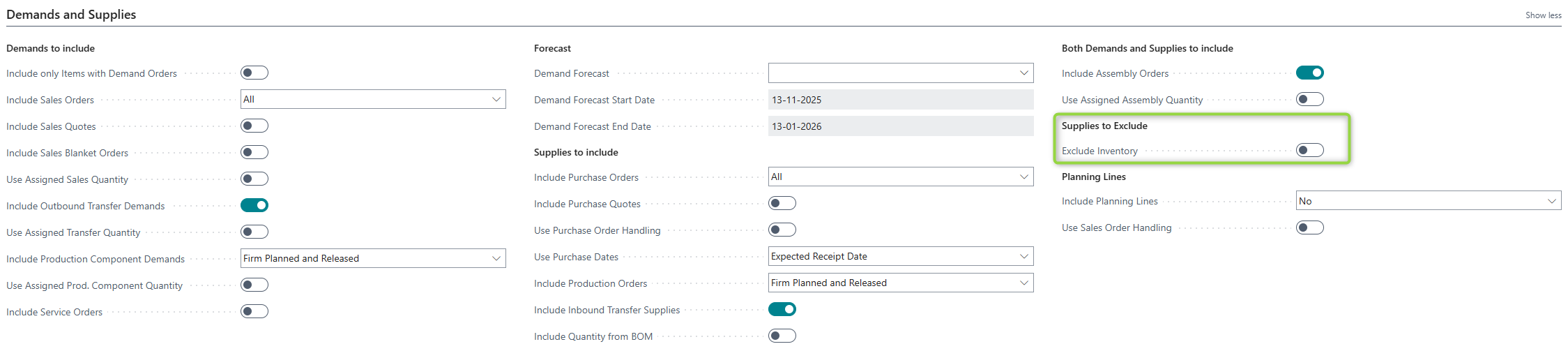
Supplies to Exclude
This subsection provides special options to exclude certain supplies from planning.#### Supplies to include
| Field | Purpose | Example | Key Information |
|---|---|---|---|
| Exclude Inventory | When enabled, ignores current on-hand inventory in the calculation. Used for scenarios where you want to plan as if starting from zero. | Enabled for new product launches | Default is disabled. Useful for "what-if" scenarios or when inventory should not be considered available (e.g., quality hold). |
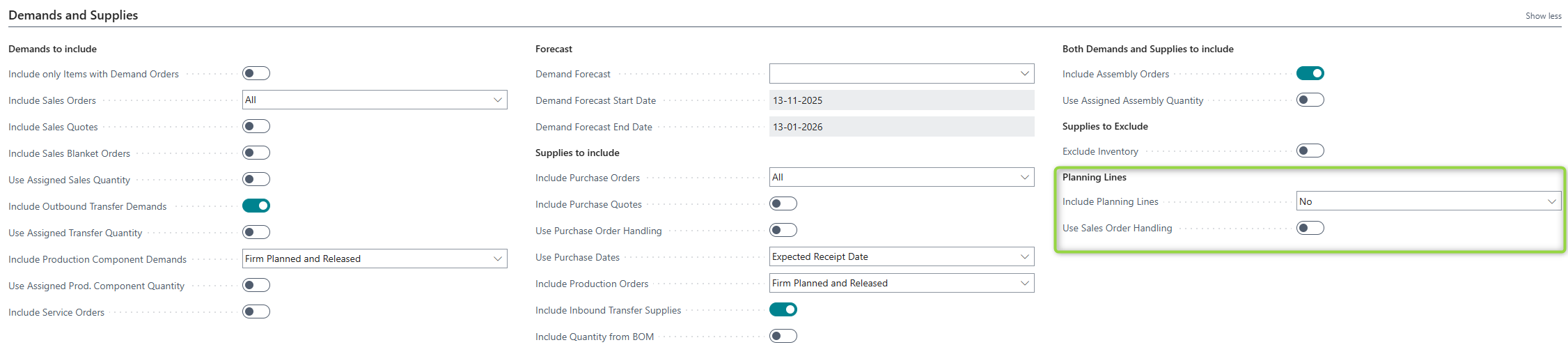
Planning Lines
This subsection controls how existing planning lines and sales order handling journal entries are incorporated.
| Field | Purpose | Example | Key Information |
|---|---|---|---|
| Include Planning Lines | Controls whether existing requisition lines and planning components are included | Yes | Determines if previously suggested orders are considered as supply. |
| Use Sales Order Handling | When enabled, uses suggested shipment dates from the Sales Order Handling journal instead of actual sales order dates | Enabled when using Sales Order Handling feature | Allows modeling of adjusted customer delivery dates before committing changes. |
Simple MRP
This section contains the core MRP calculation settings specific to the Simple MRP planning feature.

Trigger on Inventory Level
These settings control when and how items trigger planning line creation based on inventory thresholds.

| Field | Purpose | Example | Key Information |
|---|---|---|---|
| Trigger on Inventory Level | Defines the inventory threshold that triggers planning: Zero, Safety Stock, Reorder Point, or blank (always trigger). | Safety Stock, Reorder Point | Required unless Always Trigger Line Insert is enabled. Most important MRP setting. Determines which items get planning lines. |
| Skip if already Planned | When enabled, skips items that already have planning lines in the Reverse Planning Worksheet. Preserves manual planning adjustments. | Enabled (default) | Default is enabled. Prevents overwriting existing manual planning. Disable to recalculate all items regardless of existing lines. |
| Always Trigger Line Insert | When enabled, creates planning lines for all items in the filter regardless of inventory level. Used for bulk planning or vendor-based ordering. | Enabled for vendor review | Default is disabled. Automatically sets Trigger on Inventory Level to blank. Mutually exclusive with Include only Items with Demand Orders. |
| Trigger on End Inventory | When enabled, only triggers planning for items below the threshold at the calculation period end. Ignores temporary shortages that are later covered. | Enabled for end-period focus | Default is disabled. More conservative approach—only plans for sustained shortages. |
| Trigger on Actual Demand Orders | When enabled, excludes planning lines and forecasts when evaluating inventory levels. Only actual orders trigger planning. | Enabled for firm orders only | Default is disabled. More conservative—ignores "soft" demand. |
| Only use Stock Keeping Unit (SKU) | When enabled, only plans items that have SKU cards defined. Requires SKU setup for location-specific planning. | Enabled for SKU-managed items | Default is disabled. Forces location-specific planning. All items must have SKU records to be planned. |
| Keep Line After Carry Out | When enabled, retains lines in the Simple MRP journal after orders are created. Allows multiple order types or iterations from the same line. | Enabled for multi-type orders | Default is disabled. Useful when creating both purchase and production orders for the same item or when running iterative planning. |
Trigger Level Decision Guide:
- Zero: Aggressive planning that prevents stockouts. Plans as soon as inventory would go negative.
- Safety Stock: Moderate planning that maintains a buffer. Plans when buffer would be consumed.
- Reorder Point: Standard economic order point planning. Plans based on optimal reorder levels.
Run in iterations
These automation features enable sophisticated planning workflows and multi-level MRP calculations.

| Field | Purpose | Example | Key Information |
|---|---|---|---|
| Run for all LLC Codes | When enabled, automatically runs the calculation iteratively for each Low Level Code from 0 (finished goods) to the highest LLC (raw materials). Essential for multi-level MRP. | Enabled for BOM planning | Default is disabled. Automatically enables Auto run Suggest Qty to Order and Auto run Carry Out Actions. Creates planning lines at each BOM level. |
| Auto run next template | Specifies another template to run automatically after this one completes. Enables sequential planning workflows. | WEEKLY-MRP, VENDOR-CONSOLIDATE | Dropdown limited to templates with same Planning Feature. Validates against recursive loops. Automatically enables Auto run Suggest Qty to Order and Auto run Carry Out Actions. |
| Auto run Suggest Quantity to Order | When enabled, automatically populates the Quantity to Order field after calculation based on suggest quantity setup. | Enabled for automated planning | Default is disabled. Required when using Run for all LLC Codes or Auto run next template. Uses settings from Suggest Quantity Template. |
| Auto run Carry Out Actions | When enabled, automatically creates planning lines in the Reverse Planning Worksheet after quantity suggestions. Fully automates the planning process. | Enabled for hands-off planning | Default is disabled. Requires Auto run Suggest Qty to Order to be enabled. Moves suggestions directly to the planning worksheet without user review. |
Automation Strategy:
- Basic: Manual calculation, manual quantity suggestion, manual carry out
- Semi-Automated: Auto suggest quantity, manual carry out (recommended for review)
- Fully Automated: Auto suggest + auto carry out + auto next template (for routine replenishment)
- MRP Explosion: Run for all LLC codes + auto carry out (for manufacturing BOM planning)
Plan in bundles of Items
These settings allow grouping items together for consolidated order planning, useful for vendor minimums or location-based ordering.

| Field | Purpose | Example | Key Information |
|---|---|---|---|
| Calculate per Location | When enabled, creates separate planning lines for each location. Essential for multi-location inventory management. | Enabled for location planning | Default is disabled. Creates one line per item per location. Important for businesses with multiple warehouses. |
| Calculate per Variant | When enabled, creates separate planning lines for each item variant (color, size, etc.). Prevents variant aggregation. | Enabled for variant tracking | Default is disabled. Creates one line per item variant. Essential when variants have different sourcing. |
| Plan Several Items Together | When enabled, allows multiple items to be grouped on single planning lines. Advanced feature for consolidated ordering. | Enabled for vendor grouping | Default is disabled. Complex feature—requires proper setup. Use with filters to group similar items. |
Template References
These fields connect the template to other configuration records that define additional behaviors.

| Field | Purpose | Example | Key Information |
|---|---|---|---|
| Suggest Quantity Template | Links to a template that defines how to calculate Quantity to Order (reorder quantities, lot sizes, order multiples). | ECONOMIC-ORDER, ROUND-TO-FULL | References Suggest Qty. Template table. Provides order quantity optimization rules. Used when Auto run Suggest Qty to Order is enabled or when manually suggesting quantities. |
| Item Filter Template | Links to a template that pre-defines which items to include in the calculation (by item category, vendor, etc.). | VENDOR-A-ITEMS, CATEGORY-PROD | References Item Filter Template table. Provides default item filtering. Can be overridden by user if User Item Filter has Priority is enabled. |
| SKU Filter Template | Links to a template that pre-defines which SKU combinations to include (by location, responsibility center, etc.). | WAREHOUSE-A, MAIN-LOCATIONS | References SKU Filter Template table. Provides default SKU filtering for location-specific planning. |
| User Location has Priority | When enabled, user's last-selected location from the request page overrides any location in the Item Filter Template. | Enabled (default) | Default is enabled. Allows users to focus on their assigned locations. |
| User Item Filter has Priority | When enabled, user's last-selected item filter from the request page overrides filters in the Item Filter Template. | Enabled for user flexibility | Default is disabled. Allows users to customize which items are planned without changing the template. |
Companies
This section enables cross-company and cross-tenant planning scenarios. Useful for centralized planning operations.

| Field | Purpose | Example | Key Information |
|---|---|---|---|
| Plan from other Company | Specifies another company whose demand should be retrieved. Supply orders will be created in the current company for the other company's demand. | SUBSIDIARY-A, SALES-COMPANY | Dropdown from Company table. Cannot be the current company. Enables inter-company demand fulfillment planning. |
| External Tenant Code | Specifies a different tenant (environment) where the selected company is located. Required for cross-tenant planning. | PROD-TENANT, EU-REGION | References External Tenant table. Only needed if Plan from other Company is in a different tenant. Advanced feature for multi-environment enterprises. |
Cross-Company Planning Use Case: A central purchasing company can plan and create purchase orders to fulfill demand from multiple sales companies, centralizing vendor relationships and improving negotiating power.deThis subsection determines which existing and planned supplies are considered when calculating net requirements.