Overview
The Planning Templates page is a central configuration hub for managing planning templates used throughout the Reverse Planning application. Planning templates define the parameters, filters, and automation rules for different planning scenarios such as Simple MRP, Direct Replenishment, and Move Demand Dates. Each template can be customized with specific calculation periods, demand/supply inclusion rules, trigger thresholds, and automation settings to streamline planning workflows.
For further details about Planning Templates, see more here.
When is this Page Used
Users access the Planning Templates list to:
- Browse and manage all available planning templates across different planning features
- Create new templates or copy existing templates to customize planning scenarios
- Configure which templates are displayed based on user-defined category preferences
- Access individual template cards for detailed configuration
- Refresh standard Abakion templates to get the latest best practice configurations
Who are Typical Users
- Supply Chain Managers - Configure and maintain planning templates for different product categories and scenarios
- Inventory Planners - Select and use appropriate templates for daily planning activities
- System Administrators - Set up initial templates, manage categories, and maintain standard templates
- Production Planners - Utilize templates specific to manufacturing and production planning
Accessing the Page
The Planning Templates page can be accessed through:
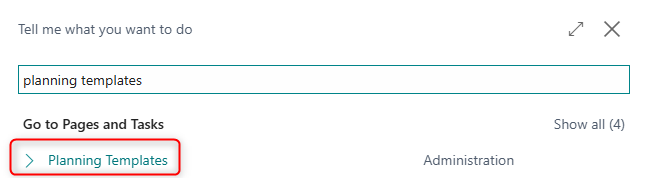
- Direct Search
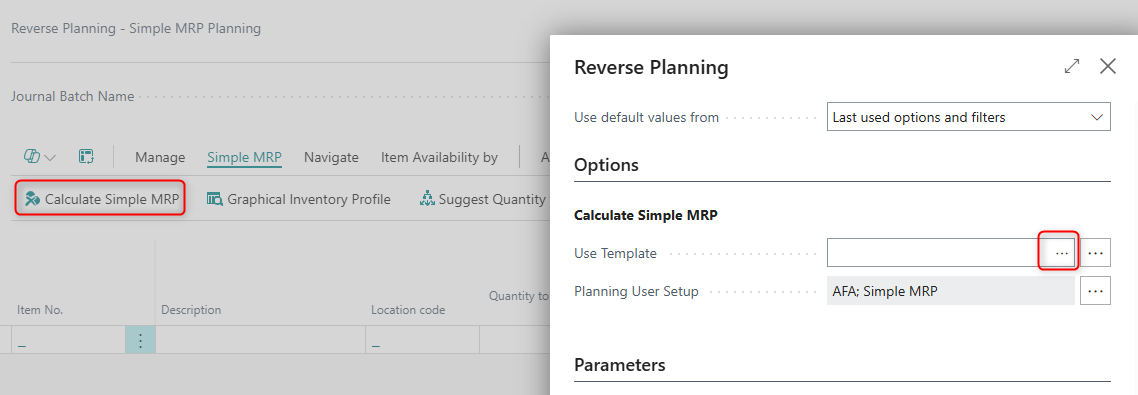
- Related Pages: Accessible from planning feature pages such as Simple MRP Planning, Direct Replenishment, and Move Demand Dates
Page Components
Actions
Navigate Actions
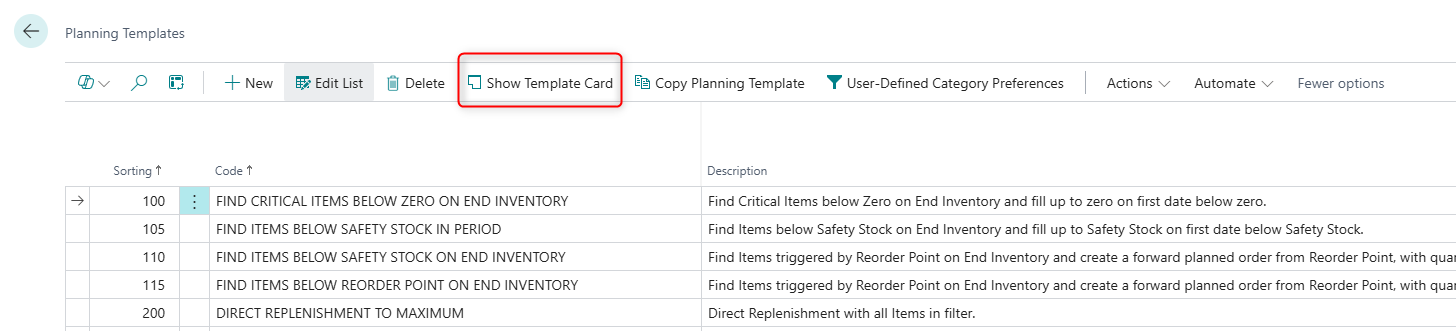
| Action | What it does | When to use | Prerequisites |
|---|---|---|---|
| Show Template Card | Opens the detailed card page for the selected template | When you need to view or modify detailed settings for a specific planning template | A template must be selected in the list |
Processing Actions
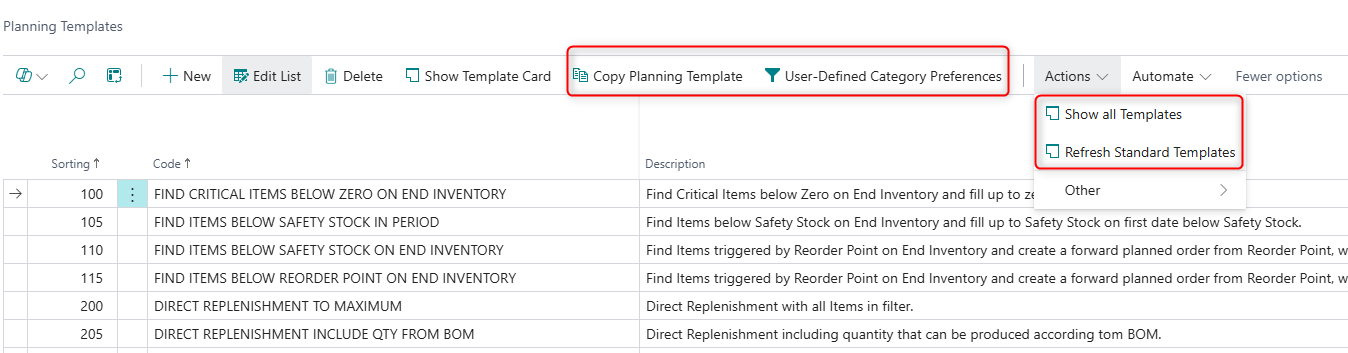
| Action | What it does | When to use | Prerequisites |
|---|---|---|---|
| Copy Planning Template | Creates a duplicate of the selected template with all settings and filters copied | When you want to create a new template based on an existing one, allowing customization without affecting the original | A template must be selected in the list |
| Show all Templates | Displays all planning templates regardless of user-defined category preferences | When you need to view templates from categories not in your preference list, or when searching for specific templates | This action is only enabled when category filters are currently applied |
| Refresh Standard Templates | Deletes all templates marked as "Standard Template" and inserts updated best practice Abakion templates | When you want to update to the latest standard templates provided by Abakion, useful after app updates | Existing standard templates will be permanently deleted |
| User-Defined Category Preferences | Opens configuration page to select which template categories should be displayed by default for the current user | When you want to customize which categories of templates you see when opening the Planning Templates list | None - available to all users |
Fields

| Field | Purpose | Example | Key Information |
|---|---|---|---|
| Code | Unique identifier for the template | "FIND CRITICAL ITEMS BELOW ZERO ON END INVENTORY" | Must be unique, cannot be blank |
| Sorting | Numeric value controlling the display order of templates | 100, 200, 300 | Hidden by default; templates are sorted by this field and then by Code |
| Description | Human-readable explanation of the template's purpose | "Find Critical Items below Zero on End Inventory and fill up to zero on first date below zero." | Helps users understand the template's function |
| Planning Feature | Specifies which planning feature this template is used for | Simple MRP, Direct Replenishment, Move Demand Dates | Not editable; determines the context in which the template is used |
| Category | Template category for grouping and filtering | "MANUAL PLANNING", "AUTO RUN ALL LOW-LEVEL-CODES" | Used with user preferences to filter displayed templates |
| Standard Template | Indicates whether this is a standard Abakion template | Yes/No | Not editable; standard templates are updated when "Refresh Standard Templates" is run |
| Trigger on End Inventory | Defines the inventory threshold that triggers planning | Zero, Safety Stock, Reorder Point | Determines when items are included in the planning calculation |
| Exclude Inventory | Determines whether current inventory is excluded from calculations | Yes/No | When enabled, planning ignores existing inventory levels |
| Run for all Low Level Codes | Automatically runs planning for all production levels | Yes/No | Relevant for multi-level production structures |
| Auto run next Template | Automatically executes another template after this one completes | "PRODUCTION DEMANDS ON PRIMARY LOCATION LLC CODE 1" | Creates workflow chains for sequential planning |
| Auto run Suggest Qty to Order | Automatically runs the Suggest Quantity to Order function | Yes/No | Streamlines the planning workflow |
| Auto run Carry Out Actions | Automatically executes carry-out actions after planning | Yes/No | Converts planning suggestions into actual orders |
| Only Use SKU | Restricts planning to Stockkeeping Units only | Yes/No | When enabled, only items with SKU records are planned |
| Suggest Quantity Template | Links to a template defining order quantity calculations | "REORDER POINT PLUS REORDER QUANTITY WITH MODIFIERS" | Determines how order quantities are calculated |
| Item Filter Template | Links to a template defining which items to include | "PRIMARY LOCATION", "PURCHASE ITEMS" | Pre-configured item filters for the planning run |
| SKU Filter Template | Links to a template defining SKU filters | "ONLY TRANSFER" | Used when Only Use SKU is enabled |