Overview
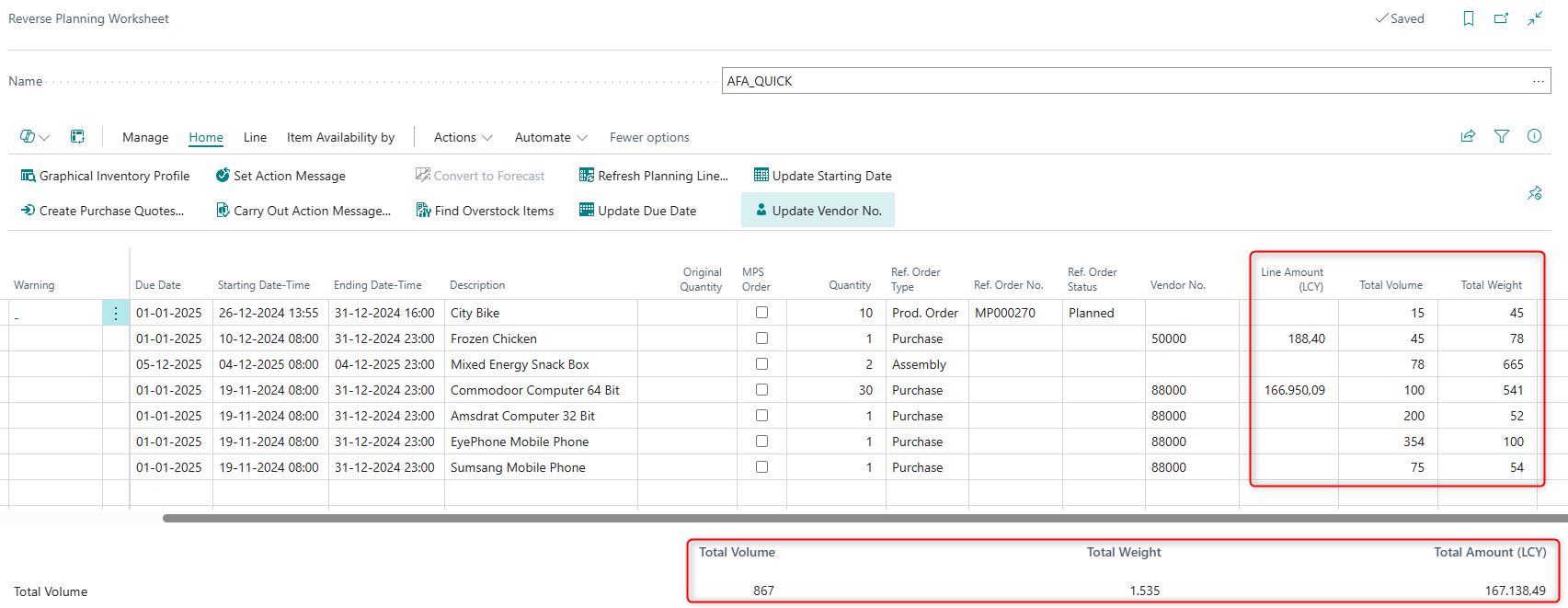
The Reverse Planning Worksheet is a comprehensive planning tool that displays and manages requisition worksheet lines for supply planning. This worksheet provides planners with a centralized view of all planned supply orders, action messages from the planning system, and detailed item information. Users can review planning suggestions, modify quantities and dates, manage production components and routing, and carry out action messages to create actual purchase or production orders.
When is this Worksheet used
Users open the Reverse Planning Worksheet to:
- Review and manage planning suggestions generated by the system
- Review changes made by the Move Demand Dates feature to Production, Assembly, and Transfer Orders
- Adjust due dates and starting dates for planned supply orders
- Create purchase quotes directly from planning lines
- View and edit production components and routing for manufacturing orders
- Convert planning lines to forecasts for future demand planning
- Execute approved action messages to generate actual supply orders
Who are typical users
- Supply Chain Managers: Review overall supply planning and approve action messages
- Planning Coordinators: Manage day-to-day planning activities and adjust requisition lines
- Inventory Managers: Monitor stock levels and coordinate replenishment activities
- Production Planners: Review manufacturing orders and manage production components
- Purchasing Managers: Create purchase quotes and manage vendor relationships
Accessing the page
The Reverse Planning Worksheet can be accessed through:
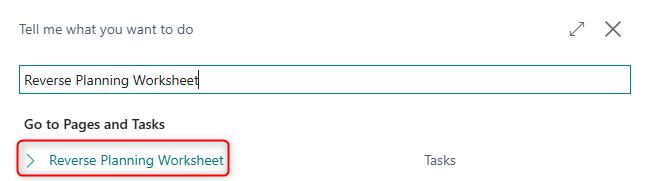
- Direct Search: The page is searchable in Business Central (press Alt+Q and type "Reverse Planning Worksheet")
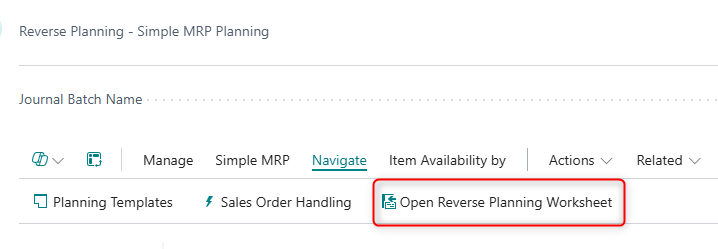
- From Simple MRP Planning journal
Page Components
Actions
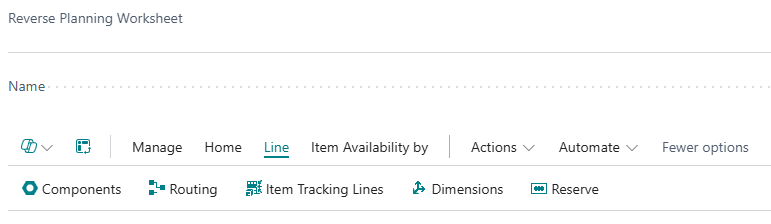
Navigation Actions
| Action |
What it does |
When to use |
Prerequisites |
| Components |
Opens the Planning Components page showing production order components |
When you need to view or edit the bill of materials components for a production order line |
The planning line must be for a production order (Replenishment System = "Prod. Order") |
| Routing |
Opens the Planning Routing page showing the operations list |
When you need to view or edit the routing operations for a production order |
The planning line must be for a production order with a routing |
| Item Tracking Lines |
Opens item tracking for serial, lot, and package numbers |
When you need to assign or view item tracking numbers for the planned supply |
A planning line for a tracked item must be selected |
| Dimensions |
Opens the dimensions window for the selected planning line |
When you need to view or edit dimension values (area, project, department) for a planning line |
A planning line must be selected. Press Shift+Ctrl+D for quick access |
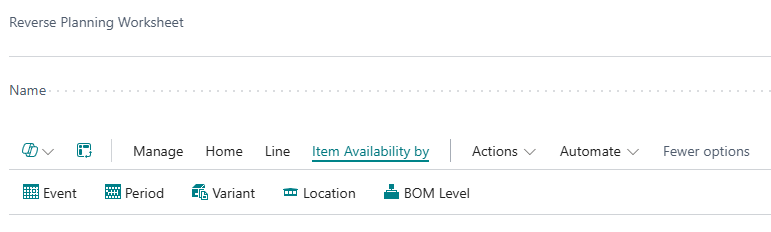
| Action |
What it does |
When to use |
Prerequisites |
| Event |
Shows item availability by event over time |
When you need to see the projected quantity based on supply and demand events |
Press Shift+Ctrl+G for Graphical Inventory Profile if enabled |
| Period |
Shows item availability by time period (day, week, month) |
When you need to analyze availability trends over standard time periods |
An item must be selected on the planning line |
| Variant |
Shows item availability by variant |
When working with items that have multiple variants and need to see availability by variant |
The item must have variants defined |
| Location |
Shows item availability by location |
When you need to see actual and projected quantities across different warehouse locations |
Multiple locations must be configured in the system |
| BOM Level |
Shows availability figures for items on bills of materials |
When you need to determine how many units of a parent item can be made based on component availability |
The item must have a production BOM structure |
Processing Actions

| Action |
What it does |
When to use |
Prerequisites |
| Graphical Inventory Profile |
Displays a visual chart of inventory movements over time |
When you need a graphical representation of supply and demand for better decision-making |
Graphical Inventory Profile app must be enabled. Press Shift+Ctrl+G |
| Create Purchase Quotes |
Generates purchase quotes for selected planning lines and removes them from the worksheet |
When you want to create formal purchase quotes for vendor approval before creating orders |
Planning lines with Replenishment System = "Purchase" must be selected |
| Refresh Planning Line |
Updates the selected planning line with any changes made to components and routing |
When production components or routing have been modified after the planning line was created |
A planning line must be selected |
| Set Action Message |
Batch updates the Accept Action Message field on selected lines to include or exclude them from execution |
When you need to quickly accept or ignore multiple action messages at once |
One or more planning lines with action messages must be selected |
| Carry Out Action Message |
Creates actual supply orders (purchase, production, or transfer orders) from accepted planning lines |
When you're ready to convert planning suggestions into real orders |
Planning lines must have Accept Action Message = Yes |
| Convert to Forecast |
Converts selected planning lines into forecast entries for future demand planning |
When you want to create demand forecasts based on current planning suggestions |
Flexible Forecast app must be enabled. Only lines with quantity filled in are converted |
| Reserve |
Opens the reservation window to reserve inventory for the planning line |
When you need to reserve specific quantities of available inventory for this planned supply |
Available inventory must exist to reserve |
| Update Due Date |
Opens a dialog to select a new due date and applies it to all selected lines |
When you need to align due dates for multiple planning lines to a common date |
One or more planning lines must be selected |
| Update Starting Date |
Opens a dialog to select a new starting date and applies it to all selected lines |
When you need to align starting dates for multiple production orders to a common date |
One or more planning lines for production orders must be selected |
| Edit in Excel |
Exports the worksheet data to Excel for analysis or bulk editing |
When you need to work with planning data in Excel or perform complex filtering and analysis |
Excel add-in must be |
Planning Line Details
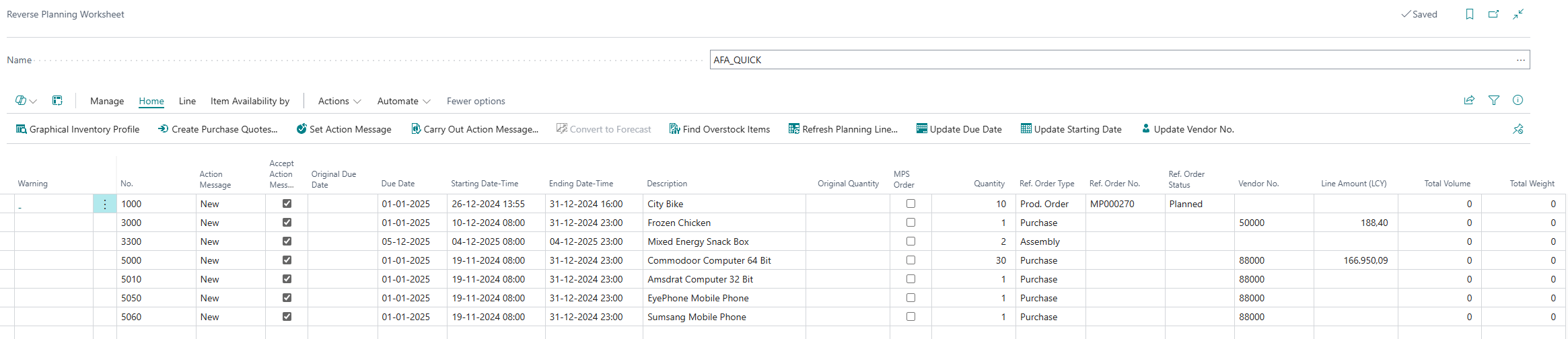
| Field |
Purpose |
Example |
Key Information |
| No. |
The item number for this planning line |
ITEM-1000 |
Validates item existence and loads item details when entered |
| Variant Code |
Identifies the specific variant of the item |
BLUE, LARGE |
Only relevant for items with variants defined |
| Action Message |
The planning system's recommended action: New, Cancel, Change Qty., Reschedule, or combinations |
Reschedule & Chg. Qty. |
Indicates what action the planning system recommends for balancing supply and demand |
| Accept Action Message |
Checkbox to accept or reject the suggested action message |
☑ Yes |
Only lines with this checked will be processed when you carry out action messages |
| Original Due Date |
The due date on the existing order before the action message |
01/15/2025 |
Shows the original date when action message suggests rescheduling |
| Order Date |
The date when the related order was or will be created |
01/01/2025 |
Used to track when orders were placed |
| Due Date |
The date when items are expected to be received |
01/20/2025 |
Critical field for scheduling. Can be modified to adjust supply timing |
| Starting Date-Time |
Combined starting date and time for production orders |
01/10/2025 08:00:00 |
Shows when production should begin. System calculates based on routing and lead times |
| Ending Date-Time |
Combined ending date and time when production should complete |
01/20/2025 17:00:00 |
Calculated based on starting date-time and routing duration |
| Description |
The item description or name |
Widget Assembly |
Automatically populated from the item card when No. is entered |
| Description 2 |
Additional description or remarks |
Blue variant, special order |
Useful for extra notes or clarifications |
| Quantity |
The planned quantity to order or produce |
100 |
Key field. This is the quantity that will be ordered when action is carried out |
| Unit of Measure Code |
The unit of measure for the quantity |
PCS, BOX |
Must be a valid UOM defined for the item. Defaults to base UOM |
| Replenishment System |
How the item will be supplied: Purchase, Prod. Order, Transfer, or Assembly |
Purchase |
Determines what type of order will be created. Comes from item card |
| Unit Cost |
Cost per unit |
25.50 |
Used for cost calculations and analysis |
| Cost Amount |
Total cost (Quantity × Unit Cost) |
2,550.00 |
Calculated total cost of the planning line |
| Vendor No. |
Vendor number for purchase orders |
VENDOR-001 |
Comes from item card or can be manually selected |
| SCB Unit Volume |
Volume per unit |
SCB Unit Volume |
Volume per unit of the item |
| SCB Total Volume |
Total volume (Quantity × Unit Volume) |
2.50 |
Calculated total volume for the order |
| SCB Unit Gross Weight |
Weight per unit of the item |
1.5 |
Used for shipping and logistics calculations |
Worksheet Totals (Bottom Section)
These calculated totals are displayed at the bottom of the worksheet, providing aggregate values for all visible planning lines:
| Field |
Purpose |
Key Information |
| Total Volume |
Sum of all SCB Total Volume values for visible planning lines |
Displays the total volume across all items in the current view. Useful for logistics and space planning |
| Total Weight |
Sum of all SCB Total Gross Weight values for visible planning lines |
Displays the total weight across all items in the current view. Useful for shipping and freight calculations |
| Total Amount (LCY) |
Sum of all Cost Amount values for visible planning lines |
Displays the total cost in local currency for |