Webservice Setup (Entra, OAUTH)

Prev Next

How to set up Microsoft Entra Applications (Oauth) for Abakion Intercompany

Updated 26-06-2023. From Business Central v. 23, Azure Active Directive is replaced by Microsoft Entra Applications.  

The setup is consisting of three parts
 :

  • Create an App Registration in Microsoft Entra Applications (Azure Active Directory)

  • Insert the APP registration information on the Intercompany Partner card

  • Create a Microsoft Entra Application User (Azure Active Direct Application user) in Business Central. 

Same tenant >< different tenants: 

If you are running both companies on the same tenant. The setup below can be used for both companies.

If you want to setup Intercompany between two tenants, the APP registration needs to be made in their respective Microsoft Entra Applications. 
And the user and partner card, should be setup using the information from the OTHER tenants Microsoft Entra Applications. As these setups are users which defines how they will be connecting into the companies in that tenant.  


App Registration in Microsoft Entra ID (Azure Active Directory Authentication)


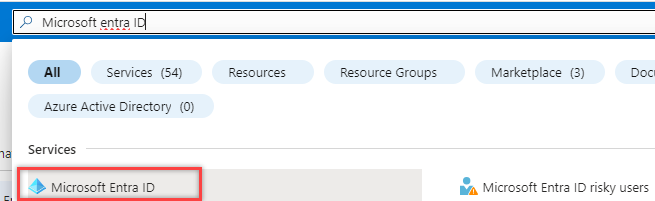
  • Search for Azure Active Directory

Search bar displaying 'Microsoft Entra ID' with highlighted selection in services list.


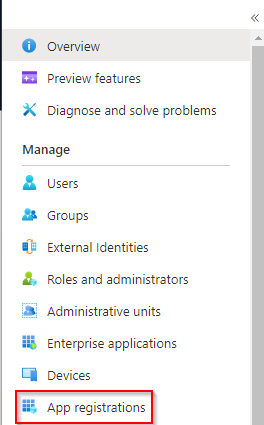
  • Open App registration from the overview

Menu displaying various management options with 'App registrations' highlighted.

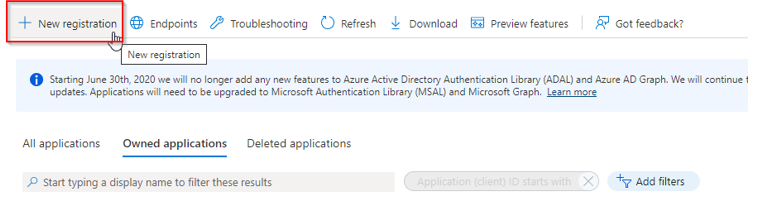
  • Click on New Registration

User interface showing options for new registration in Azure Active Directory.

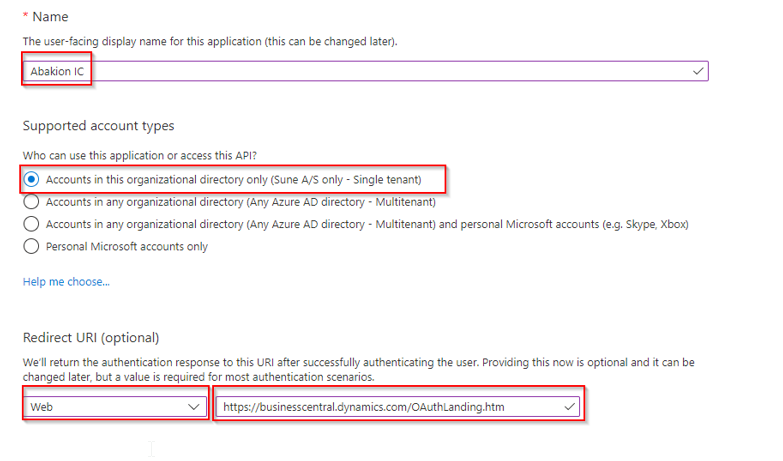
  • Specify App Name and Account Type

  • Specify Platform Web

  • Specify Redirect URI and set in 

    https://businesscentral.dynamics.com/OAuthLanding.htm


  • Click on Register when fields to the right are completed, to create the App registration.

Application setup screen showing name, account types, and redirect URI fields.


Next step is to create a Certification

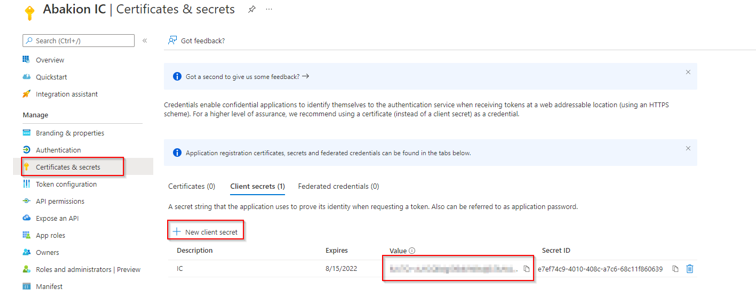
  • Go to the Certificates and Secrets

  • Add a new secret and copy value into a notepad as this information is needed in the Intercompany app in a later step.


(Note this will be masked once you browse away from the certification and secrets!)

Abakion IC interface showing client secrets and options for managing authentication credentials.


Next step is to add Permissions

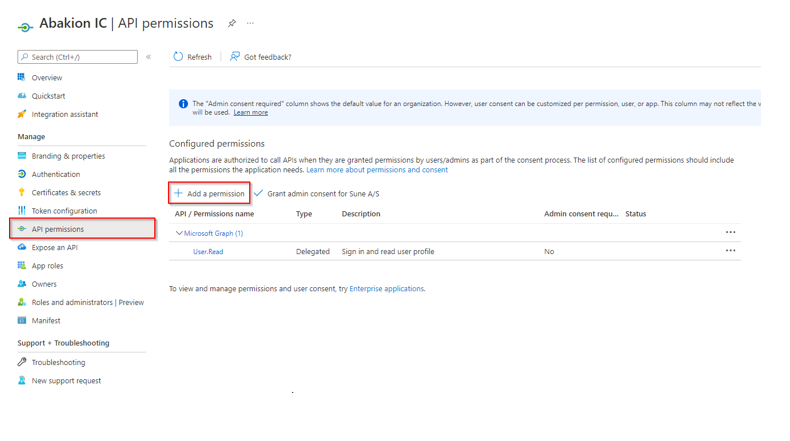
  • Open API Permissions

  • Click on Add a permission

API permissions configuration screen with highlighted option to add a permission.

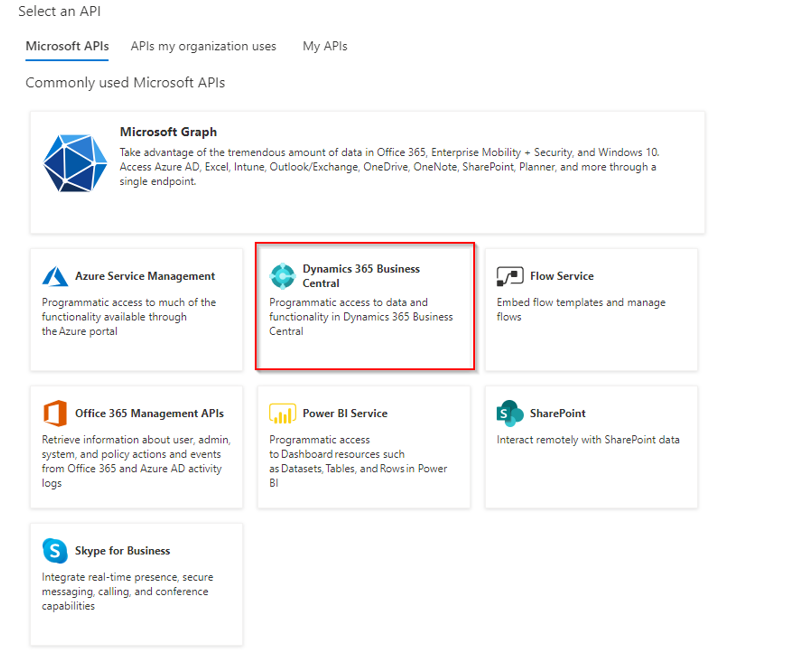
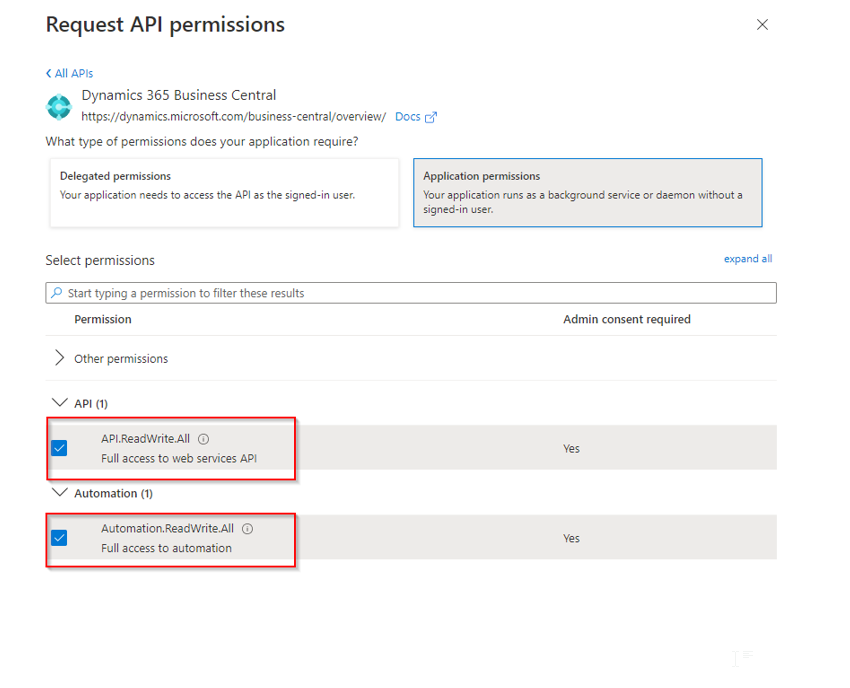
  • Select Dynamics 365 Business Central API and Application Permissions


Selection of Microsoft APIs with a focus on Dynamics 365 Business Central highlighted.

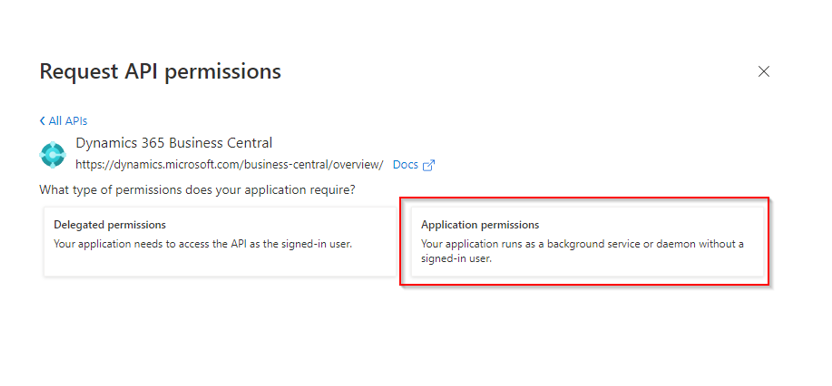
  • Select Application Permissions

Request API permissions for Dynamics 365 Business Central, highlighting application permissions details.

  • Select API.ReadWrite.All and Automation.ReadWrite.All

  • Click on Add permissions to add the permissions

Requesting API permissions for Dynamics 365 Business Central with highlighted options.

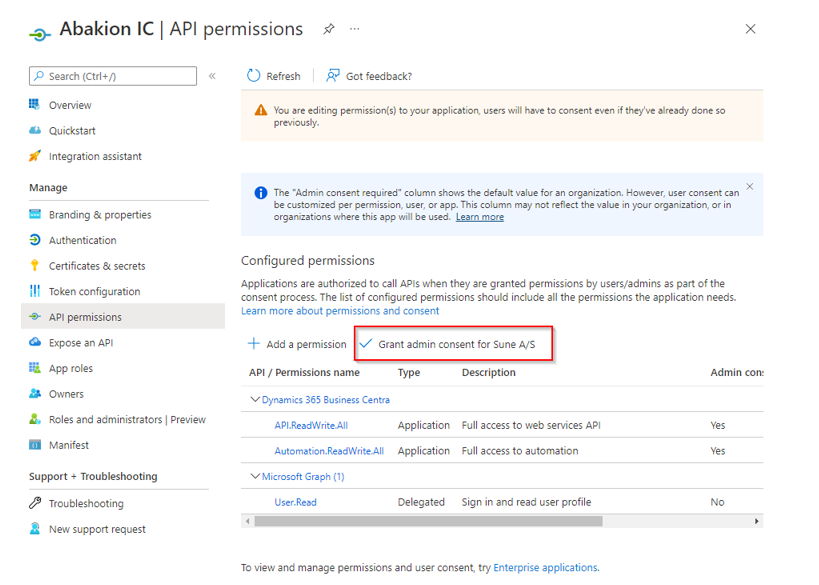
  • Click on Grant admin consent

API permissions configuration screen showing admin consent for Sune A/S highlighted.

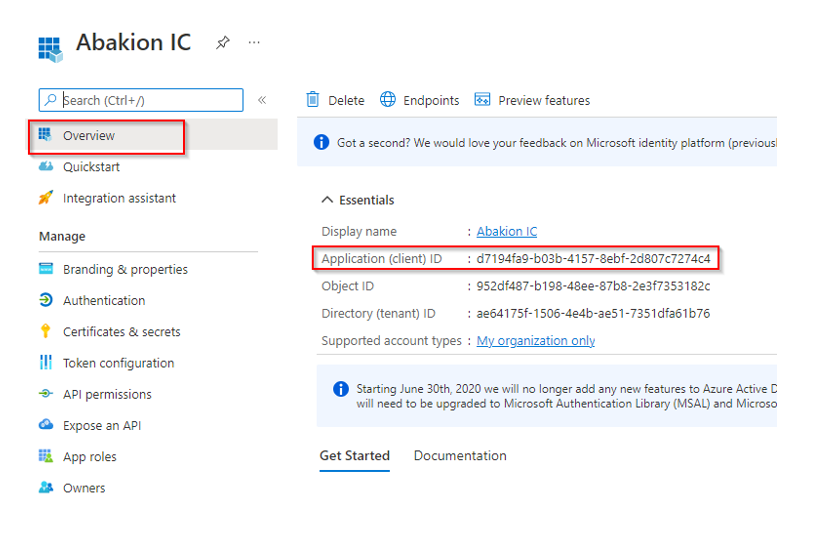
Next step is to find the Application (Client) ID

  • Find the Application Client ID in the overview.

  • Copy the Application (client) ID into a notepad as this information is needed in the Intercompany app in a later step.


Overview page of Abakion IC showing essential application details and IDs.


Business Central Intercompany Partner Setup

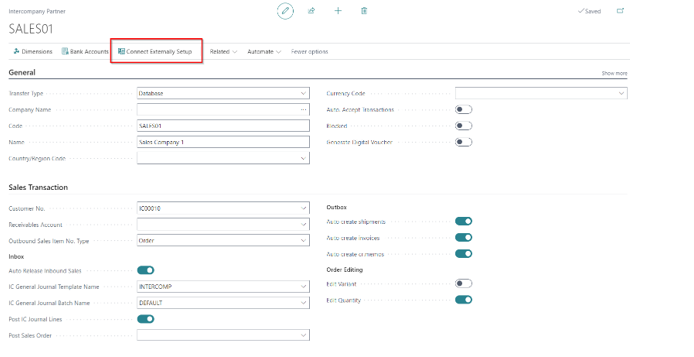
Now it is time to switch to Business Central, and update the Intercompany Partner with connection information. 


Connect Externally Setup


Sales setup interface showing various fields and options for intercompany transactions.


Setup the Intercompany Partner Card

When the connection has tested successfully, and you finished the connection setup, you can setup the partner card with the intercompany vendor / customer etc.

Make sure that auto import inbox is set to handle with web service
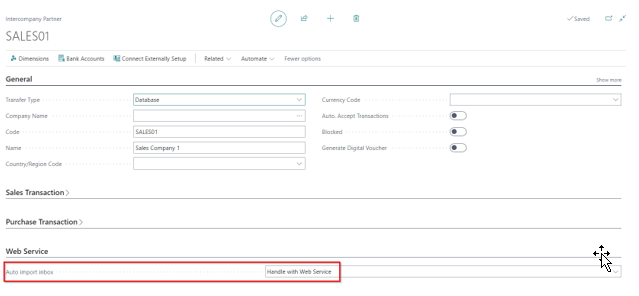
 

Configuration settings for sales partner, highlighting web service auto import options.


Microsoft Entra Application Card

Last step is to set up Microsoft Entra Application Card. It's used to define what permission should be granted to the Registration App and to the Abakion Intercompany app.


  • Click on Microsoft Entra Application list under related.

Intercompany Partner settings with highlighted Microsoft Entra Applications List option.

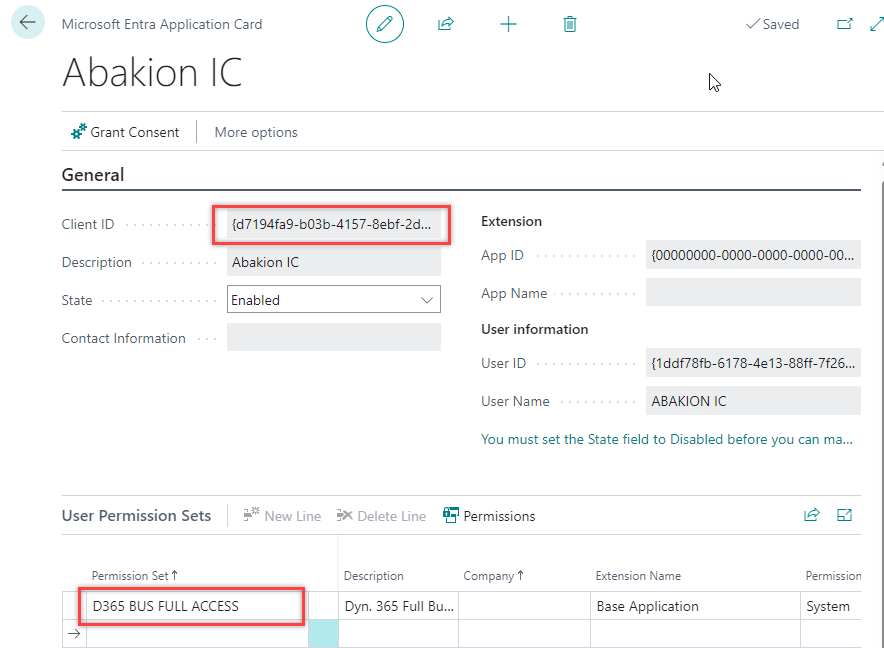
  • Create a new Microsoft Entra application card, if it doesn't already exist 

  • Paste Application Client Id from Microsoft Entra Aplication ID in the Client Id field (same ID used in the Web service setup)


  • Add the User groups that this user need to have acess to. 

    • ADD D365 BUS FULL Access user group for each company you are using intercompany

    • Add SCB INTERCOMPANY, to give the user permissions to Intercompany App's functionality

    • Add other relevant permissions that this users needs, in performing the Intercompany flow. Which is the same as users that would perform the task manually.  

Application card displaying client ID, description, and user permissions for Abakion IC.

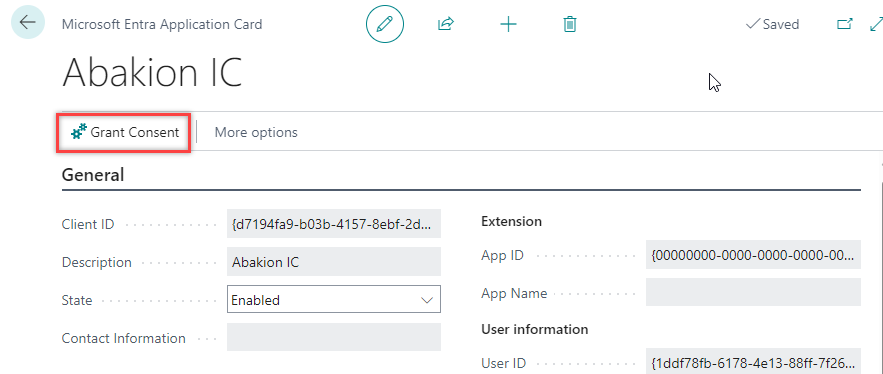
  • Click on Grant Consent  

Microsoft Entra application card showing 'Grant Consent' option and application details.

  • Login as an administrator to confirm access


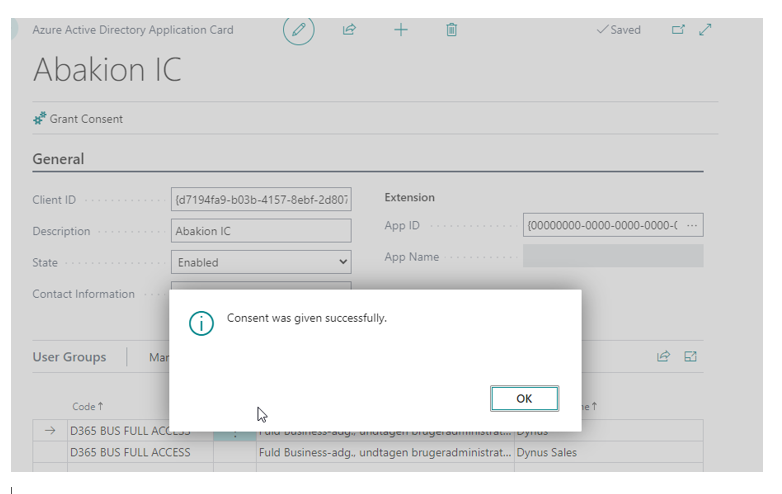
As the result following message should appear.

Azure Active Directory application card showing consent granted message and application details.


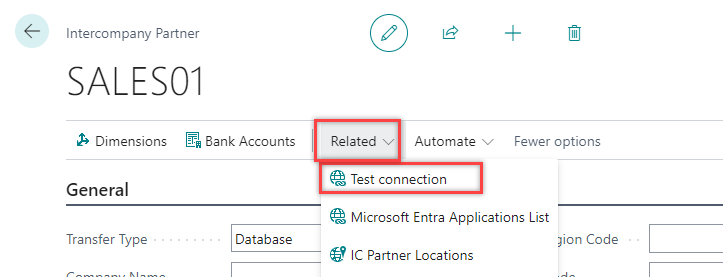
  • Verify your setup from the Intercompany partner card to check that connection is configured correctly


Sales order interface showing options to test connection and related settings.


For more details refer to Microsoft Documentation:
Register Azure application
S2S Authentication