GMDS – Quick Setup Guide
This guide explains how to set up the Global Master Data Sync (GMDS) web service.
It is intended for customers and partners and describes the minimum steps required to get GMDS up and running.
Before you start
Before configuring GMDS, make sure the following prerequisites are in place:
- You have access to Microsoft Dynamics 365 Business Central with permission to:
- Configure Web Services
- Open Global Master Setup
- You have access to Microsoft Entra ID (Azure AD) or can involve a tenant administrator
- A Microsoft Entra application is available (or can be created) for GMDS
- You know which environment should be connected
- You have identified the subscriber company that should use GMDS
1. Create a Tenant Connector Code
- Open GM Tenant Connector Codes.
- Create a new connector with:
- Code:
GMDS(or another code to identify the Tenant Connection)
- Code:
- Save the record.
- Copy the Application (Client) ID shown on the connector – this is required in later steps.
- Copy the Value into the Client Secret-field

2. Locate the Partners Information
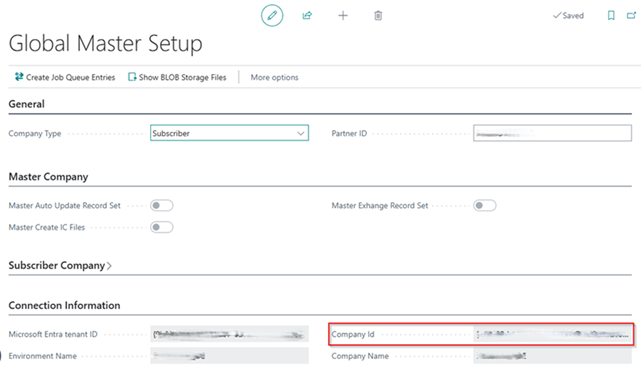
- In the partner company open Global Master Setup.
- Go to the Connection Information section.
- Note the following values:
- Company ID
- Company Name
- Microsoft Entra tenant ID
These values uniquely identify the company that will participate in GMDS.
3. Set up the GMDS Web Service
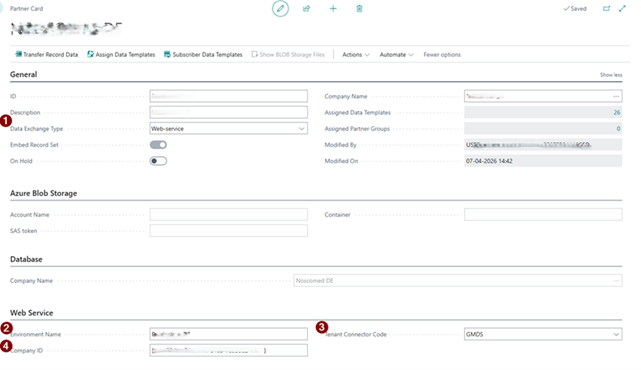
In Business Central, open the relevant Global Master Data Sync Partner Card (search for Global Master Partner List.
- Make certain that the Data Exchange Type is set to Web-service.
Configure the following fields in the Web Service tab:
- Environment Name (from previous step 2.3)
- Tenant Connector Create and select a tenant connector named
GMDS(from the previous step 1.2). - Company ID (from previous step 2.3)
Save the configuration.
4. Set up the Microsoft Entra Application
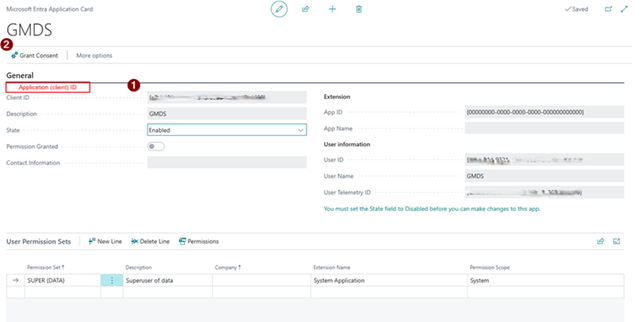
Open the Microsoft Entra application used for GMDS.
- Verify the following:
- Application (Client) ID matches the ID used in the GMDS tenant connector
- Status is set to Enabled
Ensure the application uses application permissions as required by GMDS.
- Grant consent for the Microsoft Entra application.
If you do not have sufficient permissions a Global Administrator or Application Administrator must grant consent on your behalf.