How to Setup Intercompany Partners with Connect Externally Setup
Setup new Intercompany Partners with Connect Externally Setup (v23)
When upgrading the Intercompany app, the existing setup for existing intercompany partners’ connection will be transferred to the new setup fields.
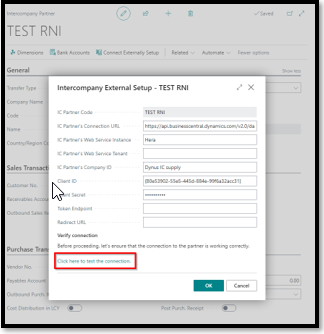
You will be able to see / modify the existing setup for the partner here:
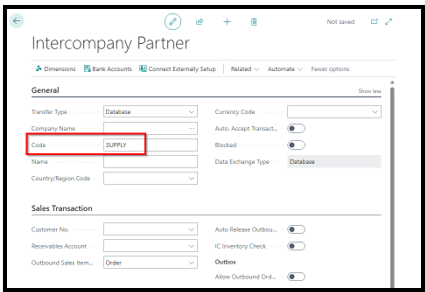
If you want to setup connection for new intercompany partners, create a new partner card and populate the Code field:
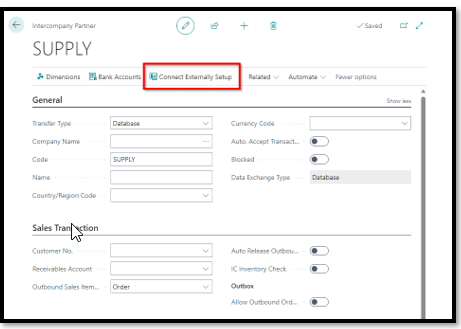
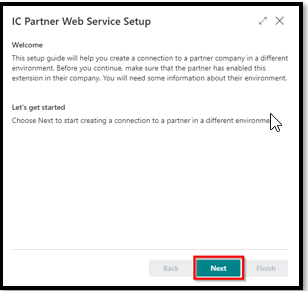
Follow the setup steps in the Connect Externally Setup:
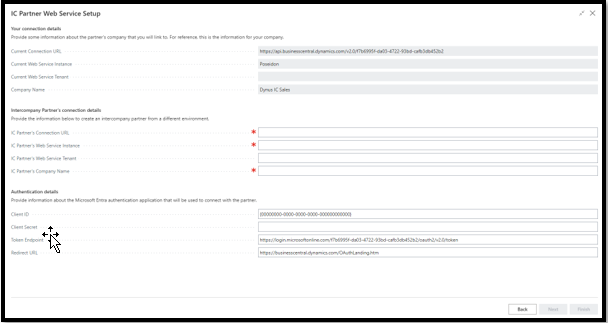
Populate the mandatory fields under Intercompany Partner’s connection details.
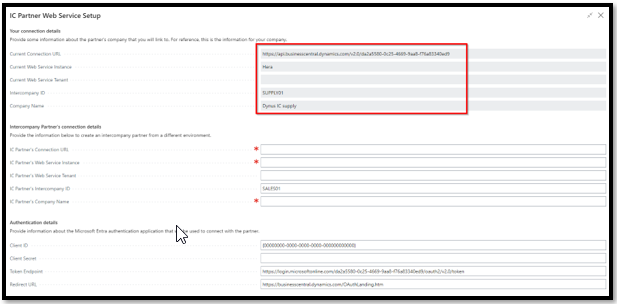
You can find the values to use here in your Partner Company. You can copy the values from the greyed-out fields on the IC Partner Web Service Setup page under Your connection details in your partner company:
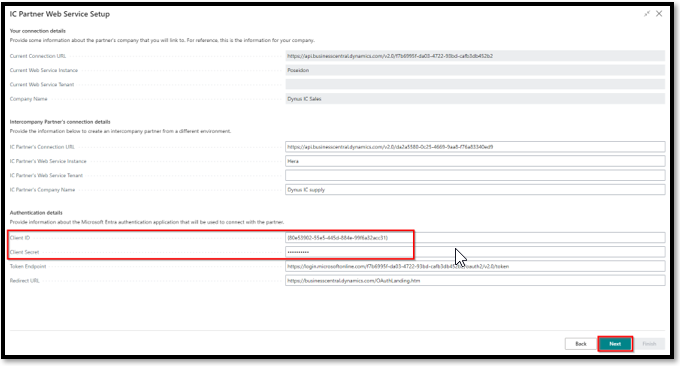
Populate the Client ID and Client Secret fields under Authentication Details and click on Next.
Test the connection. Be aware that you can only finish the setup if the connection succeeds. And the info that you have entered in the previous steps will only be saved once you have clicked on Finish :
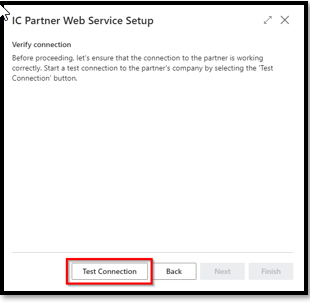
Click on OK on the connection message and then click on Next:
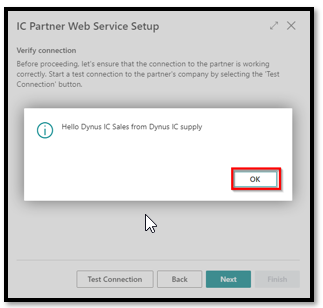
Now you can click on Finish, which will save your entered values in the setup guide:
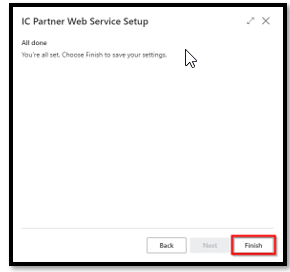
Now you are ready to specify the setup details for your Intercompany Partner with a working connection:
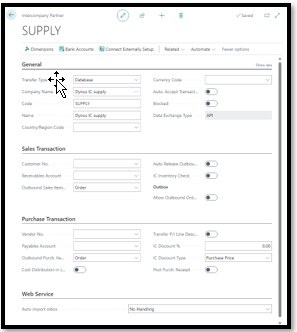
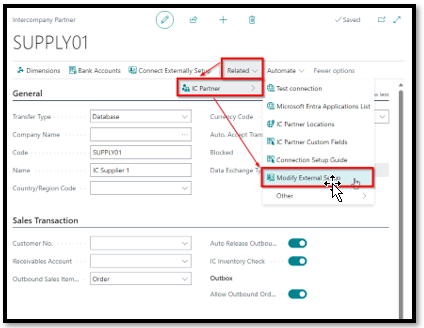
If you want to skip the Connect Externally Setup guide, you can also go directly to the Modify External Setup page and enter the values. From here you can optionally test the connection: