Overview
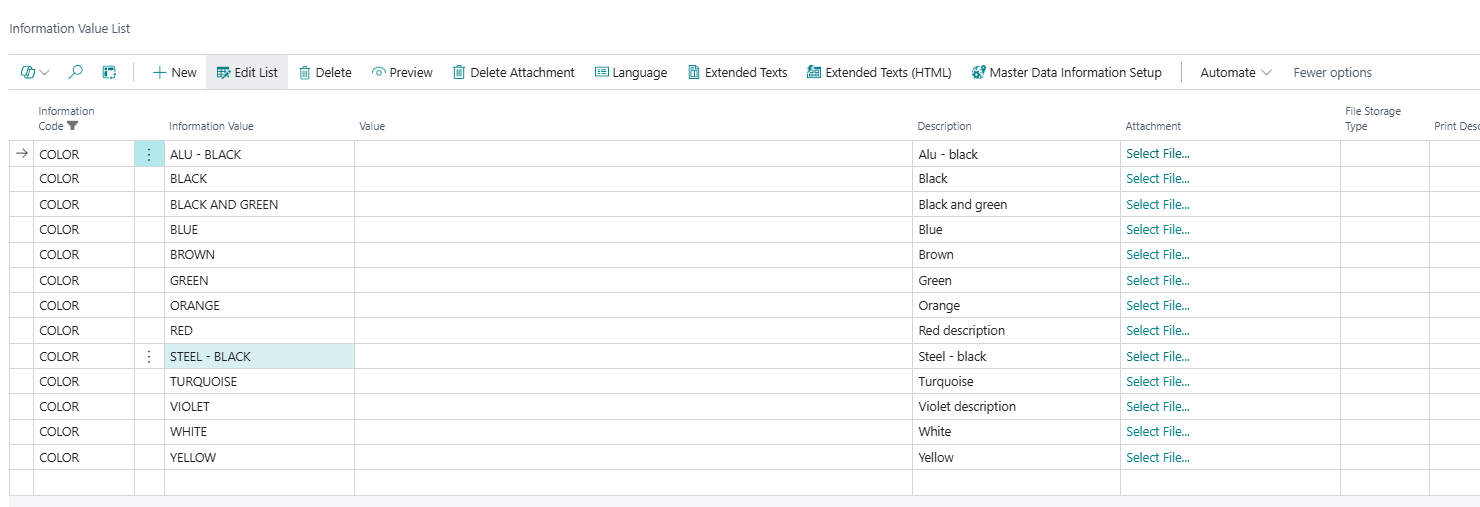
The Information Value List page displays all predefined values belonging to a specific Information Code. It serves as the central place to manage the valid selectable options (values) that users can assign when configuring master data information entries. Each record in this list combines an Information Code, an Information Value key, a technical Value code, and a human-readable Description, along with optional attachments, sorting control, and description-building settings.
When Is This Page Used
This list page is used whenever an administrator or configurator needs to review, add, or maintain the set of allowed values for a given Information Code. It is typically opened in context — filtered to a specific Information Code — so users see only the values relevant to that code. It also serves as the lookup page when selecting an Information Value on other records throughout the system.
Who Are Typical Users
- Master Data Administrator — sets up and maintains Information Codes and their associated values.
- Implementation Consultant — configures the value structure during initial system setup.
- Data Steward / Product Manager — reviews and manages allowed values to ensure data quality and consistency.
Accessing the Page
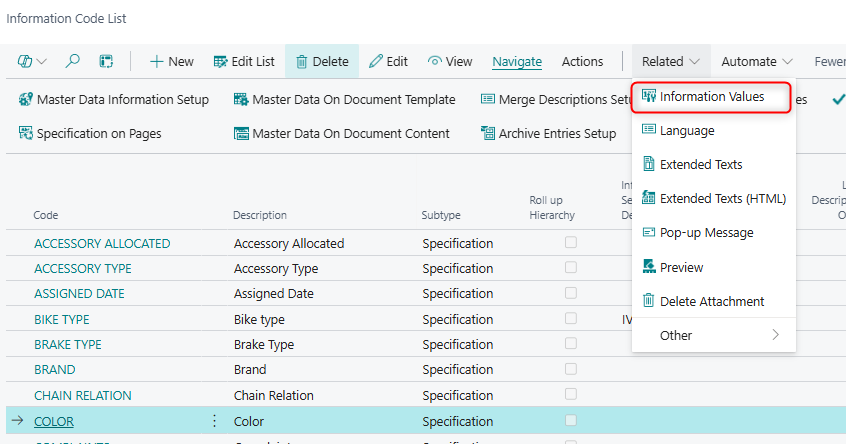
- Directly from the Information Code List or Information Code Card, which typically contain an action or drilldown that opens the values filtered to the selected code.
Page Components
Fields
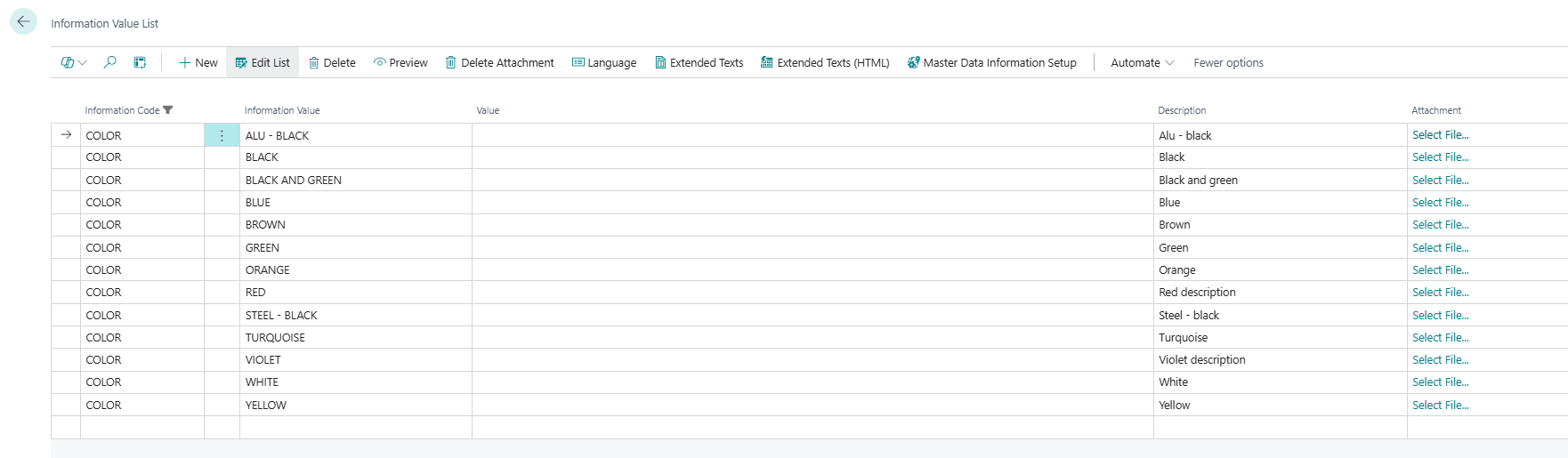
The list shows all values associated with the filtered Information Code. The page is sorted by Sorting Level by default.
| Field | Purpose | Example | Key Information |
|---|---|---|---|
| Information Code | The parent code this value belongs to. | COLOR |
Links to the SCB New Information Code table. Read in context from the filter applied when opening the page. |
| Information Value | The unique code identifying this value within the Information Code. | RED |
Acts as part of the primary key together with Information Code and Value. Must be unique per Information Code. |
| Value | An additional technical or internal code associated with this value entry. | #FF0000 |
Can be used for integration purposes or as a secondary code reference. |
| Description | A descriptive label shown to end users. | Red |
Changing this value prompts the user to cascade the change to all related Configuration records. |
| Attachment | Displays the filename or path of an attached file (e.g., an image). | red_swatch.jpg |
This field is read-only in the list; use the DrillDown (click on the field) to upload or change the attachment. Supports database storage, Azure Blob, SharePoint, OneDrive, and FTP depending on configuration. |
| File Storage Type | Shows where the attachment is stored. | Database |
Read-only. Set automatically when an attachment is uploaded. |
| Print Description | An alternative description used when printing. | Red (Pantone 485) |
Only visible when the Document Configurator app is installed and enabled. |
| Sorting Level | Controls the display order of values in lookups and lists. | 10 |
Lower numbers appear first. Default value on new records is 99. Changing this value prompts the user to also update the sorting level on all existing Information Entry lines that use this value. |
The following fields are present in the underlying table but are hidden by default in the list. They can be made visible by personalizing the page:
| Field | Purpose | Key Information |
|---|---|---|
| Include in Long Descripton | Links this value to a Description Setup template used when building long item descriptions. | Changing this field prompts the user to cascade the change to all related editable Configuration records. |
| Include in Type Descripton | Links this value to a Description Setup template for type-level descriptions. | Same cascade behavior as Include in Long Descripton. |
| Include in Report Descripton | Links this value to a Description Setup template used in reports. | Same cascade behavior as above. |
| Web value option | Defines how this value is represented in web/external integrations. | Options: Information Value, Value, Description, Information Value-Value-Description, Value-Description, Information Value-Description, Information Value-Value. Changing this prompts the user to update all related editable Configuration records. |
Actions
Navigate
| Action | What It Does | When to Use | Prerequisites |
|---|---|---|---|
| Preview | Opens a preview of the attachment associated with the current value. | Use to verify an attached image or file before saving or distributing. | The Attachment field must contain a valid file reference. |
| Delete Attachment | Removes the attachment from the current value record, clearing both the file reference and the stored thumbnail blob. | Use when an attachment is outdated or was added incorrectly. | An attachment must exist on the record. |
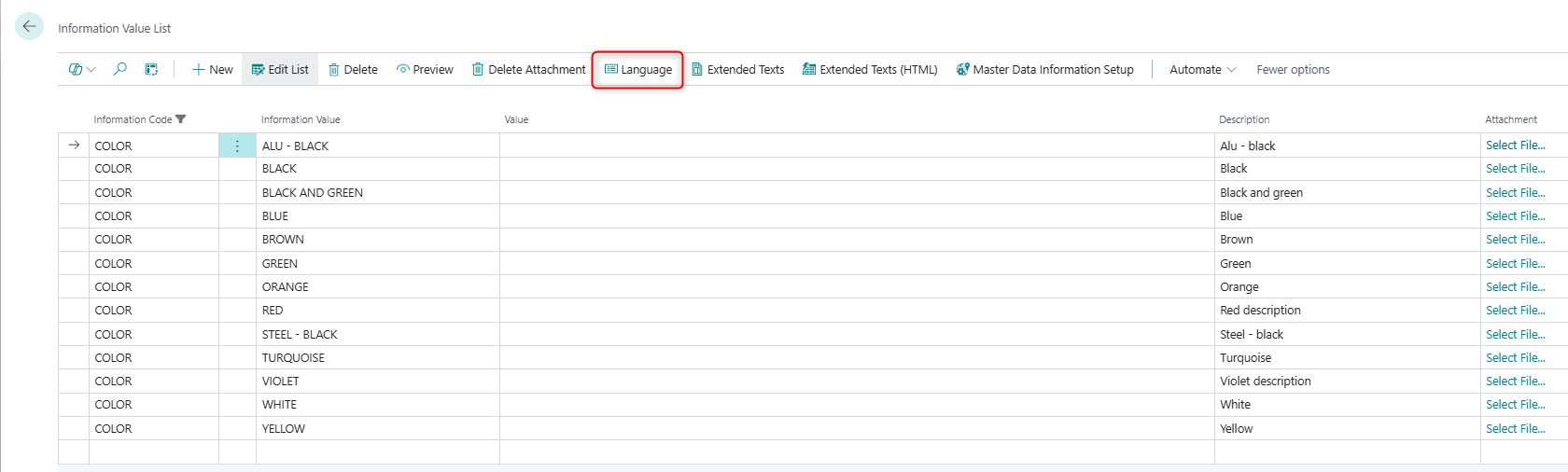
| Language | Opens the Master Data Language page filtered to the current Information Value, where translated descriptions can be managed. | Use to add or review translations of the value's description for multilingual setups. | None. |
| Extended Texts | Opens the extended text editor for plain-text long descriptions linked to this value. | Use when a value requires additional plain-text information beyond the standard Description field. | None. |
| Extended Texts (HTML) | Opens the HTML extended text editor (shortcut: Ctrl+E) for rich-text long descriptions. | Use when formatted HTML content is needed for this value, such as for web display. | None. |
| Master Data Information Setup | Opens the Master Data Information Setup page. | Use to navigate to the overall setup configuration for the Master Data Information extension. | None. |
Report
| Action | What It Does | When to Use | Prerequisites |
|---|---|---|---|
| Export Information Value | Exports the current list of Information Values. | Use to extract value data for review, import into another system, or archiving purposes. | None. |
Related Pages
Master Data Language
The Master Data Language page (opened via the Language action) allows managing translated descriptions for each Information Value record. When the system is used in a multilingual environment, each value can have its description translated into multiple languages. The page is filtered automatically to the selected Information Code, Information Value, and Value combination, ensuring only the translations for the current record are shown.
Master Data Information Setup
The Master Data Information Setup page (opened via the Master Data Information Setup action) provides access to the global configuration settings for the Master Data Information extension. From this page, administrators can configure extension-wide behavior that affects how Information Codes and Values are used across the system.
Default Setup & Templates
No default Information Value records are installed automatically by the extension's installation codeunit. Information Values are entirely customer-specific and must be created manually to match the business's product attributes, specifications, and classification needs.
If a set of standard values is required as a starting point, these should be created manually or imported using the Export Information Value action from an existing system.