Overview
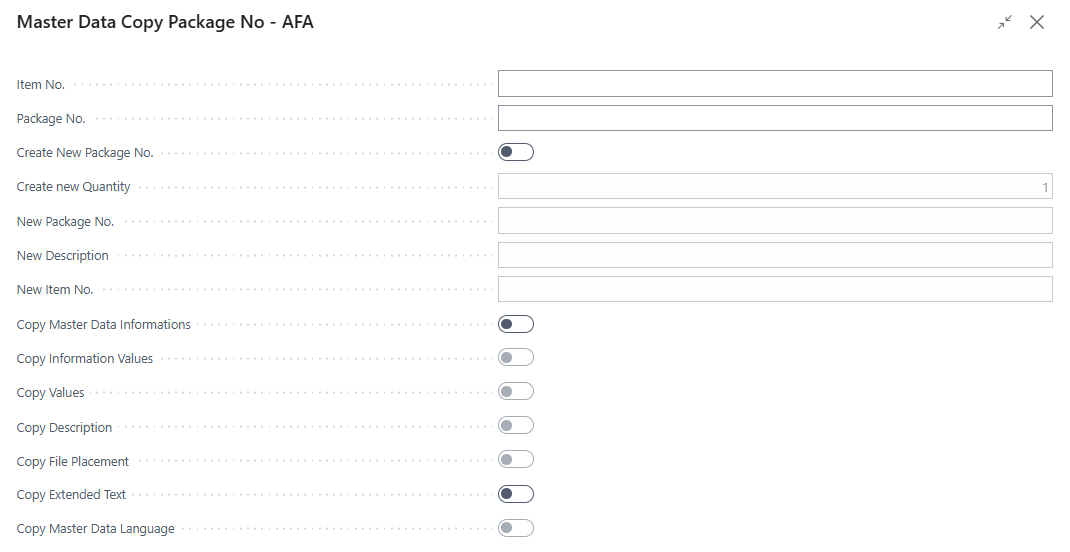
The Master Data Copy Package No dialog is a guided options screen that appears before the package number copy process runs. It allows users to duplicate an existing Package No. Information record — including its master data specifications — into one or more new package numbers. The new package numbers can be assigned to a different item, given a different description, and sequenced by auto-incrementing from the entered base number. After the user confirms their selections, the underlying copy report executes silently and a message confirms the result.
This dialog is the package number equivalent of the Master Data Copy Serial No dialog and shares the same field layout, reset-on-open behaviour, and known limitations. The primary differences are in how the action is triggered and how the report filters source language records.
When Is This Page Used
This dialog opens automatically when a user triggers the Copy Package No action from the Package No. Information Card or Package No. Information List. It is not opened in isolation — it always runs in the context of a specific source package number. The user reviews and adjusts the copy options, then clicks OK to run the copy, or Cancel to abort.
Typical scenarios include creating a new package number with the same specification profile as an existing one, or seeding a batch of sequentially numbered package records with a shared set of master data attributes in one operation.
Who Are Typical Users
- Warehouse / Inventory Manager — creates new package numbers based on an existing package's specification profile when receiving or consolidating stock.
- Quality Manager — copies a tested or certified package's attributes to a new package number to avoid re-entering identical specification data.
- Logistics Coordinator — seeds a run of sequentially numbered package records from a template package.
Accessing the Page
The Master Data Copy Package No dialog has no UsageCategory and is not searchable from the Business Central search menu. It opens exclusively via the Copy Package No action, available on:
| Source Page | Action Name | Shortcut |
|---|---|---|
| Package No. Information Card | Copy Package No | Shift+Ctrl+C |
| Package No. Information List | Copy Package No | Shift+Ctrl+C |
Unlike the lot and serial number copy actions — which are added to standard BC pages via event subscribers — the Copy Package No action is implemented directly in page extensions for the Package No. Information Card and Package No. Information List pages. The action is conditionally visible, controlled by the ShowMasterDataInformation variable set by the extension.
When the action is triggered, the app creates or updates the user's copy-settings record in the database, then opens this dialog in modal mode. Clicking OK runs the copy report immediately; clicking Cancel discards all changes.
Page Components
All fields are presented within a single General group. Fields that apply only when Create New Package No. is enabled are indicated below.
Fields
Source Identification
| Field | Purpose | Example | Key Information |
|---|---|---|---|
| Item No. | Shows the item that the source package number belongs to. | 1000, BIKE-RED-L |
Read-only — pre-filled from the package number selected when the action was triggered. Cannot be changed in the dialog. |
| Package No. | Shows the source package number whose data will be copied. | PKG-2024-00001 |
Read-only — pre-filled from the package number selected when the action was triggered. Cannot be changed in the dialog. |
New Package No. Options
| Field | Purpose | Example | Key Information |
|---|---|---|---|
| Create New Package No. | When enabled, new Package No. Information records are created as the copy destination. | Yes / No |
Reset to No (disabled) each time the dialog opens. The user must actively enable this before other destination fields become editable. Enabling activates Create new Quantity, New Package No., New Description, and New Item No. |
| Create new Quantity | The number of new package numbers to create in a single operation. | 1, 5, 10 |
Reset to 1 each time the dialog opens. Only editable when Create New Package No. is enabled. When set to more than 1, each package number is generated by applying INCSTR to the previous one (e.g., PKG-001 → PKG-002 → PKG-003). There is no number series support — INCSTR is always used, applied unconditionally after every iteration. If New Package No. does not end with a numeric character and Create new Quantity is greater than 1, the report raises an error and stops. |
| New Package No. | The package number for the first (or only) destination record. | PKG-2024-00002 |
Reset to blank each time the dialog opens. Only editable when Create New Package No. is enabled. No assist-edit or number series lookup is available — the number must be entered manually. Leave blank to assign a blank package number to the new record (not recommended for multi-record creation). |
| New Description | An optional description to apply to the new package number(s) instead of copying the source description. | Replacement Batch |
Up to 50 characters. Reset to blank each time the dialog opens. Only editable when Create New Package No. is enabled. If blank, the source package number's description is carried over. |
| New Item No. | Optionally assigns the new package number(s) to a different item than the source. | 1001 |
Pre-filled with the source item number each time the dialog opens. Only editable when Create New Package No. is enabled. When changed, the new Package No. Information records are linked to this item instead. |
Master Data Information
| Field | Purpose | Example | Key Information |
|---|---|---|---|
| Copy Master Data Informations | Master switch for all master data copying. When enabled, Information Entry records for the Package No. Information table are copied from the source to each new package number. | Yes / No |
Enabling activates all sub-options below. Disabling clears all sub-option checkboxes. Even when disabled, the copy report still consults the Copy Master Data Action rules — individual Information Codes marked as Always Insert in those rules are copied regardless of this setting. |
| Copy Information Values | When enabled, the Information Value option code is copied from each source Information Entry. | Yes / No |
Only editable when Copy Master Data Informations is enabled. When disabled, Information Entry records are created on the new package number with a blank Information Value, unless an Always Insert rule overrides this. Also controls whether language record content is transferred when Copy Master Data Language is active — see below. |
| Copy Values | When enabled, the typed Value field content is copied from each source Information Entry. | Yes / No |
Only editable when Copy Master Data Informations is enabled. Can be overridden per Information Code by Always Insert or Always Skip rules in Copy Master Data Action. |
| Copy Description | When enabled, the Description text field is copied from each source Information Entry. | Yes / No |
Only editable when Copy Master Data Informations is enabled. |
| Copy File Placement | When enabled, the File Placement field content is copied from each source Information Entry. | Yes / No |
Only editable when Copy Master Data Informations is enabled. Copies the file path or reference only — does not physically duplicate the file in external storage. |
| Copy Extended Text | Present on the page but not implemented in the current version of the copy report. | Yes / No |
The field exists on the page and the underlying table, but the copy report contains no logic that reads this flag. Enabling it has no effect on the copy output. |
| Copy Master Data Language | Controls copying of Master Data Language records. | Yes / No |
Only editable when Copy Master Data Informations is enabled. Important: In the current version of the copy report, the logic for this field is inverted — language records are copied when Copy Master Data Language is set to No, and are not copied when it is set to Yes. When language records are processed, the content transferred depends on Copy Information Values: if enabled, the full language record is transferred via TRANSFERFIELDS; if disabled, only the Table and Information Code are carried over. |
Note on Copy Master Data Action rules: The package number copy report applies a matching lookup against the Copy Master Data Action table (rules with Table = the Package No. Information table number) before deciding whether to copy each Information Entry. A matched rule can force an Information Code to always be inserted or always be skipped, override the Information Value and Value copy behaviour, and remap the destination Information Code and Information Value. See the Copy Master Data Action page documentation for full details.
Actions
This dialog has no custom actions. The standard StandardDialog OK and Cancel buttons control execution.
What the Copy Report Does
When OK is clicked, the SCB MDI Copy Package No. report runs immediately. The copy iterates once for each unit of Create new Quantity:
- Determines the next package number. On the first iteration,
NewPackageNois set to the value of New Package No. After each iteration,INCSTRis applied unconditionally to generate the next number. If the package number does not end with a numeric character and quantity is greater than1, the report raises an error and stops. - Creates the new Package No. Information record (if Create New Package No. is enabled) by transferring all fields from the source package number, then applying the new package number, new item number (if specified), and new description (if specified).
- Copies Information Entry records for the Package No. Information table, filtered by
KeyField3 = source package number. Each entry is evaluated against Copy Master Data Action override rules and the dialog's sub-option flags for Information Value, Value, Description, and File Placement. - Copies Master Data Language records — when Copy Master Data Language is set to
No(see the inversion note above), language records are located by filtering on KeyField1 (Item No.), KeyField2 (Variant Code), and KeyField3 (Package No.) of the source package, then copied to the new package number. Unlike the Lot No copy report, all three key fields are used correctly in this filter. - After all iterations complete, shows the message "Package Number Updated."
Note on disabled Create New Package No.: If Create New Package No. is unchecked, the report attempts to locate an existing Package No. Information record using the source item and package number — and raises an error only if it does find a match. This logic appears inverted compared to expected behaviour. Since Create New Package No. must be enabled for any useful output, this path is rarely encountered in practice.
Default Setup & Templates
The dialog stores copy settings per user in the SCB MDI Copy Package No. table (keyed by User ID). Each time the dialog opens, the following fields are always reset:
| Field | Reset Value |
|---|---|
| New Package No. | Blank |
| New Description | Blank |
| Create New Package No. | No (disabled) |
| Create new Quantity | 1 |
All other options (Copy Master Data Informations and sub-options) retain their values from the user's last session.
No default copy-settings records are created by the extension's installation. The first time a user triggers Copy Package No, a new settings record is created for their User ID with all Boolean options defaulting to No.
Related Pages
Copy Master Data Action
The Copy Master Data Action page (UsageCategory = Administration, accessible from Master Data Information Setup) defines per-Information-Code override rules that interact with the lot copy process. Rules set on this page can force specific Information Codes to always be inserted or always be skipped during the copy, independently of the Copy Master Data Informations dialog option. They can also remap an Information Code or Information Value to a different code on the destination lot. These rules apply to all copy operations against table 6505 (Lot No. Information), not only to this dialog.
Accessing the Page
The Copy Master Data Action page has UsageCategory = Administration and is directly searchable from the Business Central search bar. It is also accessible via the Copy Master Data action from:
| Source Page | Action Name |
|---|---|
| Master Data Information Setup | Copy Master Data |
| Information Code List | Copy Master Data |
| Information Code Card | Copy Master Data |
All access paths open the page unfiltered, showing rules for all tables and Information Codes.
How Rules Are Applied at Runtime
When a tracking number copy report processes an Information Entry, it calls ForceMasterDataCopy before deciding whether to copy each specification. The lookup uses a waterfall match — progressively relaxing filter criteria until a matching rule is found:
- Exact match — filters on Table + Information Code + Information Value + Value.
- Relax Value — if no exact match, removes the Value filter and searches again.
- Relax Information Value — if still no match, also removes the Information Value filter and searches on Table + Information Code only.
The first matching rule found controls the behaviour. If no rule matches, the copy falls back to the user's dialog settings entirely.
When a rule is matched, two additional effects occur regardless of the action flags:
- The Description field is cleared on the copied entry.
- The File Placement field is cleared on the copied entry.
If New Information Code or New Information Value are filled on the matched rule, the destination entry is created with those remapped codes instead of the source codes.
Page Components
Fields
Each row defines one override rule. The primary key is Table + Information Code + Information Value + Value, meaning there can be at most one rule per exact combination.

| Field | Purpose | Example | Key Information |
|---|---|---|---|
| Table | The BC table number that the rule applies to. | 6505 (Lot No. Information), 6504 (Serial No. Information) |
Plain integer — no lookup or validation. Enter the table number directly. Rules are only evaluated by copy reports that pass the matching table number to ForceMasterDataCopy. Supported values in the current version: 6505 (Lot No. Information), 6504 (Serial No. Information), and the table number for Package No. Information. Entering any other table number has no effect. |
| Information Code | The Information Code the rule applies to. | CERTIF-STATUS, QUALITY-GRADE |
Validated against the SCB New Information Code table, restricted to codes with Subtype = Specification. Configuration-type and other subtypes cannot be used as rule targets. |
| Information Value | Optionally restricts the rule to entries where the Information Value matches this code. Leave blank to match all Information Values for the specified Information Code. | PENDING, PASSED |
Validated against the SCB Information Value table filtered to the selected Information Code. When blank, the runtime relaxes the match to Information Code only (waterfall step 3). |
| Value | Optionally restricts the rule to entries where the typed Value field matches this code. Leave blank to match regardless of Value. | HIGH, CLASS-A |
When blank, the runtime relaxes the match to exclude Value from the filter (waterfall step 2). |
| Information Code Action | Controls whether the Information Code itself is always copied or always skipped during the copy operation. | (defer to dialog), Always Insert, Always Skip |
Always Insert — the Information Entry is copied regardless of whether Copy Master Data Informations is enabled in the copy dialog. Always Skip — the Information Entry is not copied regardless of whether Copy Master Data Informations is enabled. Blank — defer entirely to the copy dialog setting. |
| Information Value Action | Controls whether the Information Value is always copied or always skipped, independently of the Copy Information Values dialog option. | (defer to dialog), Always Insert, Always Skip |
Only evaluated after the Information Code Action has been resolved as not-skip. Always Insert — the Information Value is copied even if Copy Information Values is unchecked in the dialog. Always Skip — the Information Value is not copied even if Copy Information Values is checked. Blank — defer to the Copy Information Values dialog setting. |
| Value Action | Controls whether the typed Value field is always copied or always skipped, independently of the Copy Values dialog option. | (defer to dialog), Always Insert, Always Skip |
Only evaluated after the Information Code Action has been resolved as not-skip. Always Insert — the Value is copied even if Copy Values is unchecked in the dialog. Always Skip — the Value is not copied even if Copy Values is checked. Blank — defer to the Copy Values dialog setting. |
| New Information Code | If filled, the destination Information Entry is created with this code instead of the source Information Code. | CERTIF-STATUS-NEW |
Validated against SCB New Information Code (Subtype = Specification). Leave blank to keep the source Information Code unchanged. Applied before the new entry is inserted. |
| New Information Value | If filled, the destination Information Entry is created with this Information Value instead of the source Information Value. | NOT-TESTED |
Validated against SCB Information Value filtered to New Information Code (or the original Information Code if New Information Code is blank). Leave blank to keep the source Information Value unchanged, subject to the Information Value Action setting. |
Actions
This page has no custom actions.
Default Setup & Templates
No default Copy Master Data Action records are created by the extension's installation. All rules must be configured manually based on business requirements.
Related Pages
Master Data Copy Lot No
The Master Data Copy Lot No dialog (Card page, opened from Lot No. Information Card and Lot No. Information List) is the primary consumer of these rules for lot number copying. Rules with Table = 6505 are evaluated during every lot copy operation.
Master Data Copy Serial No
The equivalent copy dialog for serial numbers. Rules with Table = 6504 are evaluated during every serial number copy operation.
Master Data Copy Package No
The equivalent copy dialog for package numbers. Rules with the Package No. Information table number are evaluated during every package number copy operation.