Overview
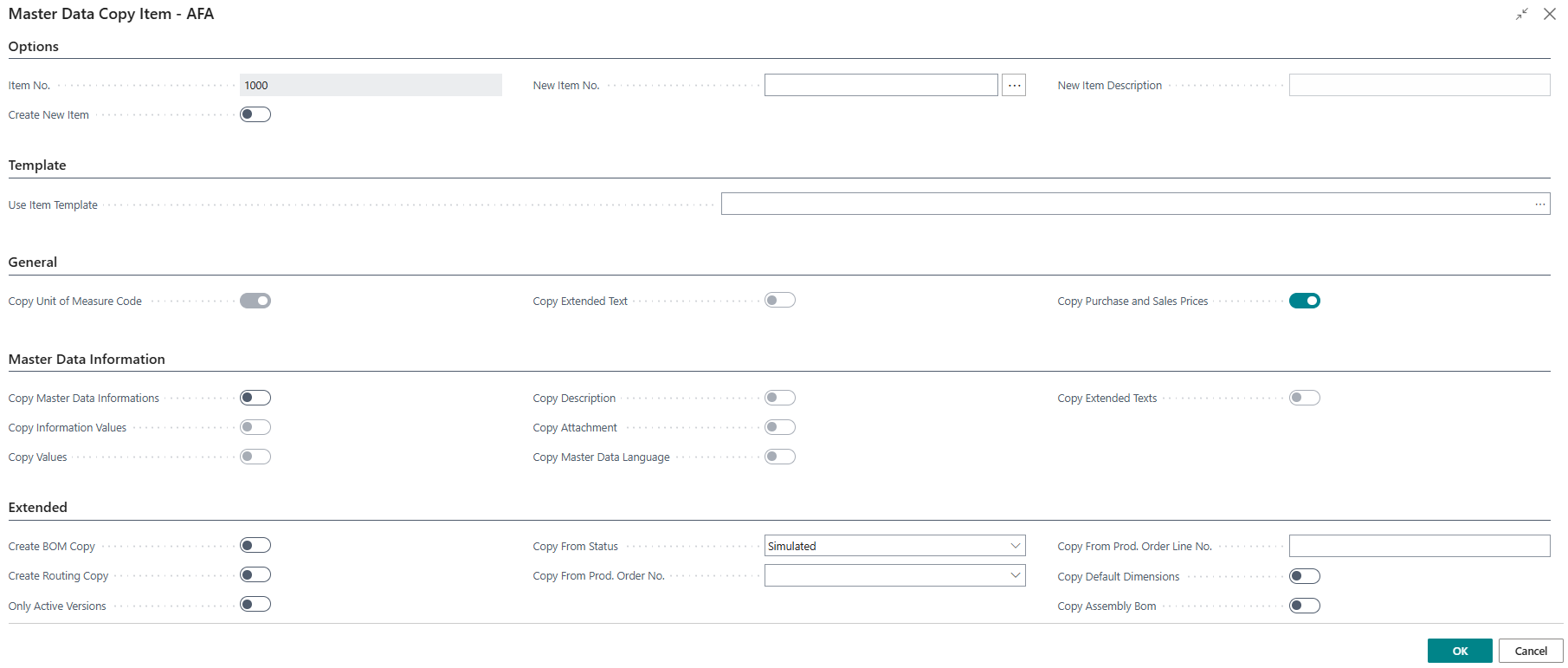
The Master Data Copy Item dialog is a guided options screen that appears before the item copy process runs. It lets users choose exactly what data should be carried over from the source item to the destination — from basic item card fields and prices, through production structure (BOM and routing), all the way to master data specifications (Information Codes and their values, descriptions, file attachments, language variants, and extended texts). After the user confirms their selections, the underlying copy report executes silently and a notification confirms the result.
The dialog is always pre-loaded with the source item number from the page it was launched from. It stores its settings per user in the database, so each user's last-used choices are preserved between sessions.
When Is This Page Used
This dialog opens automatically when a user triggers the Copy Item action from the Item Card or Item List. It is not opened in isolation — it always runs in the context of a specific source item. The user reviews and adjusts the copy options, then clicks OK to run the copy, or Cancel to abort without making any changes.
Who Are Typical Users
- Product Manager / Item Administrator — copies an existing item to create a new variant or related product, carrying over the relevant specifications and structure.
- Production Planner — uses the dialog to clone an item's BOM or routing into a new item, or to seed a new item's production structure from a specific production order.
- Purchaser / Sales Administrator — copies an item including its purchase and sales prices when creating a successor or substitute product.
Accessing the Page
The Master Data Copy Item dialog has no UsageCategory and is not searchable from the Business Central search menu. It opens exclusively via the Copy Item action, which is available on:
| Source Page | Action Name |
|---|---|
| Item Card | Copy Item (standard BC action, extended by the Master Data Information app) |
| Item List | Copy Item (standard BC action, extended by the Master Data Information app) |
When the action is triggered, the app creates or updates the user's copy-settings record in the database, then opens this dialog in modal mode. Clicking OK runs the copy report immediately; clicking Cancel discards all changes.
Page Components
The dialog is organised into five groups. Fields within each group are enabled or disabled based on the selections made in Options.
Options Group
This group controls the fundamental copy mode: whether a new item is created or an existing item is used as the copy target.
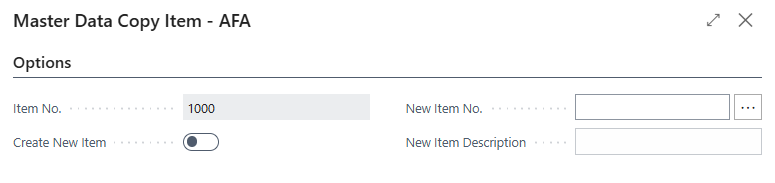
| Field | Purpose | Example | Key Information |
|---|---|---|---|
| Item No. | Shows the source item whose data will be copied. | 1000, BIKE-RED-L |
Read-only — pre-filled from the item that was selected when the action was triggered. Cannot be changed in the dialog. |
| Create New Item | When enabled, a brand-new item record is created as the copy destination. When disabled, the copy targets an existing item identified by New Item No. | Yes / No |
Enabling this field activates New Item No., New Item Description, Copy Unit of Measure Code, and Copy Extended Text. Disabling it clears New Item No. and unchecks Copy Unit of Measure Code and Copy Extended Text. |
| New Item No. | The item number for the destination item. | 1001, `` (blank = auto-number) |
When Create New Item is enabled, leave blank to generate the number from the item's number series, or enter a specific number. Use the assist-edit button to pick from an existing number series. When Create New Item is disabled, enter the number of the existing item to copy data into. Validated against the Item table (ValidateTableRelation = false — does not enforce existence when creating). |
| New Item Description | An optional description to apply to the destination item instead of copying the source description. | Road Bike 2025 Edition |
Up to 100 characters. If blank, the source item's description is copied unchanged. Cleared automatically each time the dialog opens. Only editable when Create New Item is enabled. |
Template Group
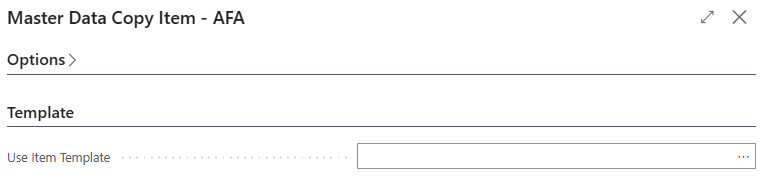
| Field | Purpose | Example | Key Information |
|---|---|---|---|
| Use Item Template | Optionally selects a Master Data Template to apply to the new item after copying. The template can set or override specific item card field values. | STANDARD-ITEM, BIKE-TEMPLATE |
Lookup opens the Master Data Template List filtered to released templates for table 27 (Item). If a default template exists (Status = Released, Default Template = Yes, TableID = 27), it is pre-selected automatically when the dialog opens. Leave blank to apply no template. |
General Group
This group controls copying of standard BC item-related records.
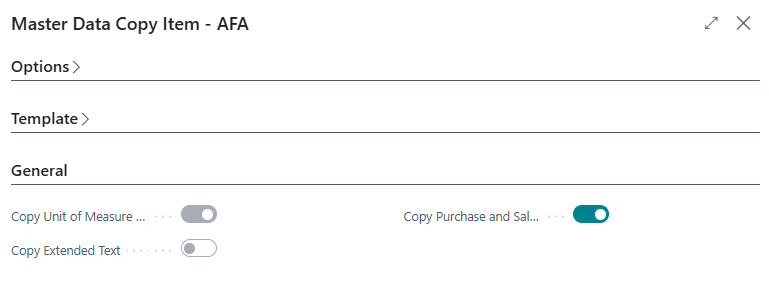
| Field | Purpose | Example | Key Information |
|---|---|---|---|
| Copy Unit of Measure Code | When enabled, all Item Unit of Measure records from the source item are copied to the destination item. | Yes / No |
Only editable when Create New Item is enabled. The base unit of measure is always re-validated during item creation regardless of this setting. |
| Copy Extended Text | When enabled, all standard BC Extended Text Header and Extended Text Line records linked to the source item are copied to the destination. | Yes / No |
Only editable when Create New Item is enabled. These are standard BC extended texts, not Master Data Information extended texts — for MDI extended texts, use Copy Extended Texts in the Master Data Information group. |
| Copy Purchase and Sales Prices | When enabled, all Sales Price, Purchase Price, and active Price List Line records linked to the source item are copied to the destination. | Yes / No |
Copies legacy price table entries (Sales Price, Purchase Price) as well as modern Price List Lines (excluding Inactive lines). Campaign prices are included when this option is enabled. |
Note on Copy Campaign Prices: A Copy Campaign Prices field exists on the underlying table but is hidden in the UI (
Visible = false). It is not accessible from this dialog in the current version.
Master Data Information Group
This group controls which parts of the item's master data specifications (Information Entries) are copied to the destination item.

| Field | Purpose | Example | Key Information |
|---|---|---|---|
| Copy Master Data Informations | Master switch for all master data copying. When enabled, Information Entry records are copied from the source to the destination item. | Yes / No |
Enabling this field activates all sub-options below. Disabling it clears all sub-option checkboxes. The copy always includes the Information Code, Subtype, ordering settings (Long Description Order, Sorting Level, Include in Long Description, Type Description Order, Include in Type Description, Include in Report Description, Spec. Field Name, and Modified Date) regardless of which sub-options are checked. |
| Copy Information Values | When enabled, the Information Value option code is copied from each source Information Entry. | Yes / No |
Only editable when Copy Master Data Informations is enabled. When disabled, Information Entry records are created on the destination item with a blank Information Value. Required for Copy Master Data Language and Copy Extended Texts to function — both of these options are automatically skipped if Copy Information Values is not enabled. |
| Copy Values | When enabled, the typed Value field content is copied from each source Information Entry. | Yes / No |
Only editable when Copy Master Data Informations is enabled. Copies the data value stored against each specification (e.g., a weight measurement, a date, a numeric code). |
| Copy Description | When enabled, the Description text field is copied from each source Information Entry. | Yes / No |
Only editable when Copy Master Data Informations is enabled. |
| Copy Attachment | When enabled, the File Placement field content is copied from each source Information Entry. | Yes / No |
Only editable when Copy Master Data Informations is enabled. Copies the file path or reference stored on the specification line. Does not physically duplicate the file in external storage — only the reference is copied. |
| Copy Master Data Language | When enabled, Master Data Language records (language-specific translations of Information Values) are copied from the source item to the destination. | Yes / No |
Only editable when Copy Master Data Informations is enabled. Requires Copy Information Values to also be enabled — if Copy Information Values is not checked, this option is silently skipped at runtime. |
| Copy Extended Texts | When enabled, Master Data Extended Text records (MDI-managed extended texts linked to Information Values) are copied from the source item to the destination. | Yes / No |
Only editable when Copy Master Data Informations is enabled. Requires Copy Information Values to also be enabled — if Copy Information Values is not checked, this option is silently skipped at runtime. These are MDI extended texts, distinct from the standard BC extended texts controlled by Copy Extended Text in the General group. |
Extended Group
This group covers production structure copying and advanced copy scenarios.

| Field | Purpose | Example | Key Information |
|---|---|---|---|
| Create BOM Copy | When enabled, a new Production BOM Header and its lines are created for the destination item, using the source item's production BOM as the source. | Yes / No |
Mutually exclusive with Copy From Prod. Order No. — an error is raised if both are set. When enabled, automatically sets Only Active Versions to Yes. The new BOM is initially created with status New and then set to the original status after lines are copied. |
| Create Routing Copy | When enabled, a new Routing Header and its lines are created for the destination item, using the source item's routing as the source. | Yes / No |
Mutually exclusive with Copy From Prod. Order No. — an error is raised if both are set. When enabled, automatically sets Only Active Versions to Yes. The new routing is initially created with status New and then set to the original status after lines are copied. |
| Only Active Versions | When enabled, only the active BOM version or routing version (as of the current work date) is copied, rather than all versions. | Yes / No |
Set automatically to Yes when Create BOM Copy or Create Routing Copy is enabled; cleared to No when both are disabled. Can be adjusted manually after enabling either copy option. Applies to both BOM and routing version filtering. |
| Copy From Production Order Status | Filters the production order specified in Copy From Prod. Order No. by its status, so only orders at the selected status are available for selection. | Simulated, Planned, Firm Planned, Released, Finished |
Defaults to Simulated each time the dialog opens. Drives the table relation filter on Copy From Prod. Order No.. |
| Copy From Prod. Order No. | Specifies a production order from which to copy the routing and BOM structure, instead of copying from the source item's own routing and BOM. | P00012 |
Validated against the Production Order table filtered by Copy From Production Order Status. Mutually exclusive with Create BOM Copy and Create Routing Copy — an error is raised if set together with either. Cleared automatically each time the dialog opens. |
| Copy From Prod. Order Line No. | The specific production order line number to copy routing and BOM from, when Copy From Prod. Order No. is specified. | 10000 |
Cleared automatically each time the dialog opens. Mutually exclusive with Create BOM Copy and Create Routing Copy — an error is raised if set together with either. When both Copy From Prod. Order No. and Copy From Prod. Order Line No. are filled, routing is copied from Prod. Order Routing Lines and BOM from Prod. Order Components for that line. The resulting routing is set to Certified and the resulting BOM to Certified after copying. |
| Copy Default Dimensions | When enabled, the default dimension assignments from the source item are copied to the destination item. | Yes / No |
Copies all entries from the BC Default Dimension table linked to the source item's database record. |
| Copy Assembly Bom | When enabled, the BOM Component records (Assembly BOM lines) from the source item are copied to the destination item. | Yes / No |
Copies Assembly BOM structure, not Production BOM. Use Create BOM Copy for Production BOM. |
Actions
This dialog has no custom actions. It uses the standard StandardDialog buttons: OK executes the copy report with the configured options; Cancel exits without copying.
What the Copy Report Does
When OK is clicked, the SCB Master Data Copy Item report runs immediately in the background. The copy sequence is:
- Creates or resolves the destination item. If Create New Item is enabled, a new item is created by transferring all fields from the source item, then the new item number and description are applied. If Create New Item is disabled, the existing item specified in New Item No. is used. An error is raised if the specified item does not exist.
- Applies Default Dimensions (if Copy Default Dimensions is enabled).
- Applies the Master Data Template (if Use Item Template is filled) — the template's field values are validated and applied to the new item record.
- Copies Unit of Measure records (if Copy Unit of Measure Code is enabled).
- Copies standard Extended Texts (if Copy Extended Text is enabled).
- Copies Sales Prices, Purchase Prices, and Price List Lines (if Copy Purchase and Sales Prices is enabled).
- Copies Master Data Information Entries (if Copy Master Data Informations is enabled), with each sub-option controlling which fields are included.
- Copies Master Data Language records (if Copy Master Data Language and Copy Information Values are both enabled).
- Copies MDI Extended Text records (if Copy Extended Texts and Copy Information Values are both enabled).
- Creates a Routing copy from the item card's routing (if Create Routing Copy is enabled), or from the specified production order line (if Copy From Prod. Order No. and Copy From Prod. Order Line No. are set).
- Creates a Production BOM copy from the item card's BOM (if Create BOM Copy is enabled), or from the specified production order line components.
- Copies Assembly BOM lines (if Copy Assembly Bom is enabled).
- Shows a notification on the source item page with a link to open the newly created item.
Default Setup & Templates
The dialog stores copy settings per user in the SCB Masterdata Copy Item Info table (keyed by User ID). Each time the dialog opens, the following fields are reset regardless of the user's previous settings:
| Field | Reset Value |
|---|---|
| New Item Description | Blank |
| Copy From Prod. Order No. | Blank |
| Copy From Prod. Order Line No. | 0 |
| Copy From Production Order Status | Simulated |
All other options retain the values from the user's last session. If a released Item Master Data Template is configured as the default template (Default Template = Yes, Status = Released, TableID = 27), it is automatically pre-selected in Use Item Template each time the dialog opens.
No default copy-settings records are created by the extension's installation. The first time a user triggers Copy Item, a new settings record is created for their User ID with all Boolean options defaulting to No.