Every waybill line in Shipping Manager represents a physical package, and every package is backed by a Packaging Unit — a record that carries the package number, type, dimensions, and weight. For most shipments, each packaging unit stands alone. For more complex shipments, however, goods may be packed into an inner box that is then loaded onto a pallet, or a pallet may itself be stacked on a master pallet. Package Hierarchy is the feature that models these multi-level structures inside Business Central.
When Package Hierarchy is active, a packaging unit can contain other packaging units as well as individual sales lines. The hierarchy is maintained through the SCB Packing and Shipping table, which stores one entry for each node in the tree and links each child to its parent via the Parent Entry No. field. This means a single shipment can be represented as a tree of any depth — pallet → inner box → individual items — while still sending a single waybill to the shipping broker.
Weight is calculated automatically across the entire tree. When sales lines are added to or removed from a package, Shipping Manager walks up to the topmost ancestor package and then descends through all branches, summing item weights (net and gross), adding tare weights from the packaging types at each level, and writing the consolidated totals back to the waybill line. This means the weight on the waybill always reflects the fully packed shipment, including all nested packages.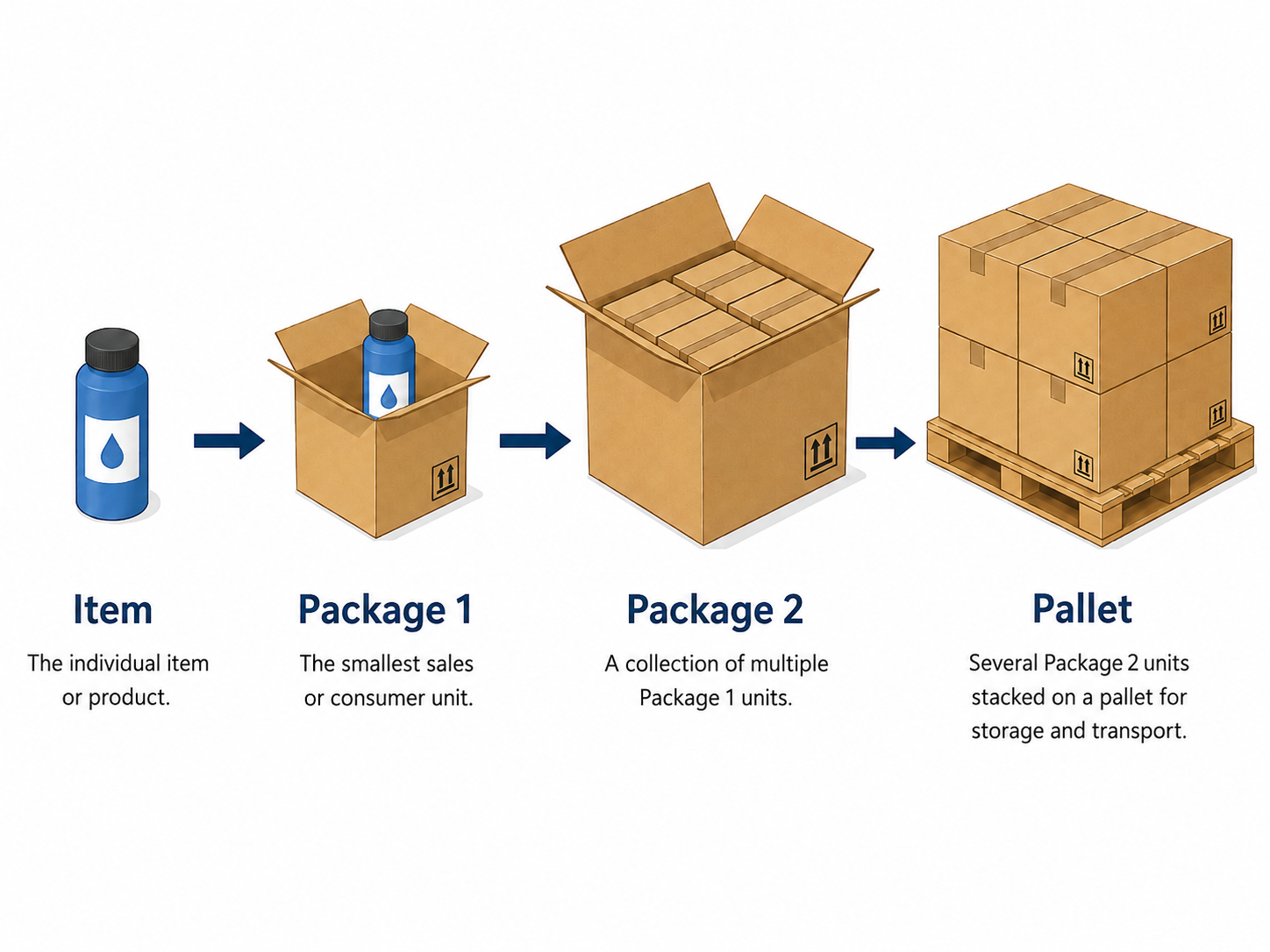
Key Facts
| Item | Detail |
|---|---|
| Main pages | Packaging Unit Card, Packaging Unit List, Package Hierarchy Entries, SCB Packing and Shipping |
| Hierarchy storage | SCB Packing and Shipping (one row per node; links child → parent via Parent Entry No.) |
| Hierarchy code | PACKAGING UNIT HIERARCHY (registered in SCB Hierarchy Code) |
| Nesting limit | 50 levels (circular-link guard raises an error above this) |
| Weight recalculation | Automatic on each add/remove; walks up to top package, then descends to sum all branches |
| Tare weight | Added per package node from SCB Package Type.Tara during weight recalculation |
| SSCC Number | Optional 18-digit Serial Shipping Container Code on each packaging unit |
| API exposure | packageHierarchies endpoint on API v2.0 and v3.0 |
| Package status | Package Open → Package Closed (same lifecycle as a standard waybill line) |
| Requires | Abakion Manager Foundation; SCB Hierarchy feature installed |
Getting Started
- Open the Waybill Card for the shipment you are packing, and add a waybill line for the outermost package (for example, a EUR pallet). This creates the top-level Packaging Unit.
- On the Waybill Lines subpage, select the top-level line and choose Add Package Below to nest an inner package (for example, a cardboard box) inside the pallet. A new Packaging Unit is created and linked to the pallet as a child in the hierarchy.
- With the inner package selected, choose Add Sales Line to Package to assign individual sales order lines to that box. The sales lines appear as leaf nodes in the hierarchy.
- Repeat steps 2–3 for additional boxes or pallets as needed. The hierarchy can be as deep as required (up to 50 levels).
- To inspect the complete structure at any time, choose Show Package Hierarchy on any waybill line. The hierarchy viewer shows every node indented by level, with package numbers, types, and weights.
- When packing is complete, choose Close Package on each line, or use Close All Packages on the waybill to close all lines at once. Weight totals are written to the waybill line automatically.
Related Features
Packaging Types are the foundation for package nodes in the hierarchy. Every packaging unit references a Packaging Type, which supplies the default dimensions, volume, and tare weight. Without packaging types, the hierarchy engine has no weight baseline to calculate from.
Waybill Lines are the top-level anchor for each hierarchy tree. Only a packaging unit flagged as Original Waybill Line has a corresponding waybill line — child packages created through Add Package Below exist only in the hierarchy and do not generate additional waybill lines. Weight totals flow upward from the deepest children and are written to the original waybill line.
Customs Tariffs are attached at the waybill level and are independent of the package hierarchy. Item-level tariff data is provided separately on the waybill's Customs Tariff Lines subpage and transmitted to the broker alongside the consolidated package information.
Shipping Fees are calculated from the waybill line's consolidated gross weight and package type. Because the hierarchy automatically updates the waybill line weight, fee calculations will always reflect the full packed weight.
User Stories
US-01: Add a package below an existing waybill line to create a nested package
Scenario: You are packing a pallet that contains multiple inner boxes. You want to register each box as a separate package inside the pallet.
- Open the Waybill Card and locate the waybill line for the pallet.
- Choose Add Package Below from the Waybill Lines actions.
- Select or confirm the Package Type for the inner box. A new Packaging Unit is created and linked to the pallet as a child.
- Repeat for each additional inner box.
The pallet now appears as the parent, and the inner boxes appear as children in the hierarchy viewer.
US-02: Add a sales line to a specific package inside the hierarchy
Scenario: You want to record which sales order lines are packed into a specific inner box.
- On the Waybill Lines subpage, select the line for the inner box.
- Choose Add Sales Line to Package.
- In the dialog, select the sales order lines you want to assign to this package. The lines are added as leaf nodes below the inner box.
- Weight is recalculated automatically: the net and gross weight of the selected lines is summed and propagated up to the waybill line.
US-03: View the full package hierarchy for a waybill line
Scenario: You want to see the complete nesting of packages and items for a shipment before closing it.
- On the Waybill Lines subpage, select any line.
- Choose Show Package Hierarchy from the actions.
- The hierarchy viewer opens and shows all nodes in tree order, indented by level. Each node displays the Package No., Package Type, Description, and Weight.
- Close the viewer when done. No changes are made by viewing the hierarchy.
US-04: Understand how weight is recalculated when items are added or removed
Scenario: You want to understand what happens to the waybill line weight when you pack or unpack items.
When a sales line is added to or removed from a package:
- Shipping Manager identifies the top-level ancestor package (Original Waybill Line) for the affected tree.
- All leaf-level item weights are refreshed based on quantity and item unit of measure.
- The system descends through the tree, summing gross and net weights at each package node and adding the tare weight from the Package Type.
- The consolidated gross and net weights are written to the Waybill Line.
This process runs automatically every time the hierarchy changes. You do not need to trigger it manually.
US-05: Navigate to the Packaging Unit Card from a waybill line
Scenario: You want to view or edit the packaging unit record for a specific waybill line.
- On the Waybill Lines subpage, select the line.
- Choose Packaging Unit from the actions.
- The Packaging Unit Card opens for the package on that line, showing the Package No., Package Type, SSCC Number, and hierarchy actions.
US-06: Assign an SSCC number to a packaging unit
Scenario: Your logistics process requires each physical package to carry an SSCC barcode.
- Open the Packaging Unit Card for the relevant package (via the Waybill Lines action or the Packaging Unit List).
- Enter the 18-digit SSCC number in the SSCC Number field.
- The SSCC number is stored on the Packaging Unit and can be transmitted to the broker as part of the waybill.
US-07: Close all packages and verify that consolidated weights are correct on the waybill
Scenario: Packing is complete. You want to close all packages and confirm that the waybill shows the correct total weight before sending it to the broker.
- On the Waybill Card, choose Close All Packages from the actions. All waybill lines move to status Package Closed.
- Review the Gross Weight and Net Weight fields on each waybill line. These values reflect the full hierarchy total, including all nested packages and their tare weights.
- If a weight looks incorrect, reopen the package, adjust the contents, and close again. Weight is recalculated each time.
- Once satisfied, proceed to send the waybill to the broker.
Field Reference
| Field | Where to find it | What it does | Default |
|---|---|---|---|
| Package No. | SCB Package Unit | Unique identifier for the packaging unit. Generated automatically from the Packaging Unit Nos. number series in Shipping Manager Setup. | Auto-assigned |
| Package Description | SCB Package Unit | Descriptive label for the package. Copied from the Packaging Type description when a type is selected. | (blank) |
| Package Type | SCB Package Unit | References SCB Package Type to apply default dimensions, volume, and tare weight to the packaging unit. | (blank) |
| SSCC Number | SCB Package Unit | Serial Shipping Container Code — an 18-digit logistics identifier for the package, used for scanning at logistics checkpoints. | (blank) |
| Original Waybill Line | SCB Package Unit | Marks the packaging unit as the top-level package that has a corresponding waybill line. Set automatically when the unit is created from a waybill line. | Disabled |
| Parent Package No. | SCB Package Unit | The Package No. of the packaging unit that contains this one. Set by the hierarchy engine during packing. | (blank) |
| Hierarchy Code | SCB Package Unit | The code of the packaging hierarchy this unit belongs to. Set to PACKAGING UNIT HIERARCHY by the packing flow. |
(blank) |
| Weight | SCB Package Unit | The gross weight of the packaging unit as measured or calculated. Updated automatically by the weight recalculation engine. | 0 |
| Weight Locked | SCB Package Unit | Prevents the weight from being overwritten by automatic recalculation. Set automatically when weight is entered manually. | Disabled |
| Weight Date | SCB Package Unit | The date on which the weight was last set or recalculated. | (blank) |
| Indentation | SCB Packing and Shipping | The depth of the node in the hierarchy display. 0 = top level, 1 = first child level, and so on. Populated by the hierarchy builder. | 0 |
| Parent Entry No. | SCB Packing and Shipping | The Entry No. of the parent node in the hierarchy. 0 means the node has no parent and is the root. | 0 |
| Hierarchy Description | SCB Packing and Shipping | The name of the source table for this node (for example, SCB Package Unit or Sales Line). Populated automatically. | (blank) |
| Package No. | Waybill Line | The package number of the original packaging unit this waybill line represents. Links the waybill line to the top of the hierarchy tree. | (blank) |
| Gross Weight | Waybill Line | The total gross weight of the fully packed hierarchy tree, including all nested packages and their tare weights. Updated automatically when weight is recalculated. | 0 |
| Net Weight | Waybill Line | The total net weight of all items in the hierarchy tree, excluding tare weights. Updated automatically when weight is recalculated. | 0 |