How to set up Microsoft Entra Applications (OAuth) for the Abakion Shipping Connector
How to set up a Microsoft Entra Application (OAuth) for the Abakion Shipping Connector. From Business Central v. 23, Azure Active Directory is replaced by Microsoft Entra Applications.
The setup consists of two parts:
Create an App Registration in Microsoft Entra Applications (Azure Active Directory).
Create a Microsoft Entra Application User (Azure Active Directory Application user) in Business Central.
App Registration in Microsoft Entra ID (Azure Active Directory Authentication)
Go to https://portal.azure.com/ and log in.
Search for App Registrations.
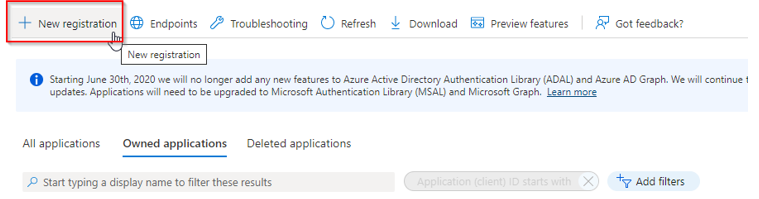
Click on New Registration.
Give the registration a name, e.g. "Shipping Connector".
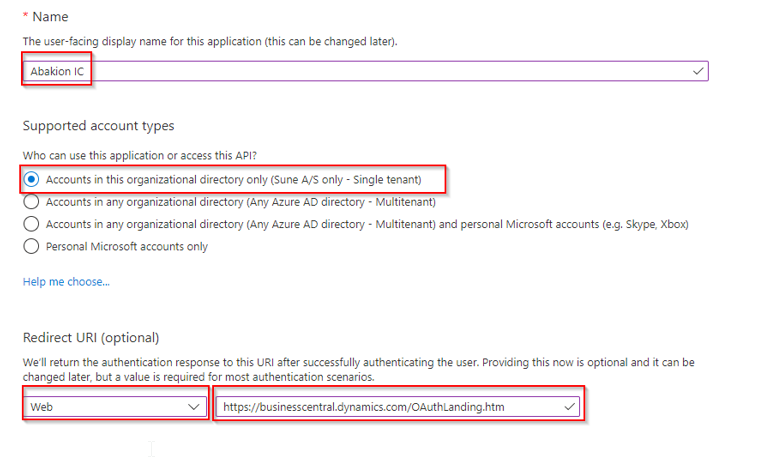
Select Accounts in this organizational directory only.
Redirect URI: Web — https://businesscentral.dynamics.com/
Click on Register when the fields are completed, to create the App registration.
Next step is to add Permissions.
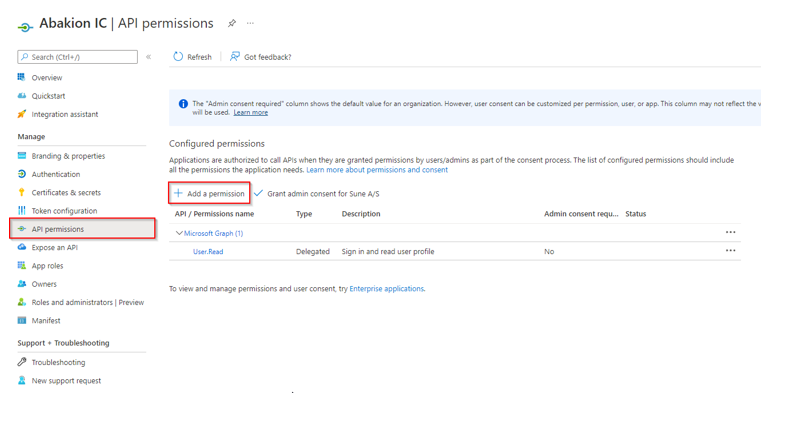
Open API Permissions.
Click on Add a permission.
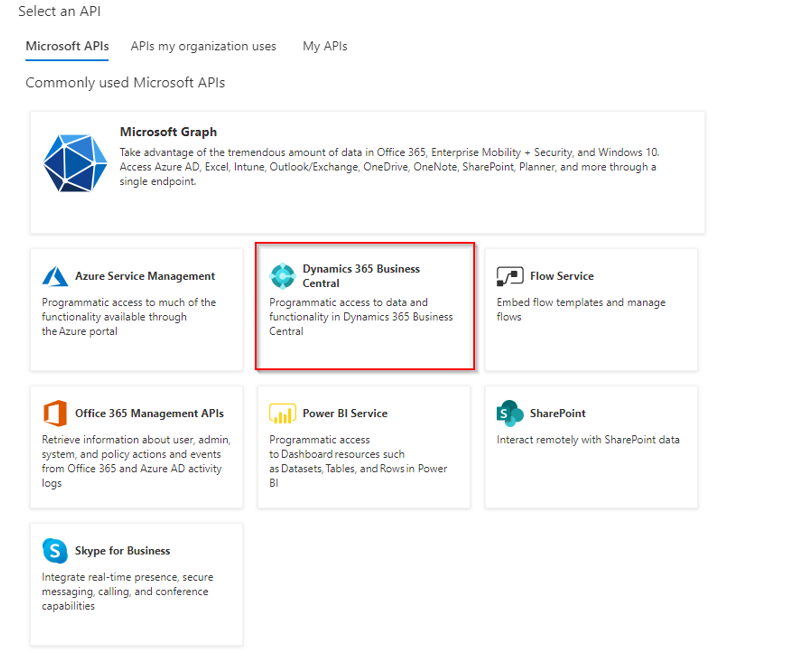
Select Dynamics 365 Business Central.
Select Application Permissions.
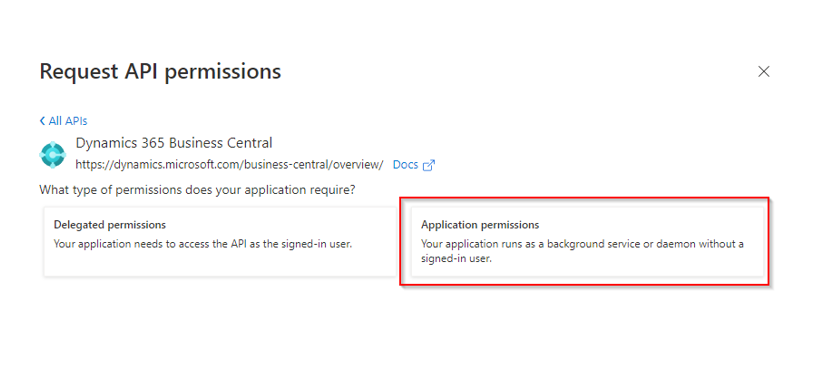
Add API.ReadWrite.All and app_access.
Click on Add permissions to add the permissions.
Click on Grant admin consent for <tenant name>. This can only be done if you are an admin.
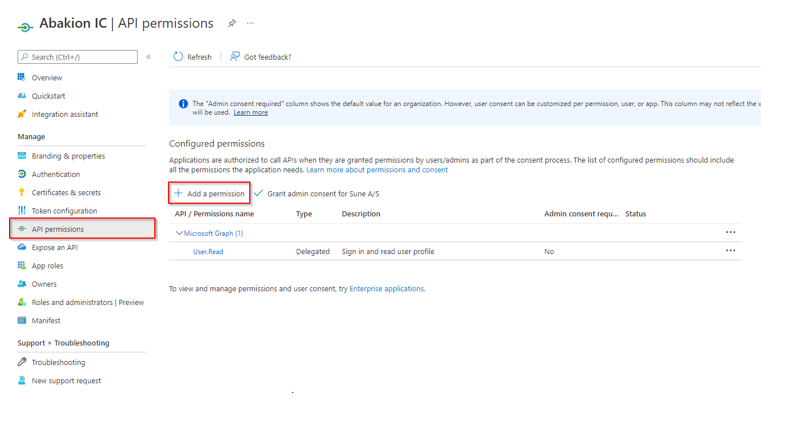
Next step is to create a secret.
Go to the Certificates and Secrets.
Click on New Client secret.
Write a description and set the Expiration date (maximum 24 months).
Copy the Value into a notepad, as this information is needed in the Business Central setup in a later step.
Note: You will only see the secret value once. It will be masked once you browse away from Certificates and Secrets.
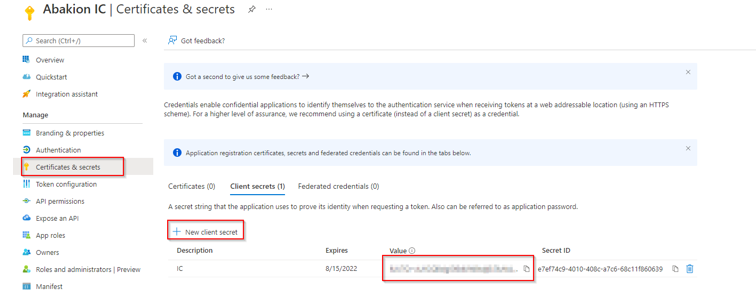
Next step is to find the Application (Client) ID.
Go to Overview.
Copy the Application (client) ID into a notepad, as this information is needed in the Business Central setup in a later step.
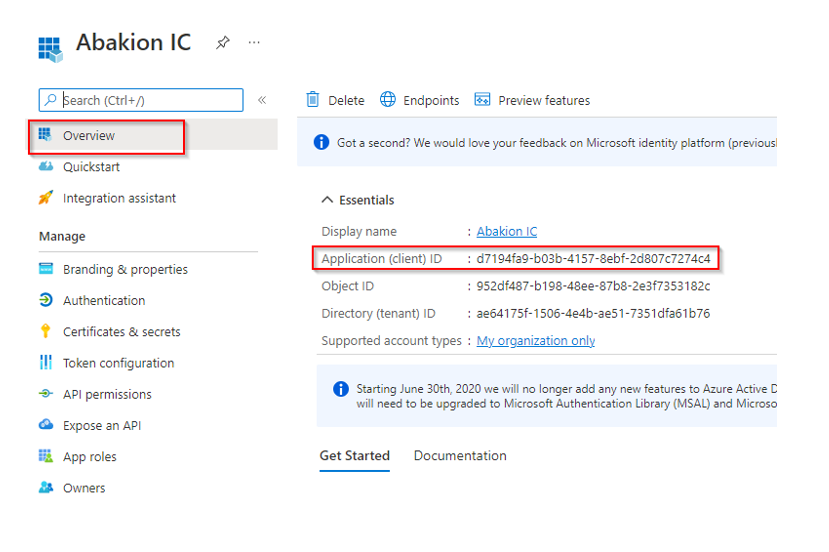
Business Central Microsoft Entra Application Setup
Now it is time to switch to Business Central and set up the Microsoft Entra Application user with the connection information.
Open Business Central and search for Microsoft Entra App.
Create a new Microsoft Entra application card, if it doesn't already exist.
Paste the Application (Client) ID into the Client Id field (the same ID copied from the App registration overview).
Add the User groups that this user needs access to:
D365 FULL ACCESS
SCB SHIPPING MANAGER
SCB SHIPPINGMAN-CORE
Note: If additional permissions need to be granted, they can be provided here. "Super" is not allowed.
Go back and make sure that the State is "Enabled".
Click on Grant Consent.
Log in as an administrator to confirm access.
For more details refer to Microsoft Documentation:
Register Azure application
S2S Authentication