
Handling Goods in Transit: Intercompany with Purchase Order Management
The Business Challenge
When two companies trade with each other through Business Central's Intercompany (IC) feature — for example, a supply company that procures internationally and a sales company that sells to end customers — there is often a period where goods have been shipped but have not yet physically arrived.
This creates three connected problems:
1. Inventory gaps
Goods leave the supply company's warehouse and are no longer in its inventory. But the buying company cannot register a receipt until goods physically arrive. For international shipments — where lead times from e.g. Asia can be several weeks — items exist nowhere in either company's books.
2. IC balances out of sync
The supply company can ship and invoice. The buying company, however, cannot post the corresponding purchase receipt and creditor balance until goods arrive. The result: IC ledger entries don't balance across companies, and period-end reconciliation fails.
3. Invoicing is blocked
Because the buying company cannot post a purchase invoice before receiving goods, revenue recognition and liability accrual are delayed. Cash flow and financial closing are put on hold.
The Solution: Intercompany + Purchase Order Management
The Purchase Order Management app (POM) extends Business Central's purchase flow with transit location handling. When combined with the Intercompany app, it enables a buy-to-stock IC flow where receipt, invoicing, and financial reconciliation all happen at the moment of shipment — not at physical delivery.
The key mechanism is the Transfer Order. When the supply company ships goods, POM automatically creates a Transfer Order in the buying company that moves items into a designated transit location. This means:
- Items appear in the buying company's inventory immediately (as goods in transit)
- Purchase invoicing can proceed without waiting for physical arrival
- IC balances stay reconciled across both companies throughout the journey
- When goods physically arrive, posting the Transfer Order receipt moves items to their final location and makes them available for sale
Setup
1. Transfer Routes
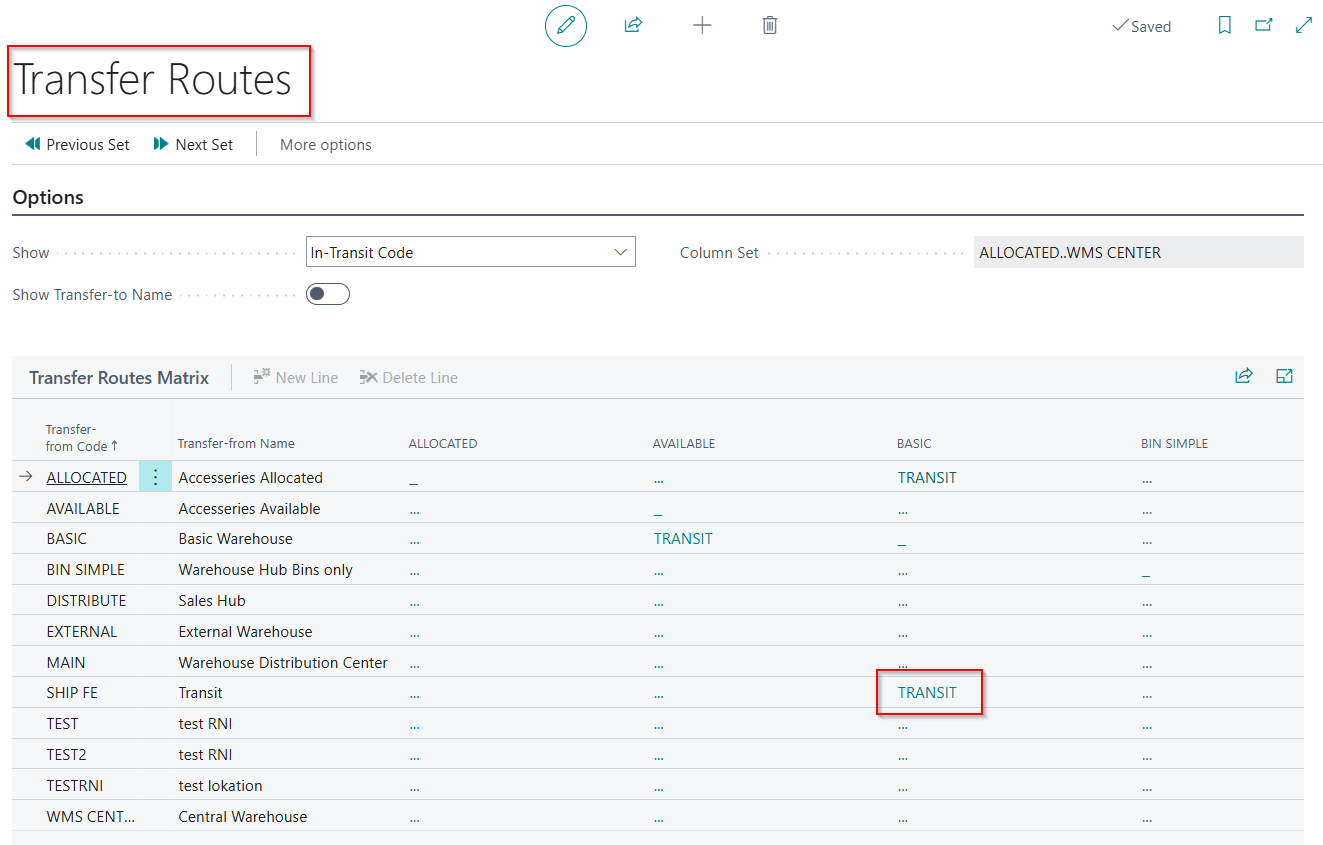
Before using this flow, a Transfer Route must exist between the shipping location and the final receiving location, with a designated in-transit location.
In the example below, the route from SHIP FE (the shipping/Far East arrival location) to BASIC (the main warehouse) uses TRANSIT as its in-transit code:
2. Purchase Order Management Setup
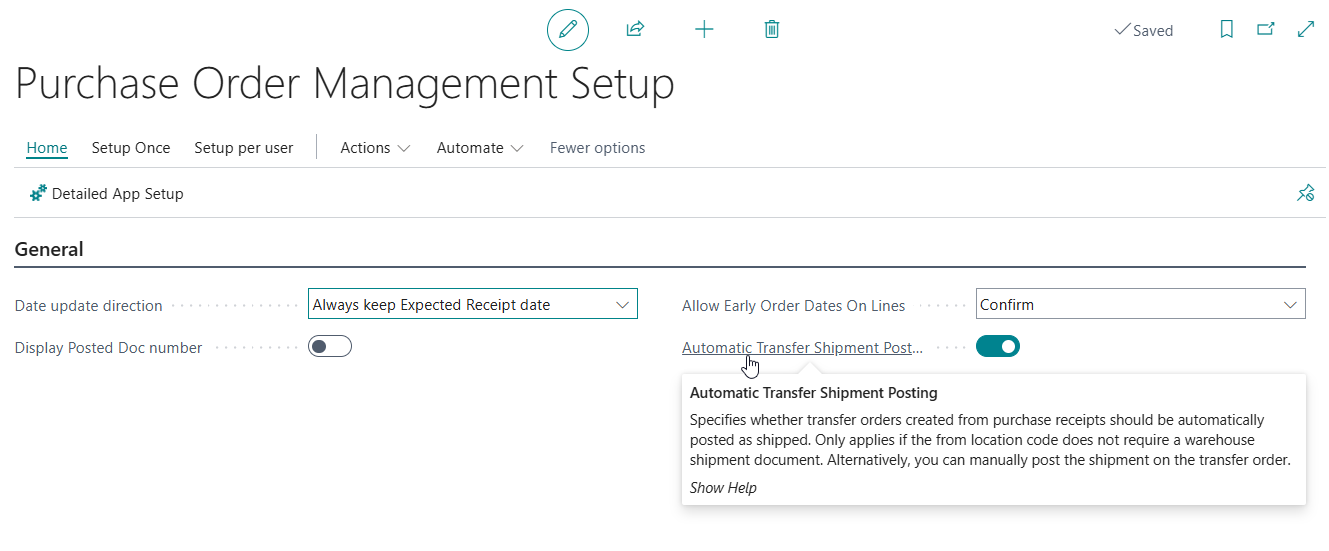
In the Purchase Order Management Setup page, enable Automatic Transfer Shipment Posting. This causes POM to automatically post the transfer shipment as soon as the Transfer Order is created, without requiring a separate manual step.
3. IC Vendor Card
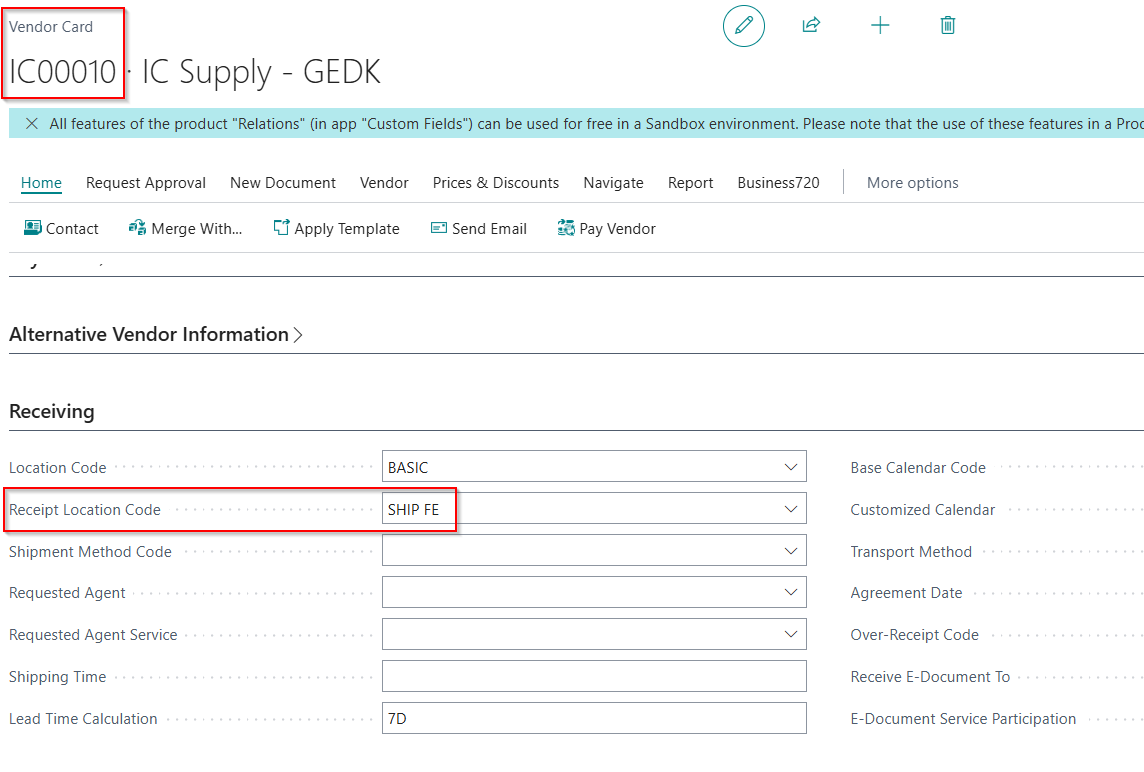
On the Vendor Card for the IC vendor, set the Receipt Location Code to the shipping location (e.g. SHIP FE). POM uses this as the default receipt location when purchase orders are created for this vendor.
The Location Code remains the final destination (e.g. BASIC). When the two fields differ, POM knows to create a Transfer Order between them after posting the receipt.
How the Flow Works
Step 1 — Create the Purchase Order
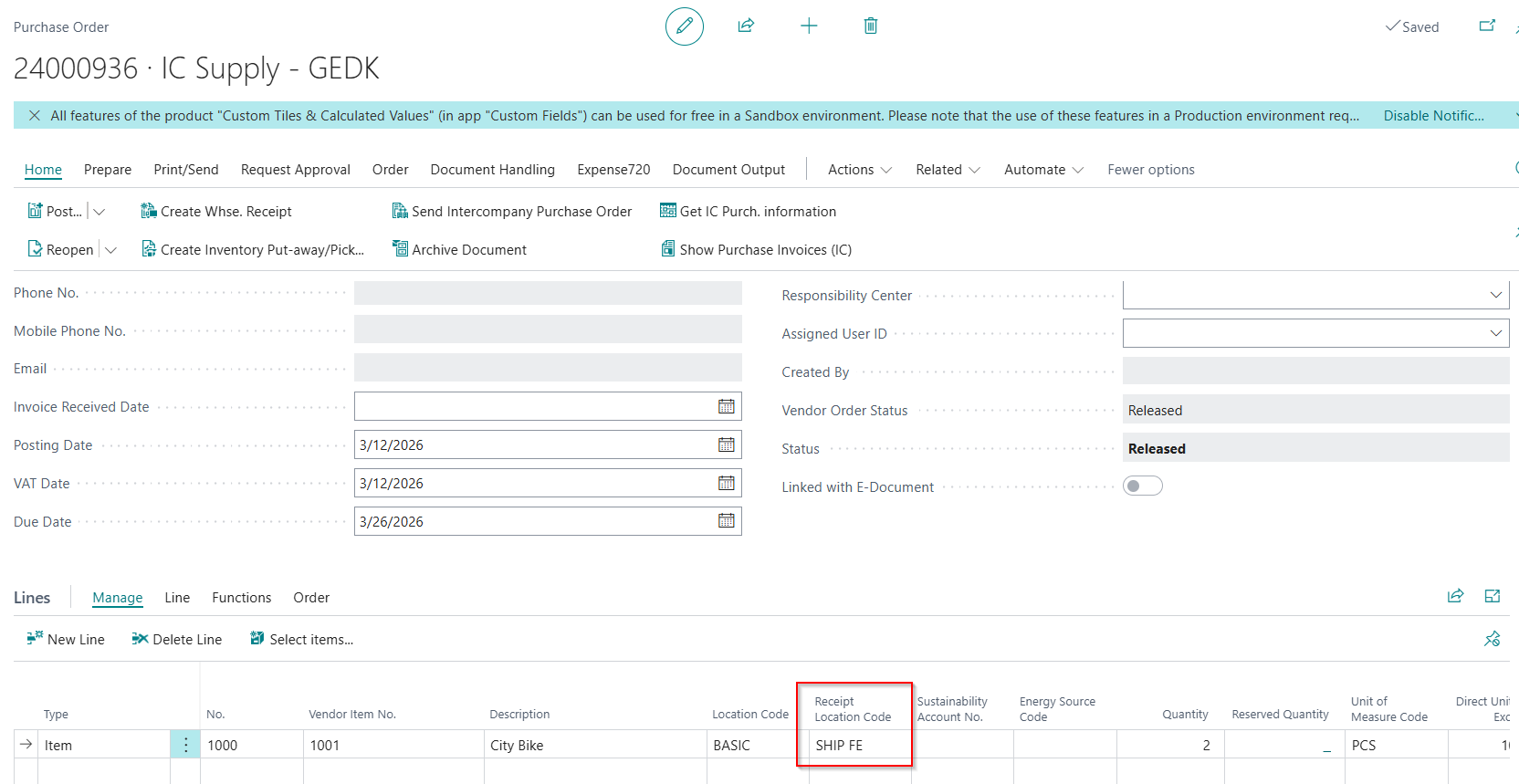
Create a Purchase Order to the IC vendor. The Receipt Location Code is automatically populated from the vendor card (SHIP FE), while the Location Code on the line is the final destination (BASIC).
Step 2 — Supply company ships
The supply company processes and ships the Sales Order in their Business Central. The IC app automatically creates and sends the corresponding transaction to the buying company's IC inbox.
Step 3 — Purchase Receipt posted to the shipping location
When the IC shipment is processed, a Purchase Receipt is posted in the buying company. The receipt is posted to the SHIP FE location — not the final warehouse — as specified by the Receipt Location Code.
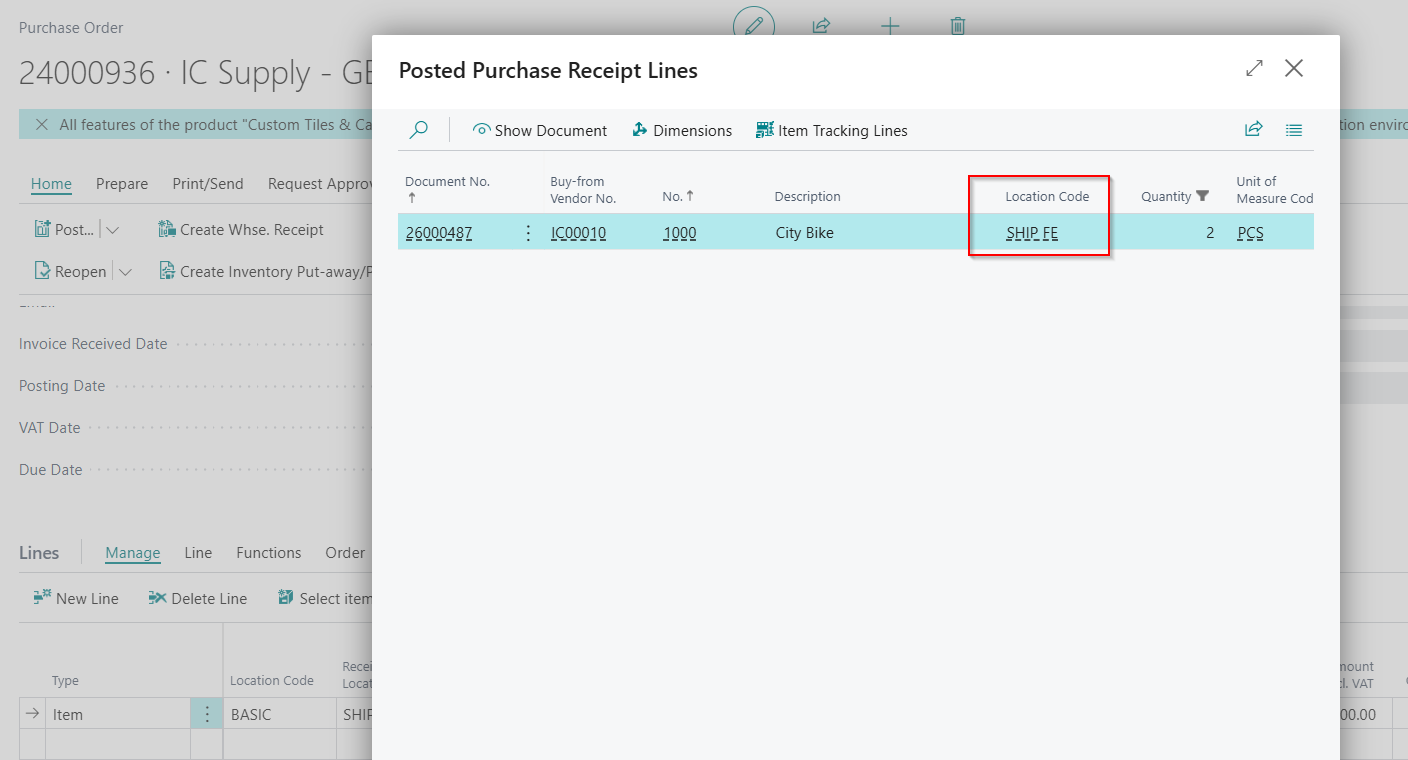
Step 4 — Transfer Order created automatically
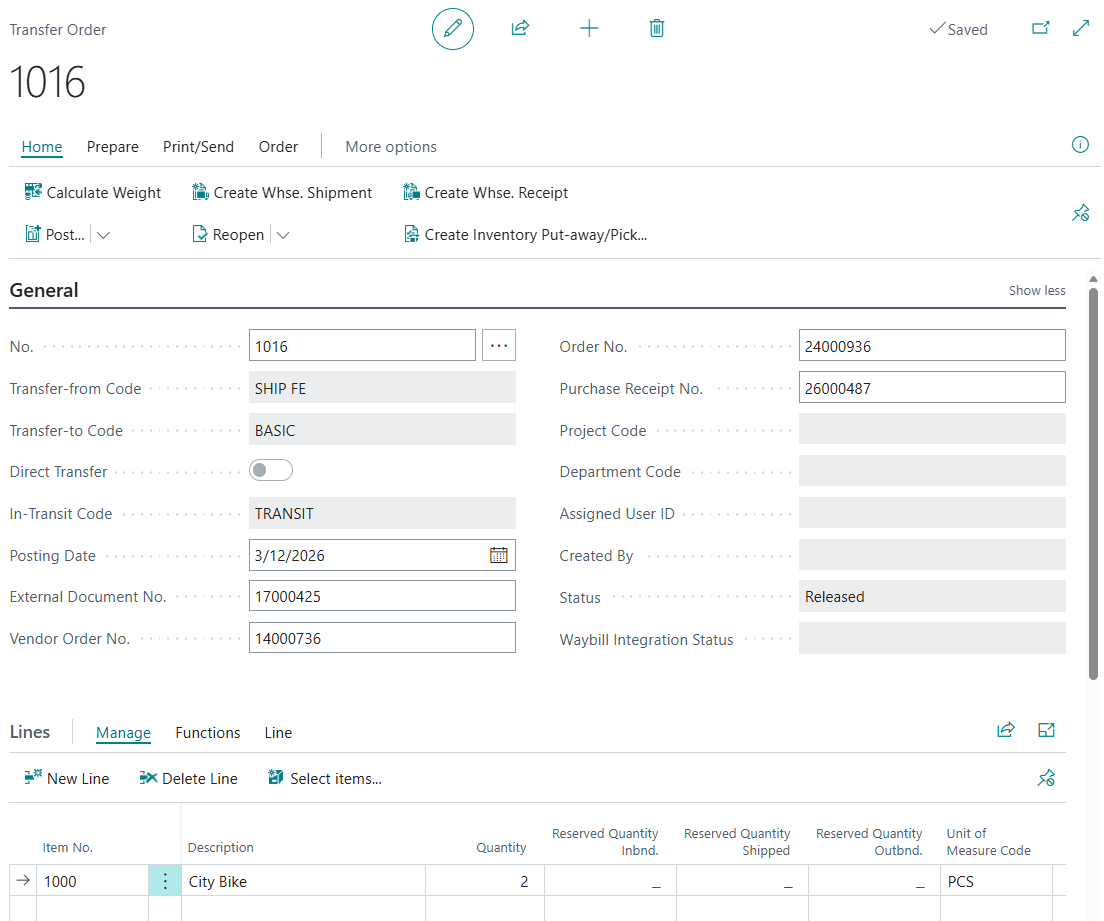
Immediately after the receipt is posted, POM creates a Transfer Order that moves items from SHIP FE to BASIC, with TRANSIT as the in-transit location. The Transfer Order carries the full document trail:
- Order No. — the original Purchase Order number
- Purchase Receipt No. — the receipt just posted
- External Document No. and Vendor Order No. — the IC document references from the supply company
With Automatic Transfer Shipment Posting enabled, the shipment side of the Transfer Order is posted automatically. Items move from SHIP FE to TRANSIT — registered in inventory but not yet available for picking or sale.
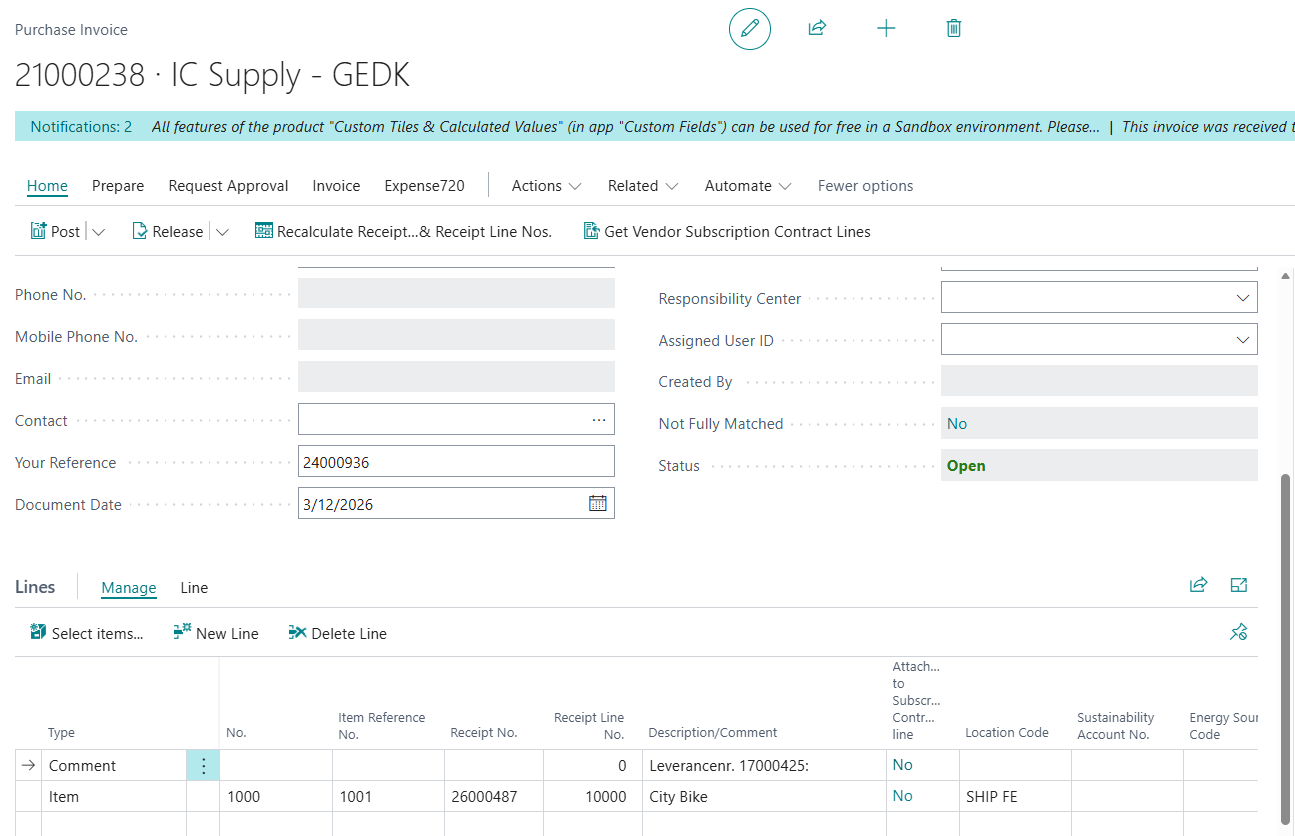
Step 5 — Purchase Invoice created
When the supply company invoices the Sales Order, the IC app automatically creates a Purchase Invoice in the buying company. This invoice can be posted immediately — without waiting for physical receipt — because the goods have already been registered in inventory (as in-transit).
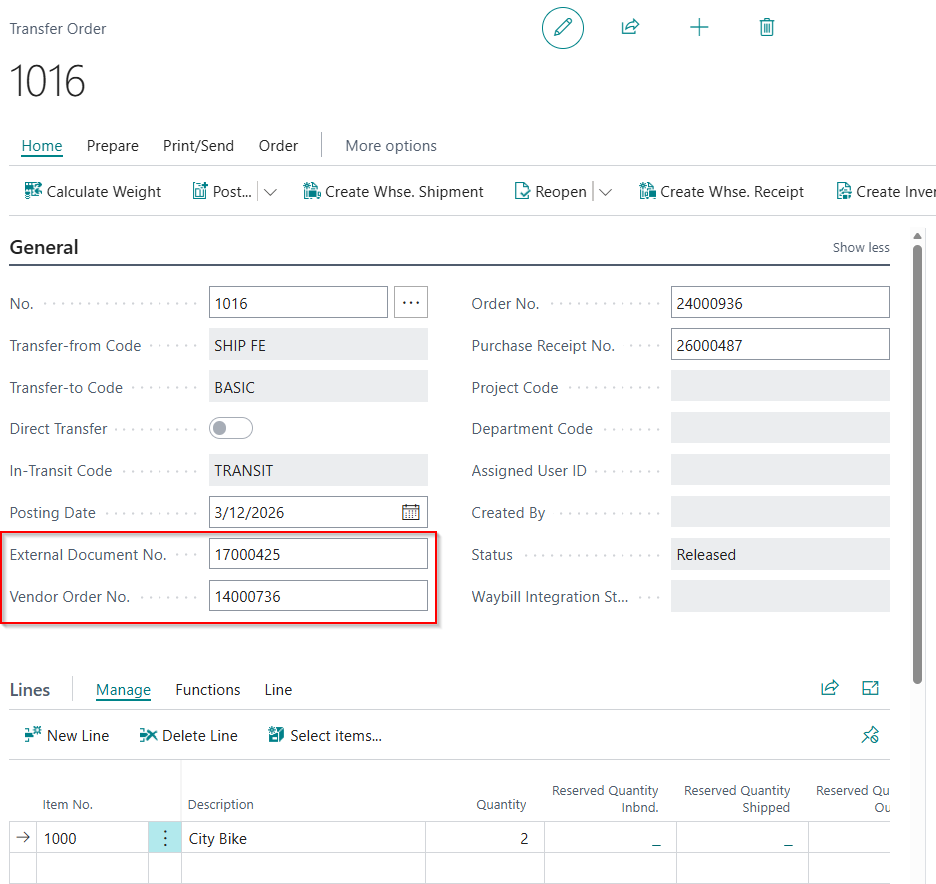
Step 6 — IC references on the Transfer Order
The Transfer Order carries the IC document references (External Document No. and Vendor Order No. from the supply company) for full traceability across the two companies.
Step 7 — Goods arrive: receive the Transfer Order
When goods physically arrive, post the receipt on the Transfer Order. Items move from TRANSIT to BASIC and become available for picking, reservation, and sale.
What This Solves
| Challenge | How it is resolved |
|---|---|
| Items missing from both companies' inventory | Items are registered in TRANSIT in the buying company at the moment of shipment |
| IC ledger out of balance | Receipt and invoice are both posted at shipment time — IC balances reconcile immediately |
| Invoicing delayed until physical arrival | Invoicing follows shipment, not physical delivery |
| Partial deliveries | Each shipment is handled independently |
| Cross-company traceability | IC document references are carried through to the Transfer Order |
Prerequisites
- Intercompany app installed in both the supply company and the buying company
- Purchase Order Management app installed in the buying company
- Shipping location (e.g.
SHIP FE) and transit location (e.g.TRANSIT) configured in Business Central - Transfer Route from shipping location to final location, with an in-transit location
- Receipt Location Code set on the IC vendor card in the buying company
- Automatic Transfer Shipment Posting enabled in POM Setup (recommended)
Related articles
- Intercompany overview and setup
- Purchase Order Management — getting started
- IC vendor card setup
- Reconciling IC balances across companies