
# Global Master Data Sync – App Overview
This article provides a high-level overview of the components and features included in the Global Master Data Sync app by Abakion. Each section below describes what a component does in plain language. Detailed documentation for each component is available in its own dedicated article.
Introduction
Global Master Data Sync is a Microsoft Dynamics 365 Business Central app that lets you define, manage, and automate the synchronization of table data — such as items, customers, or any custom table — between companies or environments. You decide which tables and fields to sync, who receives the data, and when updates are triggered.
The app operates with two roles:
- Master company – the source that owns and publishes data.
- Subscriber company – the target that receives and applies data.
Setup & Getting Started
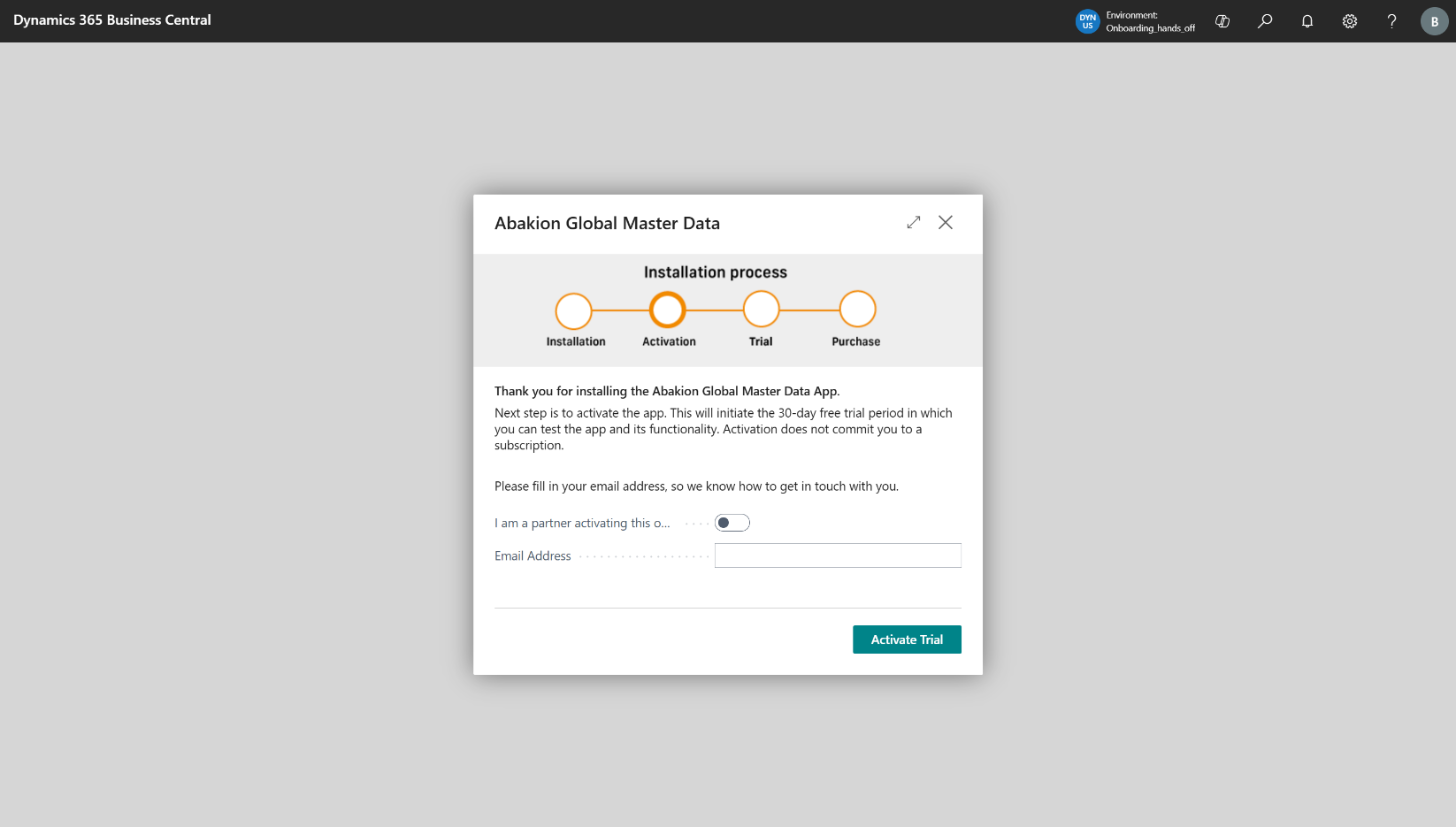
Assisted Setup Guide
A step-by-step installation wizard that walks you through activating the app and enrolling in a trial. It collects basic information such as your email address and partner status to get you up and running quickly.
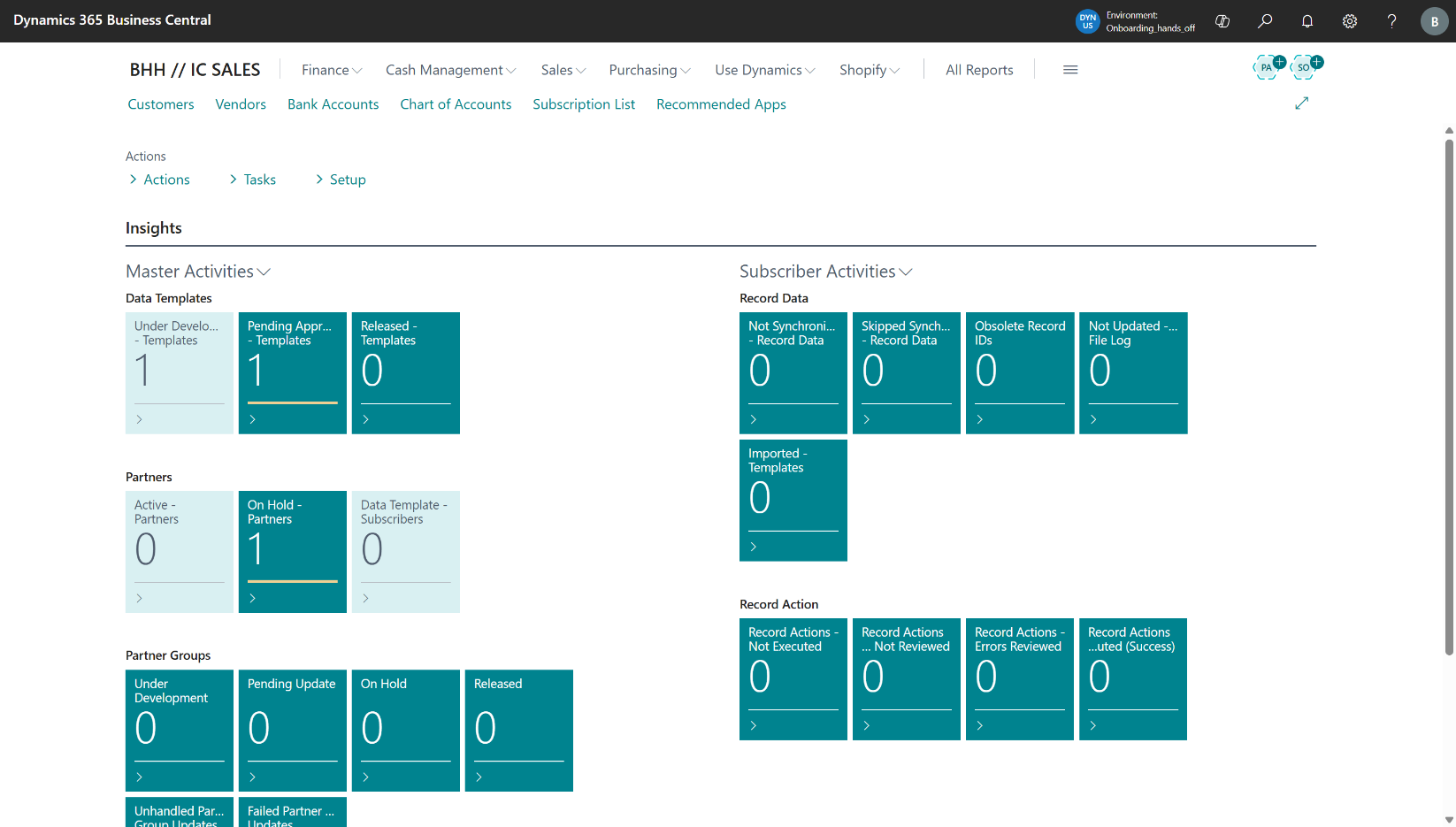
Global Master Administrator Role Center
A dedicated Role Center dashboard that serves as the central hub for all Global Master Data Sync activity. It displays key status tiles (templates, partners, file logs) and provides quick access to all main features. Assign this Role Center to users who administer data synchronization.
Data Templates
Data Templates are the core building block of the app. They define which data is synchronized: which table, which fields, which records, and in what order.
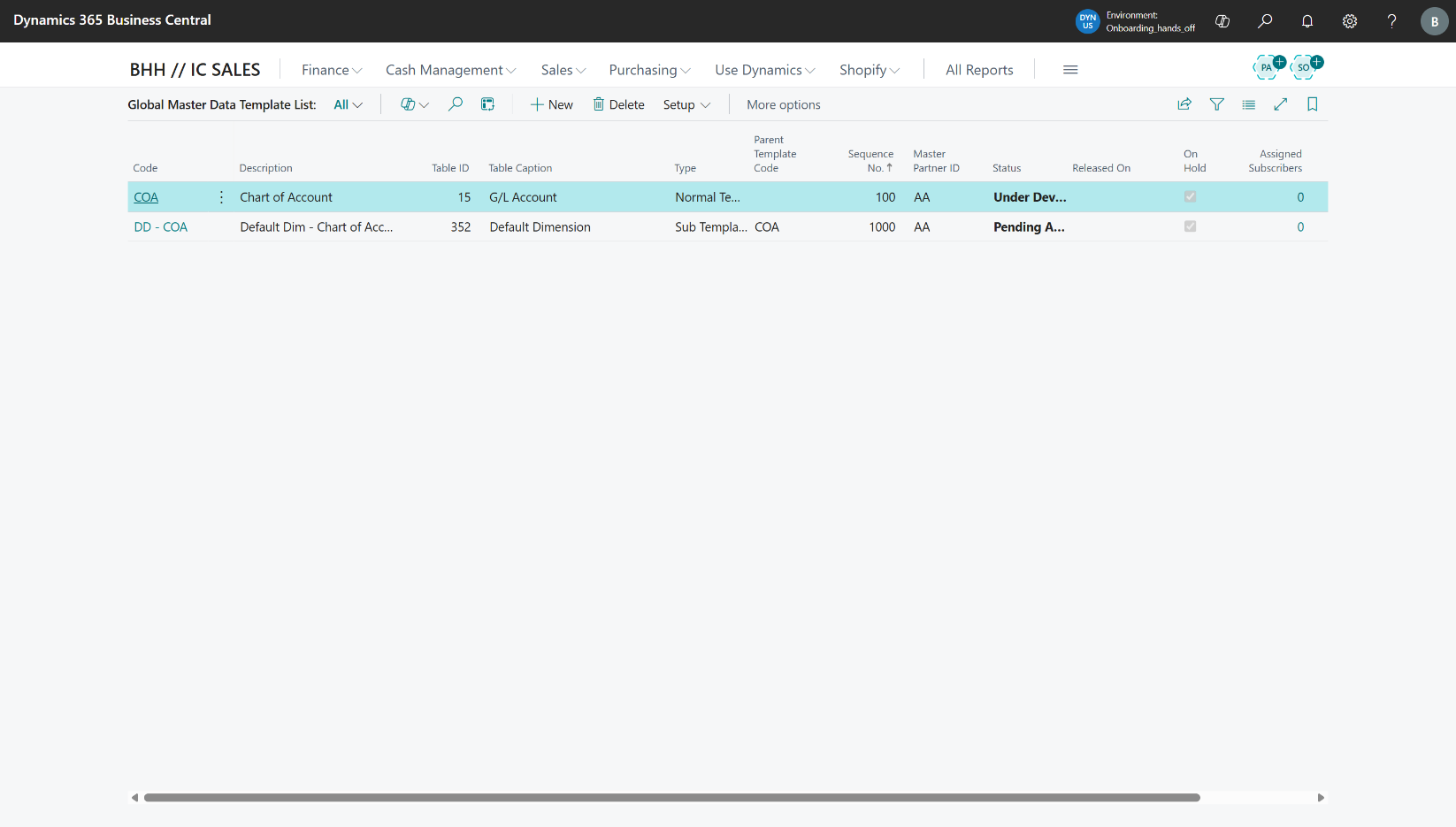
Data Template List
An overview of all configured data templates. Templates progress through a status workflow: Development → Pending → Released.
Data Template Card
The main configuration page for a single data template. Here you select the source table, choose which fields to include, set the synchronization sequence, apply filters, and assign subscribers.
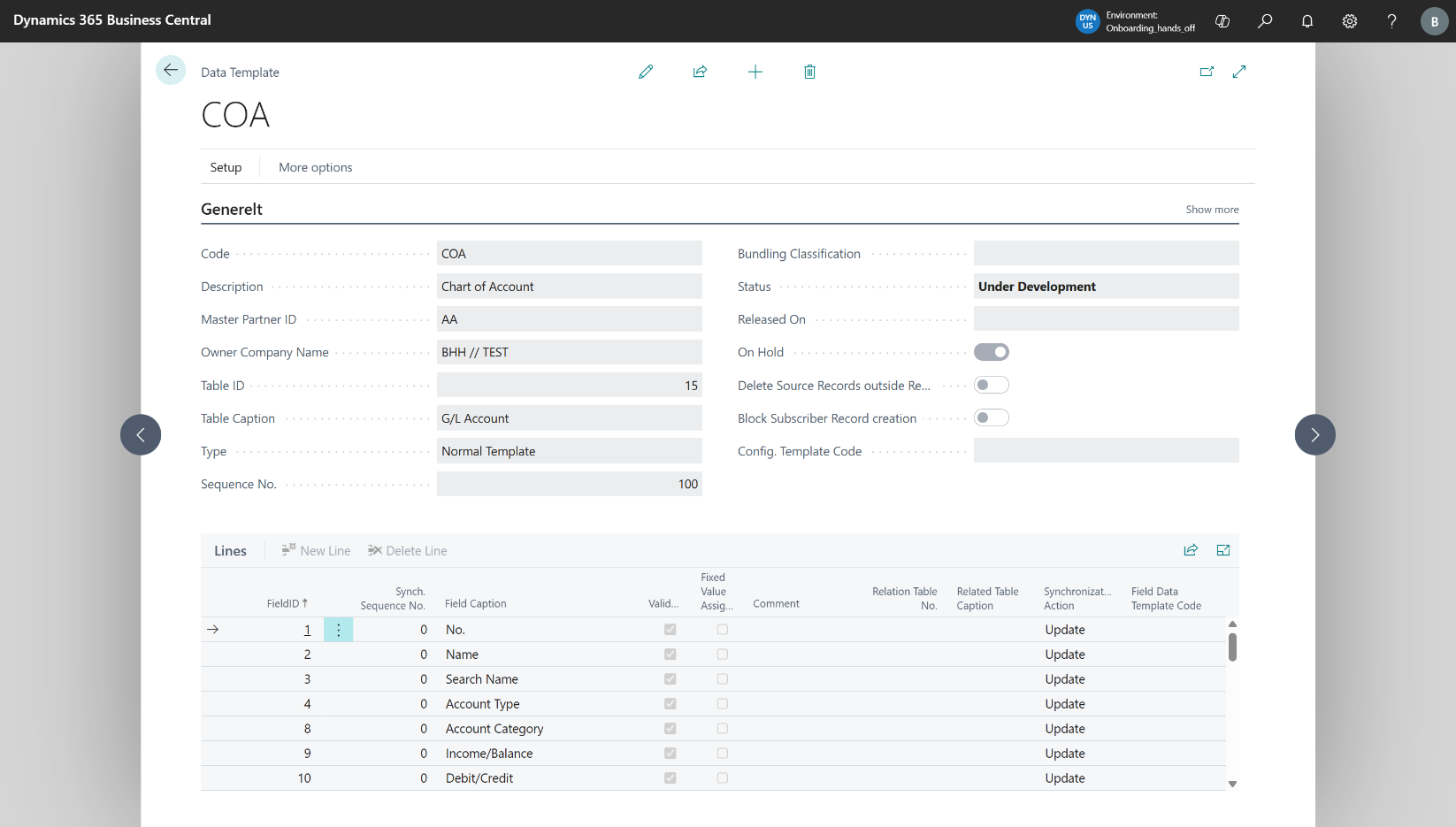
Data Template Lines
A read-only view of the individual fields included in a template. Shows field-level settings such as validation rules and related template links.
Data Template Filters
Defines which records are included in a template by applying field-level filter conditions. Only records matching the filters are synchronized.
Fixed Values
Allows you to assign a constant value to a field for all records in a template — for example, forcing a specific dimension or currency code on every synchronized record.
Subordinate Data Templates
Links a child template to a parent template, enabling related tables (such as item variants linked to items) to be synchronized together in the correct order.
Template Subscribers
Shows which subscriber partners are assigned to a template and tracks the exchange status per subscriber, including whether data has been logged and sent.
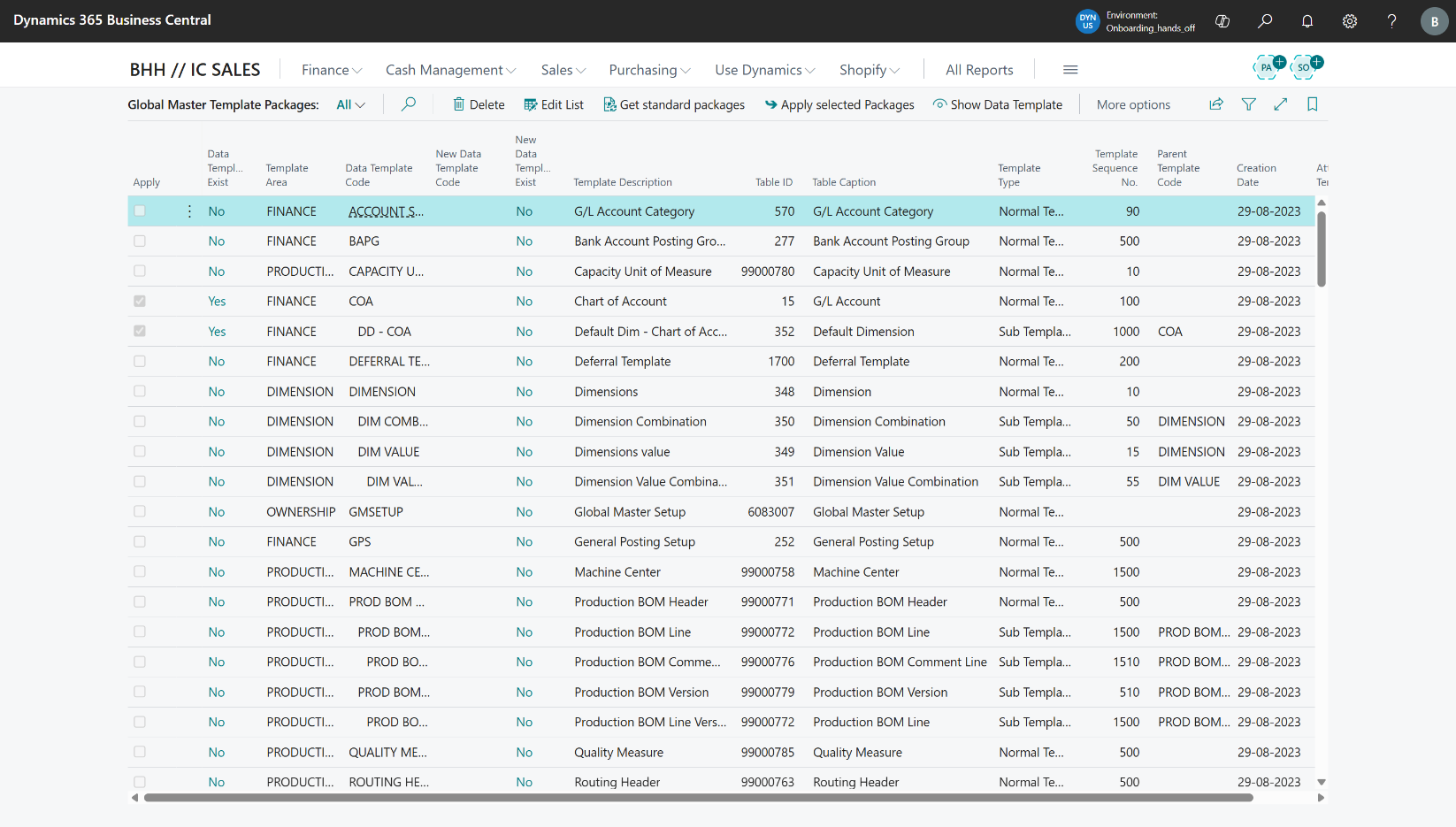
Template Packages
A library of pre-built data template configurations. You can download standard packages provided by Abakion or create and share your own. Packages can be imported and applied to quickly set up common synchronization scenarios.
Partners
Partners represent the subscriber companies or environments that receive synchronized data from the master company.
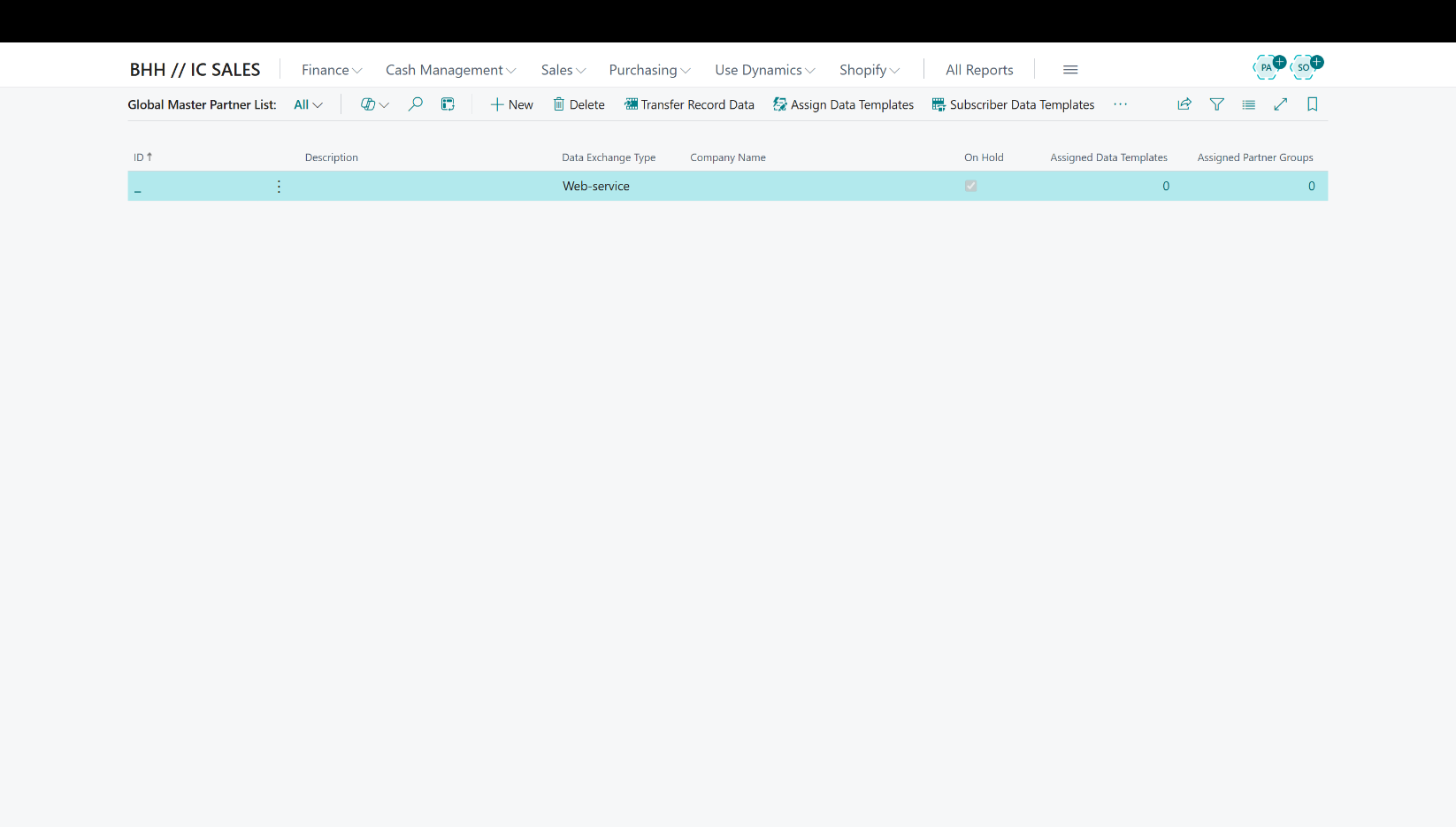
Partner List
An overview of all configured subscriber partners, showing their connection type, status, and the number of assigned templates.
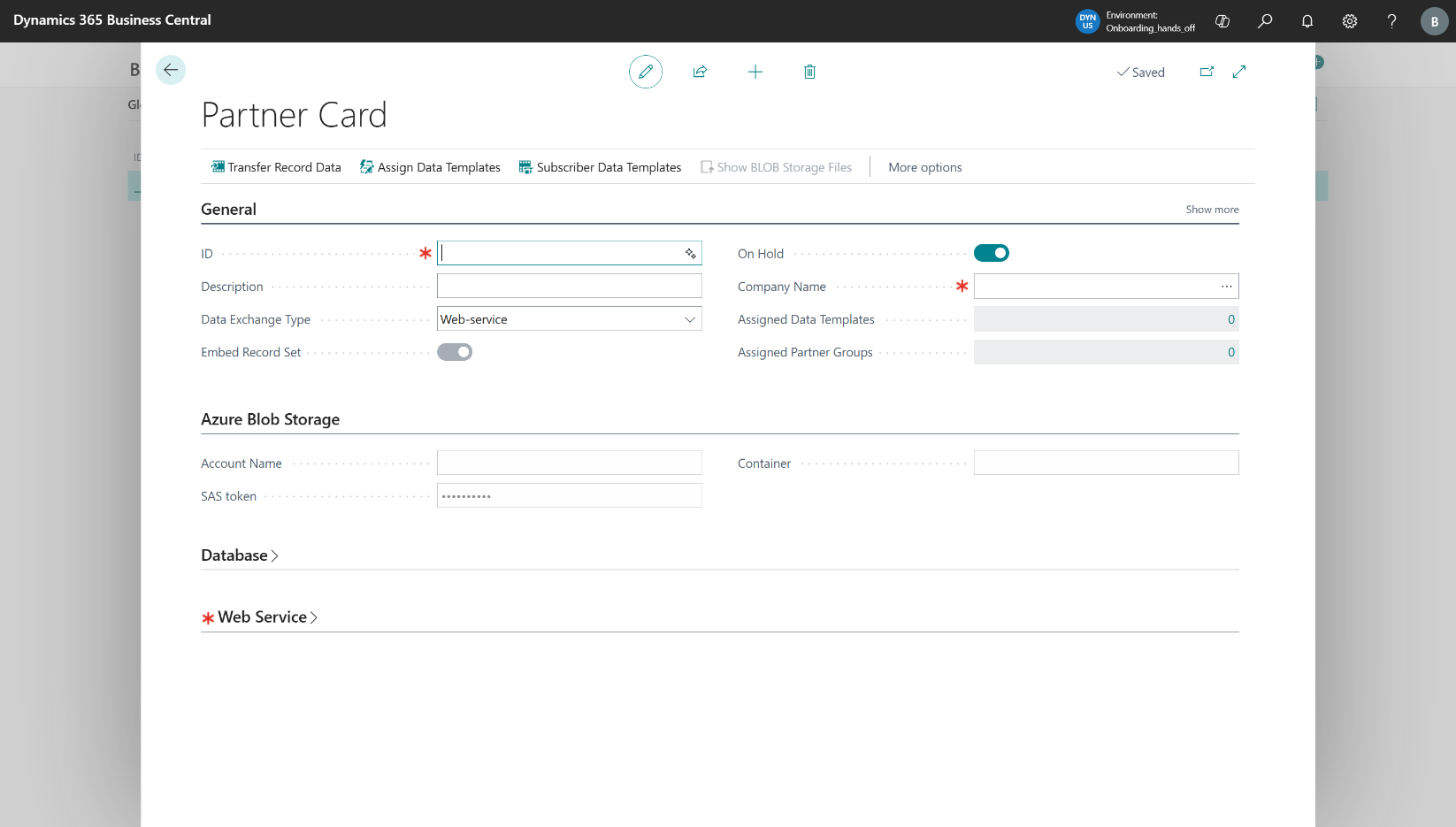
Partner Card
The detailed configuration page for a single partner. Here you define how data is exchanged with this partner — options include:
- Database (direct within the same Business Central environment)
- Web service (cross-environment via API)
- External file account (file-based via a shared file storage location)
- Azure Blob Storage (file-based via Microsoft Azure)
You can also test the connection and assign data templates directly from this page.
Note: Using the External file account exchange type requires the External File Storage - Azure Blob Service Connector app by Microsoft to be installed and enabled.
Using the Web service exchange type requires configuring a Tenant Connector Code with Microsoft Entra authentication credentials.
Tenant Connector Codes
Stores the OAuth/Microsoft Entra authentication credentials (Tenant ID, Client ID, and Client Secret) used when connecting to a subscriber via web service. Each set of credentials is saved under a unique code and referenced from the Partner Card.
Partner Groups
Partner Groups allow you to organize multiple partners together and exchange data with all of them in a single, optimized operation — rather than sending separate files to each partner individually.
Partner Groups List
An overview of all partner groups, showing status, number of members, assigned templates, and any pending or failed updates.
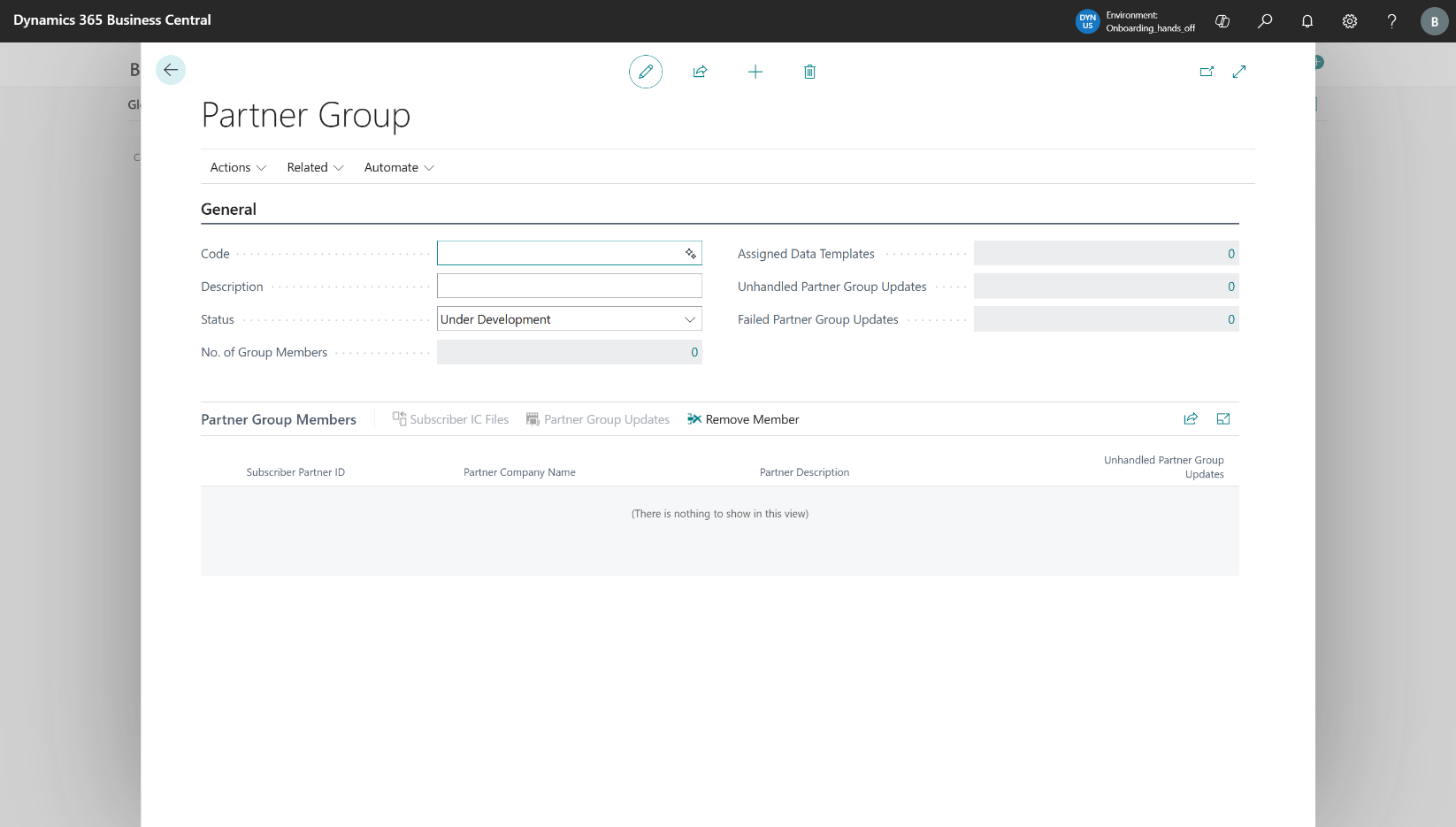
Partner Group Card
The detailed configuration page for a single partner group. Manage group members and assigned templates, and track the group's status through its workflow: Under Development → Pending Update → Released.
Convert Partners Wizard
A guided wizard that converts existing individually configured partners into members of a partner group. Useful when migrating from a one-by-one partner setup to the more efficient group-based approach.
Partner Group Updates
Tracks pending synchronization tasks that are queued when new partners are added to an already-released partner group. Ensures new members receive all relevant data.
Data Exchange & Synchronization
These features manage the actual transfer and application of data between master and subscriber companies.
IC File Log (Inter-Company File Log)
The central log that records every file exchange between the master and subscriber. Shows when a file was created, sent, and processed, along with any errors. Files can be manually resent or downloaded for inspection from this log.
Detail File Log
A more granular breakdown of individual file exchange operations, including timing metrics for file creation, import, unpacking, and record update steps.
Partner Group File Logs
Tracks file generation for partner group bulk operations. Links group-level file creation events to the individual subscriber IC File Logs.
Record ID List
A list of all individual records tracked for synchronization on the subscriber side. Shows the sync status, number of attempts, and any errors per record.
Record ID Updates (Renames & Deletions)
Tracks records that have been renamed or deleted on the master side. Subscribers can review and execute these pending changes to keep their data aligned.
Record Actions
Displays delete and rename actions that need to be applied on the subscriber company. Subscriber users can execute actions individually or mark errors as reviewed once handled.
Monitoring & Logs
Subscriber Log Entries
A log of synchronization results at the individual record level on the subscriber side. Shows successes and failures, along with error messages, so you can identify and resolve issues.
Record ID List
A list of all individual records tracked for synchronization. Shows sync status, number of attempts, skip flags, and any errors per record.
Record Actions
Displays delete and rename actions that need to be applied on the subscriber company. Subscriber users can execute actions individually or mark errors as reviewed once handled.
Obsolete Record IDs
Tracks records that have been removed from a synchronized record set (for example, because they no longer match a template filter). Manages the lifecycle of deletion requests sent to subscribers.
Master Activities (Role Center Tiles)
A set of status tiles on the master company Role Center showing counts of templates (by status), active and on-hold partners, and partner group health.
Subscriber Activities (Role Center Tiles)
A set of status tiles on the subscriber company Role Center showing pending record updates, IC file logs not yet processed, and any record actions with errors.
Storage & File Management
Azure Blob Storage File Browser
Lets you view the files stored in a configured Azure Blob Storage container directly from Business Central. Useful for verifying that exchange files have been created and uploaded correctly.
Note: This feature requires the External File Storage - Azure Blob Service Connector app by Microsoft to be installed and enabled.
File Account Contents
Displays the contents of an external file storage account, allowing you to inspect files available for exchange when using external file-based data transfer.
Note: This feature requires the External File Storage - Azure Blob Service Connector app by Microsoft to be installed and enabled.