Overview
Assign Quantity is a Microsoft Dynamics 365 Business Central application developed by Abakion that provides a flexible approach to inventory management. It allows you to assign inventory to demand without the rigid constraints of traditional reservation systems.
What is Assign Quantity?
Assign Quantity enables you to:
- Allocate available inventory to sales orders, transfer orders, production components, and assembly orders
- Work with flexible assignments that can be easily adjusted
- Automatically calculate available quantities based on real-time inventory levels
- Optimize shipment dates based on inventory availability
- Maintain visibility of assigned quantities across your organization
Key Benefits
- Flexibility: Unlike reservations, assignments can be soft or locked, giving you control over commitment levels
- Real-time visibility: See at a glance which orders have sufficient inventory assigned
- Automated processing: Batch assign quantities across multiple orders efficiently
- Multi-dimensional tracking: Assign quantities based on location, variant, and dimensions
- Warehouse integration: Works seamlessly with warehouse shipments and picks
- Blanket order support: Link sales orders to blanket orders with automatic assignment transfer for framework agreements
📖 Documentation Guide
Videos of how to use Assign Quantity can be found here
Icons and Symbols Used
Throughout this documentation, you'll see the following icons and symbols:
| Symbol | Meaning | Usage |
|---|---|---|
| ✅ | Complete / Success | Fully assigned orders, completed steps |
| ⚠️ | Warning / Partial | Partially assigned orders, attention needed |
| ❌ | Error / None | No assignment, problems to resolve |
| ⚪ | Blank / Neutral | No status, unassigned items |
| 🟡 | Soft Assignment | Flexible, can be modified |
| 🔴 | Locked Assignment | Protected, cannot be auto-changed |
| ✓ | Checkmark | Completed action, requirement met |
| ► | Process Flow | Direction of process or data flow |
| ─ | Connection | Links between related items |
| │ | Vertical Flow | Downward process progression |
Box Types:
┌─────────────┐  Standard box for information
│             │
└─────────────┘

┏━━━━━━━━━━━━━┓  Important section header
┃             ┃
┗━━━━━━━━━━━━━┛

═══════════════  Timeline or major separator
Core Concepts
Assignment vs. Reservation
| Feature | Traditional Reservation | Assign Quantity |
|---|---|---|
| Link Type | Hard link between supply and demand | Flexible assignment |
| Flexibility | Cannot be easily overridden | Easily adjusted and reallocated |
| Modes | Single reservation type | Soft and Locked assignment options |
| Priority Changes | Difficult to reprioritize | Dynamic reallocation supported |
| Visibility | Limited tracking | Full visibility across all assignments |
| Business Use | Rigid commitment | Planning and commitment tool |
Visual Comparison:
RESERVATION:                ASSIGN QUANTITY:
Supply ═══════► Demand      Supply ───────► Demand (Soft)
   (Fixed)                  Supply ═══════► Demand (Locked)
                            Supply - - - - ► Demand (Unassigned)
                               (Flexible)
Assignment Flexibility Levels
| Flexibility Type | Symbol | Description | Can Be Modified? | Use Case |
|---|---|---|---|---|
| Blank | ⚪ | No assignment | N/A | Items not yet assigned |
| Soft Assignment | 🟡 | Default, flexible | ✅ Yes, by users or batch processes | Planning, tentative allocations |
| Locked Assignment | 🔴 | Protected | ❌ No, protected from changes | Confirmed orders, critical shipments |
Visual Flow:
┌─────────────┐
│  New Order  │
└──────┬──────┘
       │
       ↓
┌─────────────────┐     Assign Quantity
│  ⚪ Unassigned   │  ─────────────────►  ┌──────────────────┐
└─────────────────┘                       │ 🟡 Soft Assigned │
                                          └────────┬─────────┘
                                                   │
                                    Lock Assignment│
                                                   ↓
                                          ┌────────────────────┐
                                          │ 🔴 Locked Assigned │
                                          └────────────────────┘
Getting Started
Prerequisites
- Ensure the Assign Quantity app is installed and enabled in your Business Central environment
- Verify you have appropriate permissions (Assign Quantity permission set)
- Configure basic setup through the Assign Quantity Setup page

Basic Workflow
Visual Process Flow:
┌──────────────────────────────────────────────────────────────────┐
│                     ASSIGN QUANTITY WORKFLOW                      │
└──────────────────────────────────────────────────────────────────┘

Step 1: CREATE ORDER              Step 2: REVIEW AVAILABILITY
┌─────────────────┐               ┌─────────────────┐
│  Sales Order    │               │  Available Qty  │
│  • Item: A123   │  ────────►    │  • On Hand: 50  │
│  • Qty: 100     │               │  • Assigned: 20 │
└─────────────────┘               └─────────────────┘
                                           │
                                           ↓
Step 3: ASSIGN QUANTITY           Step 4: MONITOR STATUS
┌─────────────────┐               ┌─────────────────┐
│  Assignment     │               │  Order Status   │
│  • Assigned: 30 │  ────────►    │  ⚠️ Partial     │
│  • Available:50 │               │  • 30 of 100    │
└─────────────────┘               └─────────────────┘
                                           │
                                           ↓
Step 5: PROCESS                   ┌─────────────────┐
┌─────────────────┐               │  Complete! ✓    │
│  Ship & Invoice │  ────────►    │  • Shipped: 30  │
└─────────────────┘               └─────────────────┘
Step-by-Step:
- Create or open a sales order with inventory items
- Review available quantity on the sales line
- Assign quantity either manually or using batch functions
- Monitor assignment status at the header and line level
- Process the order through shipping and invoicing
Features
The Assign Quantity app provides comprehensive assignment capabilities across multiple document types, including sales orders, blanket sales orders, transfer orders, production components, and assembly orders. Each feature is designed to give you maximum flexibility and control over inventory allocation.
1. Sales Order and Blanket Order Assignment
Manual Assignment on Sales Lines
How to assign quantity to a sales line:
- Open a Sales Order
- Navigate to the sales lines
- Locate the Assigned Quantity field
- Enter the quantity you want to assign, or use the Assign Quantity action
- The system will calculate available inventory and assign up to the available amount
Key Fields:
| Field Name | Type | Description | Example |
|---|---|---|---|
| Assigned Quantity (Base) | Decimal | Quantity assigned in base UOM | 100 pcs |
| Assigned Quantity | Decimal | Quantity assigned in line UOM | 10 boxes (10 pcs/box) |
| Assigned Flexibility | Option | Assignment protection level | 🟡 Soft / 🔴 Locked / ⚪ Blank |
| Quantity Available (Base) | Decimal | Available inventory for assignment | 75 pcs |
| First Date Available | Date | Earliest date for full quantity | 2025-12-15 |
Field Relationships:
Outstanding Qty: 100 units
         │
         ├─► Assigned Qty: 30 units ────┐
         │                               │
         └─► Unassigned: 70 units        │
                                         ↓
                              ┌──────────────────┐
                              │ Qty Available:   │
                              │   50 units       │
                              └──────────────────┘
                                         │
                          ┌──────────────┴──────────────┐
                          ↓                             ↓
                  Can Assign: 30 more          First Date for 70:
                  (limited by available)       → December 15
Sales Order Actions
Update Assigned Status
- Keyboard shortcut:
Shift+Ctrl+A - Updates the assignment status for the entire order
- Shows whether the order is: Completely Assigned, Partially Assigned, or Not Assigned
Assign Quantity on Sales Order
- Batch assigns quantities to all lines on the order
- Respects assignment flexibility settings
- Calculates optimal assignments based on available inventory
Change Assigned Flexibility
- Allows you to change assignment flexibility across multiple lines
- Convert between Soft and Locked assignments
- Useful for prioritizing specific orders
Update Shipment Date on Sales Order
- Updates the header shipment date based on line assignments
- Helps ensure realistic delivery commitments
Assigned Status
The Sales Order header displays an Assigned Status field showing:
| Status Name | Meaning | Visual Indicator |
|---|---|---|
| Completely Assigned | All lines have sufficient assigned quantity | Green / Complete |
| Partially Assigned | Some lines have assigned quantity but not all | Yellow / Warning |
| No Assignment | No quantities have been assigned | Red / Alert |
| Blank | Order contains no inventory items | Gray / Neutral |
Visual Status Examples:
Order #1001 - COMPLETELY ASSIGNED
┌─────────────────────────────────────┐
│ Line  Item      Qty    Assigned     │
├─────────────────────────────────────┤
│  10   ITEM-A    100    100 ✓        │
│  20   ITEM-B     50     50 ✓        │
│  30   ITEM-C     25     25 ✓        │
└─────────────────────────────────────┘
Status: Ready for warehouse processing


Order #1002 - PARTIALLY ASSIGNED
┌─────────────────────────────────────┐
│ Line  Item      Qty    Assigned     │
├─────────────────────────────────────┤
│  10   ITEM-A    100    100 ✓        │
│  20   ITEM-B     50     30 ⚠️       │
│  30   ITEM-C     25      0 ❌       │
└─────────────────────────────────────┘
Status: Review lines 20 & 30


Order #1003 - NO ASSIGNMENT
┌─────────────────────────────────────┐
│ Line  Item      Qty    Assigned     │
├─────────────────────────────────────┤
│  10   ITEM-A    100      0 ❌       │
│  20   ITEM-B     50      0 ❌       │
│  30   ITEM-C     25      0 ❌       │
└─────────────────────────────────────┘
Status: Needs attention / Run batch assign
2. Blanket Order and Sales Order Linking
Overview of Blanket Order Assignment
A powerful feature that connects Blanket Sales Orders with regular Sales Orders, allowing assigned quantities to flow intelligently between them.
Why use this feature:
- Pre-assign inventory to blanket orders for important customers or contracts
- Automatically transfer assignments when creating sales orders from blanket orders
- Maintain visibility of committed quantities across blanket and regular orders
- Optimize inventory allocation for framework agreements
How Blanket Order Linking Works
Visual Flow Diagram:
┏━━━━━━━━━━━━━━━━━━━━━━━━━━━━━━━━━━━━━━━━━━━━━━━━━━━━━━━━━━━━━━━━━┓
┃           BLANKET ORDER TO SALES ORDER ASSIGNMENT FLOW           ┃
┗━━━━━━━━━━━━━━━━━━━━━━━━━━━━━━━━━━━━━━━━━━━━━━━━━━━━━━━━━━━━━━━━━┛

STEP 1: BLANKET ORDER ASSIGNMENT
┌─────────────────────────────────┐
│   Blanket Order (Annual)        │
│   ────────────────────────      │
│   Item: WIDGET-A                │
│   Total Qty: 12,000 units       │
│   🔴 Assigned: 12,000 units     │  ← Locked for VIP Customer
│   Outstanding: 12,000 units     │
└─────────────────────────────────┘
                │
                │ Create Sales Order (Monthly)
                ↓
STEP 2: AUTOMATIC TRANSFER
┌─────────────────────────────────┐     ┌─────────────────────────────────┐
│   Sales Order (January)         │     │   Blanket Order (Updated)       │
│   ────────────────────────      │     │   ────────────────────────      │
│   Item: WIDGET-A                │     │   Item: WIDGET-A                │
│   Qty: 1,000 units              │     │   Total Qty: 12,000 units       │
│   🔴 Assigned: 1,000 ✓          │ ◄─┐ │   🔴 Assigned: 11,000 units     │
│   (Inherited from Blanket)      │   │ │   Outstanding: 11,000 units     │
└─────────────────────────────────┘   │ └─────────────────────────────────┘
                │                      │
                │                      │ Assignment Transfer: -1,000
                └──────────────────────┘
                │
                ↓
STEP 3: SHIPMENT
┌─────────────────────────────────┐
│   Ship January Order            │
│   ✓ 1,000 units delivered       │
└─────────────────────────────────┘
                │
                ↓
        Repeat for each month...
Assignment Mathematics:
| Month | Sales Order Qty | Blanket Assigned Before | Transfer | Blanket Assigned After |
|---|---|---|---|---|
| Jan | 1,000 | 12,000 | -1,000 | 11,000 |
| Feb | 1,000 | 11,000 | -1,000 | 10,000 |
| Mar | 1,000 | 10,000 | -1,000 | 9,000 |
| ... | ... | ... | ... | ... |
Basic Flow:
- Assign quantities to Blanket Order lines - Just like regular sales orders, blanket orders can have assigned quantities
- Create Sales Orders from Blanket Orders - When you create a sales order from a blanket order line:
- Assigned quantity automatically transfers from blanket to sales order
- Blanket order assignment reduces by the sales order quantity
- Sales order inherits the assignment flexibility from the blanket order
- Automatic Linking - With auto-linking enabled, new sales orders can automatically connect to matching blanket orders
Blanket Order Assignment Fields
Blanket Sales Order lines have the same assignment fields as regular sales orders:
- Assigned Quantity (Base): Quantity assigned in base UOM
- Assigned Quantity: Quantity assigned in line UOM
- Assigned Flexibility: Soft Assignment, Locked Assignment, or blank
- Quantity Available (Base): Available inventory for assignment

Enabling Blanket Order Features
Setup Requirements:
- Navigate to Assign Quantity Setup
- Enable Include Blanket Sales Orders - Allows blanket orders in assignment calculations
- Enable Auto Link Blanket Order - Enables automatic linking of sales orders to blanket orders

Auto Link Blanket Order criteria:
- Item number matches
- Customer (Bill-to and Sell-to) matches
- Variant code matches
- Location code matches
- Unit of measure matches
- Blanket order shipment date is on or before sales order shipment date
- Blanket order has outstanding quantity available
Creating Sales Orders from Blanket Orders
Standard Process:
- Open a Blanket Sales Order with assigned quantities
- Use Make Order function to create a sales order
- System automatically:
- Transfers assigned quantity from blanket to sales order
- Transfers assignment flexibility setting
- Reduces blanket order assigned quantity accordingly
- Links the sales order line to the blanket order line
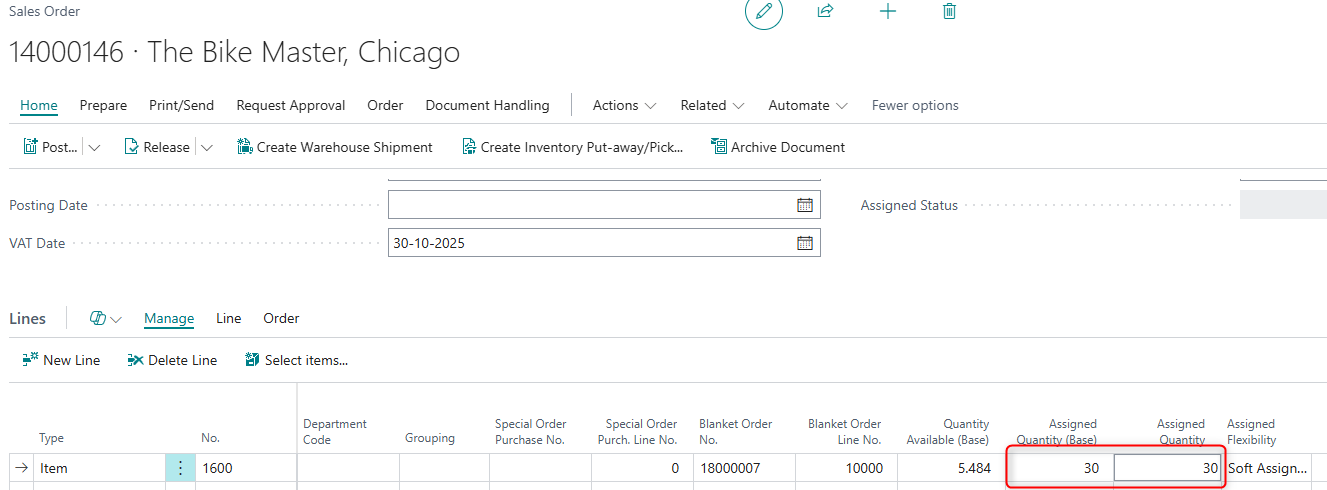
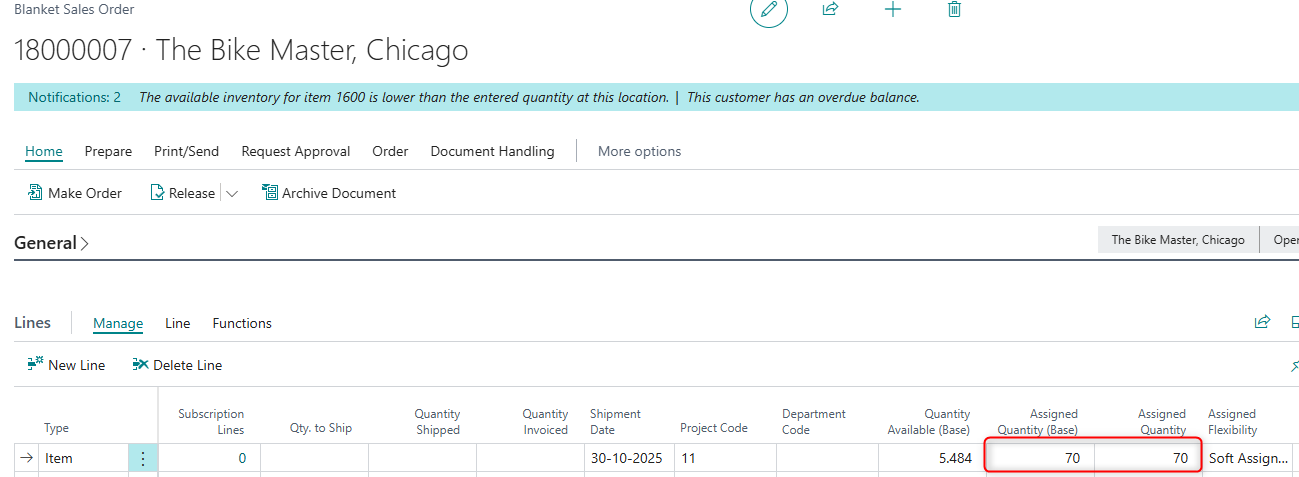
Example:
- Blanket Order Line: 100 units assigned
- Create Sales Order for 30 units
- Result:
- Sales Order: 30 units assigned (inherited from blanket)
- Blanket Order: 70 units still assigned (reduced automatically)
Automatic Linking to Blanket Orders
When Auto Link Blanket Order is enabled, sales order lines will automatically find and link to matching blanket order lines:
Matching Criteria Checklist:
┌─────────────────────────────────────────────────────────────┐
│        AUTO-LINK MATCHING REQUIREMENTS                      │
├─────────────────────────────────────────────────────────────┤
│  ✓ Item Number matches                                      │
│  ✓ Bill-to Customer matches                                 │
│  ✓ Sell-to Customer matches                                 │
│  ✓ Variant Code matches                                     │
│  ✓ Location Code matches                                    │
│  ✓ Unit of Measure matches                                  │
│  ✓ Blanket Order has Outstanding Quantity > 0              │
│  ✓ Blanket Shipment Date ≤ Sales Order Shipment Date       │
└─────────────────────────────────────────────────────────────┘
     │
     │ ALL criteria met?
     ↓
    YES → Auto-Link and Transfer Assignment
     │
    NO  → Create Sales Order without link
Decision Flow:
New Sales Order Line Created
         │
         ↓
   ┌─────────────┐
   │ Auto-Link   │
   │  Enabled?   │
   └──────┬──────┘
          │
    YES ──┼── NO → Order created without link
          │
          ↓
   ┌─────────────────┐
   │ Find Matching   │
   │ Blanket Order?  │
   └──────┬──────────┘
          │
    YES ──┼── NO → Order created without link
          │
          ↓
   ┌─────────────────────┐
   │ Blanket Has         │
   │ Assigned Quantity?  │
   └──────┬──────────────┘
          │
    YES ──┼── NO → Link created, but no transfer
          │
          ↓
   ┌─────────────────────────────┐
   │ ✓ Link Created              │
   │ ✓ Assignment Transferred    │
   │ ✓ Blanket Reduced          │
   └─────────────────────────────┘
How it works:
- User creates or modifies a sales order line
- System searches for matching blanket order lines based on:
- Item, customer, variant, location, unit of measure
- Blanket order with available outstanding quantity
- Blanket order shipment date ≤ sales order shipment date
- If match found:
- Sales order links to blanket order
- Assigned quantity transfers from blanket to sales order
- Blanket order quantity reduces accordingly
Benefits:
- No manual linking required
- Ensures blanket order commitments are fulfilled
- Automatic inventory allocation for framework agreements
- Maintains traceability between blanket and sales orders
Managing Linked Quantities
Viewing Linked Information:
On a Blanket Order line, the system tracks:
- Outstanding Quantity: Total quantity not yet delivered
- Assigned Quantity: Quantity assigned on the blanket order itself
- Linked Quantity: Quantity on linked sales orders (calculated automatically)
Adjustment Rules:
When you increase a linked sales order line quantity:
- If blanket order has sufficient assigned quantity → transfers to sales order
- If insufficient → blanket order assignment goes to zero, sales order is recalculated
When you decrease a linked sales order line quantity:
- Excess assigned quantity returns to the blanket order
- Blanket order assignment increases accordingly
- Respects maximum available on blanket order
Deleting Linked Sales Orders:
- Assigned quantity returns to the blanket order line
- Blanket order assignment is restored
- No inventory commitment is lost
Use Cases and Examples
Use Case 1: Framework Agreement
Scenario: Annual contract for 12,000 units (1,000/month)
Timeline Visualization:
YEAR 2025 - ANNUAL FRAMEWORK AGREEMENT
═══════════════════════════════════════════════════════════════════

January ────────── February ────────── March ─────────── ... December
   │                  │                  │                    │
   ↓                  ↓                  ↓                    ↓
SO: 1,000         SO: 1,000         SO: 1,000          SO: 1,000
Assigned: ✓       Assigned: ✓       Assigned: ✓        Assigned: ✓

┌───────────────────────────────────────────────────────────────┐
│              BLANKET ORDER STATUS THROUGHOUT YEAR              │
├───────────────────────────────────────────────────────────────┤
│ Month   │ SO Created │ SO Assigned │ Blanket Remaining        │
├─────────┼────────────┼─────────────┼──────────────────────────┤
│ Start   │     -      │      -      │ 🔴 12,000 (100%)        │
│ Jan     │  1,000     │   1,000     │ 🔴 11,000 (92%)         │
│ Feb     │  1,000     │   1,000     │ 🔴 10,000 (83%)         │
│ Mar     │  1,000     │   1,000     │ 🔴  9,000 (75%)         │
│ Apr     │  1,000     │   1,000     │ 🔴  8,000 (67%)         │
│ ...     │   ...      │    ...      │     ...                  │
│ Dec     │  1,000     │   1,000     │ 🔴      0 (0%)          │
└─────────┴────────────┴─────────────┴──────────────────────────┘
Process Steps:
1. Create Blanket Sales Order for 12,000 units
   └─► Assign full 12,000 units (🔴 locked assignment)

2. Each month, create sales order from blanket order for 1,000 units
   └─► Assignment automatically transfers to monthly sales orders

3. Ship monthly orders throughout the year
   └─► Track remaining blanket order assignment

4. Year end: Blanket order fully consumed
   └─► ✓ All 12,000 units delivered as contracted
Use Case 2: Preferred Customer Allocation
Scenario: Guarantee 500 units for VIP customer
1. Create Blanket Sales Order for customer with 500 units
2. Assign 500 units with locked assignment
3. When customer calls to order, create sales order
4. Auto-linking finds blanket order and transfers assignment
5. Customer gets guaranteed allocation without manual intervention
Use Case 3: Multi-Location Fulfillment
Scenario: Customer contract allowing fulfillment from multiple locations
1. Create blanket order lines for each location
2. Assign quantities at each location based on availability
3. When sales orders are created, auto-link matches by location
4. Each sales order receives appropriate assignment from its location's blanket
Best Practices for Blanket Order Linking
Setup:
- Enable selectively - Only turn on auto-linking if you actively use blanket orders
- Train users - Ensure staff understands the automatic linking behavior
- Set shipment dates carefully - Blanket orders should have realistic lead times
Operation:
- Assign blanket orders first - Allocate inventory to blanket orders before processing routine orders
- Use locked assignments - For guaranteed customer allocations, lock blanket order assignments
- Monitor linked quantities - Regularly review blanket orders to track consumption
- Clean up old blanket orders - Close or delete expired blanket orders to avoid confusion
Troubleshooting:
- Sales order not auto-linking - Check that criteria match (item, customer, location, etc.)
- Assignment not transferring - Verify blanket order has assigned quantity available
- Blanket order over-assigned - Check for multiple linked sales orders; system prevents this
Reporting and Visibility
Key Information to Monitor:
- Blanket Order lines with assigned quantities
- Sales Orders linked to blanket orders
- Remaining assigned quantity on blanket orders
- Blanket orders nearing full consumption
Using Assignment Status:
- Completely Assigned blanket orders: Inventory fully allocated
- Partially Assigned: Some inventory reserved, room for more
- Track conversion rate from blanket to sales orders
3. Batch Assignment Processing
Assign Sales Order Quantity Report
The primary tool for batch assigning quantities across multiple orders, including both regular sales orders and blanket sales orders.
When to use:
- Process multiple orders at once
- Reassign inventory after changes
- Regular planning cycles
- Optimize allocations across all orders
- Manage blanket order assignments in bulk
Key Options:
Date Range Configuration:
| Option | Purpose | Example | Impact |
|---|---|---|---|
| Sales Orders to Date | Limits order inclusion by shipment date | "2025-12-31" | Only orders shipping by this date |
| Date Formula | Dynamic calculation | "+30D" = Next 30 days | Automatically adjusts |
| Consider Demands/Supplies | Supply visibility window | "+60D" | See future receipts 60 days out |
Assignment Deletion Options:
┌────────────────────────────────────────────────────────────────┐
│              DELETE SOFT/LOCKED ASSIGNMENTS                     │
├────────────────────────────────────────────────────────────────┤
│                                                                 │
│  OPTION 1: Respect Existing Assignments                        │
│  ┌──────────────────────────────────────┐                     │
│  │ Existing: ✓✓✓✓✓                     │                     │
│  │ Result:   ✓✓✓✓✓ (unchanged)         │                     │
│  └──────────────────────────────────────┘                     │
│  → Keep all current assignments, only assign unassigned lines  │
│                                                                 │
│  OPTION 2: Delete All                                          │
│  ┌──────────────────────────────────────┐                     │
│  │ Before:   ✓✓✓✓✓                     │                     │
│  │ After:    ○○○○○ → Recalculate        │                     │
│  └──────────────────────────────────────┘                     │
│  → Remove ALL assignments, reassign everything from scratch    │
│                                                                 │
│  OPTION 3: Delete Within Filter                                │
│  ┌──────────────────────────────────────┐                     │
│  │ Filter: Items A-C only               │                     │
│  │ Before:   ✓✓✓✓✓ (A,B,C,D,E)         │                     │
│  │ After:    ○○○✓✓ (A,B,C reset)       │                     │
│  └──────────────────────────────────────┘                     │
│  → Only delete assignments matching your filters               │
│                                                                 │
└────────────────────────────────────────────────────────────────┘
Delete Soft Assignments
- Respect existing Assignments: Keep all existing soft assignments
- Delete All: Remove all soft assignments before reassigning
- Delete Within Filter: Only delete soft assignments matching your filters
Delete Locked Assignments
- Same options as soft assignments
- Use cautiously as locked assignments are meant to be protected
Calculation Options:
- Include Purchase Orders: Consider incoming purchase orders in availability
- Include Outbound Transfer Demand: Account for transfers out
- Include Inbound Transfer Supply: Account for transfers in
- Include Production Orders: Consider production output
- Include Production Component Demands: Account for production consumption
Assignment Order
- Document No.: Assign in document number sequence
- Shipment Date: Assign based on earliest shipment dates first (prioritizes urgent orders)
Assignment Order Comparison:
OPTION A: By Document No.                OPTION B: By Shipment Date
═══════════════════════════              ═══════════════════════════

Process orders in sequence:              Process orders by urgency:

1. SO-1001 (Ship: Dec 20) ──► Assign    1. SO-1003 (Ship: Dec 5) ──► Assign
2. SO-1002 (Ship: Dec 15) ──► Assign    2. SO-1002 (Ship: Dec 15) ──► Assign
3. SO-1003 (Ship: Dec 5)  ──► Assign    3. SO-1001 (Ship: Dec 20) ──► Assign

Result: Fair, consistent                 Result: Urgent orders first
Use: Routine processing                  Use: Customer service priority

┌──────────────────────────┐            ┌──────────────────────────┐
│ PRO: Predictable order   │            │ PRO: Urgent orders get   │
│ CON: Ignores urgency     │            │      inventory first     │
│                          │            │ CON: Later doc numbers   │
│                          │            │      might wait longer   │
└──────────────────────────┘            └──────────────────────────┘
Push First Date Available
- When enabled, automatically moves shipment dates forward if insufficient inventory is available on the original date
- Helps achieve full assignment by adjusting timing
Only Include Items with Changes
- Processes only items that have had changes since last assignment
- Improves performance for large datasets
- Useful for incremental updates
4. Transfer Order Assignment
Assigning Transfer Orders
Transfer orders can be assigned to ensure inventory is available at the source location before creating warehouse documents.
Fields on Transfer Lines:
- Assigned Quantity (Base): Assigned quantity in base UOM
- Assigned Quantity: Assigned quantity in line UOM
- Assigned Flexibility: Soft or Locked assignment
- Quantity Available (Base): Available at transfer-from location
How it works:
- Create a transfer order between locations
- System calculates availability at the transfer-from location
- Assign quantity either manually or through batch processing
- Monitor assigned status before creating warehouse documents
5. Production Component Assignment
Assigning Components for Production
Ensure all components are available before releasing production orders.
Key Features:
- Assign quantities to production components
- View which components are fully assigned
- Prevent production starts without sufficient material
- Calculate output quantity based on component availability
Production Order Actions:
- Assign Component Quantities: Batch assign to all components
- View Assignment Status: See which components are constraining production
- Supports Firm Planned and Released production orders
Assignment Levels:
Component assignment helps you:
- Validate material availability before releasing orders
- Identify bottleneck materials
- Coordinate with purchasing for missing components
- Calculate realistic production capacity
6. Assembly Order Assignment
Assigning Assembly Components
For Assemble-to-Order and Assemble-to-Stock scenarios.
Features:
- Automatically assign assembly components when sales line is assigned
- Maintain synchronized assignments between sales and assembly
- Support for Assembly-to-Order linking
- Calculate feasible assembly quantity based on component availability
How it works:
- Sales order contains an assemble-to-order item
- When you assign the sales line, system automatically assigns assembly components
- Assignment considers component availability
- If components are insufficient, assigned quantity is adjusted accordingly
7. Assignment Status and Monitoring
Order Level Status
Sales Order Header Status:
The header shows overall assignment status for the entire order:
- Quick visibility of order readiness
- Identifies orders needing attention
- Enables filtering and reporting
Line Level Details
Sales Line Information:
Each line shows:
- Assigned Quantity vs. Outstanding Quantity
- Quantity Available
- First Date Available (if not fully assigned)
- Assignment Flexibility
Using Status for Decision Making
Completely Assigned Orders:
- Ready for warehouse processing
- Can be released to warehouse
- Minimal risk of stockouts
Partially Assigned Orders:
- Review line details
- Consider splitting shipment
- Evaluate pushing shipment dates
- May need purchasing action
Not Assigned Orders:
- Investigate availability issues
- Check lead times
- Consider alternative solutions
- Communicate with customer
8. Warehouse Integration
Qty. to Ship (Warehouse)
For locations with warehouse management enabled:
Warehouse Flow Diagram:
┌─────────────────────────────────────────────────────────────────┐
│              ASSIGN QUANTITY → WAREHOUSE FLOW                    │
└─────────────────────────────────────────────────────────────────┘

Sales Order Line                Warehouse Document
─────────────────               ──────────────────

Outstanding: 100 units
Assigned: 75 units ────────┐
                           │
Qty to Ship (Whse): 75 ◄───┘    ┌──────────────────┐
         │                       │ Warehouse        │
         │  Auto-fill enabled    │ Shipment/Pick    │
         └─────────────────────► │                  │
                                 │ Qty to Pick: 75  │
                                 └──────────────────┘
                                          │
                          ┌───────────────┴───────────────┐
                          │                               │
                          ↓                               ↓
                  ┌───────────────┐              ┌───────────────┐
                  │ Picker Only   │              │ No Over-      │
                  │ Sees 75 units │              │ Picking       │
                  └───────────────┘              └───────────────┘
Configuration Options Table:
| Setting | Location | Effect | When to Use |
|---|---|---|---|
| Autofill Qty. to Ship (Whse) | Per Location | Auto-populates from assigned qty | High-volume warehouses |
| Lock Assigned Qty | Per Location | Locks assignment when whse doc created | Prevent changes after picking starts |
| Check Shipping Advice | Per Location | Enforces complete/partial rules | Strict delivery requirements |
| Avoid Assigning More | Per Location | Caps assignment at outstanding qty | Prevent over-commitment |
Purpose:
- Controls quantity released to warehouse shipment
- Can be auto-filled based on assigned quantity
- Prevents over-picking
Setup:
Configure per location in Assign Quantity Location Setup:
- Autofill Qty. to Ship (Whse): Automatically populate from assigned quantity
- Lock Assigned Qty when Creating Document: Prevent changes after warehouse document creation
- Check Shipping Advice: Enforce complete/partial shipping rules
- Avoid Assigning More: Prevent assignment exceeding outstanding quantity
Benefits:
- Ensures warehouse only picks what's assigned
- Reduces errors and returns
- Improves pick efficiency
- Maintains inventory accuracy
9. Advanced Features
First Date Available Calculation
What it does:
When full quantity cannot be assigned for the requested shipment date, the system calculates the earliest date when the complete quantity will be available.
Calculation Timeline Visualization:
TODAY: Dec 1                    REQUESTED: Dec 5        FIRST AVAILABLE: Dec 15
  │                                   │                          │
  ↓                                   ↓                          ↓
════════════════════════════════════════════════════════════════════►

Inventory Timeline:
─────────────────────────────────────────────────────────────────

On Hand: 30 units ──────────────────────────────────────────────►
                    Demand: -50    Supply: +40    Supply: +30
                       ↓               ↓              ↓
                     Dec 3           Dec 10         Dec 15
                       │               │              │
Available:  30  →     -20  →          20  →          50 ✓
                      ❌              ⚠️             ✅

Order Requirement: 50 units
                                                      │
                              First Date for Full Qty ┘
                              → December 15, 2025
Calculation Process:
┌──────────────────────────────────┐
│ 1. Project Inventory Forward    │
│    • Consider current on-hand   │
│    • Add planned receipts        │
│    • Subtract other demands      │
└────────────┬─────────────────────┘
             │
             ↓
┌──────────────────────────────────┐
│ 2. Identify Shortage Points     │
│    • Find dates below zero      │
│    • Mark insufficient dates     │
└────────────┬─────────────────────┘
             │
             ↓
┌──────────────────────────────────┐
│ 3. Find First Sufficient Date   │
│    • First date with full qty   │
│    • Add buffer if configured    │
└────────────┬─────────────────────┘
             │
             ↓
        📅 RESULT
How it's calculated:
- System projects inventory levels forward in time
- Considers planned receipts (purchases, production, transfers)
- Accounts for other demands
- Identifies first date with sufficient inventory
Using First Date Available:
- Manually review and decide whether to push date
- Enable automatic pushing in reports
- Communicate realistic dates to customers
- Make informed promises
Dimension-Based Assignment
Purpose:
Track and assign inventory by business dimensions such as:
- Department
- Project
- Cost center
- Sales campaign
Configuration:
In Assign Quantity Setup:
- Enable "Assign using Dimension 1"
- Enable "Assign using Dimension 2"
- System will track availability separately per dimension combination
Benefits:
- Allocate inventory to specific projects
- Track department usage
- Reserve for campaigns
- Enable project-based fulfillment
Multi-Company Support
Feature:
Assign quantities across multiple Business Central companies in the same tenant.
Use Cases:
- Intercompany trading
- Multi-company warehousing
- Shared inventory pools
- Group-wide visibility
Setup:
Configure "Company To Use" in Assign Quantity Setup to reference another company's inventory.
10. Reports and Analysis
Update Assigned Status Report
Purpose:
Recalculate and update assigned status for selected orders.
When to run:
- After manual adjustments
- When you suspect status is incorrect
- Before running reports or KPIs
- As part of daily closing procedures
Change Assigned Flexibility Report
Purpose:
Bulk change assignment flexibility across multiple lines.
Common scenarios:
- Lock assignments for confirmed orders
- Convert locked to soft when priorities change
- Reset assignments for replanning
- Adjust flexibility for specific customers or items
Time Log
Feature:
Track performance of assignment calculations.
Information captured:
- Start and end time
- Number of items processed
- Number of lines processed
- Time per record
- Total duration
Use for:
- Performance monitoring
- Process optimization
- Troubleshooting slow operations
- Capacity planning
Best Practices
Daily Operations
- Run batch assignment regularly - Daily or more frequently for high-volume environments
- Review assignment status before warehouse processing
- Lock critical orders to protect high-priority allocations
- Monitor first date available to communicate realistic delivery dates
- Use assignment order strategically - By shipment date for urgency, by document for consistency
Setup Recommendations
- Configure location setup carefully for each warehouse
- Enable dimension tracking only when needed (performance consideration)
- Set realistic date formulas for calculation windows
- Choose appropriate flexibility defaults based on business needs
- Train warehouse staff on assigned quantities vs. outstanding quantities
Performance Optimization
- Use "Only Include Items with Changes" for large databases
- Filter to specific items or locations when possible
- Schedule batch processes during off-peak hours
- Monitor time logs to identify bottlenecks
- Keep setup configurations current to avoid unnecessary calculations
Common Pitfalls to Avoid
- Don't ignore assignment status - It's there for a reason
- Don't mix reservation and assignment - Choose one approach
- Don't forget to lock important orders - Soft assignments can be overridden
- Don't over-assign - Respect available quantities
- Don't skip regular reassignment - Inventory changes constantly
Troubleshooting
Quick Diagnostic Flowchart
┌─────────────────────────────────────┐
│   ASSIGNED QUANTITY NOT UPDATING    │
└──────────────┬──────────────────────┘
               │
               ↓
        ┌──────────────┐
        │ Item in      │───NO──► Check Setup Filters
        │ Setup        │         • Item Filter
        │ Filters?     │         • Location Filter
        └──────┬───────┘
               │YES
               ↓
        ┌──────────────┐
        │ Location     │───NO──► Enable Location in
        │ Enabled for  │         Assign Qty Setup
        │ Assignment?  │
        └──────┬───────┘
               │YES
               ↓
        ┌──────────────┐
        │ Shipment     │───NO──► Enter Valid
        │ Date         │         Shipment Date
        │ Valid?       │
        └──────┬───────┘
               │YES
               ↓
        ┌──────────────┐
        │ Warehouse    │───YES─► Cannot change after
        │ Document     │         warehouse doc created
        │ Exists?      │
        └──────┬───────┘
               │NO
               ↓
        ┌──────────────┐
        │ Check        │───► Inventory may be
        │ Available    │     fully committed to
        │ Quantity     │     other orders
        └──────────────┘
Issue: Assigned Quantity Not Updating
Possible causes:
- Item not within setup filters
- Location not enabled for assignment
- Shipment date outside calculation window
- Warehouse shipment already exists
Solutions:
- Check Assign Quantity Setup filters
- Review location setup
- Verify shipment date
- Check for existing warehouse documents
Issue: First Date Available Not Showing
Possible causes:
- Calculation window too narrow
- "Ignore First Date Available" enabled
- No future supply planned
- Item not tracked in inventory
Solutions:
- Extend "End Date Formula" in setup
- Check calculation settings
- Review supply planning
- Verify item configuration
Issue: Batch Process Running Slowly
Possible causes:
- Large date range
- Too many items in filter
- Complex dimension tracking
- Unnecessary recalculations
Solutions:
- Narrow date ranges
- Filter to specific items
- Use "Only Include Items with Changes"
- Review dimension setup
- Run during off-peak hours
Issue: Assignments Keep Changing
Possible causes:
- Not using locked assignments
- Batch process running with "Delete All"
- Multiple users running assignments
- Automated processes enabled
Solutions:
- Lock critical order assignments
- Use "Respect existing Assignments"
- Coordinate assignment runs
- Review automation setup
Frequently Asked Questions
Q: What's the difference between Assign Quantity and Reservation?
A: Reservations create rigid links between specific supply and demand. Assignments are more flexible - they track allocation but allow for easier adjustments and prioritization.
Q: Can I use both Assign Quantity and standard reservations?
A: While technically possible, it's recommended to choose one approach for consistency. Using both can create confusion and conflicts.
Q: Will assigned quantities prevent other orders from accessing inventory?
A: Soft assignments provide visibility but don't block other assignments. Locked assignments have higher priority but still don't create hard reservations like the standard system.
Q: How often should I run the batch assignment process?
A: This depends on your business volume and dynamics. High-volume environments may run it multiple times per day, while others may be fine with once daily or weekly.
Q: What happens if I delete an order with assigned quantity?
A: The assignment is removed and that inventory becomes available for other orders again.
Q: Can I assign more quantity than is available?
A: The system will warn you and typically limit assignment to available quantity, though this can be configured per location.
Q: Do assignments affect MRP/planning?
A: Assigned quantities are considered as demand in the planning system, similar to how reservations work.
Q: Can I assign across multiple locations?
A: Assignments are location-specific. However, the system can suggest transferring from other locations if configured.
Q: How does Blanket Order linking work?
A: When you create a sales order from a blanket order, assigned quantities automatically transfer from the blanket order to the sales order. With auto-linking enabled, new sales orders can also automatically connect to matching blanket orders based on item, customer, location, and other criteria. This ensures framework agreements and customer allocations are properly fulfilled.
Q: What happens to blanket order assignments when I delete a linked sales order?
A: The assigned quantity returns to the blanket order line, restoring the allocation. No inventory commitment is lost.
📋 Quick Reference Card
╔═══════════════════════════════════════════════════════════════════╗
║              ASSIGN QUANTITY - QUICK REFERENCE                     ║
╚═══════════════════════════════════════════════════════════════════╝

┌───────────────────────────────────────────────────────────────────┐
│ ASSIGNMENT FLEXIBILITY                                            │
├───────────────────────────────────────────────────────────────────┤
│ ⚪ Blank            → Not assigned yet                           │
│ 🟡 Soft             → Flexible, can be changed                   │
│ 🔴 Locked           → Protected, cannot be auto-changed          │
└───────────────────────────────────────────────────────────────────┘

┌───────────────────────────────────────────────────────────────────┐
│ ORDER STATUS                                                       │
├───────────────────────────────────────────────────────────────────┤
│ ✅ Completely Assigned  → All lines have full quantity           │
│ ⚠️ Partially Assigned   → Some lines have assignment            │
│ ❌ No Assignment        → No quantities assigned                 │
└───────────────────────────────────────────────────────────────────┘

┌───────────────────────────────────────────────────────────────────┐
│ KEY ACTIONS                                                        │
├───────────────────────────────────────────────────────────────────┤
│ Manual Assign       → Enter Assigned Quantity on line            │
│ Batch Assign        → Run "Assign Sales Order Quantity" report   │
│ Update Status       → Press Shift+Ctrl+A                         │
│ Change Flexibility  → Use "Change Assigned Flexibility" report   │
└───────────────────────────────────────────────────────────────────┘

┌───────────────────────────────────────────────────────────────────┐
│ BLANKET ORDER FLOW                                                │
├───────────────────────────────────────────────────────────────────┤
│ 1. Blanket Order Assigned: 1,000 units 🔴                        │
│ 2. Create Sales Order: 100 units                                 │
│ 3. Auto-Transfer: SO gets 100, Blanket reduced to 900            │
│ 4. Result: Both orders properly assigned                         │
└───────────────────────────────────────────────────────────────────┘

┌───────────────────────────────────────────────────────────────────┐
│ COMMON SCENARIOS                                                   │
├───────────────────────────────────────────────────────────────────┤
│ Not Enough Inventory?    → Check "First Date Available"          │
│ Assignment Won't Change? → Check for Warehouse Documents         │
│ Batch Process Slow?      → Use "Only Include Items w/ Changes"   │
│ Need Priority Orders?    → Lock assignments for VIP customers    │
└───────────────────────────────────────────────────────────────────┘

┌───────────────────────────────────────────────────────────────────┐
│ BEST PRACTICES                                                     │
├───────────────────────────────────────────────────────────────────┤
│ ✓ Run batch assignment daily                                     │
│ ✓ Lock critical orders                                           │
│ ✓ Monitor "First Date Available" for realistic promises         │
│ ✓ Use Assignment Order by Shipment Date for urgent orders       │
│ ✓ Review Partially Assigned orders before shipping              │
└───────────────────────────────────────────────────────────────────┘
Getting Help
Support Resources
- Online Help: Visit https://usedynamics.com/assign-quantity/
- Privacy Policy: https://abakion.com/privacypolicy/
- License Terms: https://abakion.com/licenseterms/
Contact Information
Publisher: Abakion
Website: https://abakion.com/dynamics-365/apps/
Version Information
Current Version: 27.0
Platform: Microsoft Dynamics 365 Business Central
Target: Cloud
Application Version: 26.0 or higher
This documentation is maintained by Abakion and is subject to updates as new features are released.